
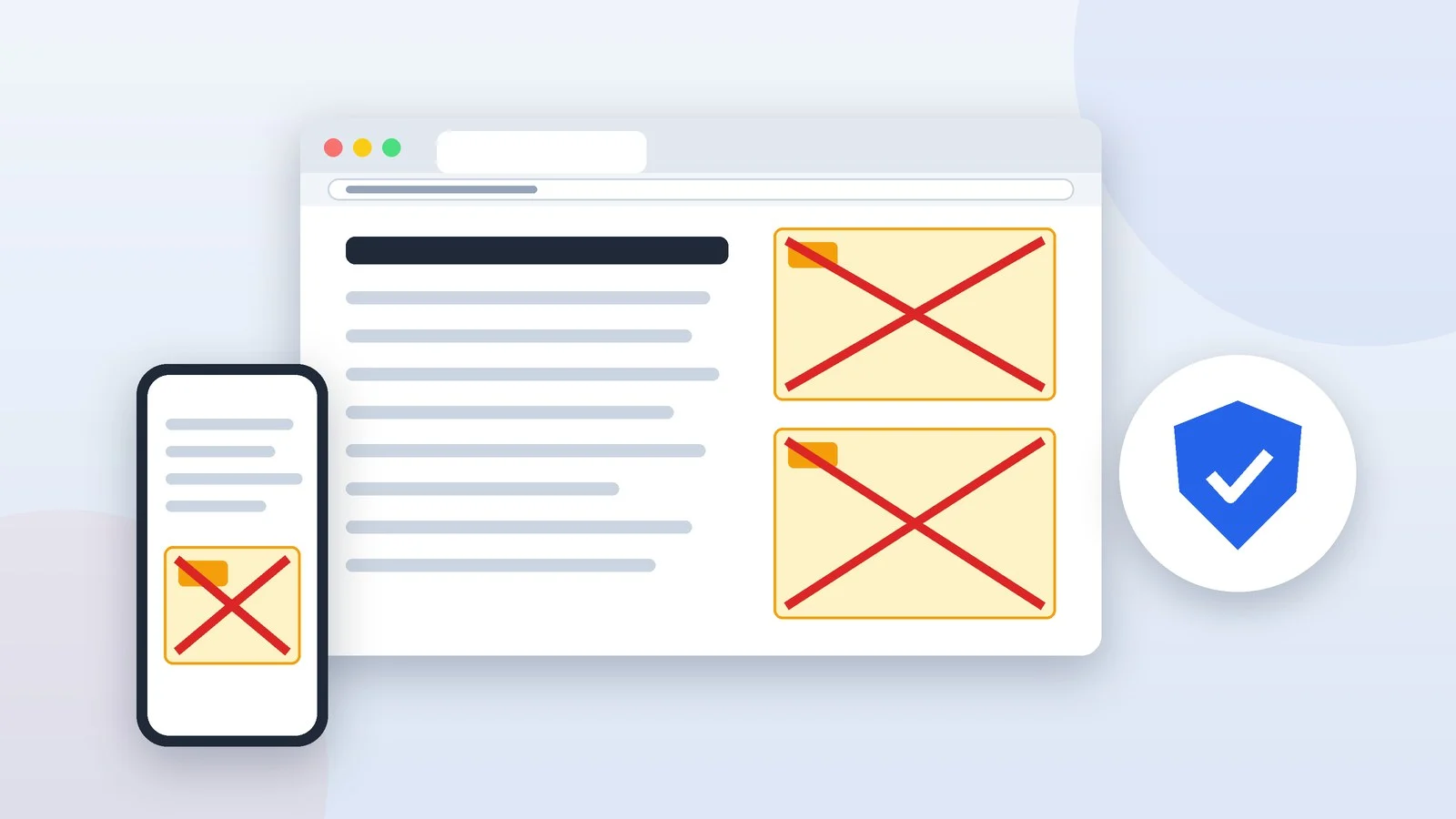
To block ads in Google Chrome, start with its built-in protection: the browser already blocks pop-ups and removes ads on sites that violate the Better Ads Standards, and you can turn off site notifications in settings. Regular banners on a computer need an ad blocker extension — Chrome now runs only Manifest V3 extensions, such as uBlock Origin Lite, AdGuard AdBlocker and Adblock Plus. Chrome on Android and iPhone has no extensions, so there DNS filtering does the job.
This guide covers Chrome on Windows, macOS, Android and iPhone, with menu names as the English version of the browser shows them as of September 2026. The basic setup on a computer takes a few minutes. If ads show up on every site, tabs open by themselves or your search engine keeps changing, the likely cause is adware — start with the section “If ads appear on every site.”
What each method blocks
The methods work together: the built-in protection is always on, and an ad blocker or DNS filter adds another layer on top.
| Method | Where it works | What it removes |
|---|---|---|
| Intrusive ad protection | Computer, Android | Ads on sites that break the standards |
| Pop-up blocking | Computer, Android, iPhone | Pop-ups and redirects |
| Blocking notifications | Computer, Android | Ads in site notifications |
| Ad blocker extension | Computer only | Banners, video ads, trackers |
| DNS filtering | Computer, Android, iPhone | Requests to ad domains |
Below are the steps to block ads in Chrome on a computer, followed by separate sections for Android and iPhone.
Check Chrome’s built-in protection
Both settings are on by default, but installed programs or extensions may have changed them, so check them first.
- Click ⋮ in the top right corner of the window and select Settings.
- Go to Privacy and security → Site settings.
- Under “Content,” click Pop-ups and redirects and select “Don’t allow sites to send pop-ups or use redirects.”
- Go back, open Additional content settings → Intrusive ads, and under “Default behavior” select “Ads are blocked on sites known to show intrusive or misleading ads.”
You can also open these pages directly by pasting the address into the address bar:
chrome://settings/content/popups
chrome://settings/content/ads
The built-in blocker doesn’t work everywhere, only on sites with too many ads, ads that flash or play sound automatically, or ads that cover the whole page. On those pages Chrome shows an “Intrusive ads blocked” message. Regular banners on other sites stay — for them you need the ad blocker from step 3.
If a site you trust really needs a pop-up, for example to sign in or pay, click Pop-up blocked in the address bar, select “Always allow pop-ups and redirects from…” and click Done.
Result: Chrome blocks pop-ups and intrusive ads on every site.
Stop sites from sending notifications
If ads pop up in the corner of your screen on top of other windows, they most likely come from site notifications rather than from an open page. You gave that permission at some point by clicking Allow, and pop-up blocking doesn’t affect it.
- Go to Settings → Privacy and security → Site settings → Notifications.
- Under “Allowed to send notifications,” find sites you don’t recognize, click ⋮ next to the address and select Block.
- If you don’t need site notifications at all, under “Default behavior” select “Don’t allow sites to send notifications.” If you do, keep “Sites can ask to send notifications” and turn on “Use quieter messaging”: requests stop popping up, and a bell icon appears next to the site’s address instead.
chrome://settings/content/notificationsChrome also fights notification spam on its own: it blocks notifications from sites with intrusive or misleading messages and may remove the permission from sites you haven’t visited in a while. You can see what it has already revoked under Safety Check on the Privacy and security page.
Result: Only the sites you want remain under “Allowed to send notifications.”
Install an ad blocker
Regular banners, video ads and trackers are removed by an extension from the Chrome Web Store. Which ad blockers still work after Chrome’s switch to Manifest V3, and how they differ, is covered in the section after the steps.
- Open the Chrome Web Store and find an extension: uBlock Origin Lite, AdGuard AdBlocker or Adblock Plus.
- Check the developer on the extension page: Raymond Hill for uBlock Origin Lite, Adguard Software Limited for AdGuard AdBlocker, eyeo GmbH for Adblock Plus. Don’t install look-alikes from other publishers.
- Click Add to Chrome, then Add extension.
- Click the Extensions icon to the right of the address bar and pin the ad blocker with the Pin icon: its menu is the easiest way to turn blocking off on a specific site.
Use one ad blocker. The developer of uBlock Origin Lite explicitly advises against running other content blockers alongside it: such extensions interfere with each other.
Result: The ad blocker icon is pinned to the right of the address bar, and banners are gone or almost gone.
Set up the ad blocker
uBlock Origin Lite. The filtering mode is set with a slider in the extension’s menu. “Basic” needs no access to site data, while “optimal” and “complete” require permission to read and change data on all sites and filter more deeply. Only “complete” also applies generic rules that hide ad blocks on every site, but it can make pages use more resources. If a site breaks, move the slider for that site to “no filtering.”
If a banner is still on the page, choose “Create a custom filter” in the uBlock Origin Lite menu and pick the element: the extension will hide it on every visit.
Adblock Plus and AdBlock. By default they show “acceptable ads” — nonintrusive ads that comply with the Acceptable Ads Standard. To hide those too, click the Adblock Plus icon, then the gear icon, find the Acceptable Ads section on the General tab and clear the checkbox. AdBlock has the same option in its settings.
AdGuard AdBlocker. Filter rules are built into the extension and update with it through the Chrome Web Store, while urgent fixes arrive through a separate AdGuard Quick Fixes filter. You don’t need to update anything manually.
Result: The ad blocker runs in the mode you chose, with acceptable ads turned off.
Add DNS filtering
This step is optional. Chrome can send DNS lookups through a service you choose, and if that service filters ads, the browser simply can’t load ads from known ad addresses. One example is the free public AdGuard DNS servers: according to the developer, the default server blocks ads and trackers.
- Go to Settings → Privacy and security → Security.
- Under “Advanced,” turn on Use secure DNS.
- In the “Select DNS provider” list, choose “Add custom DNS service provider” and paste the address below.
https://dns.adguard-dns.com/dns-queryThis setting affects Chrome only. It isn’t available on managed devices or when parental controls are on. If sites stop loading afterward and Chrome says the server’s IP address couldn’t be found, check the address or turn secure DNS off.
Result: Chrome looks up sites through AdGuard DNS, and requests to ad domains don’t go through.
Which ad blockers work in Chrome in 2026
Chrome has moved extensions to the Manifest V3 platform. Since Chrome 138 (July 2025), old Manifest V2 extensions are disabled for all users with no way to turn them back on, and on August 31, 2026, Google removed the remaining Manifest V2 extensions from the Chrome Web Store. That includes the full version of uBlock Origin: it can no longer be installed or run in Chrome.
For ad blockers, the key change is this: an extension used to intercept a page’s requests itself, and now it hands Chrome ready-made lists of rules that the browser applies. The number of rules is limited — Chrome guarantees each extension at least 30,000 static rules — and some features of the old blockers couldn’t be carried over. In uBlock Origin Lite and AdGuard AdBlocker, filter lists now update together with new versions of the extension.
| Extension | Developer | What to know |
|---|---|---|
| uBlock Origin Lite | Raymond Hill | Four filtering modes |
| AdGuard AdBlocker | Adguard Software Limited | Urgent fixes via Quick Fixes filter |
| Adblock Plus | eyeo GmbH | Acceptable ads on by default |
| AdBlock | Adblock, Inc. | Acceptable ads on by default |
| uBlock Origin | Raymond Hill | Removed from the store Aug 31, 2026 |
All four working extensions are free. The developer still releases the full uBlock Origin for Firefox on desktop and Android, so if you need its features, you can switch browsers. For other options, see our comparison of browsers for speed, security and privacy.
How to block ads in Chrome on Android
Chrome for Android doesn’t support extensions. If you open the Chrome Web Store on your phone, the Add to Desktop button sends the extension to Chrome on your computer. On the phone you’re left with the browser’s built-in settings and DNS.
- Open Chrome, tap ⋮ to the right of the address bar and go to Settings → Site settings.
- Open Pop-ups and redirects and turn the switch off.
- Open Intrusive ads and make sure the switch is off: in this position Chrome blocks ads on sites that show intrusive or misleading ads.
- Open Notifications: turn the switch off if you don’t need site notifications, or block unwanted sites in the list.
Private DNS for the whole phone
Since Android 9, the system has a Private DNS setting: every app, including Chrome, looks up sites through the service you set. Choose a filtering server, and ad domains stop loading everywhere.
- Open Settings → Network & internet → Private DNS. If you can’t find it, search for it in Settings: the path differs between phone makers.
- Select Private DNS provider hostname and enter the AdGuard DNS server name shown below.
- Tap Save.
dns.adguard-dns.comIf a VPN app is running on the phone, it may use its own DNS servers, and Private DNS won’t take effect. To undo the change, go back to the same screen and switch to automatic mode. If you want an actual ad blocker extension on your phone, install Firefox for Android: the full version of uBlock Origin works there.
How to block ads in Chrome on iPhone
Among ad-related settings, Chrome for iPhone and iPad offers only pop-up blocking. Tap More (three dots) → Settings → Content settings → Block pop-ups and make sure the switch is on.
Content blockers from the App Store work only in Safari, not in Chrome on iPhone. For Chrome, the remaining option is a system-level DNS filter:
- In Safari, open the AdGuard public DNS page, select “Default server” in the iOS section and tap Download configuration profile.
- Open Settings, tap Profile Downloaded, then Install, and follow the prompts.
- The installed profile appears under Settings → General → VPN & Device Management. You can remove it there too.
The profile works in all apps, but iPhone ignores it while a VPN is on. If ads mostly bother you while reading websites, it’s easier to open them in Safari with a content blocker.
If ads appear on every site
Tabs with ads open by themselves, your search engine or homepage keeps changing, unfamiliar extensions keep coming back to Chrome, virus alerts pop up — according to Google, these are signs of unwanted software or malware. An ad blocker won’t fix this: you need to clean up the browser and the computer.
- First rule out site notifications (step 2): their ads arrive no matter which site is open.
- Click ⋮ → Extensions → Manage Extensions and use Remove on anything you didn’t install or don’t recognize. If the bottom of the ⋮ menu on your home computer says “Managed by your organization,” open chrome://policy and review the policies set for the browser: for personal devices, Google recommends finding and removing the programs and extensions that may have added them.
- Uninstall unfamiliar programs. On Windows, press Win + I, go to Apps → Installed apps, click the three dots next to a program and select Uninstall. On a Mac, move unfamiliar apps from the Applications folder to the Trash. Windows and macOS programs sometimes install Chrome extensions along with themselves, so skipping this step can bring the ads back.
- Scan the computer for malware. On Windows, open Windows Security → Virus & threat protection → Scan options and run a full scan. If the threat keeps coming back, choose Microsoft Defender Offline scan on the same screen: the computer restarts and is scanned without loading Windows, which makes it harder for malware to hide. Free scanners from other developers also find adware — Malwarebytes AdwCleaner and Malwarebytes Free. For more options, see our list of the best free antivirus for Windows.
- Reset Chrome: Settings → Reset settings → Restore settings to their original defaults → Reset settings. Your bookmarks and passwords stay, while the search engine, startup pages, pinned tabs, site permissions and cookies return to defaults. Extensions get turned off — turn back on only the ones you trust.
chrome://settings/resetOlder guides suggest running Chrome’s built-in computer cleanup, but Google retired that tool (the Chrome Cleanup Tool) starting with Chrome 111 in 2023. Now Chrome checks important settings every time it starts and restores safe values if a third-party program changed them, but it doesn’t remove the program itself.
If ads on Android show up not only in Chrome but also on top of other apps, Google recommends looking for the cause among installed apps. Press and hold the power button, then touch and hold Power off on the screen and confirm the restart in Safe mode. Then remove recently installed apps one at a time until the ads stop. After that, in Google Play tap your profile icon → Play Protect → the settings icon and turn on Scan apps with Play Protect.
Troubleshooting
- A site breaks or asks you to disable your ad blocker — turn blocking off for that site only through the extension icon. In uBlock Origin Lite, move the mode slider to “no filtering.”
- Ads remain after installing an ad blocker — check on the Manage Extensions page that it’s turned on. In Adblock Plus and AdBlock, turn off acceptable ads; in uBlock Origin Lite, choose “complete” mode.
- Chrome disabled your old ad blocker as unsupported — it’s most likely a Manifest V2 extension. Remove it and install a Manifest V3 alternative: the extension’s Details page has a Find Alternatives option.
- Sites won’t load after turning on secure DNS — check the address https://dns.adguard-dns.com/dns-query or turn off Use secure DNS.
- Private DNS on Android doesn’t block ads — turn off the VPN or set DNS in the VPN app’s own settings.
- You can’t change Chrome settings — the browser is managed by an organization or a program: check chrome://policy.
- Ads came back after resetting Chrome — a program that installs them is still on the computer. Remove it and scan the computer (items 3 and 4 in the section above).
Sources and methodology
Analysis of public sourcesChecked 29 September 2026
- Google Chrome Help — Remove unwanted ads, pop-ups & malware support.google.com
- Google Chrome Help — Visit a site by turning off Chrome’s ad blocker support.google.com
- Chrome for Developers — Manifest V2 support timeline developer.chrome.com
- Android Help — Manage advanced network settings on your Android phone support.google.com
- AdGuard DNS — public DNS servers adguard-dns.io
FAQ
Can you block ads in Chrome without extensions?
Partly. Chrome blocks pop-ups and ads on sites that violate the Better Ads Standards on its own, and you can block site notifications in settings. Within Chrome itself, only DNS filtering removes the rest of the ads without an extension: you set it up under Security.
Why doesn’t uBlock Origin work in Chrome anymore?
It’s a Manifest V2 extension. Starting with Chrome 138 (July 2025), such extensions are disabled for all users, and on August 31, 2026, they were removed from the Chrome Web Store. In Chrome, uBlock Origin Lite replaces it; the full version remains available for Firefox.
Will an ad blocker or DNS remove ads on YouTube?
YouTube considers blocking ads a violation of its Terms of Service and may block video playback while an ad blocker is on. A DNS filter doesn’t reliably remove YouTube video ads, since they may come from the same domains as the videos. The official way to watch YouTube without ads is a YouTube Premium membership.
Why did ads come back after resetting Chrome?
A reset restores the browser’s settings but doesn’t remove programs from the computer. If an installed program is behind the ads, it changes Chrome again or adds an extension. Uninstall unfamiliar programs and scan the computer for malware.
Is it safe to give an ad blocker access to data on all sites?
Without that access, an ad blocker can’t hide ad elements on pages: uBlock Origin Lite, for example, needs it for its “optimal” and “complete” modes. That’s why you should install extensions only from trusted developers in the Chrome Web Store. If you’d rather not grant access, uBlock Origin Lite has a “basic” mode that doesn’t need it.





Leave a Reply