
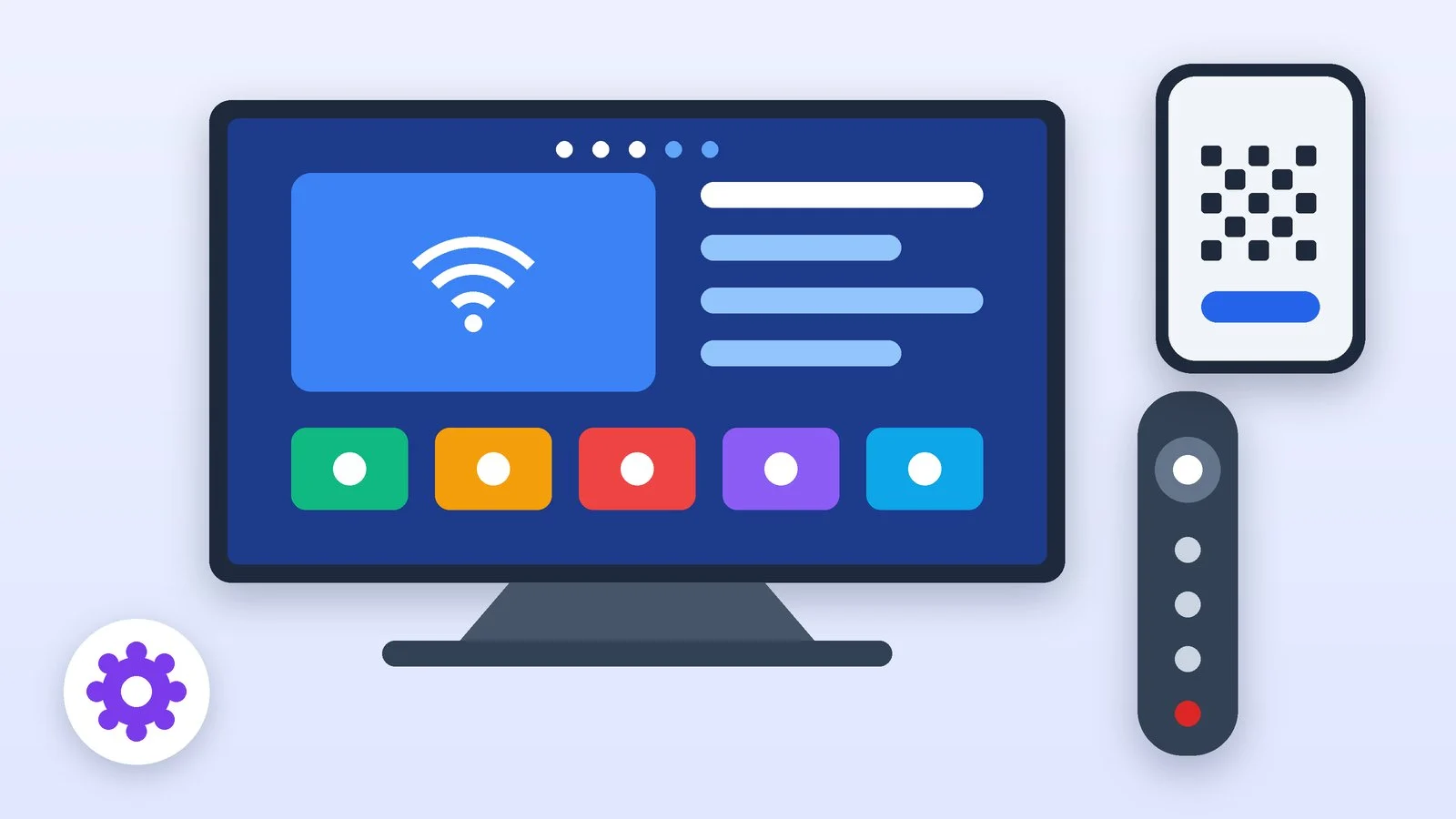
To set up a smart TV when you first turn it on, connect the antenna and the Ethernet cable, turn on the TV and go through the setup wizard: pair the remote, choose your language and country, connect to Wi-Fi, accept the terms and sign in to the manufacturer’s account — Samsung, LG or Google. You can speed things up with your phone: Samsung offers the SmartThings app, LG offers LG ThinQ, and Google TV uses Google Home. At the end, the wizard updates the firmware, finds channels and asks for a PIN.
Below are the general steps for any smart TV and the differences between Samsung (Tizen), LG (webOS) and Google TV, based on the manufacturers’ official instructions as of October 25, 2026. Samsung estimates first-time setup at 5–10 minutes. Button names depend on the model and year, so check them against your screen: we describe what the wizard will ask and how best to answer.
How to set up a smart TV: the general steps
Samsung, LG and Google TV follow almost the same order: remote, language and country, internet, terms, account, update, channels.
Connect the antenna and cables, then turn on the TV
Before turning the TV on, connect the antenna or your provider’s cable and everything you plan to use: a soundbar, a set-top box, a game console. Samsung asks you to do this on one of the first wizard screens. If you’ll use a wired connection, plug the cable into the LAN port on the TV. Google TV Streamer and other Google TV boxes connect over HDMI: Google reminds you to select that HDMI input on your TV as the signal source.
Result: The TV is on, with the antenna, cables and set-top boxes connected.
Pair the remote
Bluetooth remotes need to be paired with the TV. Samsung waits for the remote to connect on its own — a message appears in the top-right corner; if it doesn’t, press and hold Back and Play/Pause on the remote at the same time. On LG, after you turn the TV on for the first time, just press the wheel (OK) on the Magic Remote. For Google TV, press and hold Back and Home at the same time; on some devices, the manufacturer has already paired the remote.
Result: The remote controls the TV, and the setup wizard is open.
Choose your language and country
The country determines which apps and services are available — Google says outright that some features aren’t available in every country — so choose the one where you use the TV. At this step, LG asks for the language, country and time zone, and Google TV asks for the language and region (region selection isn’t available on every device). If you need a screen reader, on Google TV press and hold Back and Down together for three seconds to turn on TalkBack.
Result: The menu language, country and time zone are set.
Connect the TV to the internet
Wired: on Samsung, choose the Wired connection type and select Connect. Wi-Fi: choose your network from the list, enter the password and confirm. Google warns that its devices don’t work with WPA2 Enterprise networks, and some of them need 5 GHz Wi-Fi. Some LG models need a separate Wi-Fi/Bluetooth adapter for Wi-Fi: it either comes in the box or is sold separately.
Result: The TV is connected to the internet.
Accept the terms and sign in
Samsung lets you check the terms and privacy notices one by one instead of using the I Agree to All button, so you can see what you’re agreeing to. Next, the wizard asks you to sign in: on Samsung, you need an account to install and use apps, and you can sign in with a QR code from your smartphone, by email or through account.samsung.com. If you don’t have an account, create one on your phone in advance: typing an email and password with the remote takes longer.
Result: The terms are accepted, and you’re signed in to the manufacturer’s account.
Update the firmware
Samsung installs new firmware on its own during first-time setup if there is any. On one of the last steps, LG offers to turn on automatic software updates — turn them on. Samsung says updates come out for several years after a model’s release (up to 5 years) and fix system bugs but don’t add features the model didn’t have. Later, you can check for updates manually: on Samsung, go to Settings → Support → Software Update → Update Now.
Result: The latest firmware is installed, and automatic updates are on.
Find channels, set a PIN and install apps
The Samsung wizard asks you to choose the main source of TV channels (Antenna for over-the-air or Cable for a provider), shows the channels it found and asks you to check the time. It also asks for a PIN, which you need to reset settings, restrict features and use parental controls: Samsung offers to keep the default code 0-0-0-0 or set your own and write it down. If you have kids at home, your own code is safer. At the end of the wizard, LG offers to install popular apps, and Samsung offers to sign in to apps from a list; you can skip both steps and come back to them later.
Result: Channels are found, a PIN is set, and the TV is ready to use.
Samsung (Tizen): what the wizard asks
The order comes from Samsung’s instructions for its 2025 F-series TVs; screens may differ on models from other years.
- Setup method. On the first screen, you can scan a QR code with your phone’s camera and continue in the SmartThings app, or press Right on the remote and set everything up on the TV.
- Backup. After you sign in to your Samsung Account, the wizard offers to save a copy of the TV’s settings to your account or, if a copy already exists, to restore it. It comes in handy after a reset or when you move to a new TV; you can skip this step with Next.
- Extra features. Intelligent volume adjustment and user detection can be turned on with Turn On Now or postponed with Later; not every model has them.
- App accounts. You can sign in to apps from the list right away or select Skip.
- Time. At the end, choose Auto to take the time from the antenna signal, or set it manually.
LG (webOS): what the wizard asks
The sequence comes from LG’s webOS user guide; item names in your TV’s menu may differ slightly.
- After you turn the TV on for the first time, press the wheel (OK) on the Magic Remote.
- Choose your language, country and time zone, then connect to the internet.
- Choose how to set up: through the LG ThinQ app on your phone or right on the TV.
- Connect to Wi-Fi and accept the terms of use.
- Connect external devices or leave that for later.
- Tell the TV how it’s installed — on a stand or on the wall: according to LG, this improves the sound.
- Decide whether to turn on AI Picture Pro and AI Sound Pro, Always Ready mode (needed for screensavers and voice control) and automatic software updates.
- Sign in to your LG account and install popular apps — setup is complete.
If a 2021 or newer Magic Remote stops responding, LG recommends pointing it at the TV and holding the house (Home) and gear (Settings) buttons for 5 seconds: the indicator blinks three times and then stays lit — the remote is paired again. You can check for updates later in the support section of the full settings menu: that’s where LG shows the software version and a button to check for updates.
Google TV: from your phone or with the remote
Google TV runs on TVs from many brands and on the Google TV Streamer. Google describes three ways to finish setup after you choose a language and region, once a QR code appears on the screen:
- Quick setup from your phone. Turn on Bluetooth and Wi-Fi on your phone and scan the QR code on the TV screen. Near an Android phone, the TV may show a setup notification on its own. You need Android 9.0 or later or iOS 17 or later; not every model supports this method.
- Through the Google Home app. Install the latest version of the app, tap Devices → Add, choose a home, tap Scan code and point the camera at the QR code. Connecting the phone to the TV may take a few minutes.
- With the remote. On the QR code screen, press the down arrow and select Set up on TV instead or Set up manually. This takes longer: you’ll have to enter everything with the remote.
During setup, TVs with Google TV also offer basic TV — a mode without a Google Account. It’s faster and works even without the internet, but you can’t install apps, use Google Play, search by voice with the Assistant or cast videos from your phone, and without the internet you don’t get security updates. You keep over-the-air, cable and satellite channels, connected sources and preinstalled apps. You can switch to full Google TV later from a banner on the home screen, but you can only go back to basic TV with a factory reset.
How Samsung, LG and Google TV setup differs
| Platform | Phone app | Account | What’s different |
|---|---|---|---|
| Samsung (Tizen) | SmartThings | Samsung Account | No over-the-internet updates without signing in (since 2023) |
| LG (webOS) | LG ThinQ | LG account | Some models need an adapter for Wi-Fi |
| Google TV | Google Home | Google Account | Basic TV mode with no account |
If it didn’t work
- The remote doesn’t respond. Samsung: hold Back and Play/Pause. LG: point the remote at the TV and hold Home and Settings for 5 seconds. Google TV: hold Back and Home. If the remote still won’t pair, turn the TV off and on again.
- The TV can’t see the Wi-Fi. Check that the router is on and the network isn’t WPA2 Enterprise. Some Google TV devices need 5 GHz Wi-Fi, and some LG models need a separate Wi-Fi adapter.
- You can’t sign in with the remote. Sign in with a QR code from your smartphone instead: Samsung offers this right in the wizard, and Google TV can be set up through the Google Home app.
- Google TV setup from the phone is stuck. Hold Back on the remote until the “Having trouble?” screen appears, and finish setup with the remote. Also check the versions: Android 9.0+, iOS 17+.
- Your Samsung has no Software Update option. Samsung recommends unplugging the TV for 5 minutes, turning it on with the TV source selected and trying again; if that doesn’t help, check the internet connection.
- You want to start over. Reset the TV to factory settings: after it restarts, the first-time setup wizard opens again. A reset removes installed apps and your settings, so on Samsung the backup in your account comes in handy.
If you’re still choosing a TV, pay attention to the platform: it determines the app selection and how long the TV gets updates. We compared panel types, sizes, HDR and refresh rates in our guide on how to choose a TV.
Sources and methodology
Analysis of public sourcesChecked 25 October 2026
- Samsung — How to set up a Samsung F-series TV (2025) for the first time? samsung.com
- Samsung — How to update the firmware of a Samsung Smart TV over the internet? samsung.com
- LG — webOS User Guide lg.com
- Google — Set up your Google TV device and remote support.google.com
- Google — Use basic TV on your Google TV device support.google.com
Frequently asked questions
Can you set up a smart TV without an account?
Partly. Google TV has basic TV mode for this: channels and connected devices work, but you can’t install apps. Samsung says you need to sign in to a Samsung Account to install and use apps.
Can you set up a smart TV from your phone?
Yes. Samsung shows a QR code for the SmartThings app on the first screen, LG offers setup through LG ThinQ, and Google TV can be set up through the Google Home app or with quick setup via a QR code.
How long does first-time setup take?
Samsung estimates the initial setup of its TVs at 5–10 minutes. If the wizard downloads new firmware, it may take longer.
What is the default PIN on a Samsung TV?
0000. During first-time setup, Samsung offers to keep it or set your own; the PIN is needed to reset settings, restrict features and use parental controls.
Do you need to update your TV’s firmware?
Yes: updates fix system bugs and improve stability. Samsung releases them for several years after a model comes out (up to 5 years), and LG offers to turn on automatic updates right in the wizard.

Leave a Reply