
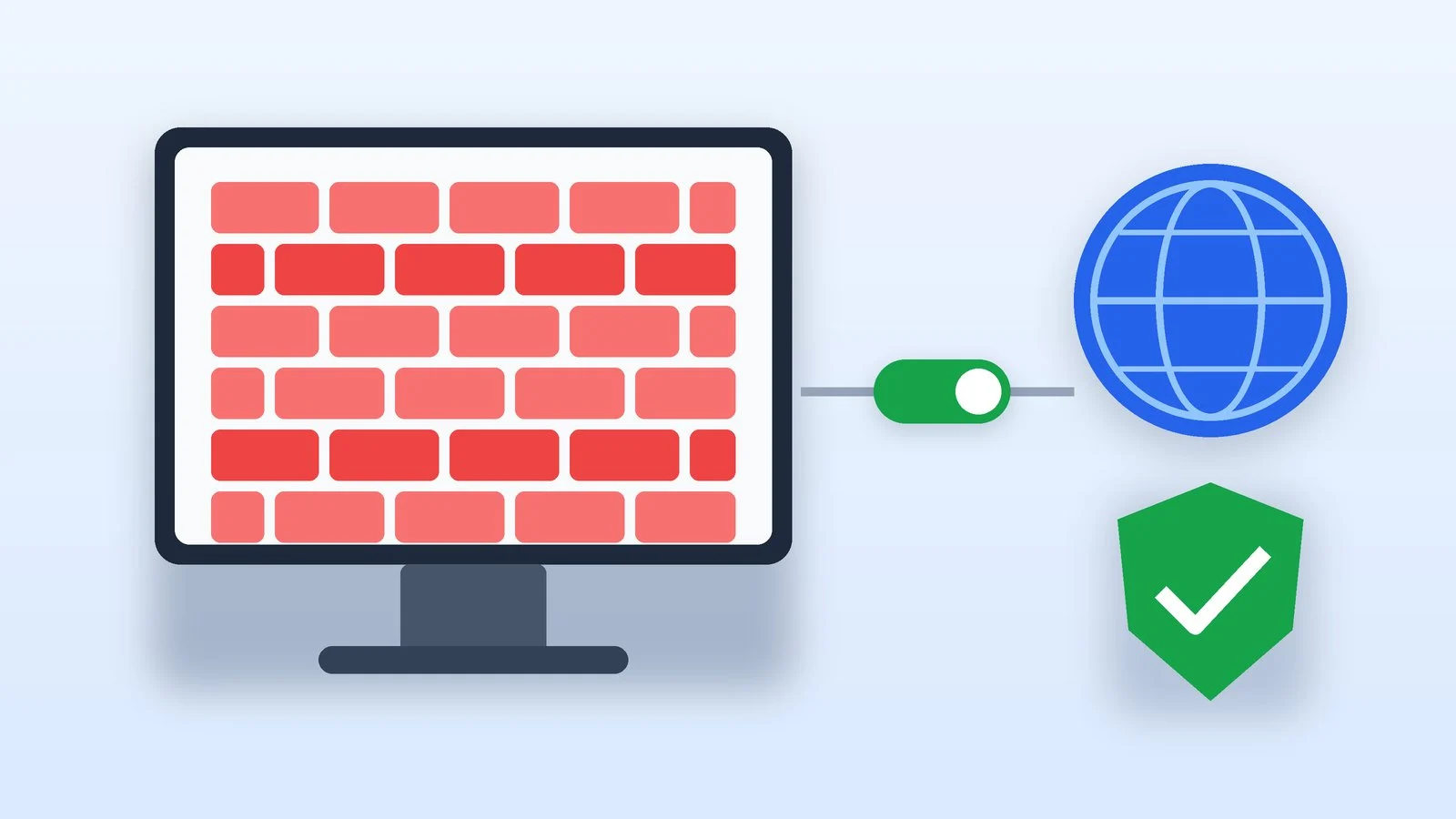
To turn off the firewall in Windows 11 or Windows 10, open the Windows Security app, select Firewall & network protection, click the profile of the network your computer is connected to and set the Microsoft Defender Firewall toggle to Off. The same toggle turns the firewall back on. The steps are the same in both versions of the system.
Microsoft doesn’t recommend turning off the firewall: without it, your device is more vulnerable to unauthorized access. If one program or game is the problem, it’s safer to allow it through the firewall — that method is also below, along with commands for PowerShell. Menu names are taken from Microsoft’s help as of October 25, 2026; in your Windows build they may be worded slightly differently.
How to turn off the firewall in Windows 11 and Windows 10
The method is the same for both versions: the firewall is managed from the Windows Security app. Support for Windows 10 ended on October 14, 2025, but its firewall section hasn’t changed. If you’re planning to switch, here’s how to upgrade Windows 10 to Windows 11.
Open Firewall & network protection
- From Start: start typing Windows Security in the Start menu search, open the app and select Firewall & network protection.
- With a command: press Win + R, paste the address of the page that Microsoft’s help uses and press Enter.
windowsdefender://networkResult: The Firewall & network protection page is open with a list of network profiles.
Choose a network profile
Windows Security shows which network you’re connected to right now; usually it’s just one. There are three profiles:
- Domain network — an organization’s work network;
- Private network — a trusted network, such as your home network, where the other devices belong to you and your family;
- Public network — for example, Wi-Fi in a café, where most devices belong to strangers.
Click the profile of the network you’re working on.
Result: The settings of the network profile your computer is connected to are open.
Turn off Microsoft Defender Firewall
Under Microsoft Defender Firewall, set the toggle to Off and confirm if Windows asks you to. The firewall turns off only for the selected profile.
Result: Windows Firewall no longer filters traffic on this network.
Turn the firewall back on
When you’re done — you’ve installed the program or tested the connection or game — go back to the same profile and set the toggle to On. Unlike the pause in antivirus programs, this toggle has no timer, so don’t put it off.
Result: The firewall is protecting the computer again.
How to turn off the firewall with a command
Microsoft gives commands that turn off the firewall in all three profiles at once. Run PowerShell or Command Prompt as administrator and run one of the commands. Both work in Windows 11 and Windows 10.
Turn off in PowerShell:
Set-NetFirewallProfile -Profile Domain,Public,Private -Enabled FalseTurn off in Command Prompt:
netsh.exe advfirewall set allprofiles state offTo turn it back on, use the same commands with a different value: -Enabled True in PowerShell, state on in Command Prompt.
Set-NetFirewallProfile -Profile Domain,Public,Private -Enabled Truenetsh.exe advfirewall set allprofiles state onMicrosoft notes that this is exactly how the firewall should be turned off — by disabling the profiles and leaving the service running. Stopping the Windows Defender Firewall service (service name: MpsSvc) isn’t supported.
How to allow an app through the firewall
If the firewall blocks an app you need — a game, a work client, printer software — Microsoft advises not turning the firewall off but allowing that app to communicate:
- Open Windows Security and select Firewall & network protection.
- Click Allow an app through firewall.
- Click Change settings. You may need an administrator password.
- Tick the box next to the app, or click Allow another app and enter its path. Click OK.
This is safer than opening a port: a port stays open until you close it, while an allowed app opens the ports it needs only when it needs them. Don’t allow programs you don’t recognize, and remove the ones you no longer need from the list — untick the box and click OK.
Why you shouldn’t leave the firewall off
- The risk of unwanted connections grows. The firewall filters traffic and blocks unauthorized access by allowing or blocking connections based on IP addresses, ports and programs. Without it, Microsoft says, a device is more vulnerable to unauthorized access.
- Other protections go away too. Microsoft lists what you lose along with the firewall: IPsec connection security rules, protection against attacks that use network fingerprinting, Windows service hardening and boot-time filters.
- Public networks are riskier than home ones. In a café or hotel, strangers are connected to the same network, which is why the rules for a public network are stricter. A disabled firewall on such a network is the riskiest option.
- Another firewall isn’t a reason to turn off Windows Firewall manually. Microsoft says a third-party firewall itself turns off the Windows Firewall rules that cause compatibility issues. The exception is antivirus programs with their own firewall: for example, Avast’s help for Avast Premium Security allows turning off Windows Firewall if Avast Firewall is running.
To check what is protecting your computer right now, go to Windows Security → Settings → Manage providers: it shows which apps handle antivirus, firewall and web protection. And if you suspect there are unknown devices on your home network, check who is connected to your Wi-Fi.
How to turn off Windows Firewall: quick summary
| Task | Where or how | How to undo |
|---|---|---|
| Turn off for one network | Firewall & network protection → profile | Toggle to On |
| Turn off for all networks | PowerShell or netsh | -Enabled True or state on |
| Let one program through | Allow an app through… | Untick the box |
| Reset settings | Restore defaults | — |
| Stop the MpsSvc service | Don’t do this | — |
If it didn’t work
- The toggle is grayed out or there’s a note that your organization manages it. The firewall settings are set by your organization’s policies. Only an administrator can change them.
- The firewall is on but blocks all programs. Check Incoming connections in the network profile: if the box Blocks all incoming connections, including those in the list of allowed apps is ticked, the firewall ignores the list of allowed programs. Untick it.
- Something stopped working after you changed the rules. The Firewall & network protection page has an option to restore firewalls to default: it returns the settings your computer had originally. Your organization’s policies will be applied again afterward.
- The network problem didn’t go away even without the firewall. Then the cause lies elsewhere. Turn the firewall back on and run the Network and Internet troubleshooter — there’s a link to it on the same page.
- You want to know what exactly the firewall blocks. Turn on notifications: Windows Security → Settings → Manage notifications, the firewall and network protection section. Windows will tell you when the firewall blocks a new app.
Sources and methodology
Analysis of public sourcesChecked 25 October 2026
- Microsoft — Firewall and network protection in the Windows Security app support.microsoft.com
- Microsoft — Risks of allowing apps through Windows Firewall support.microsoft.com
- Microsoft Learn — Manage Windows Firewall with the command line learn.microsoft.com
- Microsoft — Windows Security app settings support.microsoft.com
Frequently asked questions
How do I turn Windows Firewall back on?
Open Windows Security → Firewall & network protection, select the profile where the firewall is off and set the Microsoft Defender Firewall toggle to On. If you turned it off with a command, run it with -Enabled True in PowerShell or with state on in Command Prompt.
Do I need to turn off the firewall for a game or program?
Usually not. Allow the app through the firewall: Allow an app through firewall → Change settings → the box next to the program. Microsoft calls this less risky than opening a port, let alone turning the firewall off completely.
Can I turn off Windows Firewall if I have an antivirus?
Only if the antivirus has its own firewall and it’s turned on. An antivirus by itself doesn’t replace a firewall. Microsoft notes that third-party firewalls themselves turn off only the Windows Firewall rules that get in their way, so you don’t need to turn it off manually for them.
Where is the firewall in Control Panel?
The classic Windows Defender Firewall snap-in opens from Windows Security: on the Firewall & network protection page, click Advanced settings. That’s where rules for inbound and outbound connections are configured. Microsoft warns that incorrect rules can make the system more vulnerable or break apps.




Leave a Reply