
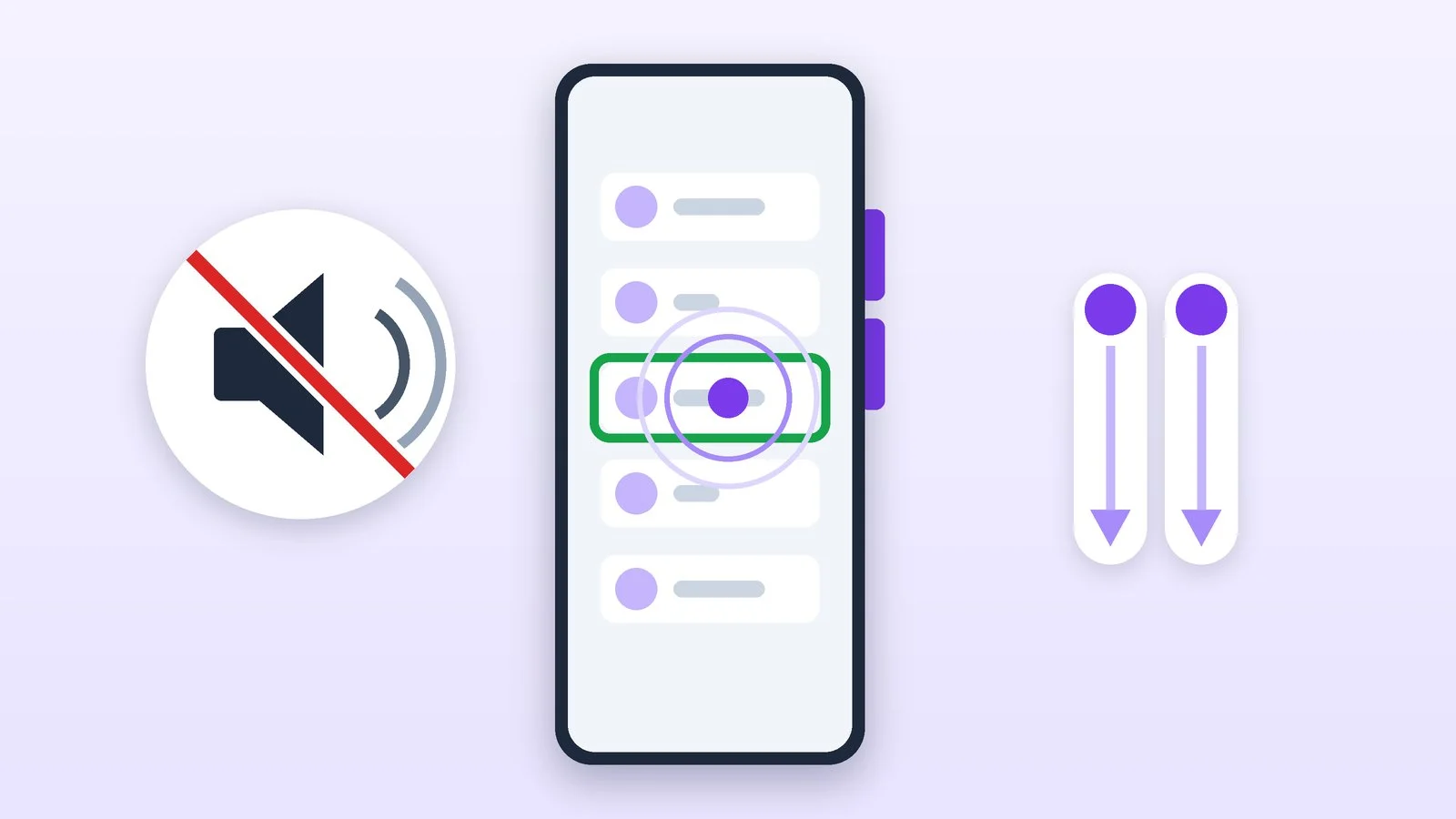
To turn off TalkBack on Android, press and hold both volume keys for a few seconds (at least 3 seconds on a Samsung Galaxy) and wait for the voice message saying the feature is off. If that doesn’t work, say “Hey Google, turn off TalkBack” or open Settings → Accessibility → TalkBack and turn off Use TalkBack. While TalkBack is on, you select any item with a single tap and activate it with a double tap.
TalkBack is a screen reader for people with visual impairments: the phone reads aloud everything you touch, and regular taps stop working. If it turned on by accident, below you’ll find every way to turn it off, from the fastest to Settings, how to navigate with gestures, and how to keep it from turning on again. The steps follow Google’s Android accessibility help and Samsung’s help as of October 21, 2026.
Method 1. The volume keys
This is the TalkBack shortcut: the same combination also turns it on, including by accident.
- Any Android phone: press and hold both volume keys for a few seconds. Wait for the voice notification that the feature has been turned off.
- Samsung Galaxy: hold the volume up and volume down keys at the same time for at least 3 seconds. If you’ve never used this combination, Samsung warns that a prompt will appear first: confirm that you want to use the shortcut and press the keys again.
- On-screen accessibility button: if there’s a floating button on the screen, touch it with one finger to select it, then double-tap the screen.
Google notes that the shortcut is set up differently depending on the manufacturer, the Android version and the TalkBack version. If the keys didn’t help, move on to the next method.
Method 2. By voice with Google Assistant
If Google Assistant is set up on the phone, say “Hey Google, turn off TalkBack” and wait for the voice confirmation. You don’t need to touch the screen.
Method 3. Turn off TalkBack in Settings
This is the most reliable method, but with TalkBack on, every action takes two taps. The steps follow Google’s help; they’re the same on Samsung.
Unlock the screen
- If the screen has gone dark, press the power button.
- If the screen still doesn’t come on, open the TalkBack menu: swipe down or up with one finger, then right. In the menu, touch Brighten screen and double-tap to perform the action.
- On the lock screen, swipe up from the bottom with two fingers to open password entry.
- PIN: touch each digit with one finger in turn, then press OK or the Enter key. Pattern: touch each dot of the pattern in turn.
Google suggests that once the phone is unlocked, you first try the volume keys or Assistant again and only then go to Settings.
Result: The phone is unlocked, and the home screen is visible.
Open Settings
- From the notification shade: swipe down from the top with two fingers, repeat the gesture to expand the panel, touch the Settings icon and double-tap the screen.
- From the app list: swipe up from the bottom with two fingers (or left and right, depending on the phone), scroll with two fingers to Settings, touch the icon and double-tap the screen.
Result: The Settings app is open.
Go to Accessibility → TalkBack
Scroll through Settings with two fingers to Accessibility, touch it and double-tap the screen. Open TalkBack the same way.
Result: The TalkBack screen with the main toggle is open.
Turn off Use TalkBack and confirm
Touch the Use TalkBack toggle with one finger, then double-tap the screen. In the confirmation window, touch the button that turns it off (Turn off on Samsung) and double-tap the screen again. After that, the phone works as usual.
Result: The phone has stopped reading your actions aloud, and regular taps work again.
Older Samsung phones: Voice Assistant
According to Samsung’s help, the feature is called TalkBack on phones with One UI 3.1 and later and Voice Assistant on older ones. The controls are the same: a single tap selects an item, a double tap activates it.
- Android 10 and 9: Settings → Accessibility → Screen reader → Voice Assistant switch → OK.
- Android 8 and 7: Settings → Accessibility → Vision → Voice Assistant → OK.
How to keep TalkBack from turning on by accident
Google recommends turning off the TalkBack shortcut after you turn off TalkBack, so it won’t switch on again by accident. The order matters: turn off TalkBack first, then the shortcut.
- Open Settings → Accessibility → TalkBack.
- Turn off TalkBack shortcut.
On a Samsung Galaxy, accessibility shortcuts are grouped under Advanced settings in the Accessibility section: open the shortcut TalkBack is assigned to and deselect it.
How to turn off TalkBack: summary
| Method | What to do | When it works |
|---|---|---|
| Volume keys | Hold both for a few seconds | The shortcut is on |
| Google Assistant | “Hey Google, turn off TalkBack” | Assistant is set up |
| Settings | Accessibility → TalkBack | Always, but slower |
| Keyboard | Action + Alt + T | Android 16, external keyboard |
If it didn’t work
- The volume keys don’t turn off TalkBack. The shortcut may be off or set up differently: Google notes that this depends on the manufacturer, the Android version and the TalkBack version. Use Assistant or turn off TalkBack in Settings.
- You can’t unlock the screen. Swipe up from the bottom with two fingers, and enter the PIN by touching each digit. If the screen is dark, turn it on through the TalkBack menu (one finger down or up, then right).
- TalkBack turned on again. Turn off TalkBack shortcut. Google describes holding both volume keys during phone setup as a way to turn on TalkBack, so while the shortcut is on, accidentally pressing both keys can turn it on again. If a child uses the phone, the guide on how to set up parental controls will come in handy.
- The phone “started talking” on its own, and that worries you. If the voice stopped after you turned off TalkBack, TalkBack was the cause. If you still have doubts, see our breakdown of how to tell if your phone is being tapped.
Sources and methodology
Analysis of public sourcesChecked 21 October 2026
- Google — Turn off TalkBack support.google.com
- Google — Turn on TalkBack support.google.com
- Samsung — What to do if my Samsung Galaxy phone voices my actions samsung.com
- Samsung — Use TalkBack or Voice Assistant on your Galaxy device samsung.com
Frequently asked questions
How do I turn off TalkBack if the phone is locked?
Press the power button, swipe up from the bottom with two fingers and enter your PIN by touching each digit with one finger, then press OK. After that, turn off TalkBack with the volume keys, Assistant or in Settings. If the screen won’t turn on, open the TalkBack menu with a down or up swipe, then right, and brighten the screen.
Why did TalkBack turn on by itself?
Most likely, the shortcut was triggered: according to Google’s help, holding both volume keys for a few seconds turns TalkBack on and off. To keep it from happening again, turn off TalkBack shortcut in the TalkBack settings.
Can I turn off TalkBack from a keyboard?
Yes, if an external keyboard is connected to the phone and the latest version of Android 16 is installed: press Action + Alt + T. The Action key is the Windows key on a Windows keyboard or Command on a Mac keyboard.
Are Voice Assistant and TalkBack the same thing?
Yes. According to Samsung’s help, on Galaxy phones with One UI 3.1 and later the feature is called TalkBack, and on older versions it’s Voice Assistant, but it works the same way.

Leave a Reply