
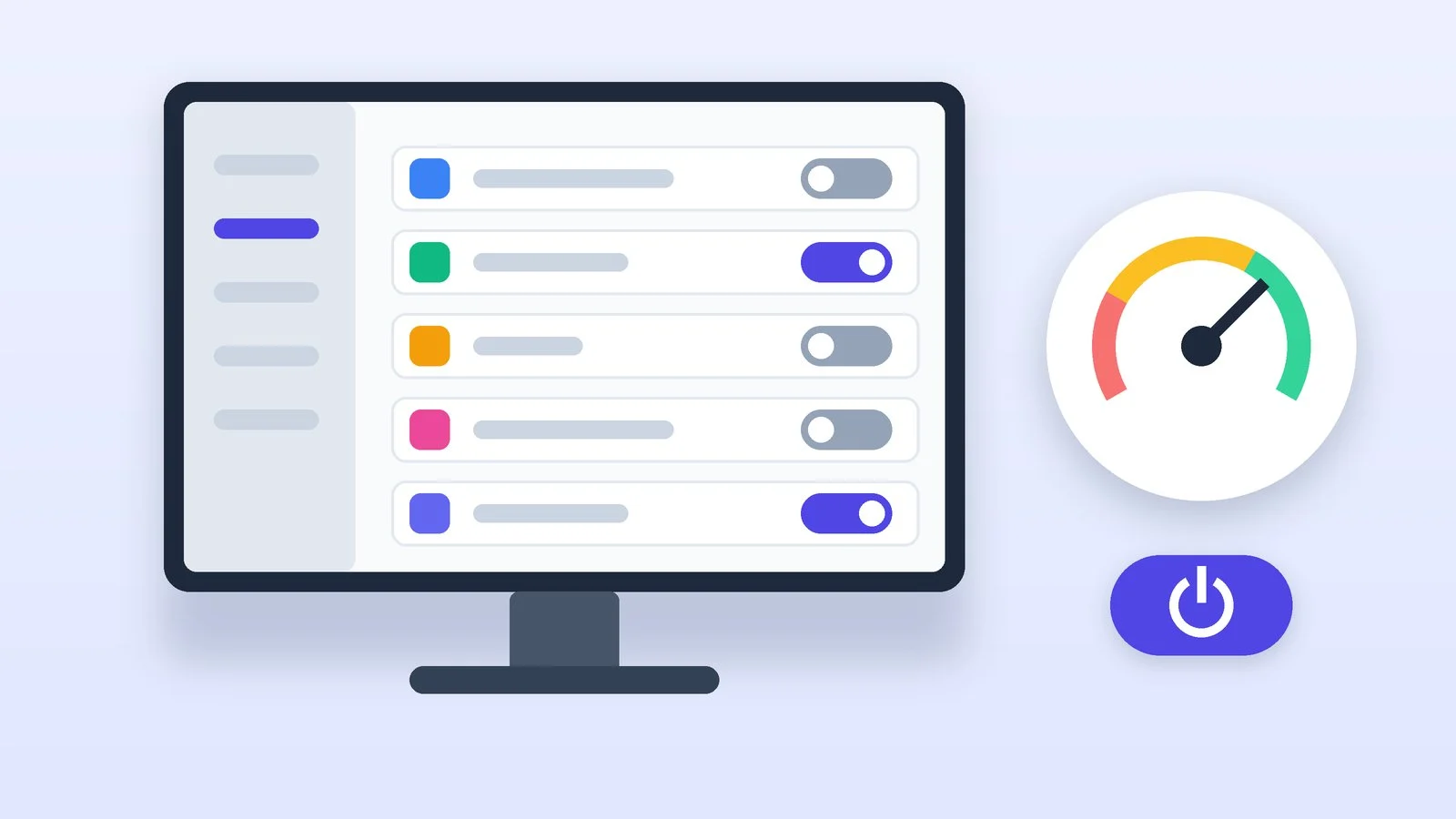
To stop programs from starting automatically in Windows 11 and 10, open Settings → Apps → Startup and turn off the toggles next to the apps you don’t need. The second way is Task Manager: press Ctrl + Shift + Esc, go to Startup apps (the Startup tab in Windows 10), select a program and click Disable. The program isn’t uninstalled: you can still open it manually.
According to Microsoft’s help, apps that start with the system can slow down startup and load the computer in the background. Below are all the official methods: Settings, Task Manager, the Startup folder, the programs’ own settings, and Autoruns from Microsoft Sysinternals for those who need the full list. Menu names follow Microsoft’s help as of October 21, 2026.
How to disable startup programs in Settings
This is the simplest method, and it’s the same in Windows 11 and Windows 10. If you’re still on Windows 10, keep in mind that its support ended on October 14, 2025; the upgrade is covered in the guide on how to upgrade Windows 10 to Windows 11.
Open the Startup page
Select Start → Settings → Apps → Startup. The same page opens with a command from Microsoft’s help: press Win + R, type it and press Enter.
ms-settings:startupappsResult: The list of apps with toggles is open.
Turn off the toggles for apps you don’t need
A toggle set to Off stops the app from starting automatically when you sign in; On allows it. Some apps have a chevron icon next to them that leads to additional startup options.
If the app you want isn’t in the list, its startup is managed through the Startup folder; more on that below.
Result: The selected apps no longer start when you sign in to Windows.
Restart the computer and check the result
The changes take effect the next time you sign in. Restart the computer and see which windows and icons appear in the notification area. If you need a disabled program, open it from the Start menu as usual.
Result: The changes are checked after a restart.
How to disable startup programs in Task Manager
Task Manager is more convenient when the computer takes a long time to start: Microsoft recommends it as the tool for finding programs that slow down startup.
Open Task Manager
Press Ctrl + Shift + Esc, or right-click the Start button and select Task Manager.
Result: Task Manager is open.
Go to the startup section
In Windows 11, select Startup apps in the menu on the left; in Windows 10, open the Startup tab. For each program, Task Manager shows its impact on system startup.
Result: You can see the startup list and the impact of each program.
Disable the program
Select the program and click Disable, or right-click it and select Disable. The Enable button turns startup back on.
Result: The program is disabled, and its status in the list has changed.
Start with the high-impact programs. Microsoft describes the levels like this:
| Impact level | What it means |
|---|---|
| None | The program’s startup is disabled |
| Not measured | No startup data, startup is enabled |
| Low | Less than 300 ms of CPU time and less than 292 KB of disk |
| Medium | 300 ms – 1 s of CPU time or 292 KB – 3 MB of disk |
| High | More than 1 s of CPU time or more than 3 MB of disk |
If a program isn’t in the list: the Startup folder
Programs that don’t register a startup task with Windows start from the Startup folder, where their shortcuts are stored. To turn off this kind of startup, delete the shortcut from the folder; the program itself stays on the computer.
- Right-click the Start button and select Run.
- Type one of the commands below and press Enter.
- In the File Explorer window that opens, delete the shortcut of the program that shouldn’t start on its own.
shell:startupThis command opens the current user’s Startup folder (%userprofile%\AppData\Roaming\Microsoft\Windows\Start Menu\Programs\Startup). For programs that start for all users of the computer, there’s a shared folder (%ProgramData%\Microsoft\Windows\Start Menu\Programs\Startup):
shell:common startupStartup in the program’s own settings
Many programs decide for themselves whether to start with Windows and keep this option in their own settings. An example from Microsoft’s help: in Microsoft Teams, open Settings → General and, under System, clear the Auto-start Teams checkbox. In the same place, you can stop Teams from running in the background and after you close the window.
Separately from startup, Windows 11 lets you control background activity: Settings → Apps → Installed apps → the “…” button next to the app → Advanced options → in the Let this app run in background list, choose Never. If the app doesn’t have this option, this method doesn’t apply to it.
For advanced users: Autoruns and the registry
Autoruns is a Microsoft Sysinternals utility that you download from the Microsoft Learn site (version 14.3 was published on June 17, 2026). It shows more startup locations than Settings does: logon entries, Windows services, Explorer add-ons, Winlogon notifications and more. To disable an item, clear the checkbox next to it; the Delete command removes the entry entirely. The Hide Signed Microsoft Entries option leaves only third-party programs in the list.
Windows stores the startup entries themselves in, among others, these registry keys (the first two are for all users, the last one for the current user):
HKLM\Software\Microsoft\Windows\CurrentVersion\Run
HKLM\Software\Wow6432Node\Microsoft\Windows\CurrentVersion\Run
HKCU\Software\Microsoft\Windows\CurrentVersion\RunIf it didn’t work
- The program still starts on its own. Check the startup option in its own settings and the Startup folder. If you can’t find it, look at the full list in Autoruns.
- The Settings list shows “Unable to find this app” instead of a name. According to Microsoft’s help, the program may be on a removable or network drive, its path may be missing, or it was uninstalled. Click the icon next to the toggle: Windows will show the path to the file or registry key. Reinstalling the program sometimes helps.
- The computer still takes a long time to start. Microsoft suggests a clean boot to find the culprit (you need an administrator account): in System Configuration (
msconfig), on the Services tab, select Hide all Microsoft services and click Disable all, then disable startup items in Task Manager and restart. After testing, turn everything back on. Microsoft asks you to change System Configuration carefully: incorrect settings can make the computer unusable. More tips are in the article on how to speed up Windows 11. - System Configuration has no startup list. In Windows 11 and 10, its Startup tab has an Open Task Manager link: startup is managed there.
- There’s an unfamiliar program in startup that you didn’t install. Disable it and scan the computer with an antivirus; for free options, see the roundup of the best free antivirus.
Sources and methodology
Analysis of public sourcesChecked 21 October 2026
- Microsoft — Configure Startup Applications in Windows support.microsoft.com
- Microsoft — Tips to improve PC performance in Windows support.microsoft.com
- Microsoft — How to perform a clean boot in Windows support.microsoft.com
- Microsoft Sysinternals — Autoruns for Windows learn.microsoft.com
Frequently asked questions
What’s the difference between Settings and Task Manager?
Essentially none: according to Microsoft’s help, both show the same startup list. Task Manager also estimates how much each program slows down system startup.
Will a program be uninstalled if I disable its startup?
No, it will simply stop starting on its own when you sign in to Windows. To uninstall a program, open Settings → Apps → Installed apps, click “…” next to it and select Uninstall.
How do I add a program to startup instead?
Per Microsoft’s help: open Run and type shell:appsfolder to open the list of all apps. In a second Run window, type shell:startup and drag the app you want from the first window to the second.
Can I disable startup programs with msconfig?
In Windows 11 and 10, the Startup tab of System Configuration sends you to Task Manager with an Open Task Manager link, and startup is managed there. Microsoft advises using msconfig itself with caution.



Leave a Reply