
You can upgrade Windows 10 to Windows 11 for free if your PC meets Microsoft’s requirements: a processor on the compatible list, a TPM 2.0 module, UEFI firmware with Secure Boot support, at least 4 GB of RAM, and a drive of 64 GB or more. Check the PC with the PC Health Check app, back up your important files, and start the upgrade in Windows Update.
If the check fails, find out why first: a disabled TPM or an outdated boot mode can be fixed in the firmware settings, but an unsupported processor can’t. In that case, your options are the Extended Security Updates (ESU) program for Windows 10, which runs until October 12, 2027, or a new computer. How long the upgrade takes depends on your internet speed and PC; you can keep using the computer while Windows 11 downloads.
Back up your important files
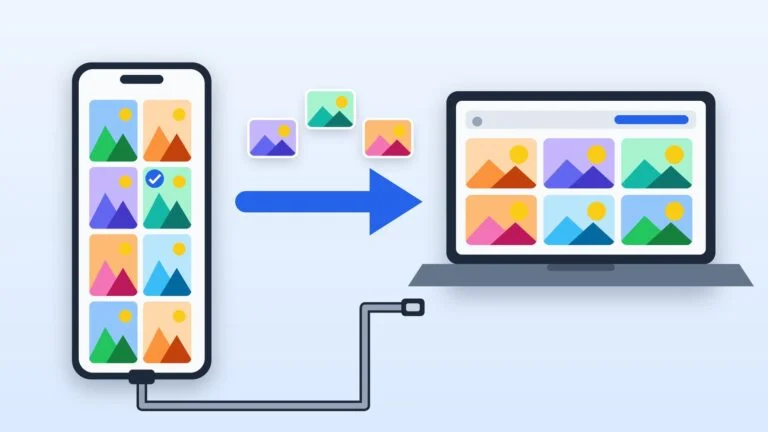
When you upgrade through Windows Update, your files and data move to Windows 11 by default, but Microsoft still recommends making a backup. Copy documents, photos, and work folders to an external drive or OneDrive. If your files already sync to OneDrive, a separate copy may not be needed.
Make sure you remember your Windows 10 sign-in password: without it, you won’t be able to go back to the old system if Windows 11 doesn’t work out.
Result: A copy of your important files is on an external drive or in OneDrive, and you know your Windows 10 password.
Install all Windows 10 updates
Go to Start → Settings → Update & Security → Windows Update and select Check for updates. Install everything it finds and restart the computer: while updates for the current version are still pending, the Windows 11 offer may not appear.
To see your version, go to Settings → System → About and look under Windows specifications. To upgrade through Windows Update, Microsoft requires at least Windows 10 version 2004, and its end-of-support FAQ adds that PCs running version 22H2 can upgrade for free. If you’re low on space, remove apps you don’t need and large files.
Result: Windows Update finds no new updates, and Windows specifications shows version 22H2.
Check whether your PC is compatible
Search for the PC Health Check app on the taskbar. If you don’t have it, install it using the link in Microsoft’s help article. Select Check now: the app will tell you whether the PC can run Windows 11 and, if not, which requirement isn’t met and what you can do about it.
| Component | Windows 11 minimum |
|---|---|
| Processor | 1 GHz or faster, 2+ cores, on Microsoft’s list |
| RAM | 4 GB |
| Storage | 64 GB or more (capacity, not free space) |
| Firmware | UEFI, Secure Boot capable |
| Security module | TPM 2.0 |
| Graphics | DirectX 12, WDDM 2.0 driver |
| Display | 720p, larger than 9 inches, 8 bits per channel |
The processor is the key requirement: Microsoft calls it the main determining factor, and whether a specific model qualifies can only be seen on the compatible processor lists or in the check itself. If Windows Update shows a Get ready for Windows 11 message, the link in it doesn’t check your PC; it just opens the requirements page. For a clean install, Windows 11 Home and Windows 11 Pro for personal use also need an internet connection and a Microsoft account during initial setup.
Result: The PC Health Check app shows whether the computer qualifies and, if it doesn’t, names the reason.
Upgrade Windows 10 to Windows 11 through Windows Update
Microsoft recommends waiting until Windows Update tells you that Windows 11 is ready for this PC. Then select Download and install, and in the license terms window select Accept and install. When the download and the first part of the installation finish, select Restart now.
The computer will then restart several times on its own. Don’t turn it off until the sign-in screen appears, then sign in to finish the upgrade.
If your PC is compatible but the offer hasn’t appeared, use one of the other official methods on the Windows 11 download page:
- Windows 11 Installation Assistant upgrades the PC it runs on. It needs a license, Windows 10 version 2004 or later, and 9 GB of free space; it doesn’t work on Arm-based PCs. Microsoft recommends running it after Windows Update offers the upgrade, but it can also be used earlier.
- A USB installation drive made with the Media Creation Tool: you need a drive of at least 8 GB, everything on it will be erased, and you must choose the same language as your current Windows. If you run setup.exe from the drive while in Windows 10, you can keep your files and apps; if you boot the computer from the drive, the disk will be wiped completely.
Result: After several restarts, the Windows 11 sign-in screen appears.
Check updates and drivers after the upgrade
In Windows 11, go to Settings → Windows Update and select Check for updates. Fixes can also arrive outside the regular schedule, like the out-of-band Windows 11 updates in September 2026. Get any missing drivers from your PC manufacturer’s website.
Check Wi-Fi, sound, your printer, and the apps you use every day. Setup removes some apps: some interfere with the upgrade and can be reinstalled, while others are incompatible with Windows 11, so ask the developer about a new version. If something important doesn’t work, you can go back to Windows 10 within 10 days: Settings → System → Recovery → Go back.
Result: Windows 11 is up to date, and your devices and everyday apps work.
What to do if your PC isn’t compatible
Start with the reason PC Health Check gives you. It determines whether a firmware setting is enough or you need a different path.
| Reason | Can it be fixed? | What to do |
|---|---|---|
| TPM not found or disabled | Often | Turn on TPM in UEFI |
| No Secure Boot support | Yes, if the firmware is UEFI | Switch boot mode from Legacy to UEFI |
| Processor not on the list | No | ESU or a new computer |
| Less than 4 GB RAM or 64 GB storage | Sometimes | Add RAM, replace the drive |
TPM 2.0
A TPM can be turned off even when it’s there: Microsoft notes, for example, that most retail motherboards for PC builders ship with TPM turned off, even though it can almost always be enabled. To check, press Win + R, type tpm.msc, and select OK.
If the console says a compatible TPM cannot be found, the module may be disabled. If it’s working, look at Specification Version: it needs to be 2.0. You can also check in Windows Security → Device security: if there’s no Security processor section, the TPM may be disabled as well.
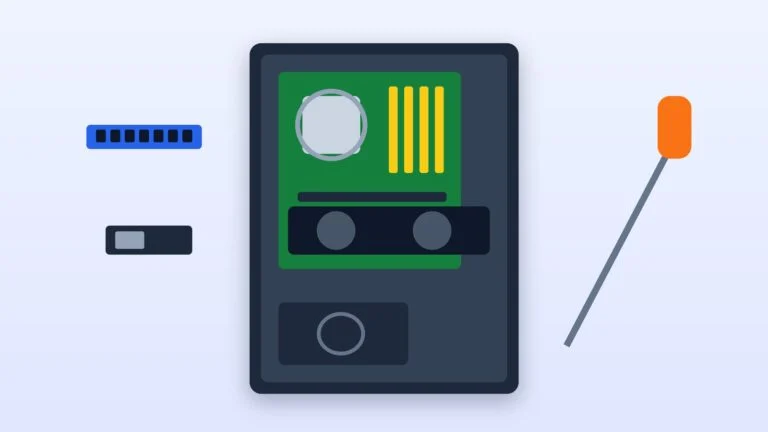
TPM is turned on in the UEFI firmware. From Windows 10, you can get there via Settings → Update & Security → Recovery → Restart now under Advanced startup. Then, in the recovery menu, select Troubleshoot → Advanced options → UEFI Firmware Settings and confirm the restart.
The setting may sit in an Advanced, Security, or Trusted Computing submenu and be called Security Device, Security Device Support, TPM State, AMD fTPM switch, AMD PSP fTPM, Intel PTT, or Intel Platform Trust Technology. If you’re not sure, look up the instructions for your model on the manufacturer’s website.
UEFI and Secure Boot
Windows 11 requires UEFI firmware with Secure Boot support. To upgrade from Windows 10, Microsoft clarifies, the PC only has to be Secure Boot capable, meaning it boots in UEFI mode. Turning Secure Boot itself on is recommended for security but isn’t required for the upgrade.
You can see the boot mode in System Information: press Win + R and type msinfo32. BIOS Mode should say UEFI; Legacy means the PC boots in the old CSM mode. Secure Boot State shows whether Secure Boot is on.
You can switch from Legacy to UEFI in the firmware using Microsoft’s instructions and your PC maker’s. But in UEFI mode, Windows boots only from a disk with the GPT partition style: if Windows 10 is installed on an MBR disk, it won’t start after the switch. For this case, Microsoft has a built-in tool, MBR2GPT, which converts the system disk to GPT without deleting data; after that, the firmware is switched to UEFI.
This is a job for confident users: make a backup first and suspend BitLocker protection if it’s on. If in doubt, take the PC to a repair shop.
Processor, memory, and storage
You can’t fix the processor with settings. Microsoft keeps lists of compatible models: for Intel, they mostly include Core processors from the 8th generation onward; for AMD, Ryzen from the 2000 series onward, though not every model. If your processor isn’t there, move on to the options below.
Memory and storage are easier: sometimes you can add RAM or install a larger drive, and Microsoft suggests checking the options with your PC manufacturer or retailer. After any change, run the check again and wait until Windows Update offers Windows 11.
If you can’t upgrade: ESU or a new computer
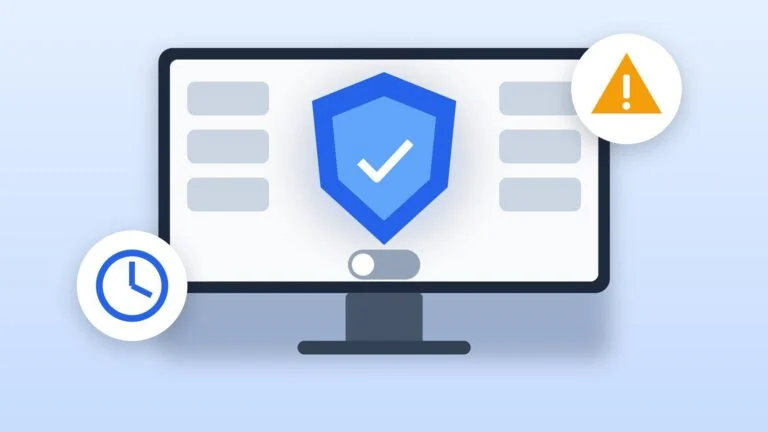
A Windows 10 PC keeps working, but since October 14, 2025, it gets no technical support and, without ESU, no security fixes. Microsoft extended the consumer ESU program by a year: it now runs until October 12, 2027, instead of October 13, 2026. If you’re already enrolled, you’ll get updates through the new date automatically.
Program requirements:
- You need Windows 10 version 22H2 with the latest updates, in the Home, Pro, Pro Education, or Pro for Workstations edition.
- You need to sign in with a Microsoft account that has administrator rights; a child account won’t work.
- You can enroll for free if you sync your PC settings to your account, by redeeming 1,000 Microsoft Rewards points, or with a one-time purchase of $30 (or the local currency equivalent) plus tax.
- One license covers up to 10 devices.
If your PC qualifies and the program is available in your region, an Enroll now link will appear in Settings → Update & Security → Windows Update. The terms differ in the European Economic Area: ESU is free as long as you keep signing in to Windows with the same Microsoft account (without sign-in, updates stop after up to 60 days), and with a local account you can buy it for $30.
ESU buys time but doesn’t replace upgrading: the program provides only critical and important security fixes, with no new features and no technical support. Separately, Microsoft promises security updates for Microsoft 365 apps on Windows 10 until October 10, 2028.
If your processor or firmware doesn’t qualify, Microsoft recommends ESU or replacing the computer. Windows Backup with a Microsoft account helps move files, photos, and settings to a new PC. You can also switch the old PC to another operating system, such as Linux, but not all Windows apps run there.
Troubleshooting
- Windows Update doesn’t offer Windows 11 even though the check passed: install all updates, restart the PC, and check again. If your configuration has a known compatibility issue with a driver or app, Microsoft temporarily holds the upgrade until it’s fixed.
- Error 0xC1900101 usually points to a driver: update drivers from the manufacturer’s website, unplug extra devices, and temporarily uninstall third-party antivirus software.
- Error 0x80070070 means there isn’t enough space: free up the system drive and try again.
- Error 0xC1900200 or 0xC1900202 means the PC doesn’t meet the minimum requirements: go back to the section on incompatible PCs.
- For other codes and failures when installing from a USB drive, see “Windows installation errors: what to do when Windows won’t install.”
- A device or app stops working after the upgrade: install a newer driver or app version; if that doesn’t help, go back to Windows 10 within 10 days.
Sources and methodology
Analysis of public sourcesChecked 22 September 2026
- Microsoft — Windows 11 System Requirements support.microsoft.com
- Microsoft — Ways to install Windows 11 support.microsoft.com
- Microsoft — Windows 11 on devices that don’t meet minimum system requirements support.microsoft.com
- Microsoft — Enable TPM 2.0 on your PC support.microsoft.com
- Microsoft — Windows 10 Consumer Extended Security Updates (ESU) microsoft.com
FAQ
Will I lose my files when upgrading to Windows 11?
No, your files and data move to Windows 11 by default. Setup may remove some apps if they interfere with the upgrade or aren’t compatible with the new system. Microsoft still recommends making a backup.
How much does it cost to upgrade from Windows 10 to Windows 11?
The upgrade is free for a PC that meets the requirements and runs a licensed copy of Windows 10. The only possible cost is data charges from your provider on a metered connection, since the download is large.
How do I go back to Windows 10 after upgrading?
Within 10 days: Settings → System → Recovery → Go back; you’ll need your Windows 10 sign-in password. After that, the rollback files are deleted, and the only way back is a clean install of Windows 10, which is no longer supported.
Can I install Windows 11 without TPM 2.0?
Microsoft doesn’t recommend it: such a PC isn’t supported, and updates, including security updates, aren’t guaranteed. Microsoft’s help pages currently offer no official way to bypass the check. First, make sure TPM isn’t simply turned off in UEFI.
How long will Windows 10 get security updates?
Without ESU, it no longer does: support ended on October 14, 2025. With ESU, home PCs get fixes until October 12, 2027.




Leave a Reply