
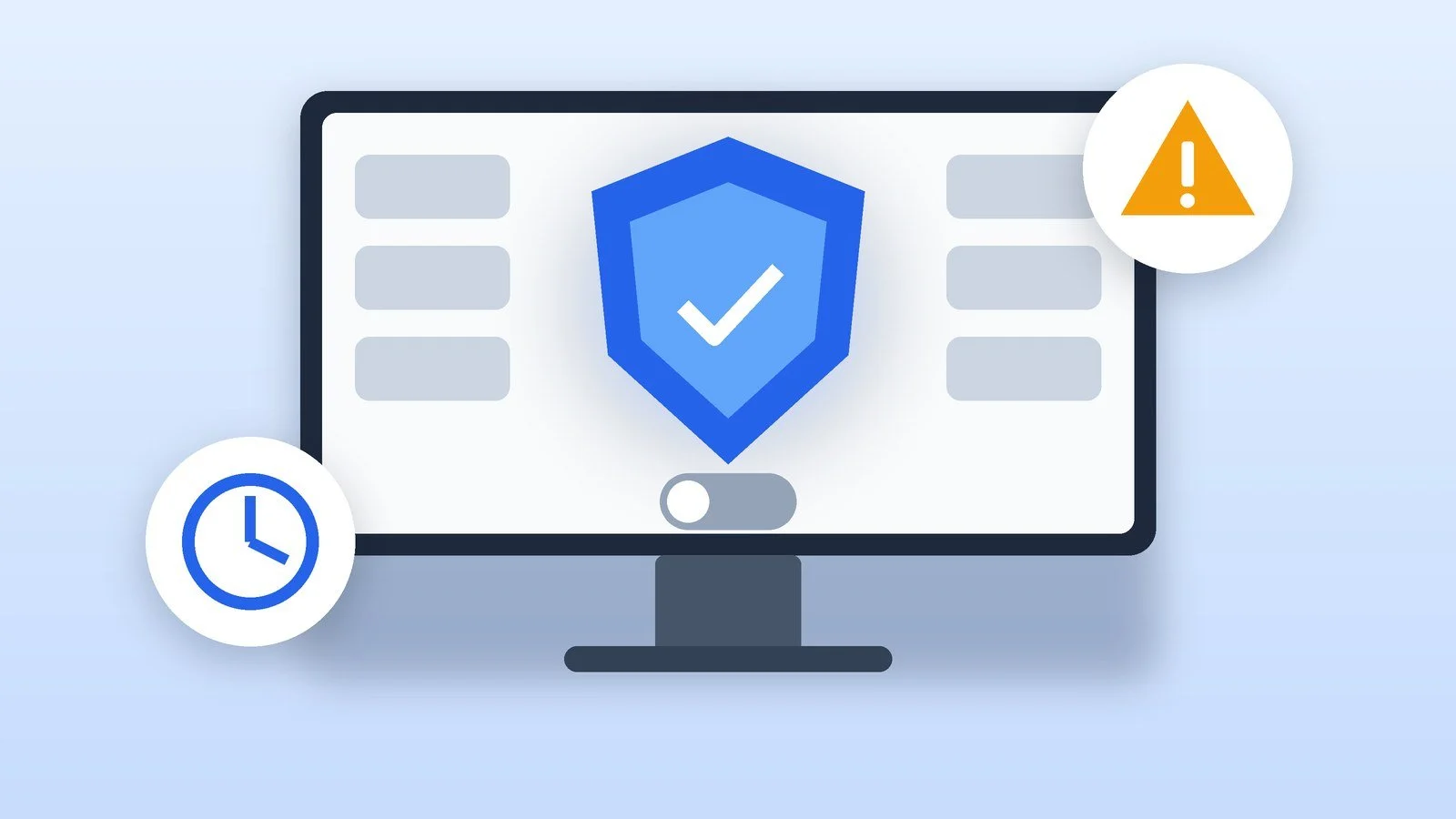
Microsoft Defender can only be turned off temporarily: open “Windows Security” → “Virus & threat protection” → “Manage settings” and switch “Real-time protection” to “Off.” According to Microsoft’s help page, Windows will turn it back on by itself after some time. If you need Defender not to interfere with a specific program, it is safer to add an exclusion; and if you install another antivirus, Defender will turn itself off.
The steps below apply to Windows 11 and Windows 10: Microsoft describes them in one help page for both systems. The information was checked as of October 18, 2026. We do not cover permanent shutdown through the registry or Group Policy: Microsoft does not offer that method for home computers, and in organizations, Defender is configured by administrators.
Open Windows Security
Click Start, type “Windows Security” and open the app you find: Microsoft recommends searching for it through the Start menu. On the left, select “Virus & threat protection.”
Result: The Windows Security app is open.
Go to “Manage settings”
In the “Virus & threat protection settings” section, click “Manage settings.” In Microsoft’s Russian-language help, this link has a different name: the label may vary slightly across builds, but the meaning is the same.
Result: The real-time protection and tamper protection switches are visible.
Turn off “Tamper Protection,” if it is on
Microsoft specifies the order: if Tamper Protection is on, it must be turned off before real-time protection. This feature prevents malicious apps from changing Defender’s key settings, including real-time protection. A device administrator can change these settings in “Windows Security,” while other apps cannot.
Scroll the window down to “Tamper Protection” and switch it to “Off.”
Result: Tamper Protection does not prevent changing the settings.
Turn off “Real-time protection”
Switch “Real-time protection” to “Off.” Microsoft explains that this feature continuously monitors the device and scans files and programs when they are accessed, and the setting is intended specifically for temporary shutdown.
Result: File checking in real time is stopped for a short time.
Complete the task and turn protection back on
Do what you turned protection off for, then switch “Real-time protection” back to “On” and turn on “Tamper Protection.” If you forget, Windows will turn protection on by itself after some time, but you should not rely on that.
Result: Protection is working again, and the settings are in order.
Why protection turns back on
This is not a malfunction but intended behavior. Microsoft writes that after manual shutdown, real-time protection “will be turned back on automatically” after some time, to restore the device’s protection. The administrator documentation says the same: if real-time protection is turned off, it turns back on automatically after a short delay.
If Tamper Protection is on, malicious apps and third-party programs cannot change its settings. In organizations, the settings may be unavailable altogether: Microsoft warns that under centralized management, the switch may not work.
Safe alternatives to turning it off
In most cases, Defender does not need to be turned off, only moved out of the way in one place. Here are the options recommended by Microsoft itself or that follow from its help page.
| Situation | What to do | Risk |
|---|---|---|
| A file or folder you trust is being blocked | Add an exclusion for the file, folder, file type or process | Low: scanning is disabled only for the excluded item |
| Defender gets in the way of a game or project | Exclude the folder or process (better with the full path) | Low or medium |
| You need another antivirus | Install a compatible program: Defender will turn itself off | Low |
| You need to check whether Defender is to blame | Turn off real-time protection for a few minutes and turn it back on | High |
How to add an exclusion
- Open “Windows Security” → “Virus & threat protection” → “Manage settings.”
- Scroll to the exclusions section (in the interface it may be called Exclusions) and click “Add or remove exclusions.”
- Choose the exclusion type: “File,” “Folder,” “File type” or “Process.”
- Specify the file or folder and confirm your choice.
Microsoft warns that Defender no longer scans excluded files for threats, and this may leave the device and data vulnerable. Exclusions apply only to real-time scanning: during scheduled scans, these files are still checked. For a process, it is recommended to specify the full path and file name, so that malware cannot use the same name.
If you install another antivirus
You do not need to turn off Defender manually. According to Microsoft’s help page, when a compatible third-party antivirus program is installed, Microsoft Defender Antivirus is turned off automatically. You will not need two antivirus programs at the same time. We compare the available options in our article on the best free antivirus for PCs, and in a separate overview of paid and free solutions.
If it didn’t work
- The switch is unavailable or grayed out. Your organization may be managing Defender, or Tamper Protection may be blocking the change. Turn off Tamper Protection (step 3). If this is a work computer, contact your administrator.
- Protection turned itself back on. That is expected: Microsoft turns real-time protection back on after some time. Complete the task right after turning it off, or add an exclusion.
- Windows Security does not show “Real-time protection.” If a third-party antivirus is installed, Defender may have been turned off automatically, and that program’s settings are managed in its own window.
- The file is still blocked after adding an exclusion. Exclusions work only for real-time scanning by Microsoft Defender Antivirus. Other security programs will continue to scan the file.
Sources and methodology
Analysis of public sourcesChecked 18 October 2026
- Microsoft — Virus & threat protection in the Windows Security app support.microsoft.com
- Microsoft — Protection with the Windows Security app support.microsoft.com
- Microsoft Learn — Configure Microsoft Defender Antivirus real-time protection learn.microsoft.com
- Microsoft — Windows 10 support ended on October 14, 2025 support.microsoft.com
- Microsoft Tech Community — End of Windows 10 Support: What Defender Customers Need to Know techcommunity.microsoft.com
Frequently asked questions
Can I turn off Microsoft Defender permanently?
Not with Windows Security: the real-time protection switch turns it off temporarily, and after a while Windows turns it back on. For organizations, Microsoft describes turning it off through Group Policy, but warns that this sharply reduces protection and is not recommended, and that with Tamper Protection enabled, it cannot be turned off this way.
What happens if I turn off Defender?
Files you open and download will stop being checked for threats, and the device may become vulnerable. That is why protection is turned off only briefly.
Do I need to turn off Defender if I have another antivirus?
No. Microsoft says that when a compatible third-party antivirus is installed, Defender turns itself off automatically. Nothing needs to be changed manually.
How do I turn Defender back on?
Open “Windows Security” → “Virus & threat protection” → “Manage settings” and switch “Real-time protection” and “Tamper Protection” to “On.” If you did nothing, Windows will turn protection back on by itself.
Does Defender still work on Windows 10 after support ends?
Yes: according to Microsoft, threat signature updates for built-in Defender on Windows 10 will be released until October 2028. However, the same company warns that Windows 10 devices remain more vulnerable, and recommends upgrading to Windows 11.





Leave a Reply