
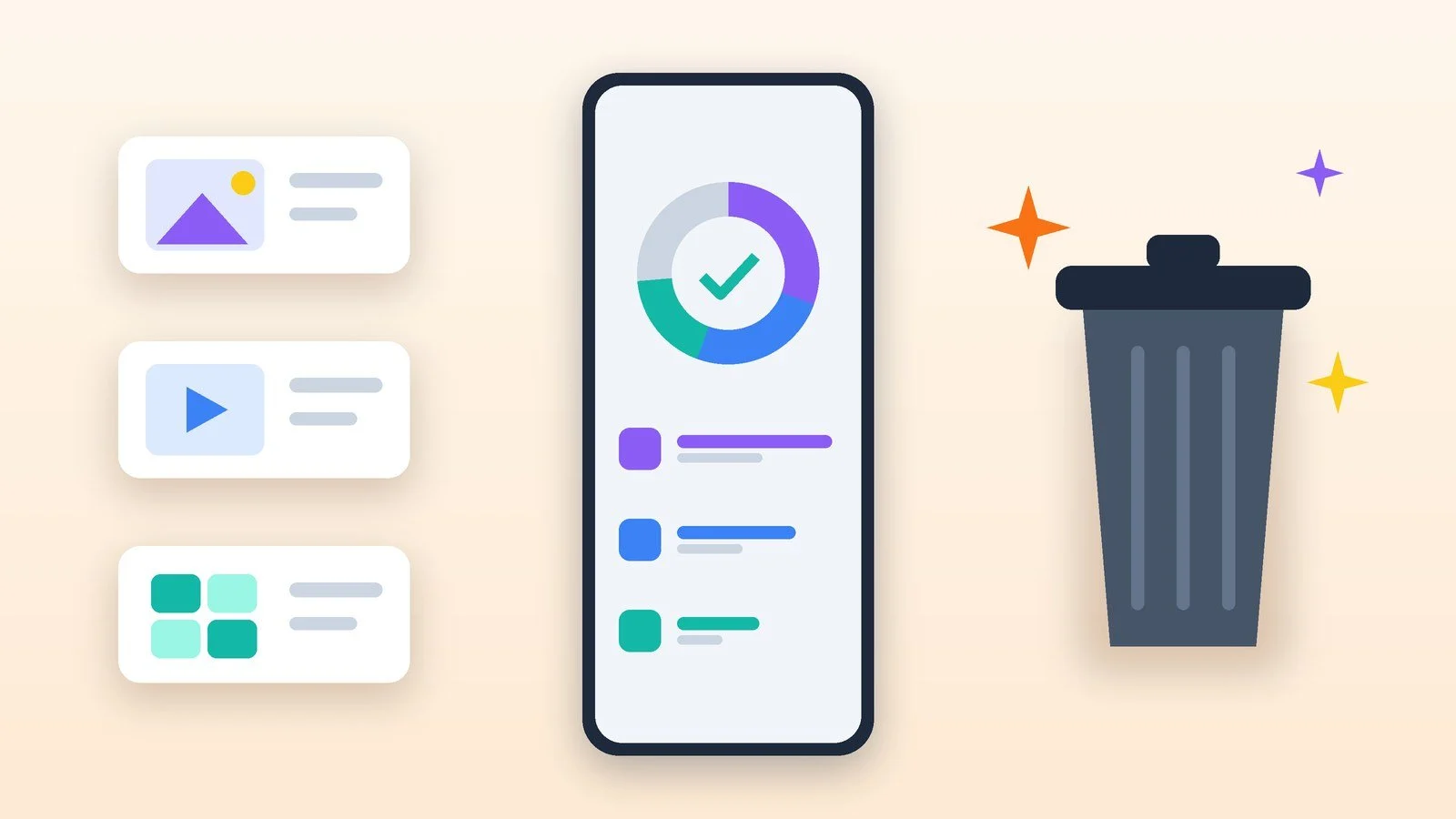
To free up space on your phone, first see what is using it: on Android, open Settings → Storage (on Samsung, Settings → Device care → Storage), on iPhone, Settings → General → iPhone Storage. Most space is usually taken by photos and videos, message attachments, content downloaded for offline viewing, and apps. Start with those and leave the cache for later.
Below are step-by-step instructions for Android (Google Pixel and Samsung with One UI) and for iPhone with iOS 27, followed by a table showing what you can safely clean and what you should leave alone. The steps were checked against help pages from Google, Samsung, Apple, WhatsApp and Telegram as of October 15, 2026. Other skins may use different menu names: if you don’t see “Storage” in the list, search for it in Settings.
Check what is using your memory
Start with the storage screen: it shows categories and app sizes. Note the biggest items and work down from them.
- Android (Google Pixel and other “stock” Android): Settings → Storage, then choose a category. Some features from Google’s help page are only available on Android 14 and later.
- Samsung Galaxy (One UI): Settings → Device care → Storage; on some versions this section is called “Battery and device care.” The My Files app also shows how space is used. Don’t confuse “Storage” with the “Memory” item next to it: that is RAM, and clearing it does not free up space on the drive.
- iPhone: Settings → General → iPhone Storage. Free space is shown at the top, with recommendations and a list of apps with their sizes below. Tap “Show All” to see the recommendations, and “Turn On” to apply the one you need.
Result: You can see which categories and apps take up the most space.
Free up space from photos and videos
Photos and videos are the first thing to clean up. The main rule: delete the original only after you have confirmed that a copy is in the cloud.
- Android (Google): Storage → Free up space on device, choose a category, tap “Select files,” tick the ones you want and tap “Move files to trash.” Photos that are already saved in Google Photos can be removed from the phone: the copies stay in the app as long as you have internet access. To avoid doing this by hand, turn on Smart Storage (in the same place: menu icon → Settings): when memory fills up, it deletes photos and videos that already have a backup on its own.
- Samsung: deleted files go to the trash first, and the space is not freed until you empty it. Open My Files → Trash → More (three dots) → Empty. Look for duplicates in the same place: Storage management (on some versions, “Storage analysis”) → Duplicate files. Select only the extra copies: if you tick them all, the originals will disappear too.
- iPhone: if iCloud Photos is on (Settings → your name → iCloud → Photos), the originals are stored in iCloud and smaller versions stay on the phone; the “Optimize iPhone Storage” option is on by default. With this setup it’s best not to delete photos: they will disappear from iCloud and from your other devices. If a photo really is unneeded, delete it and then empty Recently Deleted: Photos → Collections → Recently Deleted (in the Utilities section) → Select → More → Delete or Delete All. Deleted photos stay there for 30 days, and space is freed only after emptying the folder; permanently deleted items cannot be restored. Duplicates can be merged with the Duplicates album → Merge (iOS 16 and later).
Result: Copies of photos and videos are in the cloud, unnecessary items are removed from the phone, and the trash is emptied.
Clean up messaging apps
Photos, videos, voice messages and stickers from chats download automatically and quietly pile up: Samsung names messengers as a common reason memory “disappears.” Check this in the My Files app: the WhatsApp, Telegram and other messenger folders are often the largest.
- WhatsApp: Settings → Storage and data → Manage storage shows how much space the app takes up. To find large files: Chats → Chat backup → Manage storage → Review and delete media; on Android there is a filter for files larger than 5 MB. A file deleted this way is gone for good: you can’t download it again from the chat, but it stays with the other people in it. To keep the conversation and remove only the attachments, open Clear chat → Delete media (on iPhone, Clear all media), tick the file types and tap Clear media.
- Telegram: Settings → Data and Storage → Storage Usage → Clear Cache. Files from cloud chats disappear from the phone, but they stay in Telegram’s cloud and download again when you open them. To stop the cache from building up, set a period under Keep Media: files you haven’t opened will be deleted automatically.
- Auto-download: in WhatsApp, Telegram and Viber you can turn off automatic downloading of photos and videos: in WhatsApp it’s under Storage and data, in Telegram under Data and Storage, and in Viber under Data and Media. The NKEK tips published on October 14, 2026 also show how to do this.
Note that anything deleted from the phone stays in the WhatsApp backup until the next backup, so the cloud total will not change right away.
Result: Heavy files from chats are deleted, and automatic media downloads no longer fill up memory.
Remove, archive or offload unneeded apps
Samsung notes that apps usually take up most of the storage and recommends a review: sort them by size and delete the ones you don’t need. In Settings → Apps, tap “Filter and sort” in the upper-right corner of the list and choose “Size.”
- Android: Settings → Apps → app name → Uninstall. A paid app can be installed again without paying twice. If you may need it later, choose “Archive” on the same page: the system removes the program, permissions and temporary files but keeps the icon and the data, and tapping the icon brings the app back. Archiving is available on Android 15 and later and is not supported on every device.
- iPhone: Settings → General → iPhone Storage → app → Offload App: the program is removed, documents and data stay, and tapping the cloud icon restores the app. Delete App removes both the program and its data. To make this happen automatically, go to Settings → Apps → App Store and turn on Offload Unused Apps: iPhone will remove apps you don’t use when space runs low. Deleted apps can be reinstalled from the App Store.
Result: Rarely used apps no longer take up space, and their data is kept wherever possible.
Clear app cache on Android
Cache is temporary data that an app stores to run faster. Google says that after the cache is cleared, some apps may launch more slowly the first time; your data is not deleted.
- Open Settings → Apps and select the biggest app (the list is easy to sort by size).
- Go to Storage and tap “Clear cache” (Samsung uses the same label).
Don’t tap “Clear storage” (on Samsung, “Clear data”) unless you’re ready to lose everything: Google warns that the app’s data will be deleted permanently, and Samsung warns that you may need to sign in to your account again afterwards. It’s better to delete unneeded files through the app itself first.
On iPhone you don’t need to clear the cache manually: according to Apple, the device deletes cached and temporary files on its own when it needs space. Browser cache is a separate topic: how to clear cookies and cache in Chrome, Edge, Firefox and Safari.
Result: Temporary data is removed; personal data and app settings stay in place.
Remove downloads and extra files
- Android (Google): in Google TV, open Library, tap the “Downloaded” icon next to a video and choose Remove. In YouTube Music: Library → the three-dot menu next to a track, album or playlist → Remove from device. To remove everything at once: profile photo → Settings → Downloads and storage → Delete all downloaded content.
- Google Maps: profile icon → Offline maps → the map you want → Delete. If you need that map on a trip, you’ll have to download it again.
- Samsung: My Files → Internal storage. Tap and hold a folder, then Options → Details: the Size line shows how much space it takes. The biggest folders are usually DCIM (photos and videos from the camera), Download (downloads), messenger folders and Music; Samsung recommends moving them to a memory card or deleting folders larger than 300 MB.
- iPhone: following Apple’s recommendation, delete the videos you’ve already watched that were downloaded in Apple TV and other streaming apps, and unneeded files in the Files app. Messages can be cleared automatically: Settings → Apps → Messages → Keep Messages → period. But any option other than Forever permanently deletes the conversation along with its attachments, and with Messages in iCloud turned on, it does so on all your devices.
Result: Downloaded videos, maps and files no longer take up space.
What’s safe to clean and what isn’t
| Action | What happens | Risk |
|---|---|---|
| Clear app cache (Android) | Temporary data is deleted; the app may launch more slowly the first time | Low |
| Clear Telegram cache | Files disappear from the phone but stay in the cloud and download again | Low |
| Offload or archive an app | The program is removed, data is kept; you can restore it from the store | Low |
| Empty the trash (Recently Deleted, Trash in My Files) | Files are deleted permanently and cannot be restored | Medium: check the cloud first |
| Delete media in WhatsApp via Manage storage | The file is gone for good and can’t be downloaded from the chat again | Medium |
| Delete photos on iPhone with iCloud Photos on | The photo is deleted in iCloud and on other devices | High |
| Clear storage (Clear data) for an app | All app data is deleted permanently; you may need to sign in again | High |
| Delete files from Other or Uncategorized | Can break the app or the system if you don’t know what the file is | High |
How to keep memory from filling up again
- Android: turn on Smart Storage (see above): it frees up space for you when memory fills up.
- iPhone: keep Optimize iPhone Storage in iCloud Photos and Offload Unused Apps in the App Store turned on. If your iPhone is always short on space, think about how much storage you actually need.
- Messengers: turn off automatic media downloads and set a storage period for files in Telegram.
- Cloud: cloud capacity is limited by your plan. If the photos and videos you’ve uploaded exceed it, Apple offers to upgrade you to iCloud+.
If it didn’t work
- On iPhone, “System” or “Other” takes up a lot of space. Apple explains that “System” is the space taken by the operating system, and it depends on the model; the iPhone removes cached and temporary files itself when it needs space. You can’t clear these categories by hand, so free up space in the others.
- On Samsung, “Other” takes up a lot of space. On Android 16 and later, open Settings → Device care → Storage → Expand and tap the arrow next to “Other files.” “Backups of versions before changes” holds the originals of edited photos: if you don’t need them, you can delete them. Files from “Pending files” and “Uncategorized” cannot be deleted in this window: if you decide to clear them by hand through My Files, don’t touch anything you’re unsure about. The minimum size of this category is about 4 GB, and Samsung considers that normal.
- You deleted things, but no space was freed. Check the trash: Recently Deleted on iPhone and Trash in My Files and Gallery on Samsung. Apple adds that after an app is deleted, the free-space figure may take a while to update.
- There’s no “Free up space on device” option. Some Google features are only available on Android 14 and later. Update Android or search for “Storage” in Settings; on Samsung, look for it under Device care and in the My Files app.
- A microSD card doesn’t help. Internal storage and a memory card are two separate drives, and according to Samsung, not everything can be moved to the card: only a few apps can run from it. If space keeps running out, reduce the number of apps or get a device with more built-in storage.
Sources and methodology
Analysis of public sourcesChecked 15 October 2026
- Google — Free up space on your Android device support.google.com
- Samsung — What to do if the “Other” section takes up a lot of space samsung.com
- Apple — Manage storage on iPhone (iOS 27) support.apple.com
- WhatsApp — How to free up space in WhatsApp storage faq.whatsapp.com
- Telegram — FAQ: Clear cache telegram.org
Frequently asked questions
Can you free up phone storage without deleting anything?
Partly. Smart Storage on Android and Optimize iPhone Storage in iCloud Photos on iPhone remove from the phone the originals that are already in the cloud. Offloading or archiving an app removes the program but keeps its data. Cloud capacity is still limited by your plan.
Is it safe to clear the cache?
On Android, yes: Google says it deletes temporary data, and some apps may launch more slowly the first time. On iPhone you don’t need to clear the cache manually: according to Apple, the system deletes cached and temporary files on its own.
Why does “System” take up so much space on iPhone?
Apple explains that this is the space reserved for the operating system; its size depends on the device and model, and the system deletes cached files on its own. You can’t free up this category manually, so clear apps, photos and messages instead.
Will a microSD card help?
Not with everything. According to Samsung, internal storage and a card are two different drives, and not everything from internal memory can be moved to a card; very few apps can run from a card. Photos, videos and documents are easier to move.
Do I need cleaner apps?
Google, Samsung and Apple’s help pages describe steps that use built-in tools only, and Google calls closing apps unnecessary. If you still want a third-party tool, install it only from an official app store.




Leave a Reply