
Parental controls on phones and computers are set up with built-in tools: Screen Time with Family Sharing on iPhone and iPad, the Google Family Link app on Android, and Microsoft Family Safety on Windows and Xbox. For the whole home Wi-Fi, you add a filter on the router, and in YouTube, Instagram and TikTok you turn on the kids’ or teen mode.
Below is the order of steps for a family with different devices: agree on rules, create a child account, set up the phone, computer and router, then YouTube and social media, and check the result. Menu names were checked against Apple, Google and Microsoft support pages as of October 5, 2026; for iPhone, the guide covers the new parental controls in iOS 27.
Which tool you need for each device
| Device | Built-in tool | What you can limit |
|---|---|---|
| iPhone and iPad | Screen Time and Family Sharing | Time, apps, websites, contacts |
| Android, Chromebook | Google Family Link | Time, apps, Chrome, location |
| Windows and Xbox | Microsoft Family Safety | Time, games, sites in Edge, purchases |
| Mac | Screen Time | Same as on iPhone |
| Home router | Router menu, family DNS | 18+ sites, scheduled access |
| YouTube | YouTube Kids, supervised account | Content level, history |
| Instagram, TikTok | Teen Account, Family Pairing | Time, contacts, content |
Agree on the rules with your child
Start with a conversation, not with settings. Apple’s guide, created with the American Academy of Pediatrics (AAP), opens with exactly this step: the child should help shape the plan rather than discover the restrictions after the fact.
Agree on specifics: how much time per day for games and social media, what can be downloaded without asking, who they can message and where the phone spends the night. The AAP recommends turning off screens at least an hour before bed and keeping devices outside the bedroom overnight.
How strict to be depends on age. Younger kids do well with an allowlist: a new app or website only after your approval, and Apple turns this mode on by default for children under 13. Teens usually need only limits and an adult-website filter, which Apple keeps on by default until 18.
Be honest about what you will see: reports show time spent in apps, and Microsoft’s also show websites and searches, but not messages. If your child studies online, leave learning apps without limits — we covered this kind of learning in our article on the role of parents in online education.
Result: Your child knows the rules and understands which settings you will turn on and why.
Create a child account and a family group
Restrictions are tied to the child’s account, so your child shouldn’t sign in with your Apple or Google account: Apple explicitly says a child should have their own account that they don’t share with anyone.
Apple: iPhone, iPad and Mac
- On your iPhone, open Settings → Family. If you don’t have a family group yet, set up Family Sharing first.
- Tap the Add Member button → Create Child Account → Continue.
- Enter your child’s name and date of birth and follow the prompts. For the account, you can use their email address, the suggested @icloud.com address or their Game Center nickname.
In Ukraine and most countries, a Child Account is for children under 13; some European countries set a higher age — for example, under 16 in Germany and Poland.
Google: Android and Chromebook
A Google Account for a child under 13 is created in the Family Link app or during the first setup of a new Android phone by choosing the option for a child. Google estimates it takes about 15 minutes. In Ukraine, you can manage your own Google Account from age 13.
If a teen already has their own account, supervision is turned on from their phone: Settings → Google → All services → under Kids & family, Parental controls → Let’s do this. Supervision won’t start without the teen’s consent.
Microsoft: Windows and Xbox
Sign in at account.microsoft.com/family or open the Microsoft Family Safety app, add a family member with the Member role and enter your child’s email address or phone number. If your child is under the statutory age, they will be prompted to request adult consent. On Windows and Xbox, your child should sign in with this Microsoft account.
Result: Your child has their own account and is part of your family group.
Set up parental controls on your child’s phone
On iPhone and iPad, parental controls are built into Screen Time; on Android, they are managed with Family Link. Family Link can’t supervise iPhones and iPads, so your child’s iPhone needs Family Sharing even if you use Android.
iPhone and iPad
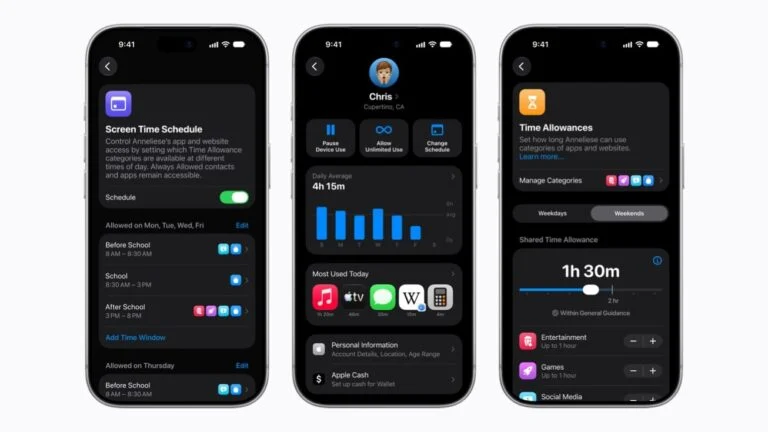
In iOS 27, Apple redesigned parental controls: all of a child’s settings now live in Settings → Family → your child’s name. The new features work once every device in the family is updated to iOS 27, iPadOS 27, macOS 27, watchOS 27 and visionOS 27; after the update, Apple offers to transfer your existing controls or set up new ones.
We covered what changed in our news story on Apple’s updated child protections, and which models get the update in our article on iOS 27 and compatible iPhones. The key settings:
- Schedule. Screen Time Schedule → turn on Schedule → Add Schedule. Apple offers ready-made time windows — Before School, School and After School — separately for weekdays and weekends.
- Limits. Time Allowances → Add: an overall daily budget plus time for the Entertainment, Games and Social Media categories. Apple suggests starting values based on your child’s age, and you can change them.
- Purchases and websites. In Apps & Websites, open Restrictions: Ask to Buy → Require Purchase Approval, and under Websites → Filtering choose Approved Websites Only or Limit Adult Websites. A request you don’t answer within 24 hours has to be sent again.
- Contacts. Allowed Contacts → During Screen Time: Contacts Only, Contacts & Groups with at Least One Contact, or Everyone. Turn on Manage Contacts and leave Allow Contact Editing off — then your child can add a new contact only with your approval.
- Explicit images. Communication Safety blurs photos and videos with nudity and, starting with iOS 27, gore and violence. Images are analyzed on the device itself and Apple doesn’t receive them; a child under 13 can open such a photo only after you enter your passcode.
- Age ratings. Content & Privacy Restrictions: ratings for apps, movies, music and books, plus restrictions for Siri and for apps’ access to your child’s data. Game Center restrictions are in the same Restrictions menu as purchases.
- Passcode. Lock Screen Time settings with a four-digit passcode. It is separate from the passcode your child uses to unlock the phone.
Your child can always reach you: FaceTime, Maps, Phone and Messages are always available by default, even when a limit runs out. Communication Safety is on by default for all children under 18.
Android: Google Family Link
Family Link is installed on the parent’s phone; the child needs Android 6.0 or later. The app lets you approve downloads from Google Play, set limits and schedules, see where the phone is, filter sites in Chrome and turn on SafeSearch.
- Daily limit. Select your child → Screen time → Time limits → turn on Daily limit and set the time under Weekly schedule.
- Sleep and school. Screen time → Schedules: Downtime for the night and School time for classes (Android 7 and later). During these hours only unlimited apps open, and calls are always available.
- Apps. App limits is where you block individual apps, while age filters for games, apps and movies are set under Controls → Google Play.
- Location. Location → Set up location: your child’s Android phone appears on the map.
- Contacts. On Android 14 and later, you can allow calls and texts only with numbers you have added. The limit works in Google Messages and the Phone by Google app, but not in WhatsApp and other messengers — block those separately.
Without Family Link, you can at least lock down the store: in Google Play, tap the profile icon → Settings → Family → Content restrictions and set a PIN. These restrictions work only on that device and don’t hide apps in search results or behind a direct link.
Result: Your child’s phone has a schedule, limits, app approvals and a website filter.
Set up the computer and game console
Windows and Xbox: Microsoft Family Safety
Restrictions are set in the Microsoft Family Safety app for Android and iOS or at account.microsoft.com/family. They apply on devices connected to the family group when your child is signed in with their own Microsoft account.
- Time: schedules and daily limits for Windows 10 and 11, Xbox One, Xbox Series X and Series S; limits for individual apps and games also work on Android.
- Websites: the filter for inappropriate websites and searches works in Microsoft Edge on Windows, Xbox and Android. While it is on, other browsers are blocked; you can also allow only approved websites.
- Reports: which apps and games your child opened and for how long, websites in Edge, Bing searches and attempts to open blocked content.
- Purchases: requests for apps and games rated for older ages in the Microsoft Store, plus spending limits.
For the console, there is a separate Xbox Family Settings app (iOS 13 or later, Android 8.0 or later): schedules, pausing screen time, approving purchases and friends, and multiplayer settings. Family Safety no longer offers location — Microsoft removed those features, so use Family Link or Apple’s Family Sharing to see where your child is.
Mac
On a Mac, your child needs their own user account that they sign in to with their Apple Child Account. Restrictions are set the same way as on iPhone: Apple menu → System Settings → Family → your child’s name. Approving new websites in macOS 27 works in Safari and supported browsers.
Result: Windows, Xbox and Mac have time limits and a website filter.
Turn on a filter on your home router
A router filters your entire home Wi-Fi — the TV, game console, laptop and guests’ phones. A router’s web interface or app usually has a parental controls section: profiles for your child’s devices, scheduled internet access and website blocking.
Some features may cost extra. For example, TP-Link’s HomeShield includes free profiles, internet pause, website blocking and bedtime, while time limits, SafeSearch and YouTube restrictions come in a paid package with a 30-day free trial. If your router is old, see our top budget Wi-Fi routers of 2026.
A family DNS works without a subscription: enter its addresses in the DNS server fields of your router’s internet settings.
| Service | DNS addresses for the router | Private DNS hostname |
|---|---|---|
| Cloudflare 1.1.1.1 for Families | 1.1.1.3 and 1.0.0.3 | family.cloudflare-dns.com |
| AdGuard DNS, family protection | 94.140.14.15 and 94.140.15.16 | family.adguard-dns.com |
| CleanBrowsing Family Filter | 185.228.168.168 and 185.228.169.168 | family-filter-dns.cleanbrowsing.org |
Cloudflare’s 1.1.1.3 addresses block malicious sites and adult content. AdGuard also removes ads and trackers and turns on safe search. CleanBrowsing Family additionally blocks proxy and VPN domains and mixed-content sites such as Reddit, and enforces SafeSearch on Google, Bing and YouTube.
Router DNS doesn’t apply on mobile data. On Android, you can turn on the same filter on the phone itself: Settings → Network & internet → Private DNS → Private DNS provider hostname, then enter the hostname from the table. If you can’t find the setting, search for Private DNS in Settings.
Result: Adult websites are blocked on every device on your home Wi-Fi.
Set up YouTube, social media and messengers
For children under 13, there is the YouTube Kids app with Preschool (ages 4 and under), Younger (5–8) and Older (9–12) modes, or a supervised account on regular YouTube with the Older kids, Teens and Older teens settings — roughly 9+, 13+ and 16+. You set them up in Family Link (Controls → YouTube) or in the YouTube app: Settings → Family Center.
If you add supervision to an existing account of a child under 13, Google deletes their YouTube videos, comments, playlists and subscriptions — download the data first. After 13, you can turn on Restricted Mode, and for a teen there is an optional supervised account: the parent sees channel activity but doesn’t choose what the teen watches.
Instagram is allowed from age 13, later in some countries. For teens 13 to 17, it automatically turns on a Teen Account: a private profile, messages only from people they follow or are connected to, a reminder to leave the app after 60 minutes, and Sleep mode from 10 p.m. to 7 a.m. Teens under 16 can loosen these settings only with a parent’s permission.
In 2026, Meta is extending its 13+ content setting to teens worldwide on Instagram, Facebook and Messenger. On Instagram, a teen can’t switch to a less restrictive setting without a parent’s permission, and in the stricter Limited Content setting they can’t see or post comments.
TikTok is for ages 13 and up. Accounts of 13- to 15-year-olds are private by default, direct messages are available from 16, and everyone under 18 gets a 60-minute daily limit. With Family Pairing, a parent links their account to the teen’s, sets limits by day and times without TikTok, and sees who the teen follows and who follows them.
WhatsApp can be used on your own from age 13, or later if local law requires it. For younger children, a parent can create a parent-managed account if the feature is available in your country.
Result: YouTube, social media and messengers run in a kids’ or teen mode.
Check that the restrictions work
- Take your child’s device, try to open a blocked website and download a new app: you should get a request.
- After a week, look at the reports. Apple shows the daily average, most used apps, how many times your child picked up the device and how many notifications they got; Microsoft shows apps, games, websites in Edge and Bing searches.
- In iOS 27, your child’s settings show when the Screen Time passcode was last used — a way to tell whether your child tried to change something.
- Revisit the rules as your child grows. When your child turns 13, Google emails both of you offering to update the account; until your child acts on it, supervision keeps working as before.
Result: The restrictions work, and you know when to review them.
If your child gets around the restrictions
- They learned the Screen Time passcode — change it in your child’s settings in the Family section. Avoid birthdays, phone numbers and simple combinations like 1234.
- They open websites in another browser on Windows — check that the website filter in Family Safety is on: with it, unsupported browsers stay blocked until you allow them yourself.
- They go online via a VPN, mobile data or their own DNS in the browser — the router filter doesn’t see those requests. Don’t approve VPN app installs, check the secure DNS setting in the browser and turn on Private DNS on Android; CleanBrowsing Family also blocks known VPN and proxy domains.
- They change the clock on Android — it won’t work: while Family Link limits are on, the time on your child’s device can’t be changed.
- A teen wants to turn off Family Link — according to Google’s help, under 18 this requires a parent’s approval, and both of you get a notification.
- The settings didn’t apply — Family Link updates them in about 5 minutes or once the device goes online. On iPhone, make sure every family device runs iOS 27 and that you are in your child’s contacts, otherwise their requests won’t reach you.
- A game installed before the Google Play filter is still there — restrictions don’t remove apps that are already installed: block them in Family Link.
Sources and methodology
Analysis of public sourcesChecked 5 October 2026
- Apple — Set up parental controls to manage your child’s iPhone or iPad support.apple.com
- Google — Get started with Family Link support.google.com
- Microsoft — Filter websites and searches using Microsoft Family Safety support.microsoft.com
- YouTube — Understand your choices as a family support.google.com
- Cloudflare — 1.1.1.1 for Families one.one.one.one
FAQ
Can I set up parental controls from a parent’s phone?
Yes. Your child’s iPhone can be managed from your own iPhone, iPad or Mac in the Family section if you are the organizer or a parent in Family Sharing; without an Apple device, set the restrictions directly on your child’s iPhone and protect them with a passcode. A child’s Android phone is managed through Family Link on Android 6.0 or later or on an iPhone with iOS 16 or later.
Can parents read their child’s messages?
No. Family Link doesn’t show messages, email, Chrome or YouTube history and doesn’t let you listen to calls. Apple’s Communication Safety checks images on the device itself, and Apple doesn’t receive them. Microsoft’s reports show websites opened in Edge and Bing searches.
At what age can a child turn off parental controls?
In Ukraine, kids can manage their own Google Account from 13, but according to Google’s help, until 18 supervision can be turned off only with a parent’s approval. With Apple, a Child Account in Ukraine is for children under 13, while the adult-website filter and Communication Safety stay on by default until 18.
Do you have to pay for parental controls?
No: Screen Time, Family Link and Family Safety are free, as are the Cloudflare, AdGuard and CleanBrowsing family DNS services for home use. Advanced router features and third-party apps can cost money.




Leave a Reply