
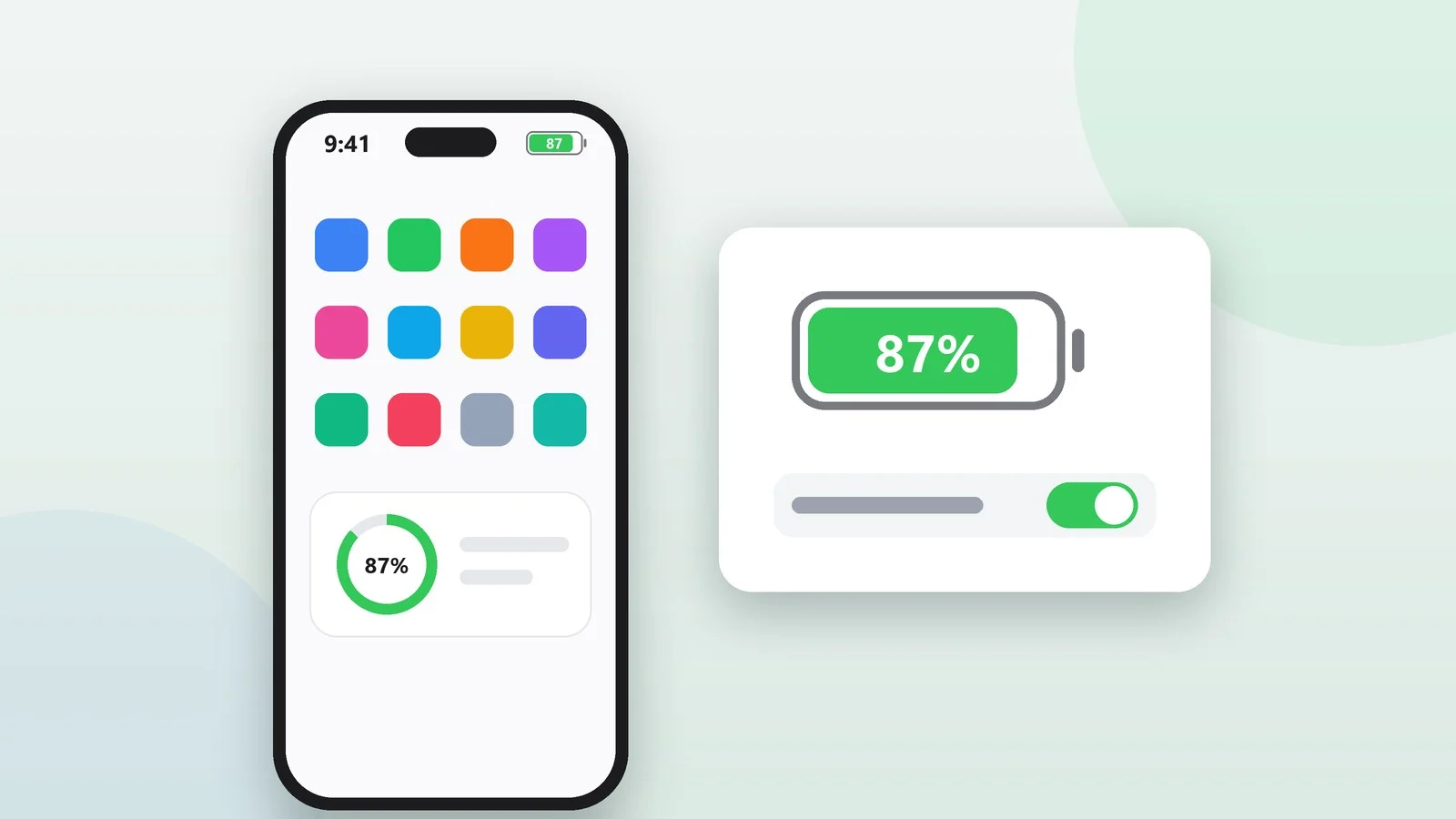
To show the battery percentage on iPhone, open Settings → Battery and turn on Battery Percentage. On an iPhone with Face ID, the number appears inside the battery icon in the top-right corner of the screen. These models got the switch in iOS 16, so in the current iOS 26 and iOS 27 it’s available on every supported iPhone, from the iPhone 11 and iPhone SE (2nd generation) to the iPhone 17 and iPhone 18 Pro.
You can also check the charge without this setting: in Control Center, in the Batteries widget and, while charging, in Settings → Battery. Below: how Face ID, Dynamic Island and Home button models differ, what the yellow icon means, why charging stops at 80% and what to do if the switch is missing. This guide was checked against Apple Support for iOS 26 and iOS 27 as of September 25, 2026.
Open Battery in Settings
Open the Settings app and tap Battery. Here you can see when your iPhone was last fully charged, a graph of the battery level through the day and the Daily Usage section, which compares today’s usage with your usual usage. On iPhone 15 and later, Power Mode and Charging are in this menu too.
Result: The Battery screen opens.
Turn on Battery Percentage
Turn on the Battery Percentage switch. On an iPhone with Face ID, the number appears inside the battery icon. On the iPhone SE, the percentage shows in the status bar; if it doesn’t, turn on the same setting.
To go back to the icon without a number, turn off Battery Percentage. This setting doesn’t affect Control Center or the widget.
Result: The exact battery percentage appears in the top-right corner.
Check the icon in the status bar
The battery icon in the top-right corner shows the charge level or charging status. A lightning bolt on the icon means iPhone is charging, a gray charging icon means charging is paused, and a yellow icon means Low Power Mode is on. More on each case below.
Result: You can see the charge level and the charging status.
Where the battery percentage appears on each iPhone
The Battery Percentage switch is the same on every iPhone, but where the number appears and how you open Control Center depend on whether the model has Face ID.
| iPhone type | Where the percentage shows | How to open Control Center |
|---|---|---|
| Face ID, with or without Dynamic Island | Inside the battery icon when Battery Percentage is on | Swipe down from the top-right corner |
| Home button: iPhone SE, iPhone 8 and earlier | In the status bar | Swipe up from the bottom edge |
Which models fall into each group:
- Face ID and Dynamic Island — iPhone 14 Pro and 14 Pro Max, all iPhone 15 models, iPhone 16, 16 Plus, 16 Pro and 16 Pro Max, iPhone 17, 17 Pro, 17 Pro Max, iPhone Air, iPhone 18 Pro and 18 Pro Max.
- Face ID without Dynamic Island — iPhone 11, 11 Pro and 11 Pro Max, all iPhone 12 and 13 models including the mini, iPhone 14 and 14 Plus, iPhone 16e and 17e.
- Home button — iPhone SE (2nd and 3rd generation) and, among older models, iPhone 8 and earlier.
Apple’s battery percentage instructions don’t treat Dynamic Island models separately: all that matters is whether the iPhone has Face ID. So on the iPhone 16e and 17e everything works the same way as on the iPhone 17 or 18 Pro.
The older iPhone X, XS and XR also have Face ID and get the switch with iOS 16 or later. But they didn’t get iOS 26: the iPhone X stayed on iOS 16, and the XS and XR on iOS 18. For the full list of compatible models, see “iOS 27: what’s new and which iPhones support it.”
How to see the percentage in Control Center
On an iPhone with Face ID, Control Center shows the exact battery percentage even when Battery Percentage is off. Swipe down from the top-right corner of the screen: extra status icons and the battery percentage appear at the top of Control Center. To close it, swipe up from the bottom center of the screen.
On the iPhone SE, you open Control Center by swiping up from the bottom edge of the screen and close it with the Home button. You don’t need it for the percentage, though: it’s already in the status bar.
It’s worth adding a Low Power Mode button to Control Center so you can turn the mode on with one tap:
- Open Control Center and tap the Add button in the top-left corner.
- Tap Add a Control at the bottom of the screen.
- Choose Low Power Mode, then close Control Center.
How to add the Batteries widget
The Batteries widget shows the charge of your iPhone and connected accessories, such as AirPods. You can put it on the Home Screen, the Lock Screen or in Today View. Different widget sizes show different amounts of information.
On the Home Screen
- Touch and hold the Home Screen background until the apps begin to jiggle.
- Tap Edit at the top of the screen, then tap Add Widget.
- Find Batteries in the list or with search, then tap the widget.
- Swipe to choose a size, then tap Add Widget.
- Move the widget where you want it and tap Done.
On the Lock Screen
- Touch and hold the Lock Screen until the Customize button appears at the bottom, then tap it.
- Tap Add Widgets.
- Tap the Batteries widget or drag it onto the Lock Screen.
- Close the widget list and tap Done.
Lock Screen widgets work in iOS 16 and later. If there isn’t enough room, remove one of the widgets with the Remove button and add the one you need.
To open Today View, swipe right on the Home Screen or Lock Screen; you add the widget there the same way as on the Home Screen. For Today View to open on a locked iPhone, turn on Today View and Search in Settings → Face ID & Passcode (Touch ID & Passcode on the iPhone SE).
Battery percentage while charging
While iPhone is charging, a lightning bolt appears on the battery icon. In iOS 26 and iOS 27, Settings → Battery gives the most detail about charging: it shows the current percentage and the estimated time to 80%, or, if the charge is already above 80%, to 100% or your charge limit. The same estimate appears near the top of the Lock Screen.
Up to 80%, iPhone charges quickly; after that, charging slows down to reduce battery wear and heat. If iPhone gets too hot or too cold, iOS may slow down or pause charging. While charging is paused, the charging icon turns gray, and the Lock Screen may show a “Charging On Hold” message.
Charging resumes on its own once the temperature returns to normal. Apple recommends charging iPhone between 0 and 35 °C (32 and 95 °F).
If your charger is underpowered, iOS 18 and later show a Slow Charger message on the Lock Screen and in Settings → Battery. Charging takes longer with a wired charger that provides 7.5 W or less, or a wireless charger that provides less than 10 W.
For faster charging, Apple recommends a USB-C Power Delivery charger with a USB-C cable (a USB-C to Lightning cable for iPhone 14 and earlier), and for wireless charging, a MagSafe Charger or a Qi2-certified charger.
If your iPhone is almost completely drained, the screen may stay dark for up to 2 minutes after you plug it in, and then an image of a nearly empty battery appears. It means iPhone needs to charge for up to 10 more minutes before you can use it.
Why iPhone only charges to 80%
If the charge stays at 80% for a long time, check two features that protect the battery. A third possible cause is heat, covered above.
- Optimized Battery Charging. iPhone learns when you usually charge it, and if it expects a long charging session, such as overnight, it pauses at 80% and finishes charging closer to the time you usually unplug. A Lock Screen notification tells you when iPhone will be fully charged. To charge sooner, touch and hold the notification, then tap Charge Now, or tap Resume Charging in Settings → Battery.
- Charge Limit. On iPhone 15 and later, you can set a limit between 80% and 100% in 5% steps in Settings → Battery → Charging. iPhone stops within a few percentage points of the limit and occasionally still charges to 100% to keep the battery percentage accurate. To charge fully just once, tap Charge to 100% in Settings → Battery.
Optimized Battery Charging is on by default. On iPhone 15 and later, it’s available when the limit is set to 100% and is turned on or off in Battery → Charging; on iPhone 14 and earlier, in Battery → Battery Health & Charging.
Yellow battery icon: Low Power Mode
A yellow battery icon means Low Power Mode is on. It reduces screen brightness, sets Auto-Lock to 30 seconds, turns off some visual effects, automatic downloads, email fetch and Background App Refresh, temporarily pauses iCloud Photos, and on iPhone models with ProMotion limits the refresh rate to 60 Hz.
You can turn the mode on or off in several ways:
- on iPhone 14 and earlier: Settings → Battery → Low Power Mode;
- on iPhone 15 and later: Settings → Battery → Power Mode → Low Power Mode;
- in Control Center, with the Low Power Mode button if you’ve added it;
- by voice: say “Siri, turn on Low Power Mode.”
The mode turns off on its own when iPhone charges to 80% or higher. iPhone 15 Pro and later also have Adaptive Power: it adjusts iPhone to your usual usage patterns and can turn on Low Power Mode by itself at 20% battery. It’s on by default on the iPhone 17, 17 Pro, 17 Pro Max, Air, 18 Pro and 18 Pro Max; on other supported models, you turn it on in Battery → Power Mode.
Troubleshooting
- There’s no Battery Percentage option in Battery — on iPhone models with Face ID, the switch arrived in iOS 16. Update your iPhone: Settings → General → Software Update.
- No percentage on the iPhone SE — turn on Battery Percentage in Settings → Battery.
- The icon is yellow — Low Power Mode is on. Turn it off manually or charge iPhone to 80%.
- The charging icon is gray — charging is paused, for example because of heat or cold. If iPhone is hot, move it and the charger somewhere cooler. You can check whether charging was on hold in Settings → Battery.
- The charge is stuck at 80% — check Optimized Battery Charging and Charge Limit as described above.
- Slow Charger message — connect a more powerful USB-C charger. When charging wirelessly, disconnect wired accessories from iPhone: with them connected, charging is limited to 7.5 W.
- iPhone won’t charge — in iOS 26 and later, open Settings → Battery: if the charger is incompatible, you’ll see a message there.
Sources and methodology
Analysis of public sourcesChecked 25 September 2026
- Apple — Show the battery percentage on your iPhone or iPad support.apple.com
- iPhone User Guide — Show the iPhone battery percentage support.apple.com
- Apple — Use Low Power Mode to save battery life on your iPhone or iPad support.apple.com
- Apple — About iPhone charge speeds support.apple.com
- Apple — About Charge Limit and Optimized Battery Charging on iPhone support.apple.com
FAQ
How do I show the battery percentage on iPhone 11 or iPhone 12?
Open Settings → Battery and turn on Battery Percentage: the number appears inside the battery icon. The switch is available in iOS 16 and later, and all iPhone 11 and iPhone 12 models also support iOS 27. Without this setting, you can see the percentage in Control Center by swiping down from the top-right corner.
How do I show the battery level on the Lock Screen?
Add the Batteries widget: touch and hold the Lock Screen, then tap Customize → Add Widgets. Lock Screen widgets work in iOS 16 and later. While charging, iOS 26 and later also show the estimated charging time near the top of the Lock Screen.
Why does my iPhone only charge to 80%?
It may be Optimized Battery Charging: iPhone holds at 80% and finishes charging around the time you usually unplug it. On iPhone 15 and later, a charge limit in Settings → Battery → Charging can also be the reason. Charging also slows down after 80%, and iOS may pause it if iPhone gets too warm.
How can I check my AirPods battery on iPhone?
Add the Batteries widget to the Home Screen, the Lock Screen or Today View. It shows the charge of your iPhone and connected accessories, including AirPods.
What does a yellow battery on iPhone mean?
Low Power Mode is on: iPhone reduces background activity to make the battery last longer. The mode turns off by itself after charging to 80%, or you can turn it off in Settings → Battery (in Power Mode on iPhone 15 and later).



Leave a Reply