
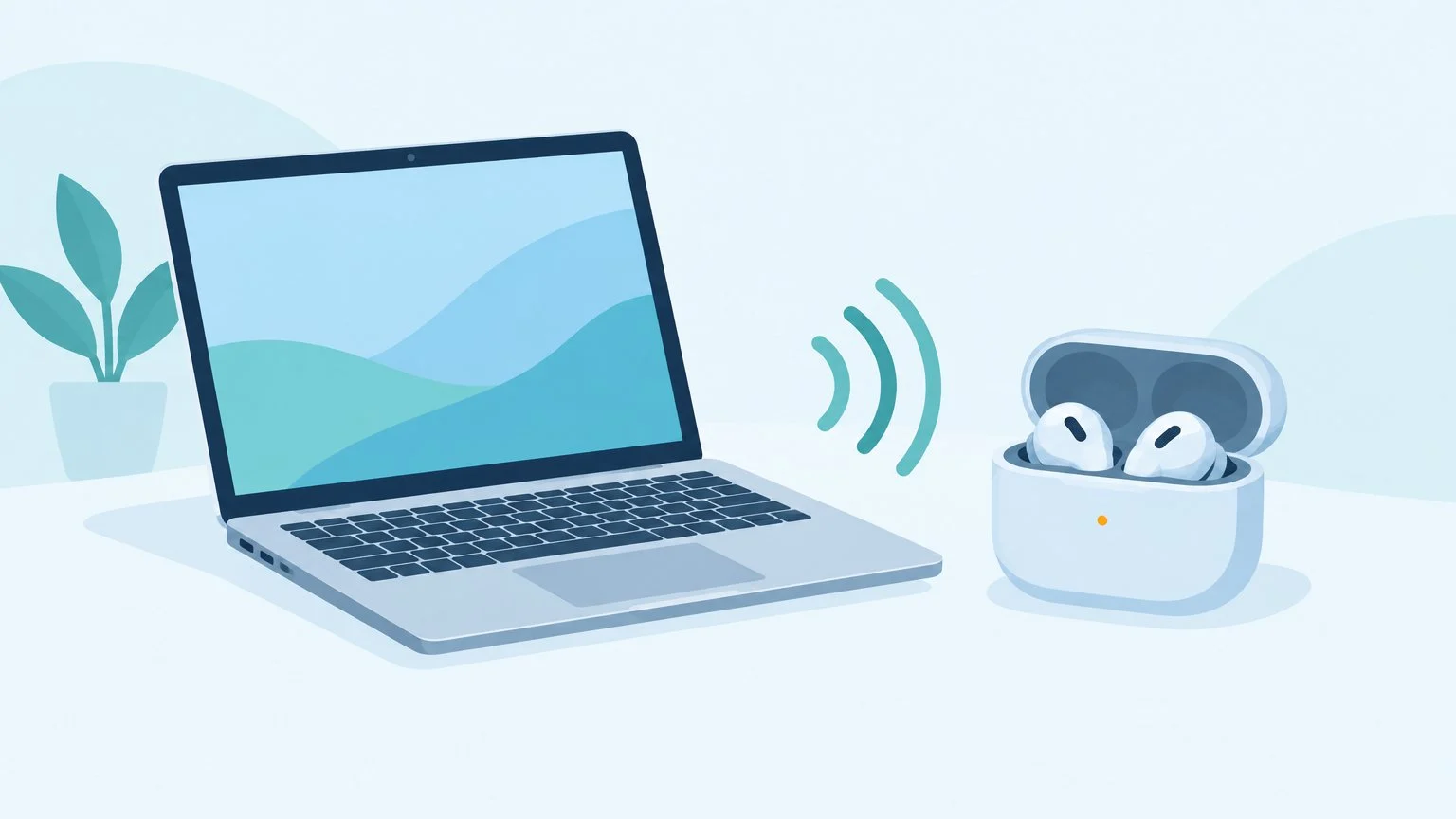
To connect Bluetooth headphones to a laptop or PC running Windows 11, put the headphones in pairing mode, select the network, sound or battery icons on the taskbar, turn on the Bluetooth tile and select Manage Bluetooth devices — the headphones will appear under New devices. In Windows 10, open Settings → Devices → Bluetooth & other devices → Add Bluetooth or other device → Bluetooth. On a Mac, go to System Settings → Bluetooth and click Connect next to the headphones.
Below: how to turn on pairing mode on AirPods, Galaxy Buds and other models, step-by-step instructions for Windows 11, Windows 10 and Mac, and what to do if the headphones connect but there’s no sound. Everything is based on Microsoft, Apple and Samsung support pages as of November 18, 2026.
How to turn on pairing mode on your headphones
Your computer can see the headphones only when they’re in pairing mode (also called “discoverable”). How to turn it on depends on the model:
| Headphones | How to start pairing |
|---|---|
| AirPods Pro 3, AirPods 4 and AirPods 5 | Earbuds in the case, lid open, double-tap the front of the case |
| Other AirPods and AirPods Pro | Earbuds in the case, lid open, press and hold the button on the back |
| Galaxy Buds | Open the case with the earbuds inside |
| Other models | Check the manual or the manufacturer’s website |
On AirPods, pairing mode is shown by a status light flashing white. Microsoft says plainly that every device has its own way of becoming discoverable, so for other brands look for the word pairing in the manual.
1. Windows 11: via Quick Settings
- Select the network, sound or battery icons next to the date and time on the taskbar.
- Turn on the Bluetooth tile if it isn’t highlighted (it says Off).
- Select Manage Bluetooth devices on the Bluetooth tile, then select your headphones under New devices. You may need to scroll the list.
- Follow any on-screen instructions and select Done.
You get the same result with Settings → Bluetooth & devices → Add device, then picking the headphones from the list. If the headphones support Swift Pair, Windows will show a notification when it finds them — just select Connect. After the first pairing, the headphones will connect to the computer automatically whenever Bluetooth is on and they’re nearby.
2. Windows 10: via Settings
- Select Start → Settings → Devices → Bluetooth & other devices and make sure Bluetooth is turned on.
- Select Add Bluetooth or other device, then choose Bluetooth in the Add a device window.
- Choose the headphones from the list of found devices and select Done when pairing is complete.
To turn on Bluetooth quickly in Windows 10, use the tile in the action center on the right side of the taskbar; if you don’t see the tile, select Expand. Keep in mind that Windows 10 support ended on October 14, 2025: Microsoft no longer releases free updates for it, including Bluetooth fixes.
3. Mac: via System Settings
- Choose Apple menu → System Settings, then click Bluetooth. Make sure it’s turned on.
- Put the headphones in pairing mode.
- Click Connect next to the headphones in the Nearby Devices list.
If the sound still comes from the Mac’s speakers, click Control Center in the menu bar, then Sound, and choose the headphones as the output device. AirPods set up with an iPhone connect to a Mac on their own if it’s signed in with the same Apple Account: put them in your ears and choose them in Control Center → Sound.
4. AirPods with a Windows PC
Apple lets you use AirPods as a regular Bluetooth headset with other manufacturers’ devices: you can listen and talk, but Siri doesn’t work.
- Turn on Bluetooth in Windows and start searching for new devices, as in method 1 or 2.
- With the AirPods still in the case, open the lid.
- On AirPods Pro 3, AirPods 4 and AirPods 5, double-tap the front of the case; on other models, press and hold the setup button on the back until the status light flashes white.
- When the AirPods appear in the list of Bluetooth devices, select them.
5. Galaxy Buds with a computer
Samsung describes pairing Galaxy Buds with Windows and Mac like this: disconnect the earbuds from other devices, start adding a Bluetooth device on the computer, then open the earbuds case — this turns on pairing mode, and the indicator light should come on. Select the Galaxy Buds in the list and wait for setup to finish.
According to Samsung, Galaxy Buds are compatible with Windows 10 version 1803 and later. If the computer can’t find them, close the case and open it again to restart pairing, and make sure the earbuds are within 10 meters of the computer.
If there’s no sound or it sounds bad
- The headphones are connected, but sound comes from the speakers. Click the sound icon on the taskbar and choose the headphones as the output device. You can do the same in Settings → System → Sound, under Output.
- Poor sound quality. In Settings → Bluetooth & devices → Devices, select the headphones, click Additional sound properties and choose the output format 2 channel, 16 bit, 48000 Hz (DVD Quality). Microsoft also suggests checking whether the headphones support the A2DP profile.
- The headphones aren’t in the list. In Settings → Bluetooth & devices → Devices, find the Bluetooth devices discovery setting and choose Advanced — this makes Windows show all device types. Make sure airplane mode is off.
- The connection keeps dropping. Microsoft recommends not keeping a Bluetooth device too close to devices plugged into USB 3.0 ports: unshielded USB devices can cause interference.
- They used to work but no longer connect. Remove the headphones: Bluetooth & devices → More options (three dots) → Remove device, turn Bluetooth off for 10 seconds, turn it back on and pair again.
- Nothing helps. In Windows 11, run the Bluetooth troubleshooter in the Get Help app and update the adapter driver: Device Manager → Bluetooth → adapter (often with the word radio in its name) → Update driver. If Windows can’t find a driver, download it from the computer manufacturer’s website.
If you need new headphones, compare models in our ranking of budget headphones.
Sources and methodology
Analysis of public sourcesChecked 18 November 2026
- Microsoft — Pair a Bluetooth device in Windows support.microsoft.com
- Microsoft — Fix Bluetooth problems in Windows support.microsoft.com
- Microsoft — Bluetooth connected but no sound support.microsoft.com
- Apple — Set up AirPods with your Mac and other Bluetooth devices support.apple.com
- Samsung — How to connect your Galaxy Buds to a Windows or Mac device samsung.com
Frequently asked questions
How do I connect Bluetooth headphones to a computer without Bluetooth?
Plug a Bluetooth adapter into a USB port: Microsoft names this as the way to add Bluetooth to a computer that doesn’t have it. Once the adapter is installed, pairing works the same way as on a laptop.
Why can’t my laptop see my headphones?
Most often the headphones aren’t in pairing mode or are already connected to a phone. Disconnect them from the phone, turn on pairing again and set Bluetooth devices discovery to Advanced in Windows.
Do AirPods work with Windows?
Yes, as a Bluetooth headset: music and calls work, but Siri isn’t available. To pair, open the case and turn on pairing mode until the status light flashes white.
Do I have to pair the headphones every time?
No. After the first pairing, the headphones and the computer connect automatically when Bluetooth is on and the devices are nearby.
Why do my headphones sound bad on my computer?
Check the output format in Additional sound properties (Microsoft recommends 2 channel, 16 bit, 48000 Hz) and update the Bluetooth driver. Another cause is interference from devices in nearby USB 3.0 ports.





Leave a Reply