
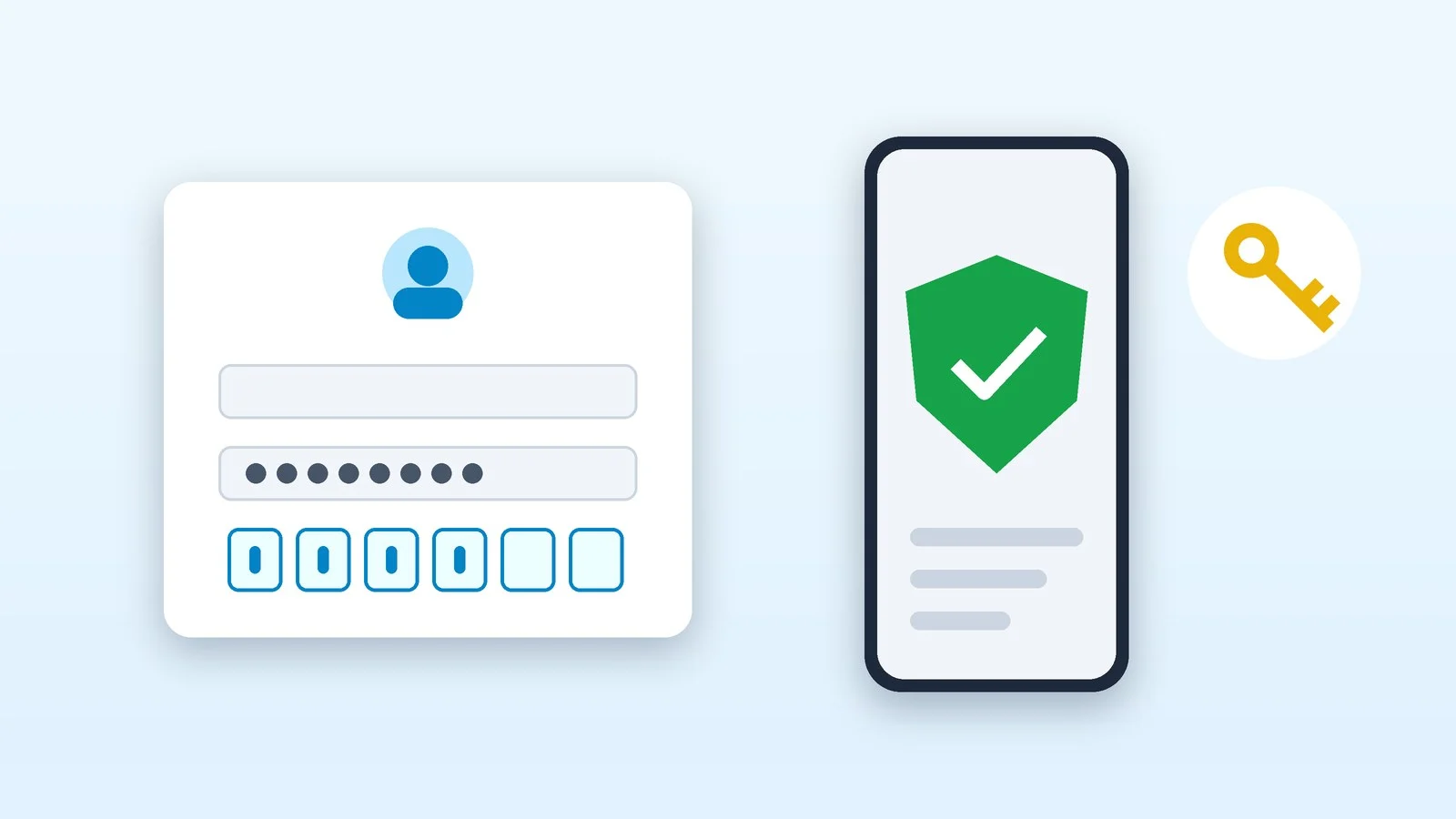
Two-factor authentication (2FA) adds a second step to signing in: after your password, the service asks for another confirmation — a code from an app, a tap on a notification or a passkey. Even if your password leaks, nobody else can get into the account without that second factor.
Below: which method beats SMS, step-by-step setup for Google, Apple, Microsoft, Instagram, Facebook, WhatsApp and Telegram, and what to do if you lose your phone. Menu names were checked against each service’s help pages as of October 7, 2026.
What two-factor authentication is
The service checks you in two ways from different categories: something you know (a password or PIN), something you have (a phone or hardware key) and something you are (a fingerprint or face). That is how the US Cybersecurity and Infrastructure Security Agency (CISA) defines it. A stolen password only unlocks the first step — the second stays with you.
The names differ, but the idea is the same: Google calls it 2-Step Verification, Apple, Instagram and Facebook call it two-factor authentication, and WhatsApp and Telegram call it two-step verification. The UK’s National Cyber Security Centre (NCSC) says plainly that 2-step verification, 2FA and MFA are different names for the same thing.
You aren’t asked for the second step every time — only on a new device or browser and for important actions such as changing your password. Your own phone or computer can be remembered: Google has a “Don’t ask again on this computer” checkbox. Only tick it on devices that you alone use.
Password
You enter your username and password as usual
Second factor
The service asks for a code, a tap on a notification or a passkey
Sign-in
Without the second factor, a password alone won’t get anyone in
SMS, app or passkey: which is safer
Second factors don’t protect equally. CISA ranks them from strongest to weakest: FIDO-standard keys (passkeys and hardware keys), then app codes and push notifications with number matching, then plain push notifications, with SMS and voice calls as the last resort. At the same time, both CISA and the NCSC stress that any two-factor authentication is better than none.
| Method | How it works | Weak spot |
|---|---|---|
| Passkey | Fingerprint, face or phone PIN | Not every service supports it |
| Hardware security key | USB or NFC key, FIDO2 standard | You have to buy one, ideally two |
| Authenticator app | One-time code, usually for 30 seconds | Code can be phished on a fake site |
| Push notification | Tap “Yes” on your own phone | Fatigue attack: a flood of prompts |
| SMS or voice call | Code is sent to your phone number | SIM swap, SMS interception |
| Email code | Code arrives by email | Needs a separate, secure mailbox |
Passkeys and hardware keys also stop phishing: they are tied to the real site’s address and simply won’t work on a fake page. A code from an SMS or an app can be typed into a fake site by the user, and SMS can also be intercepted through SS7 network flaws or a SIM swap.
Since April 23, 2026, the NCSC has advised individuals to sign in with passkeys wherever they are supported and, where they aren’t, to use a password manager and 2-step verification. In August 2026, Ukraine’s State Service of Special Communications and Information Protection (SSSCIP) also urged people to move email, social media, messengers and banking to FIDO2 keys, passkeys or device biometrics and to drop SMS codes where possible.
What a passkey is
A passkey is a password-free sign-in based on the FIDO standard: you confirm it the same way you unlock your phone or computer — with a fingerprint, face, PIN or pattern. It is stored on a device or a hardware key or synced through a password manager, and your biometrics never leave the device, the FIDO Alliance explains.
When you sign in with a passkey, Google skips the second step because possession of the device is already confirmed. Passkeys work on Android 9, iOS 16, Windows 10, macOS Ventura and later. Create them only on your own devices: Google warns that anyone who can unlock such a device can get into your account.
Where to turn on two-factor authentication
Start with email: it is used to reset passwords for your other accounts, which is why the NCSC specifically advises turning on 2FA for it. Then do your phone account, messengers and social media. Where to find the setting in popular services:
| Service | Where to turn it on | What to choose |
|---|---|---|
| Security & sign-in | Passkey, Google prompts | |
| Apple Account | Your name → Sign-In & Security | Trusted devices, FIDO keys |
| Microsoft | account.microsoft.com/security | Passkey or Authenticator |
| Instagram, Facebook | Accounts Center | Authenticator app |
| Account → Two-step verification | Password, email and passkey | |
| Telegram | Settings → Privacy and Security | Password, email and passkey |
Turn on 2-Step Verification for your Google Account
- Open your Google Account and go to Security & sign-in.
- Under “How you sign in to Google,” select “Turn on 2-Step Verification.” The direct link is myaccount.google.com/signinoptions/two-step-verification.
- Follow the on-screen steps and add a second-step method.
Google prompts are the easiest option: a request appears on your Android phone or in Gmail, Google Photos, YouTube or the Google app on iPhone, and you just tap “Yes.” Google recommends them over SMS because they also protect against SIM swaps. For codes without an internet connection, set up Google Authenticator, and save backup codes in case you lose your phone — more on them below.
Create a passkey at myaccount.google.com/signinoptions/passkeys with the “Create a passkey” button. Google may take up to 7 days to trust a new 2-Step Verification phone number, Google Authenticator or passkey — which gives you time to notice if an attacker added it.
Result: When you sign in on a new device, Google will ask for a passkey or a second step.
Check two-factor authentication for your Apple Account
Most Apple Accounts have it on by default, and Apple Pay and Sign in with Apple require it. To check on an iPhone or iPad, go to Settings → your name → Sign-In & Security; on a Mac, the same path is in System Settings. If it’s off, turn it on there or at account.apple.com via “Upgrade Account Security.”
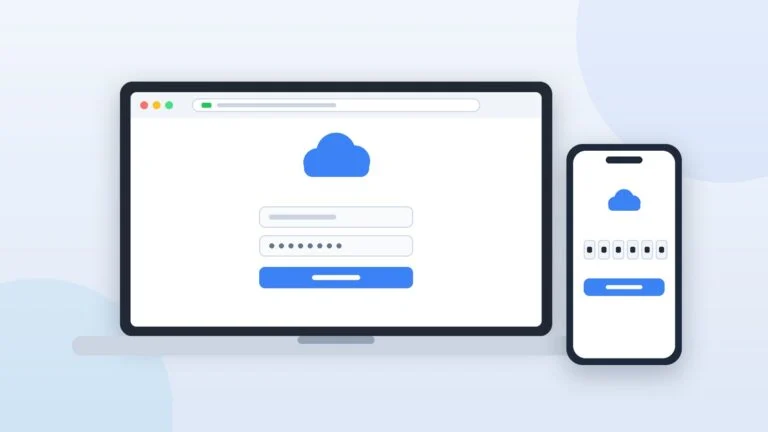
When you sign in on a new device or in a browser, Apple shows a six-digit code on your trusted devices or sends it to your trusted number — that’s how signing in to iCloud on a computer works, for example. If you have a second number not tied to your iPhone, add it under Two-Factor Authentication → Add Trusted Phone Number: when the iPhone is your only trusted device, the codes go with it.
For stronger protection there is a Recovery Key — a 28-character code in Sign-In & Security. It turns off Apple’s standard account recovery: lose the key and you may be locked out for good, so print it and don’t keep it in Passwords or Notes. Stricter still are Security Keys: at least two physical FIDO keys and iOS 16.3 or later on all your devices.
Result: Verification codes go to your trusted devices and phone numbers.
Secure your Microsoft account
- Sign in at account.microsoft.com/security.
- Select “Manage how I sign in.”
- Under Additional security, turn on Two-step verification and follow the prompts. For Microsoft Authenticator, the site shows a QR code.
A passkey is even more convenient: at account.live.com/proofs/manage, choose “Add a new way to sign in or verify,” then “Face, Fingerprint, PIN, or Security Key.” Since May 2025, new Microsoft accounts have been passwordless by default, and the company says it will gradually phase out SMS for signing in to and recovering personal accounts.
Note Microsoft’s warning: with two-step verification on, a password alone isn’t enough to recover the account, and without access to your contact methods it can take 30 days — or you may not get the account back at all. That’s why Microsoft recommends adding three pieces of security info, such as a backup email address, a phone number and an authenticator app.
Result: When you sign in on a device that isn’t trusted, Microsoft will ask for a code or approval.
Turn on 2FA in Instagram and Facebook
Both apps handle security in Accounts Center, which Meta is gradually renaming Meta Account.
- In Instagram, tap your profile picture at the bottom right, then Menu at the top right.
- Open Accounts Center → Password and security → Two-factor authentication and pick the account.
- Choose a security method and follow the instructions.
On Facebook on a computer, the path starts like this: your profile picture → Settings and privacy → Settings → Accounts Center, then the same as in Instagram.
Instagram recommends an authentication app such as Google Authenticator or Duo Mobile; you can only set it up in the mobile app. There are also SMS codes and, once SMS is on, codes via WhatsApp. Facebook also supports physical security keys and gives you 10 recovery codes for when your phone isn’t at hand.
Result: When someone logs in from an unrecognized device, Meta will ask for a code or a login confirmation.
Turn on two-step verification in WhatsApp
- On Android, tap ⋮ → Settings → Account → Two-step verification; on iPhone, tap You → Account → Two-step verification.
- Switch on the “Turn on two-step verification” toggle.
- Create a strong password and confirm it.
- Enter an email address you can access and tap Next.
- Tap “Trust this device” or “Skip.”
WhatsApp used to ask for a six-digit PIN, but on August 25, 2026, it announced that it is replacing the PIN with a full password: at least 8 characters, with at least one letter and one number. If you still have the old PIN, create a password under Settings → Account → Password → Create password. The email address lets you recover access without SMS or a phone call.
Signing in with a passkey is even faster: go to Account → Passkeys and create one. On Android it needs version 9 or later, and you confirm the sign-in with your fingerprint, face or screen lock instead of an SMS code.
Result: When your number is registered on a new phone, WhatsApp will ask for your password, not just the SMS code.
Turn on Two-Step Verification in Telegram
- Open Settings → Privacy and Security → Two-Step Verification.
- Create a password and follow the prompts.
- Add a recovery email — it helps you regain access if you forget the password.
Telegram asks you to protect the recovery email itself with a strong password and 2-step verification. If you’re already signed in on another device, the login code arrives in the official Telegram chat, and you should never share it with anyone.
Since December 12, 2025, Telegram has supported passkeys: Settings → Privacy and Security → Passkeys. They let you sign in without SMS, and you can keep a copy in iCloud Keychain, Google Password Manager or another password manager. Still keep the phone number on your account up to date: you can sign in with an SMS code even when you have a passkey.
Result: Signing in on a new device will require both the code and your password.
Save backup codes and a backup sign-in method
Backup codes are one-time passwords for when your phone isn’t available. Google gives you 10 eight-digit codes under 2-Step Verification → Backup codes → Get backup codes, and a new set cancels the old one. In Instagram, they are under Two-factor authentication → Additional methods → Backup codes.
Keep the codes away from your phone: Google suggests printing them and storing them with your passport and other important documents. Add a second sign-in method too — another phone number, a passkey on another device or a hardware key: the NCSC advises having a backup option, for example in case your phone’s battery dies.
Password managers can also store 2FA codes and passkeys: the Passwords app on an iPhone with iOS 18, for example, generates verification codes itself. We compared which managers can do this and what they cost in our password manager rankings. Protect the manager itself with a long, unique master password and two-factor authentication.
Result: You have a way to sign in even when your phone isn’t at hand.
Sign out sessions you don’t recognize
Two-factor authentication doesn’t kick out anyone who is already signed in: WhatsApp warns plainly that new security features won’t remove someone who is already using your account. So after setup, check the device list and end any sessions you don’t recognize.
- Google — the google.com/devices page.
- Telegram — Settings → Devices.
- WhatsApp — Linked Devices in the ⋮ menu on Android.
- Instagram — once 2FA is on, you can see login requests and remove trusted devices.
Other services keep sign-in logs too — for example, ChatGPT recently added a security history.
Result: Only your own devices remain signed in to your accounts.
How to move 2FA codes to a new phone
Google Authenticator makes it easiest: if you’re signed in to the app with your Google Account, your codes sync automatically, so on the new phone you just install Authenticator and sign in to the same account. Sync works in version 6.0 and later on Android and 4.0 and later on iOS, and Google encrypts the codes in transit and at rest.
If you used the app without an account, transfer the codes manually while you still have the old phone:
- Install Google Authenticator on the new phone and tap “Get Started.”
- On the old phone, open Menu → Transfer codes → Export codes, unlock the phone and select the accounts — a QR code appears, or several if you have many accounts.
- On the new phone, open Menu → Transfer codes → Import codes and scan the QR code.
Other apps and password managers move codes in their own way — check their help pages before you reset the old phone. If the phone is lost and the codes weren’t synced, Google advises removing the old codes on every site and linking the app again.
How scammers get around two-factor authentication
2FA stops anyone who has only your password, so scammers go after the second factor. CISA, the NCSC and the SSSCIP describe these tricks:
- Asking you to read out the code. They message or call pretending to be support, a bank or a friend. Google reminds users that it doesn’t call to verify a code, and WhatsApp says never to share your registration code or password with anyone.
- Real-time phishing. You enter your password and code on a copy of the site, and the scammers’ server instantly passes them to the real one while the code is still valid. This beats SMS and app codes, but not passkeys.
- Fatigue attacks. Knowing your password, the attacker starts one sign-in after another, flooding your phone with prompts in the hope that you’ll tap “Yes.” Don’t approve a sign-in you didn’t start: on Google’s “Trying to sign in?” prompt, tap “No, don’t allow” and change your password.
- SIM swaps. Scammers talk a carrier into moving your number to their SIM card, and your text messages go to them. CISA advises setting a PIN on your mobile carrier account and choosing an app, prompts or passkeys over SMS.
Account recovery can be a weak spot too: the NCSC notes that attackers target it because it is often easier than signing in. Secure your recovery email and remove phone numbers you no longer use from your accounts.
If you lost your phone or the code doesn’t arrive
- Lost the phone with your Google Account — sign in with another phone, a second number, a backup code, a passkey or a hardware key, then sign out of the missing phone and change your password. Your carrier can restore your number on a new SIM card.
- No Google sign-in methods left — go through account recovery: with 2-Step Verification on, Google may need 3–5 business days to make sure it’s you.
- Lost your iPhone — on the code screen, tap “Didn’t Get a Code?” or “Can’t get to your devices?” and get the code at your trusted number. Without the number, start account recovery: it takes a few days or longer, and contacting Apple can’t speed it up.
- No access to your Microsoft contact methods — recovery can take 30 days, so add three methods in advance.
- Telegram is open on another device — turn on Two-Step Verification, end the session on the lost phone in Settings → Devices, and get your number back from your carrier.
- Forgot your WhatsApp password — choose “Verify another way”: a code by email, SMS or voice call. You can reset the account after a few days, but a reset deletes messages received since your last login and, if you haven’t logged in for more than 30 days, your profile too.
- The SMS code doesn’t arrive — Google may have sent a prompt instead; if you requested several codes, only the newest one works. On iPhone, check the Unknown Senders filter in Messages.
- The app code doesn’t work — check the time and time zone on your phone: since version 7.0, Google Authenticator uses the system time. Make sure you enter the code for the right account before it changes.
- A new sign-in method hasn’t appeared — Google may take up to 7 days to verify a new phone number, Authenticator or passkey.
Sources and methodology
Analysis of public sourcesChecked 7 October 2026
- Google — Turn on 2-Step Verification support.google.com
- Apple — Two-factor authentication for Apple Account support.apple.com
- CISA — Implementing Phishing-Resistant MFA cisa.gov
- NCSC — Leave passwords in the past: passkeys are the future ncsc.gov.uk
- SSSCIP (Ukraine) — Digital identity security, in Ukrainian kmu.gov.ua
FAQ
Which is better for 2FA: SMS or an app?
An authenticator app or prompts: SMS codes are vulnerable to SIM swaps and interception, and CISA treats them as a last resort. A passkey or a hardware key is the safest option. Still, SMS beats signing in with a password alone, as the NCSC points out.
Do I need 2FA if I sign in with a passkey?
When you sign in with a passkey, Google skips the second step because the passkey itself proves you have the device. But your account still has a password, so keep two-factor authentication on — it protects sign-ins with that password.
How do I recover Google Authenticator without my old phone?
If your codes were synced to your Google Account, install the app on the new phone and sign in to the same account — the codes will appear on their own. If not, sign in to each service with a backup code or another method and link the app again.
Can I store 2FA codes in a password manager?
Yes, as long as the manager itself is protected by a long master password and its own two-factor authentication: CISA mentions password managers that generate codes. Keep in mind that the password and the code then sit in one place, so for email and banking a passkey or a hardware key is safer.





Leave a Reply