
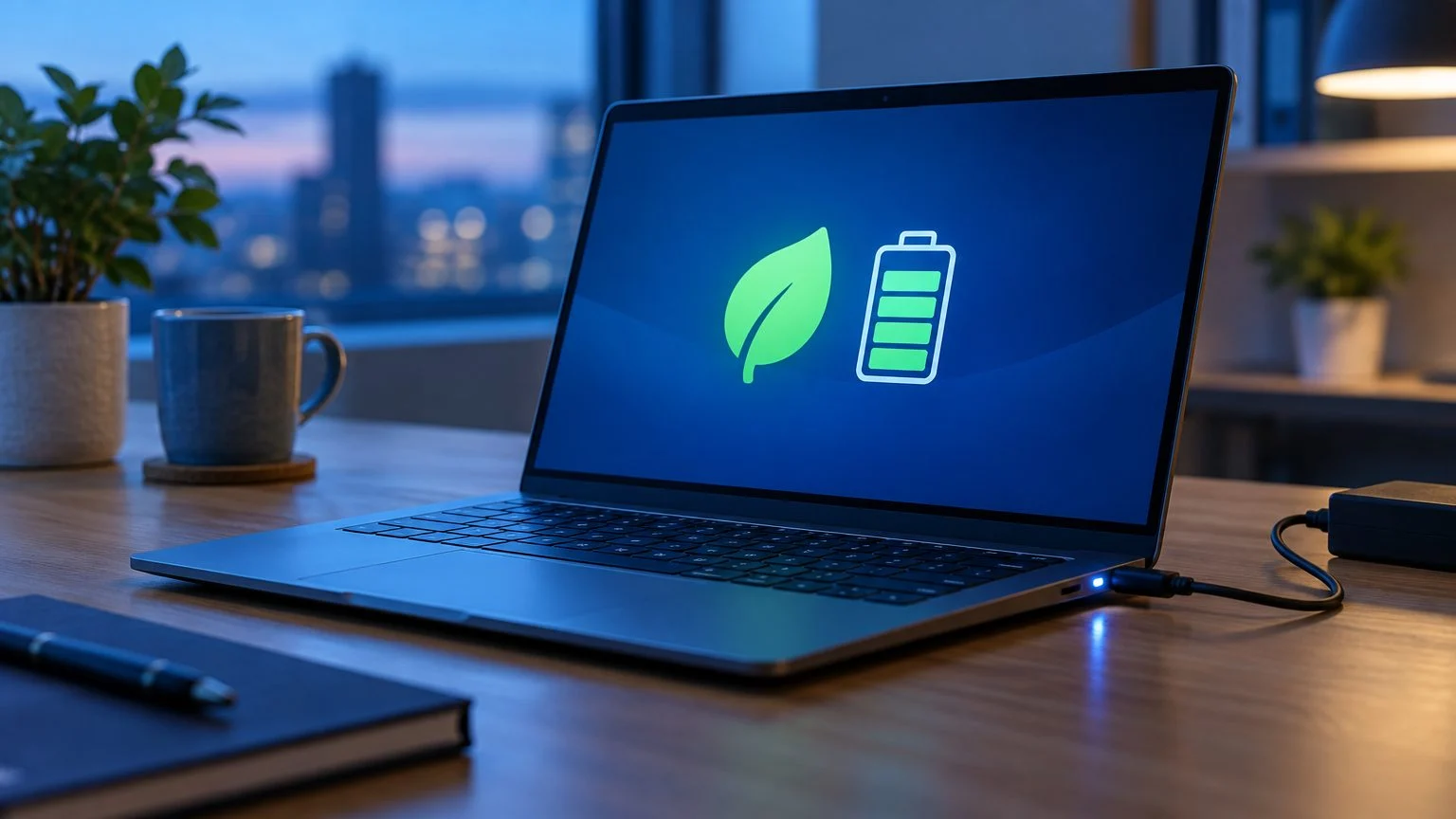
To turn off power saving mode on a Windows 11 laptop, click the battery icon on the taskbar and select the Energy saver button in Quick Settings. To keep it from coming back, go to System → Power & battery, set the automatic turn-on level to Never, and set Power mode to Best performance. In Windows 10 the feature is called Battery saver and is turned off with the slider in the battery flyout.
Several settings can save power in Windows at once: the energy saving feature itself, the power mode, the power plan in Control Panel, and your laptop maker’s own app. Below is how to check each of them. It takes a few minutes and doesn’t require administrator rights: by default, any user can change power settings.
What Windows calls power saving mode
Five different settings hide behind one name. You need to turn off the one that is actually active, so check the table first.
| Setting | Where to find it | How to turn it off |
|---|---|---|
| Energy saver (Windows 11 24H2+) | Quick Settings, Power & battery | Button or toggle |
| Battery saver (Windows 10) | Battery icon, System → Battery | Slider or toggle |
| Power mode | Power & battery | Best performance |
| Power saver plan | Control Panel, Power Options | Select Balanced |
| Laptop maker’s mode | MyASUS, Lenovo Vantage and others | Switch off quiet or eco mode |
Don’t confuse the Energy saver feature in Windows 11 Settings with the Power saver plan in Control Panel: they are different things. According to Microsoft, the feature lowers screen brightness by 30%, turns off transparency effects, and stops you from changing the power mode. When the laptop is on battery and the charge is low, it also blocks background apps and non-critical update downloads.
Turn off Energy saver in Windows 11
Click the battery icon on the right side of the taskbar to open Quick Settings. Select the Energy saver button so that it’s no longer highlighted.
You can do the same in Settings: press Win + I, go to System → Power & battery, expand Energy saver, and turn off Always use energy saver. If only the dimmed screen bothers you, you don’t have to turn the feature off: just turn off Lower screen brightness when using energy saver.
In Windows 11 before version 24H2, this section is called Battery saver. To turn it off, select Turn off now next to it.
Result: The Energy saver button in Quick Settings is no longer highlighted, and you can change the power mode again.
Turn off automatic activation
When the charge gets low, Energy saver turns on by itself. The threshold is set in the same Energy saver section: in the Turn energy saver on automatically when battery level is at list, select Never or a lower percentage.
Turning the automation off completely only makes sense if the laptop is almost always plugged in. Otherwise, Windows won’t stretch out the last few percent of charge.
If the list isn’t there, install the latest Windows updates: Microsoft restored this setting in 2026 updates for versions 24H2 and 25H2 (builds 26100.8968 and 26200.8968 and later). The threshold option may also be hidden while Always use energy saver is turned on.
Result: Energy saver won’t turn on by itself until you pick a threshold again.
Choose a power mode
In Power & battery, find Power mode. You can set it separately for plugged-in and battery use: in the interface these are Plugged in and On battery. There are three options:
- Best power efficiency saves battery and limits apps’ background activity;
- Balanced strikes a balance between performance and battery life;
- Best performance gives maximum performance at the cost of higher power use.
For games, video editing and other heavy tasks, choose Best performance at least for plugged-in use. If the list is grayed out, either Energy saver is on (step 1) or the wrong power plan is selected in Control Panel, which is covered below.
Result: Best performance is selected for plugged-in use.
How to turn off Battery saver in Windows 10
Support for Windows 10 ended on October 14, 2025. The system keeps working, but only PCs enrolled in the Extended Security Updates (ESU) program get security fixes, and for home PCs it runs until October 12, 2027. If your computer is eligible, see “How to upgrade Windows 10 to Windows 11: PC check and steps” to move to the newer system. In Windows 10 itself, Battery saver is turned off like this:
- Click the battery icon on the taskbar and drag the power mode slider to the right. On battery power, the far-left position turns on Battery saver, and the far-right position gives maximum performance. The slider is available in Windows 10 version 1703 and later, but not on every laptop.
- To keep Battery saver from turning on by itself, go to Settings → System → Battery and clear the Turn battery saver on automatically if my battery falls below check box. By default, it turns on when the charge falls below 20%.
- If Battery saver is already on, turn off Battery saver status until next charge on the same page.
The power plan, Windows Mobility Center and maker apps work in Windows 10 the same way as in Windows 11; they are covered in the next sections.
Check your power plan
The power plan is an older Control Panel setting, and it affects performance too. Press Win + R, type powercfg.cpl and press Enter to open Power Options.
- Balanced is the recommended option. Power mode in Windows Settings only works with it and with plans based on it.
- Power saver reduces your computer’s performance where possible. If it’s selected, switch to Balanced.
- High performance is usually hidden under Show additional plans. With it, Windows 11 says the power mode is set automatically, and you can’t change it in Settings.
If the list shows only Balanced and there are no additional plans, the laptop most likely supports Modern Standby. On these devices Windows only allows the Balanced plan and plans based on it, so this isn’t a fault. You can check it in Terminal:
powercfg /aIf the output lists Standby (S0 Low Power Idle), the laptop supports Modern Standby. On such a laptop, performance is controlled through Power mode.
Experienced users can check one more setting: Change plan settings → Change advanced power settings → Processor power management → Maximum processor state. It should be 100% for both On battery and Plugged in. Some laptops don’t show this item in the list.
On a laptop, you can also switch plans in Windows Mobility Center: press Win + X, select it in the menu, and open the list on the Battery Status tile. It shows the same plans as Control Panel.
Modes in laptop makers’ apps
Many laptops have their own operating modes. A quiet or eco mode in the maker’s app can limit performance even when everything in Windows is set to maximum.
- ASUS. MyASUS → Device Settings → Power & Performance → Fan Profile. Whisper mode lowers power use and fan noise; for heavy workloads choose Standard mode or Performance mode. You can cycle through the modes with Fn + F.
- Lenovo. Operating modes are switched in Lenovo Vantage or Lenovo PC Manager, or quickly with Fn + Q. Lenovo’s user guides list a battery saving mode and a maximum performance mode among them, and on ThinkPads the cooling modes are tied to the Windows power mode.
- Dell. In Dell Optimizer, the thermal mode is synced with the Windows 11 power mode and the BIOS setting. If it keeps switching to Quiet on its own, clear the sync check box under Power & Battery → Preferences.
- HP. On HP Spectre and ENVY laptops, Smart Sense modes (quiet, extra cooling or a performance boost) are selected in HP Command Center.
Troubleshooting
- Power mode won’t change, and Windows says it can’t be set when energy saver is on: turn off Energy saver (step 1).
- Power mode says it is set automatically: the High performance or Power saver plan is selected in Power Options. Switch to Balanced.
- There’s no Power mode section at all: it depends on your PC’s hardware and manufacturer. You still have the power plan and the maker app’s modes.
- There’s no Energy saver button in Quick Settings: turn the feature off in Settings → System → Power & battery.
- Energy saver keeps turning on by itself: check the automatic turn-on threshold (step 2) and whether a quiet or eco mode is selected in the maker’s app.
- The laptop is still slow and runs very hot: it may be overheating because of dust or dried-out thermal paste. Clean the cooling system and replace the thermal paste.
Sources and methodology
Analysis of public sourcesChecked 25 September 2026
- Microsoft — Change the power mode for your Windows PC support.microsoft.com
- Microsoft — Battery saving tips for Windows support.microsoft.com
- Microsoft Learn — Energy Saver learn.microsoft.com
- Microsoft Learn — Power Policy Settings learn.microsoft.com
- ASUS — MyASUS: Device Settings asus.com
FAQ
How do I wake my computer from power saving mode?
If the computer has gone to sleep, press the power button: that wakes most models. On many computers a key press, a mouse click or opening the laptop lid is enough. If it’s the monitor that says it’s in power saving mode, it isn’t getting a video signal: wake the computer, check the video cable, and restart the PC.
Why does Control Panel show only the Balanced plan?
That’s how laptops with Modern Standby work: Windows only allows the Balanced plan and plans based on it. You can check this with the powercfg /a command. On such a laptop, performance is changed through Power mode.
Can I keep Best performance on all the time?
Yes, it’s a standard Windows mode, not overclocking. The trade-off is a battery that drains faster and higher temperatures and fan speeds, which is how Lenovo, for example, describes this mode. On battery power, Balanced is the more practical choice.
Why does my laptop only charge to 80%?
That’s not Windows power saving but battery protection in the maker’s app. On ASUS laptops, Battery Care Mode limits the charge to 80% (older models let you choose 60%, 80% or 100%), and on some Lenovo models Conservation mode keeps the charge within 75–80%. You turn this protection off in MyASUS or Lenovo Vantage.
How do I turn off Energy saver on a PC without a battery?
In Windows 11 24H2 and later, Energy saver is available on desktop PCs too. Go to Settings → System → Power and turn off Always use energy saver, or select the Energy saver button in Quick Settings. The power plan works the same way as on a laptop, but Power mode isn’t always available on desktop PCs.






Leave a Reply