
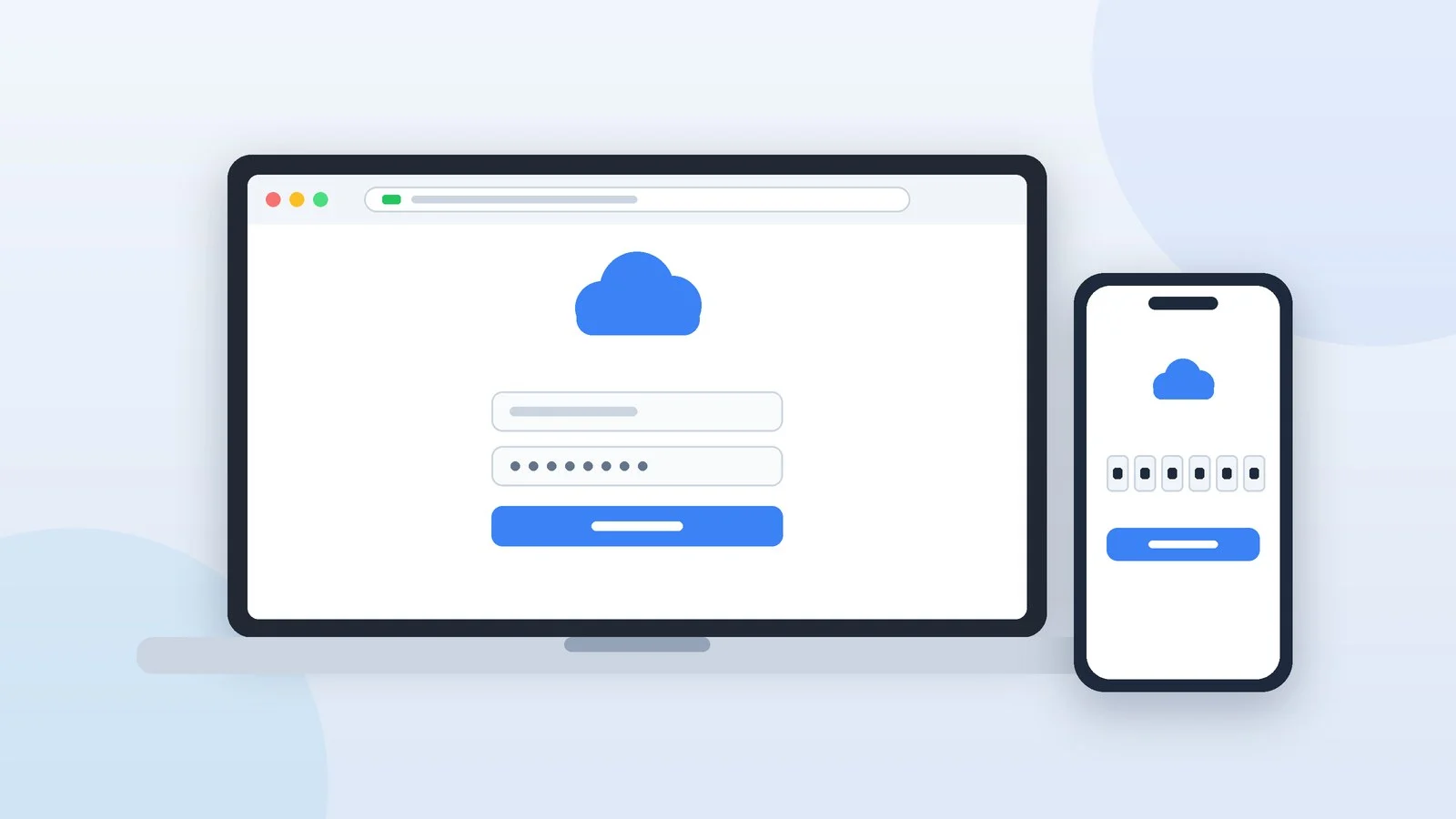
To sign in to iCloud on a computer, open icloud.com in a web browser and sign in to your Apple Account — the new name for Apple ID. Enter your email address or phone number and password, then the six-digit code that appears on your iPhone or another trusted device. This works on a computer without installing anything; officially, Apple lists browsers for Mac and Windows.
The iCloud for Windows app puts your photos and iCloud Drive files in File Explorer; on a Mac, iCloud is turned on in System Settings. Below: browser sign-in step by step, what to do without a trusted device, Windows and Mac setup, Advanced Data Protection and common fixes. Checked against Apple Support as of September 2026: macOS 27 Golden Gate, iOS 27, Windows 11, iCloud for Windows 15.
Three ways to sign in to iCloud on a computer
To open your mail, photos or files, the website is enough. The Windows app and Mac settings are for when you want iCloud data to stay in sync with your computer.
| Method | Where it works | What you get | What to install |
|---|---|---|---|
| iCloud.com website | Computer with a current browser | Photos, mail, files, notes | Nothing |
| iCloud for Windows | Windows 11 | Photos and files in Explorer, Outlook | App from the Microsoft Store |
| System Settings | Mac | Syncs photos, files, mail | Nothing, iCloud is built into macOS |
Open iCloud.com in your browser
Type icloud.com in the address bar. On a PC, Apple recommends Firefox 128 or later, Google Chrome 130 or later (desktop mode only) or Microsoft Edge 130 or later; on a Mac, Safari 13.1 or later and Opera as well. If the site misbehaves, update your browser or open iCloud in another one — our browser comparison can help.
There’s no iCloud app for Linux or Chromebook, so the website is the only way in. Apple says iCloud.com supports the latest versions of Safari, Firefox, Chrome, Edge and Opera, but its system requirements list browsers only for Mac and Windows PCs — Linux and ChromeOS aren’t mentioned.
Result: The iCloud sign-in page opens.
Sign in to your Apple Account
Choose one of these ways to sign in:
- your Apple Account email address or phone number and password;
- Face ID or Touch ID, if you’re already signed in on a device that supports these features;
- a passkey: enter your email or phone number, select “Sign in with Passkey” and scan the QR code with an iPhone or iPad running iOS 17, iPadOS 17 or later. iCloud Keychain needs to be turned on.
A passkey is handy on someone else’s computer: you don’t have to type your password on its keyboard. Sign in to the same Apple Account you use on your iPhone, or the site won’t show the photos and files from your phone.
Result: If this is your first sign-in in this browser, the site asks for a verification code.
Confirm with a verification code
The first time you sign in on a new browser, you need a six-digit verification code. A sign-in notification appears on your trusted devices: choose Allow and enter the code it shows on your computer. Apple Watch with watchOS 6 or later displays the code too.
The notification may include a map with the approximate sign-in location. It’s based on the IP address, so the pin may not match where you are: if it’s you signing in, choose Allow anyway. This code is part of two-factor authentication, which most accounts already use: your password alone isn’t enough to sign in.
If no trusted device is nearby, select “Didn’t Get a Code?” or “Can’t get to your devices?” and have the code sent to your trusted phone number — Apple will send a text message or call you. If your account has a security key, the site may ask for it instead of a code.
Result: The iCloud.com homepage opens with app tiles.
Open the app you need
On the homepage, select a tile: Photos, iCloud Mail, iCloud Drive, Notes and others. You can also select an item inside a tile — for example, a note in the Notes tile to open it right away.
Result: The app opens in your browser with your iCloud data.
If you don’t have a trusted device
A trusted device is an iPhone, iPad, Mac, Apple Watch or Apple Vision Pro on which you’ve already signed in to your Apple Account with two-factor authentication. A Windows PC isn’t on that list, so without an Apple device you’ll have to get the code sent to your phone number.
- You have the phone with your trusted number — on the code screen, select “Didn’t Get a Code?” or “Can’t get to your devices?” and have the code sent to that number. If you use Unknown Senders filtering on your iPhone, look for the code there.
- Your device or number is temporarily out of reach — Apple recommends waiting until you have access again: it’s the fastest way.
- You have neither a device nor the number — on the code screen, select “Didn’t Get a Code?” or “Can’t get to your devices?”, then “Can’t use [phone number]”, and follow the account recovery steps. Recovery can take a few days or longer, and contacting Apple can’t speed it up.
- You need to find a lost iPhone — no code required: select the Find Devices button at the bottom of the code window, or go to icloud.com/find.
If your iPhone is your only trusted device and the only one with access to your number, you won’t be able to get codes if it’s lost or damaged. So add a second trusted phone number that isn’t tied to your iPhone.
On an iPhone, go to Settings → [your name] → Sign-In & Security → Two-Factor Authentication → Add Trusted Phone Number. The same option is in System Settings on a Mac and at account.apple.com under Sign-In and Security.
What you can do on iCloud.com from a computer
| App | What you can do |
|---|---|
| Photos | View, upload and download photos |
| iCloud Drive | Upload, share, recover files |
| iCloud Mail | Send email, set up auto-reply |
| Notes, Reminders | Create, edit, share |
| Calendar, Contacts | Manage events, import contacts |
| Pages, Numbers, Keynote | Work on documents |
| Find Devices | Locate, play a sound, erase a device |
| iCloud Settings | Storage, sign out of all browsers |
There’s also Apple Invites, and with an iCloud+ subscription, Hide My Email and Custom Email Domain. Not everything in iCloud is visible in a browser: Health data and passwords in iCloud Keychain aren’t available on the site. On a Windows PC, your passwords are in the iCloud Passwords app that comes with iCloud for Windows.
On a phone or tablet, iCloud.com shows a different set of apps. If you don’t have any Apple devices, you can still use iCloud in a browser only: you get iCloud Drive, Pages, Numbers, Keynote, contacts, notes and shared albums with 1 GB of storage. Signing in on an iPhone, iPad, Mac or Apple Vision Pro unlocks all features and 5 GB of free storage.
How to sign in to iCloud for Windows
The app is for when you want your iCloud photos and files in File Explorer, your calendars and contacts in Outlook, and your iCloud passwords filled in automatically in a browser. For the latest version of iCloud for Windows, Apple requires Windows 11 or later and, for Outlook sync, Outlook 2021 or later. If your PC still runs Windows 10, upgrade it to Windows 11 first.
Before you install it, set up iCloud on an iPhone, iPad or Mac: without that, the Windows app won’t work. Then:
- Install iCloud for Windows from the Microsoft Store — it’s free.
- Open iCloud for Windows and sign in to the same Apple Account you use on your iPhone, iPad or Mac.
- Verify your identity with a code from a trusted device or phone number, or with a security key.
- For each app or feature, click Sync [app or feature] or Not Now in the bottom-right corner. Some also let you adjust Advanced Settings or install extensions.
- Choose whether to share iCloud analytics, then click Finish Setup.
Your photos appear in File Explorer under iCloud Photos in the Navigation pane (the folder is C:\Users\[user name]\Pictures\iCloud Photos\Photos). Until you download them, they show as thumbnails: double-click one to download and open it. iCloud Drive files are stored in C:\Users\[user name]\iCloud Drive by default, and files under 1 MB download automatically.
To sign out, open the app and click Account Details → Sign Out. When you sign out, your iCloud data is removed from the PC but stays on your other devices and on iCloud.com.
How to sign in to iCloud on a Mac
You don’t need a separate app on a Mac: iCloud is built into macOS. In the current macOS 27 Golden Gate and other versions with System Settings, sign in like this:
- Choose Apple menu → System Settings.
- Click your name at the top of the sidebar. If you don’t see your name, click “Sign in” and enter your Apple Account email address or phone number, your password and, if asked, a verification code.
- Click iCloud and turn on the apps and features you want. Click See All to see the full list.
The Saved to iCloud section shows whether Photos, Drive, Passwords, Notes, Messages and Mail are syncing. To keep your photos and files on this Mac, turn on “Sync this Mac” for Photos and Drive. You can also store your Desktop and Documents folders in iCloud Drive from there.
The iCloud.com website works on a Mac too, for example in Safari. It’s handy when you need to open a different Apple Account without changing your system settings.
Advanced Data Protection and browser access
Advanced Data Protection for iCloud is an optional setting: with it, most of your iCloud data, including backups, photos and notes, is protected with end-to-end encryption and can be decrypted only on your trusted devices. When you turn it on, access to your data on iCloud.com turns off automatically, and the site shows only Find My and iCloud Settings.
You don’t have to turn the protection off — just allow web access again:
- Turn on web access on a trusted device. On an iPhone or iPad with iOS or iPadOS 26.4 or later: Settings → [your name] → iCloud → iCloud.com → Allow Data Access. On a Mac with macOS 26.4 or later: Apple menu → System Settings → your name → iCloud → Data Access on iCloud.com → Allow Data Access. In earlier versions, the switch is called Access iCloud Data on the Web.
- Sign in to iCloud.com.
- Approve temporary access on your trusted device.
Once you approve, for the next hour your device grants access to each new category of data — photos, notes, files — on its own and sends you a notification. After an hour, you need to approve a new category again, while the categories you’ve already opened stay available until you sign out of the site or close the browsing session. These settings are also in iOS 27.
Next to it is the Allow Search switch: it lets your trusted devices provide search results for iCloud Drive and iCloud Photos on the site. You can also turn off web access without Advanced Data Protection. Then you’ll see an alert when you sign in to iCloud.com, and you can turn access back on with the “Manage on device” link and approval on a trusted device.
With Advanced Data Protection, you can sign in to iCloud for Windows only with version 14.1 or later, and starting with 14.2, only when your trusted Apple device is within Bluetooth range of the PC or connected to the same Wi-Fi router. Turn off your VPN while signing in.
Troubleshooting
- The code doesn’t arrive — select “Didn’t Get a Code?” and request a text message or call to your trusted number. On an iPhone, check the Unknown Senders filter in Messages.
- You forgot your password — on a trusted iPhone, go to Settings → [your name] → Sign-In & Security → Change Password; on a Mac, do the same in System Settings. Without a trusted device, reset it at iforgot.apple.com. Sometimes you have to wait 1 hour before you can change the password.
- Your account is locked or disabled — this happens after too many incorrect password attempts. Reset your password, and if you see a message that your account is locked or not active, select Request Access in it.
- Your photos or files aren’t on the site — check that it’s the same Apple Account as on your iPhone. If you see only Find My and iCloud Settings, web access is off or Advanced Data Protection is on — see the section above.
- The site won’t load or shows an error — check the Apple System Status page for iCloud outages, update your browser or open the site in another one.
- iCloud for Windows won’t install — you need Windows 11, a Microsoft account and an Apple Account. If you see a message that you need to install the Media Feature Pack, select Download in it, or turn Media Features back on: Control Panel → Programs and Features → “Turn Windows features on or off.”
- iCloud for Windows won’t sign in with Advanced Data Protection — update the app, keep your iPhone near the PC or connect both devices to the same Wi-Fi router, and turn off your VPN. If your account has security keys, you need iCloud for Windows 15 or later.
- A third-party email app rejects your password — third-party apps need a separate app-specific password, not your Apple Account password.
Sources and methodology
Analysis of public sourcesChecked 25 September 2026
- Apple — Sign in and use iCloud.com support.apple.com
- Apple — System requirements for iCloud support.apple.com
- Apple — Get a verification code and sign in with two-factor authentication support.apple.com
- Apple — Set up iCloud for Windows on your PC support.apple.com
- Apple — Manage web access to your iCloud data support.apple.com
FAQ
Can I sign in to iCloud on a computer without an iPhone?
Yes. You can get the code by text message or phone call to your trusted number: select “Didn’t Get a Code?” on the code screen. Without any Apple devices, iCloud works only in a browser: iCloud Drive, Pages, Numbers, Keynote, contacts and notes with 1 GB of storage.
How do I sign in to iCloud without a verification code?
If your account uses two-factor authentication, signing in with a password on a new browser requires a code. Without one, only Find Devices opens: select that button at the bottom of the code window, or go to icloud.com/find. If you have neither a device nor your number, start account recovery through “Can’t use [phone number].”
Why aren’t my photos on iCloud.com?
Check that you signed in to the same Apple Account you use on your iPhone. If the site shows only Find My and iCloud Settings, Advanced Data Protection is on or web access is off: allow it in iCloud settings on your iPhone or Mac.
How do I sign out of iCloud on someone else’s computer if I forgot?
Sign in to iCloud.com from any computer, select your account photo in the top-right corner, choose iCloud Settings → Sign Out Of All Browsers, and confirm with Sign Out.
Do I need to install iCloud for Windows?
No, the website is enough for mail, photos and files. The app lets you see photos and iCloud Drive in File Explorer, sync calendars and contacts with Outlook, and fill in iCloud passwords in your browser. The latest version needs Windows 11.








Leave a Reply