
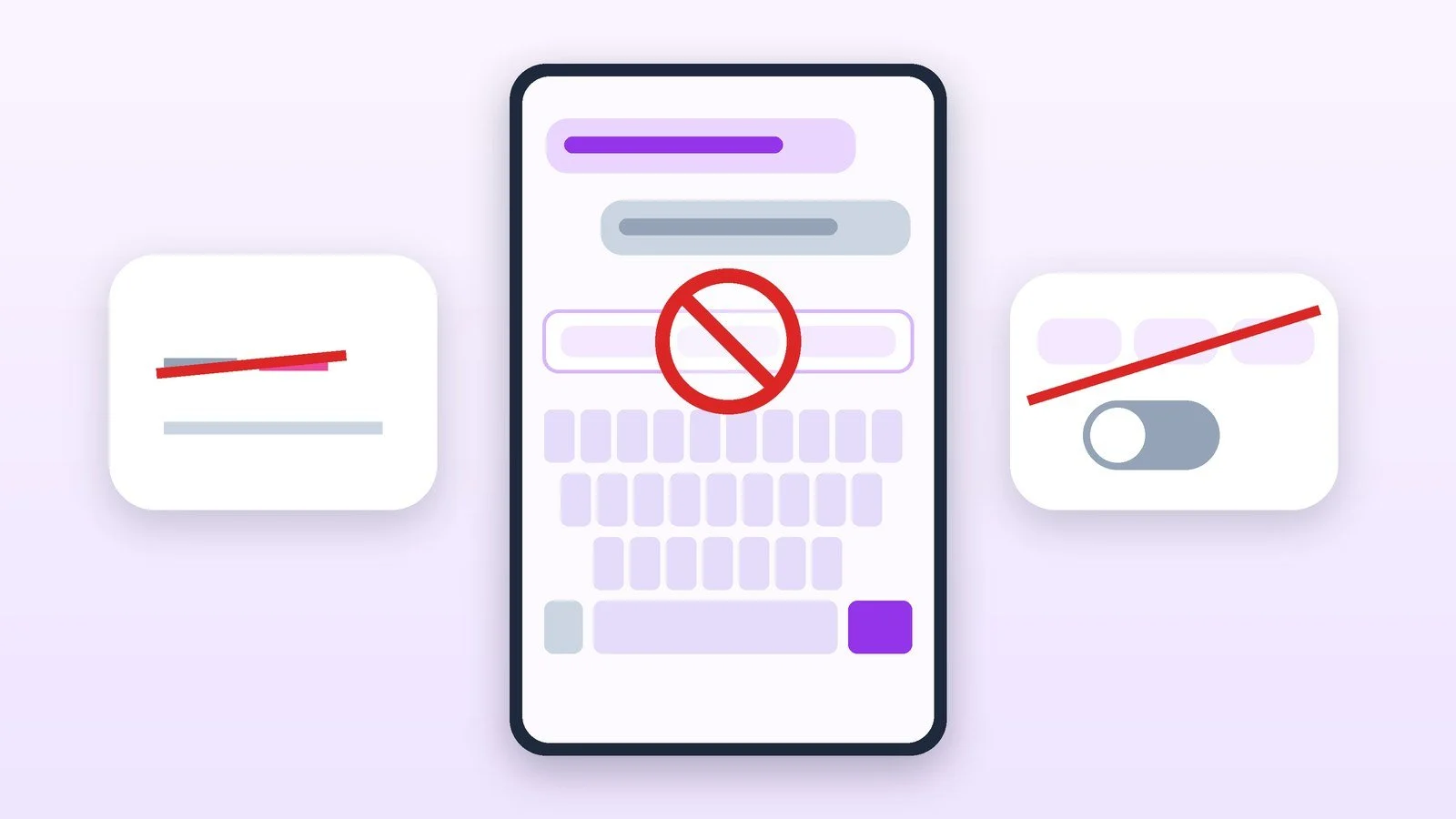
To turn off T9 on Samsung Galaxy, tap the settings icon (gear) on the keyboard and switch off “T9 mode.” Auto replace is turned off next to it, in the same Samsung keyboard settings. In Gboard, go to Settings → Text correction and turn off the options that change the text you type: Google calls them “Smart typing” and “Auto-capitalization.” On iPhone, go to Settings → General → Keyboard and switch off “Auto-Correction,” and if needed “Predictive.”
T9, auto replace and autocorrect are not the same thing, so below we first explain what each one does, and then go step by step through turning off each feature on Samsung, in Gboard (Google Pixel and many other Android phones) and on iPhone. Item names come from the Samsung, Google and Apple help pages as of October 18, 2026; on other keyboards (for example, Xiaomi’s own) the items are called something else.
What T9, auto replace and autocorrect are
| Feature | What it does | Where it is called |
|---|---|---|
| T9 / predictive text | Suggests words from the dictionary based on the first letters, so you don’t have to type them in full | Samsung: “T9 mode”; iPhone: “Predictive”; Gboard: suggestions bar |
| Auto replace / autocorrect | Fixes typos and replaces abbreviations with full words after a space | Samsung: “Auto replace”; iPhone: “Auto-Correction”; Gboard: “Text correction” section |
| Spell check | Underlines suspicious words and suggests correct spellings | Samsung: “Auto spell check” |
Samsung describes T9 as an intelligent typing system that suggests words from the dictionary based on the words you type often. Auto replace, as Samsung defines it, automatically replaces frequent abbreviations and typos with full words after you type a word and press the space bar. Apple adds that “Auto-Correction” checks spelling against the keyboard dictionary and fixes errors automatically.
How to turn off T9 and auto replace on Samsung Galaxy
Open the keyboard settings
There is a universal way and paths for different Android versions.
- Universal way: open any app where you can type text, bring up the keyboard and tap the Settings icon (the gear to the left of the space bar or in the row above the keyboard).
- Android 14–11: Settings → General management → Samsung Keyboard settings.
- Android 10–8: Settings → General management → Language and input → On-screen keyboard (sometimes “Virtual keyboard”) → Samsung Keyboard → Intelligent typing.
Result: The Samsung keyboard settings are open.
Turn off “T9 mode”
Find the “T9 mode” switch and slide it to the left: Samsung turns the mode on by sliding the switch to the right, so to turn it off you need to slide it to the left. The word suggestions above the keyboard will disappear.
Result: T9 is off, and word suggestions no longer appear.
Turn off “Auto replace” and “Auto spell check”
In the same Samsung keyboard settings, “Auto replace” (replaces frequent abbreviations and typos with full words after a space) and “Auto spell check” (highlights suspicious words) are listed as separate items. Turn off the ones that get in your way. If you want suggestions but not corrections, leave “T9 mode” on and turn off only “Auto replace.”
Result: The keyboard no longer corrects typos automatically.
How to turn off auto-correction in Gboard
Gboard is the standard keyboard on Pixel and on many other Android phones. Google calls the section you need “Text correction.”
Open the Gboard settings
Open any app where you can write (for example, Gmail or Google Keep). In the lower-left corner of the keyboard, press and hold the comma, then slide your finger to the gear icon. Another way: at the top of the keyboard, tap the menu icon, then “More” → “Settings.”
Result: The Gboard settings menu is open.
Turn off unwanted corrections
Tap “Text correction.” If the feature makes unwanted changes to your text, Google advises turning off “Smart typing” and “Auto-capitalization.” Note that, according to Google’s help, “Smart typing” works only in English in the United States. For Russian and Ukrainian, look in this section for the automatic correction switch: Google’s help does not name it. To see or, conversely, hide word suggestions, use the “Show suggestions bar” option.
The “Correct” button and spell check are not available everywhere: according to Google’s help, this feature currently works only in the United States in English. You can turn it off via Text correction → Grammar and spelling → Spell check.
Result: Gboard no longer changes your text without your knowledge.
Delete added words if they get in the way
Gboard saves the words you type on your device to fix typos and offer suggestions. You can delete them at any time: in the Gboard settings, choose Dictionary → Delete added words.
If a correction happens by accident, the “Undo” button helps you cancel it right away: Google notes that typos can be corrected automatically, and “Undo” reverses the correction.
Result: Gboard no longer uses the words you added.
How to turn off auto-correction and predictive text on iPhone
Turn off “Auto-Correction”
- Open Settings → General.
- Tap Keyboard.
- Turn off “Auto-Correction.” It is on by default.
In iOS 17 and later, auto-correction briefly underlines the corrected words: tap the underlined word and choose the variant you want in the pop-up menu. If you are updating, we covered what’s new in iOS 27 separately: which iPhones support the update.
Result: Auto-Correction no longer changes words.
Turn off “Predictive”
Press and hold the emoji (smiley) or globe icon, choose “Keyboard Settings,” and turn off “Predictive” (in some versions, “Predictive input”). The same switch is in Settings → General → Keyboard. In iOS 18, you can separately turn off the built-in predictive text, meaning suggestions right in the text field.
Apple warns that after you turn off “Predictive,” corrections of misspelled words may still appear. To remove them as well, turn off “Auto-Correction” (the step above). You can accept a correction with the space bar, a punctuation mark or the return key, and reject it by tapping “x”; if you reject the same suggestion several times, iPhone will stop offering it.
Result: Word suggestions above the keyboard have disappeared.
Delete text replacements if they trigger on their own
If the abbreviation “omw” suddenly turns into “On my way,” that is a “Text Replacement.” Go to Settings → General → Keyboard → Text Replacement, tap Edit, then the delete button next to the unwanted replacement, Delete and Done.
Result: Automatic abbreviations are no longer substituted.
What to turn off if one thing is bothering you
| Problem | What to turn off |
|---|---|
| The phone “corrects” correct words into other words | Samsung: “Auto replace”; iPhone: “Auto-Correction”; Gboard: switches under “Text correction” |
| Words appear above the keyboard and distract you while typing | Samsung: “T9 mode”; iPhone: “Predictive”; Gboard: “Show suggestions bar” |
| Words automatically start with a capital letter | Gboard: “Auto-capitalization” |
| An abbreviation turns into a phrase by itself | iPhone: “Text Replacement”; Samsung: “Auto replace” |
| Words are underlined and suggestions are offered | Samsung: “Auto spell check”; Gboard: “Spell check” (US, English) |
If corrections get in the way because of your typing speed, try dictating the text. We wrote about what Google’s voice AI assistant can do in our article about Gemini 3.8 Live.
If it didn’t work
- The item you need is missing. Most likely you have a different keyboard: Samsung, Gboard and the iPhone keyboard name their features differently. On Samsung look for “T9 mode” and “Intelligent typing”; in Gboard, “Text correction”; on iPhone, General → Keyboard. Start with the universal way: the gear icon on the keyboard itself.
- Settings reset or the keyboard works erratically. Samsung advises clearing the data of the Samsung Keyboard app and restarting the device. For Gboard, Google suggests clearing the cache in Settings → Apps, and if that doesn’t help, clearing the data: the Gboard settings will be reset.
- Corrections remain after you turn off suggestions. On iPhone, different switches control suggestions and corrections: turn off both “Predictive” and “Auto-Correction.”
- You want to restore everything. Samsung turns T9 back on with the same switch, sliding it to the right; on iPhone, turn on “Auto-Correction” and “Predictive” in Settings → General → Keyboard.
Sources and methodology
Analysis of public sourcesChecked 18 October 2026
- Samsung — How to turn on T9 texting mode on the Samsung Galaxy keyboard samsung.com
- Samsung — Useful features of the Samsung Galaxy keyboard samsung.com
- Google — Troubleshoot Gboard (Text correction) support.google.com
- Google — How to use suggestions and autocorrect in Gboard support.google.com
- Apple — Auto-Correction and predictive text on iPhone support.apple.com
Frequently asked questions
What is the difference between T9 and auto replace?
T9 (predictive text) suggests words from the dictionary based on the first letters, while auto replace fixes typos and replaces abbreviations with full words after a space. In Samsung settings these are separate items, “T9 mode” and “Auto replace”; on iPhone, “Predictive” and “Auto-Correction.”
How do I turn off T9 on Samsung?
Tap the settings icon on the keyboard and switch off “T9 mode.” Or open Settings → General management → Samsung Keyboard settings (Android 14–11) and move the “T9 mode” switch to the “off” position.
How do I turn off T9 on an iPhone?
iPhone has no mode with that name: “Predictive” controls word suggestions and “Auto-Correction” controls corrections. Both are turned off in Settings → General → Keyboard.
Why does the phone still correct words after I turn off suggestions?
Because suggestions and autocorrection are separate features. Apple states directly that with “Predictive” turned off, corrections of misspelled words may still appear; “Auto-Correction” turns them off. On Samsung, “Auto replace” does the same job.
Can I turn off autocorrection in just one app?
The Samsung, Google and Apple help pages used here don’t offer such a setting for individual apps: the features are turned on at the keyboard level. If you want to type without corrections everywhere, turn them off in the keyboard settings.





Leave a Reply