
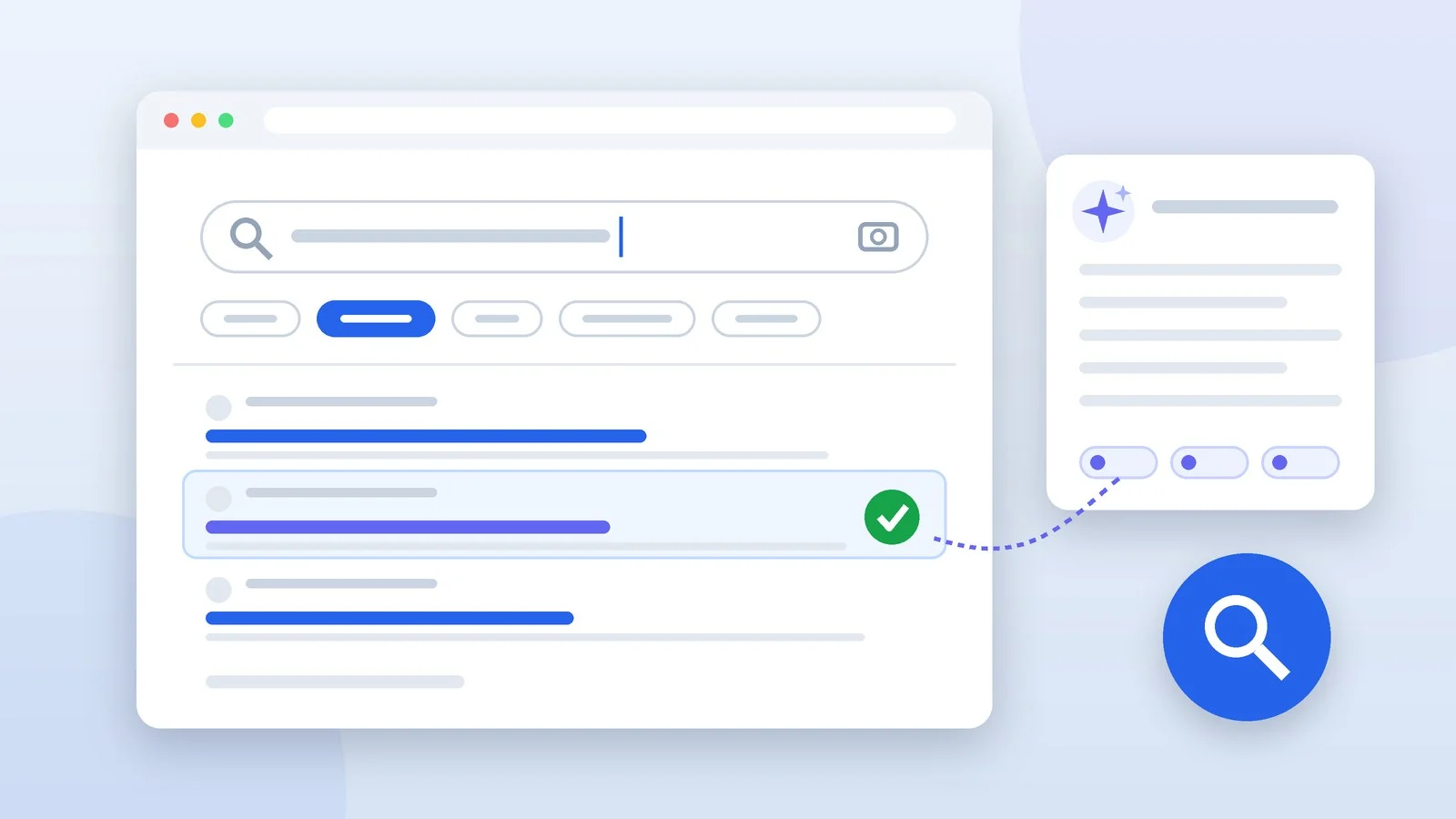
To search the internet effectively, phrase your query in the words the answer would use on the page you need, narrow the results with one or two operators or filters, and check who published what you found and when. An AI answer helps you get up to speed on a topic, but it isn’t proof: take numbers and quotes only from pages you’ve opened yourself.
Below are 8 steps, from phrasing the query to finding the original document. The operators and menu labels were checked against the Google, Bing and DuckDuckGo help pages as of September 30, 2026. We also flag which commands from old cheat sheets no longer work.
Phrase your query in the words of the answer
Google advises using words that appear on the sites you’re looking for: not “my head hurts” but “headache,” because that’s the term medical sites use. Start with a short query and add refinements one at a time: model, city, year, software version.
Capitalization doesn’t matter: to Google, “Google Chrome” and “google chrome” are the same query, and it usually recognizes a misspelled word. Copy an error message or code in full — that’s the fastest way to find forums and help pages where it has already been discussed.
Avoid leading questions. The query “why is coffee bad for you” pulls up texts that agree with it, while “coffee blood pressure research” leaves room for different conclusions. Library search guides recommend exactly this to guard against confirmation bias.
Result: The top results are pages that phrase the answer in the same words as your query.
Refine the query with operators
An operator is a symbol or a word with a colon that narrows the results. There must be no space after the colon: site:who.int works, but site: who.int doesn’t. Add operators one at a time so you can see which one cut out the noise. As of September 30, 2026, Google Search Help documents six:
- quotes — an exact word or phrase: “error 0x80070005”;
- minus — excludes a word: jaguar speed -car;
- site: — searches one site or domain: site:who.int caffeine, while -site:youtube.com removes a site from the results;
- filetype: — files of one type: manual filetype:pdf;
- before: and after: — pages updated before or after a date: Android 16 after:2026-01-01.
Commands from old cheat sheets can no longer be relied on:
- Google dropped the plus sign in front of a word back in October 2011 — put the word in quotes instead: smartphone “Xiaomi”;
- cache: (a saved copy of a page) doesn’t work: on September 24, 2024, Google removed it from its documentation, noting that the operator no longer works;
- related: (similar sites) was removed from Google’s documentation in July 2023 as no longer supported;
- OR, intitle:, the asterisk * and number ranges with two dots aren’t in Google’s current help, and neither is lang: — you choose a language under “Tools.”
Bing documents OR (in capitals) and intitle: in its official help, and DuckDuckGo’s help lists intitle: and inurl:. If you’d rather not memorize the syntax, open Google Advanced Search: the “This exact word or phrase,” “None of these words,” “Site or domain” and “File type” fields do the same job as quotes, minus, site: and filetype:. For more examples, see our guide to Google search operators.
Result: The results are down to pages with the exact phrase, from the right site, in the right format or period.
Filter the results with Tools
Below the search box, click “Tools” and a filter bar appears. The “Any time” menu limits the period: “Past hour,” “Past 24 hours,” “Past week,” “Past month,” “Past year” or “Custom range…” with your own dates. For news and the latest version of a manual, that’s faster than before: and after:.
The “All results” menu has a “Verbatim” option: Google searches for exactly the words you typed. Without it, Google may show pages where a word with a similar meaning stands in for yours. The set of tools depends on the query, so some options may be missing.
Above the results are filters by type: “Images,” “News,” “Videos,” “Books.” The “Web” filter leaves only text links to websites, without AI Overviews and other features. If you can’t see it, look under “More.”
Result: The results are limited to the period, result type or exact word match you need.
Search with an image using Google Lens
Searching with an image helps you find out what’s in a photo, track down a product or the original picture, and check whether an old photo is being passed off as new. In Google, Lens does the job, and it works in Chrome, Firefox, Safari and Edge.
- On google.com, click the “Search by image” icon and upload a file — or drag the image into the search box.
- To search by link, copy the image address and paste it into the same window.
- In Chrome, right-click an image on a website and select “Search with Google Lens” — the results open in a side panel.
- On an Android phone with Circle to Search, touch and hold the Home button or navigation handle and circle the object.
The results show objects from the photo, similar images and sites with the same or a similar image. You can refine the search by typing words in the “Add to your search” box. Where it’s available, “About this image” shows when Google first saw the image and where it was published earlier, which makes a photo taken out of context easier to spot.
Google Images also understands two operators from Google’s documentation for site owners: imagesize:1200×800 keeps images of that size, and src: followed by a file address finds pages that use that image.
Result: You see what’s in the picture, similar images and sites where the image has already appeared.
Search in other languages and translate what you find
Google takes the language of your query into account: search in German, and the most relevant results will most likely be in German, even with an English interface. Documentation and primary sources are often published in just one language — for technical topics, usually English — so translate the key terms into that language and search again.
To keep pages in one language, open the “Any language” menu under “Tools” and pick a language. The languages offered there are set in Search settings: “Languages” → “Results Language Filter” → “Edit” (if English is your only language, the filter doesn’t appear). In Bing, the language: operator does the same, for example language:en.
Chrome translates a whole page: right-click and select “Translate to [Language].” Without Chrome, use translate.google.com and its “Websites” tab. Machine translation can distort terms, so check numbers, names and quotes against the original.
Result: You read foreign sources in your language and check the key data against the original.
Use AI answers as a first draft
An AI Overview appears above Google’s results when its systems decide a summary drawn from several sources will help. AI Mode (at google.com/ai, or the “AI Mode” button after you type a question) splits your question into subtopics, searches each one and answers with links. You can ask follow-up questions and show it a photo, a PDF or a page address. Both features also work in Ukrainian and Russian.
AI is handy for getting up to speed on an unfamiliar topic, finding the right terms for a regular search, comparing options or summarizing a long document. But Google warns plainly that AI Overviews “can and will make mistakes,” and AI Mode sometimes misinterprets pages or misses context. You can’t turn AI Overviews off, but the “Web” filter shows links only.
Chat assistants — ChatGPT, Gemini, Claude — also search the web and cite links. In its ChatGPT help article, OpenAI lists typical failures: fabricated quotes, studies and references to non-existent sources — and advises treating an answer as a first draft, not a final source.
We compared how the assistants handle search in ChatGPT vs Gemini vs Claude and explained where such errors come from in our piece on how neural networks work. The rule is simple: open the links in the answer and find that exact claim on the page. If there’s no link, or the page says something else, treat the fact as unverified.
Result: You have a short answer and links, each of which you have opened and checked.
Check the source: author, date, original
Fact-checkers read laterally: instead of studying a site from the inside, they open new tabs and see what others say about it. That’s the idea behind SIFT, a method proposed by digital literacy expert Mike Caulfield and taught by university libraries:
- Stop: before you read on or share, ask yourself whether you know this site.
- Investigate the source: who the author and publisher are and what they’re known for.
- Find better coverage: check whether independent, more reliable sources confirm the claim.
- Trace claims to the original: the study, report, interview or first publication of a photo.
In Google, use the “About this result” menu — the three-dot icon next to the page address. Where the feature is available, it shows when Google first saw the source and its Wikipedia description. To see what others write about a site, search something like World Health Organization -site:who.int: the organization’s own pages won’t appear.
Check the date on the page itself: before: and after: filter by the date of the last update, so an old article with a recent edit will pass as fresh. Check numbers against the report or statistics the author cites, and quotes against the full recording of the speech.
Result: You know who the author is, when the piece was published and where the numbers come from.
Find the original document: PDFs, laws, standards
Reports, manuals and regulations are often published as PDFs. Google indexes PDF, Word, Excel and PowerPoint files, including DOCX, XLSX and PPTX, as well as RTF and OpenOffice files, so filetype: works with any of these formats. It’s most precise to search the organization’s own site:
dishwasher manual filetype:pdf
annual report site:who.int filetype:pdf
site:gov.ua budget filetype:pdf
Take laws and regulations from official portals: Ukrainian ones from the Legislation of Ukraine database at zakon.rada.gov.ua. ISO standards are paid, but for some of them the iso.org/obp platform shows a free preview, which is enough to tell whether it’s the right document.
Look for scientific papers on Google Scholar (scholar.google.com): a [PDF] or [HTML] label to the right of a result leads to an accessible version of the text.
Result: You have the original document, not a retelling on a third-party site.
Cheat sheet: what to type
| Task | What to type or click | Example |
|---|---|---|
| Exact phrase | Quotes “…” | “error 0x80070005” |
| Exclude a word | -word | jaguar speed -car |
| Search one site | site:domain | site:who.int caffeine |
| Remove a site | -site:domain | review -site:youtube.com |
| Find a document | filetype:format | budget filetype:pdf |
| Recent results | “Tools” → time period | or after:2026-09-01 |
| Exact words only | “Verbatim” | in the “All results” menu |
| One language | “Any language” → language | in Bing: language:en |
| Word in the title | intitle: in Bing and DuckDuckGo | intitle:manual |
| Search with a photo | “Search by image” | or Lens in Chrome |
| Links only | “Web” filter | no AI Overviews |
Troubleshooting
- An operator didn’t work — remove the space after the colon and any extra operators, then add them back one at a time.
- Almost no results — drop the quotes or some of the refinements. In that case Google suggests using more general words and, for a very new topic, searching again later.
- AI Overviews and cards crowd the results — choose the “Web” filter.
- Results in the wrong language — pick a language under “Tools” or type the query in the language you need.
- The page has been deleted — cache: won’t help. Look for a copy in the Wayback Machine (web.archive.org), or search for the exact title in quotes: the text may survive in reposts.
- Lens finds the wrong thing — select only the object you need in the photo and add a few words in the “Add to your search” box.
Sources and methodology
Analysis of public sourcesChecked 30 September 2026
- Google — Refine Google searches support.google.com
- Google — Narrow your search results with filters support.google.com
- Google — AI Overviews in Google Search support.google.com
- Google Search Central — Latest documentation updates (cache:, related:) developers.google.com
- University of Chicago Library — The SIFT Method guides.lib.uchicago.edu
FAQ
Which Google search operators work in 2026?
As of September 30, 2026, Google Search Help documents quotes for an exact phrase, minus to exclude a word, site:, filetype:, before: and after:; Google’s documentation for site owners adds imagesize: and src: for Google Images. The cache: operator hasn’t worked since 2024, Google removed related: from its documentation in 2023 as unsupported, and it dropped the plus sign back in 2011.
Can you turn off AI Overviews in Google?
No. Google calls AI Overviews a core Search feature that can’t be turned off. After you search, though, you can choose the “Web” filter, which shows only text links without AI Overviews.
How do I find the original source of a photo?
Upload the image to Google Lens with the “Search by image” icon and look at the sites that have it. Where “About this image” is available, it shows when Google first saw the image and pages where it was published early on.
How do I see a deleted page now that cache: doesn’t work?
Look for a copy in the Wayback Machine (web.archive.org), the Internet Archive’s archive of web pages: paste the page address and pick a date. You can also search for the exact title in quotes: the text may survive in reposts.
Can you trust answers from ChatGPT and other chatbots?
As a starting point, yes; as a source, no. OpenAI itself says the model can make up quotes, studies and references, and it advises checking important information. Open the links in the answer and find the claim on the original source’s page.









Leave a Reply