
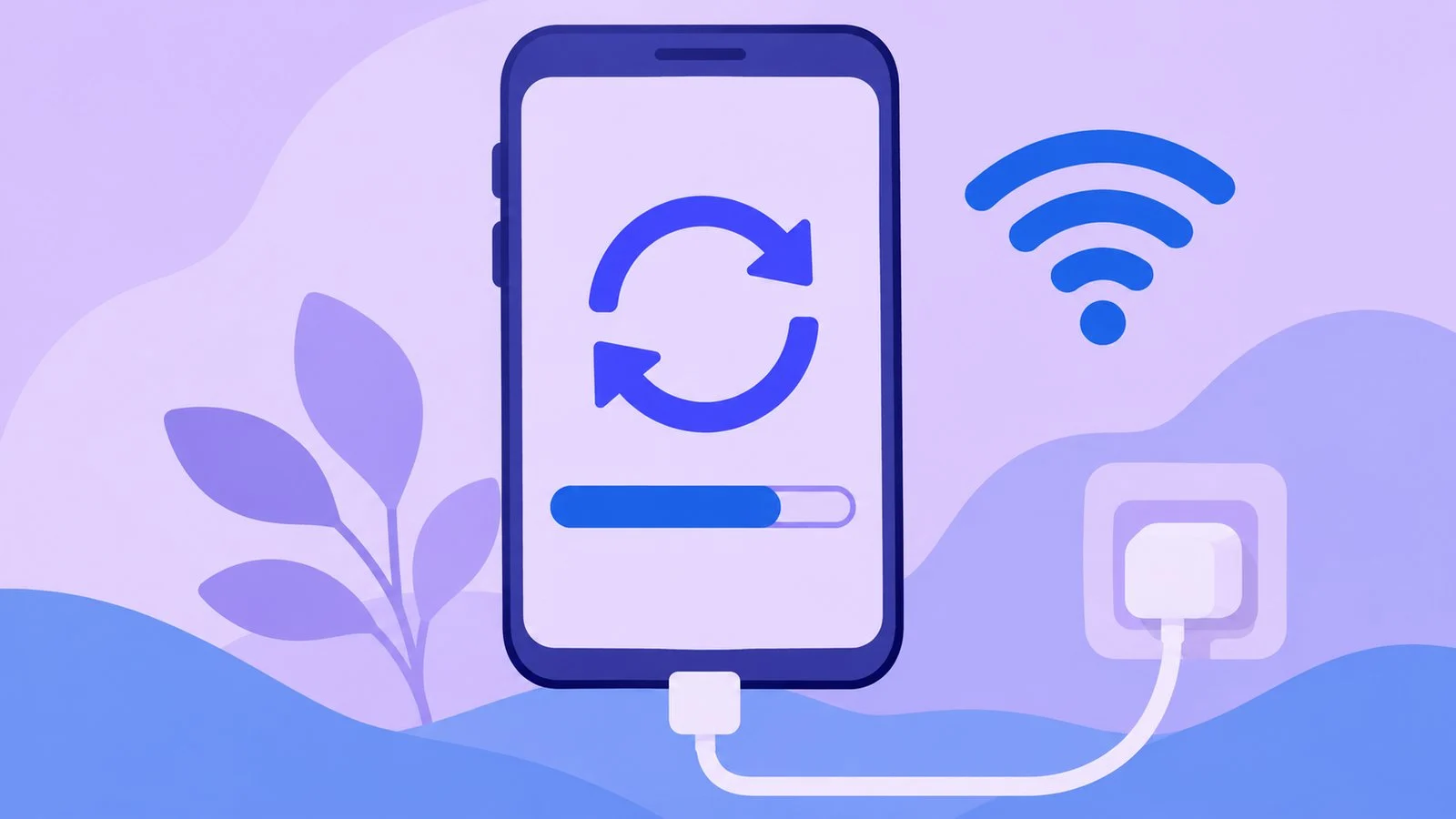
To update your iPhone, connect it to Wi-Fi and a charger, open Settings → General → Software Update and tap Download and Install. As of November 18, 2026, the latest version is iOS 27.2.1: it came out on November 9 and supports iPhone 11, iPhone SE (2nd generation) and all newer models. If the update doesn’t appear, you can update the iPhone from a computer: with Finder on a Mac or with iTunes on Windows.
Below: which models get iOS 27, how to update over the air and from a computer, how to turn on automatic updates and what to do if your iPhone won’t update. Everything is based on Apple’s support pages as of November 18, 2026.
Which iPhones can update to iOS 27
| Models | Latest version as of November 18, 2026 |
|---|---|
| iPhone 11, 11 Pro, 11 Pro Max, SE (2nd generation) | iOS 27.2.1 |
| iPhone 12, 13, 14, 15 and 16 (all versions), SE (3rd generation), 16e | iOS 27.2.1 |
| iPhone 17, 17 Pro, 17 Pro Max, Air, 17e | iOS 27.2.1 |
| iPhone 18 Pro and 18 Pro Max | iOS 27.2.1 |
| iPhone XS, XS Max, XR | iOS 18.7.12 (security updates only) |
For those staying on iOS 26 for now, Apple released iOS 26.7.3 with security fixes on the same day, November 9. You can find your iPhone model in Settings → General → About.
1. Update your iPhone over Wi-Fi
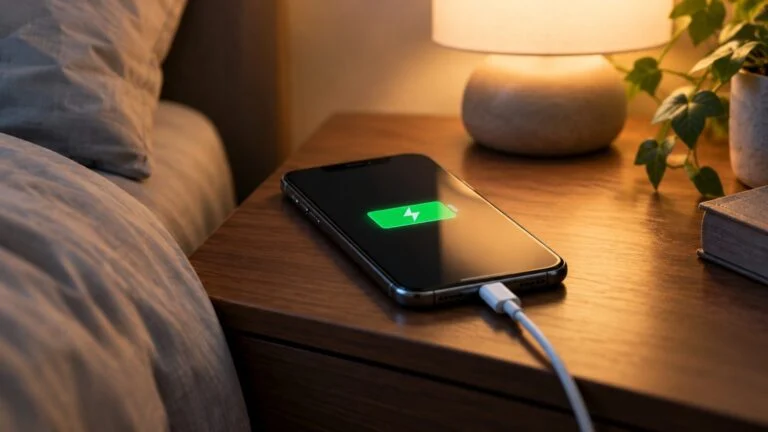
- Connect the iPhone to a charger and a Wi-Fi network.
- Open Settings → General → Software Update. You’ll see the installed iOS version and whether an update is available.
- Tap Download and Install and follow the on-screen instructions.
- Enter your passcode. The iPhone will restart, and after installation you’ll have the new version.
If you see a message that apps need to be temporarily removed for the update, tap Continue: according to Apple, they’ll be reinstalled automatically after installation. You can keep using the phone while the update downloads — you’ll get a notification when it’s ready.
Updating over cellular data doesn’t always work: Apple’s list of alerts includes “Unable to download. A Wi‑Fi connection is required to download this update.” How long installation takes depends on the size of the update and the amount of storage, so it’s better to start a big update like the move from iOS 26 to iOS 27 in the evening rather than right before you leave the house.
2. Update your iPhone with a computer
Use this method if the Wi-Fi update doesn’t appear or won’t install. If your computer is online through this same iPhone’s Personal Hotspot, first connect the computer to a different Wi-Fi network or to Ethernet.
- Mac with macOS Catalina or later: open Finder, connect the iPhone with a cable, select it in the sidebar, open the General tab, click Check for Update, then Download and Update, and enter your passcode.
- Windows or a Mac with macOS Mojave or earlier: open iTunes, connect the iPhone, click the device button in the toolbar, go to the Summary tab, click Check for Update and then Download and Update.
3. Turn on automatic updates
- Open Settings → General → Software Update → Automatic Updates.
- Turn on Automatically Install: the iPhone will download and install updates overnight while it’s charging and connected to Wi-Fi, and it will notify you before installing.
- If you’d rather install updates yourself, turn off automatic installation and leave Automatically Download on — the update will download in the background.
Apple calls installing new versions one of the most important things you can do for your device’s security. The same menu has a separate switch for system files: they update without changing the iOS version and improve how features work.
If your iPhone won’t update
- The update isn’t listed. Check whether your model is among those compatible with iOS 27. iPhone XS, XS Max and XR get only iOS 18.7.x.
- Not enough space. Open Settings → General → iPhone Storage and tap Enable next to Offload Unused Apps: the apps are removed, but their data stays. You can also delete apps you don’t need manually.
- “Unable to Check for Update” or “Unable to download.” Try again on the same network, then on another one, or update from a computer.
- The download takes very long. Connect to Wi-Fi and don’t download anything else at the same time: the speed depends on the size of the update and your internet connection.
- Installation keeps failing. Delete the downloaded update: iPhone Storage → find the update in the list → Delete Update, then download it again in Software Update. If that doesn’t help, update with Finder or iTunes.
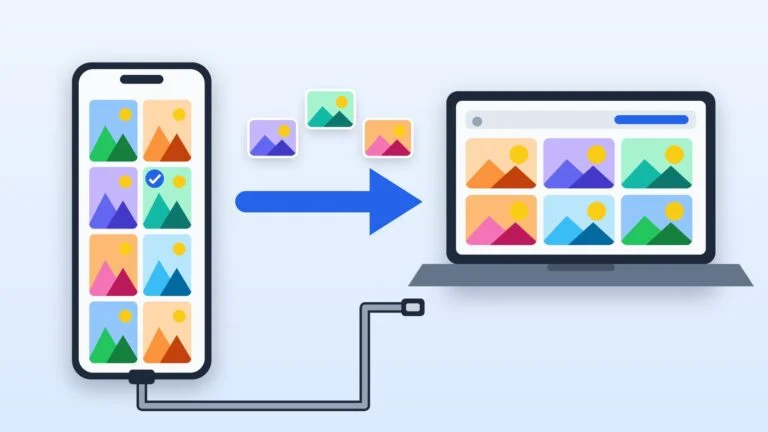
If you’re considering a new phone instead of updating the old one, see what’s changed in the iPhone 18 Pro and 18 Pro Max. And it’s handy to keep a backup of your photos on a computer before updating — here’s how to transfer photos from an iPhone to a computer.
Sources and methodology
Analysis of public sourcesChecked 18 November 2026
- Apple — Update your iPhone or iPad support.apple.com
- Apple — If your iPhone or iPad won’t update support.apple.com
- Apple — iPhone models compatible with iOS 27 support.apple.com
- Apple — Apple security releases support.apple.com
- Apple — Update your iPhone using Finder support.apple.com
Frequently asked questions
What’s the latest version of iOS?
As of November 18, 2026, it’s iOS 27.2.1, released on November 9. iPhones that stay on iOS 26 can get iOS 26.7.3, and iPhone XS and XR get iOS 18.7.12.
Can I update an iPhone XR to iOS 27?
No. Apple’s list starts with iPhone 11 and iPhone SE (2nd generation). iPhone XR, XS and XS Max get only iOS 18 security updates.
How much space do I need for an iOS update?
Apple doesn’t give an exact figure: it depends on the size of the update. If space is tight, the iPhone will offer to temporarily remove apps and will reinstall them on its own after installation.
Can I update an iPhone without Wi-Fi?
Yes, with a computer: Finder on a Mac or iTunes on Windows will download the update and install it over the cable.
Will updating my iPhone erase my data?
A regular update doesn’t delete data, but Apple still recommends making a backup in iCloud or on a computer first — in case something goes wrong.


Leave a Reply