
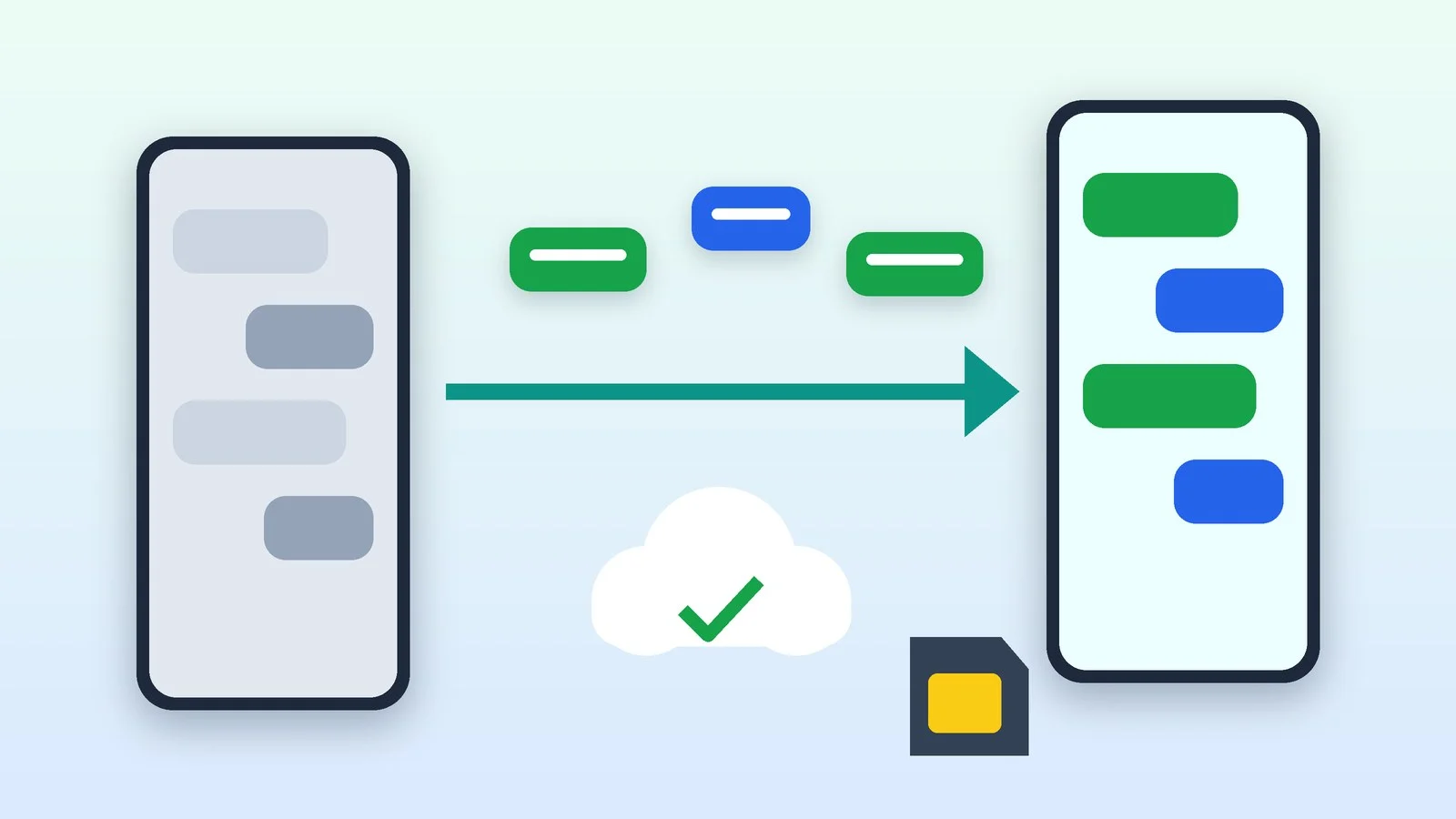
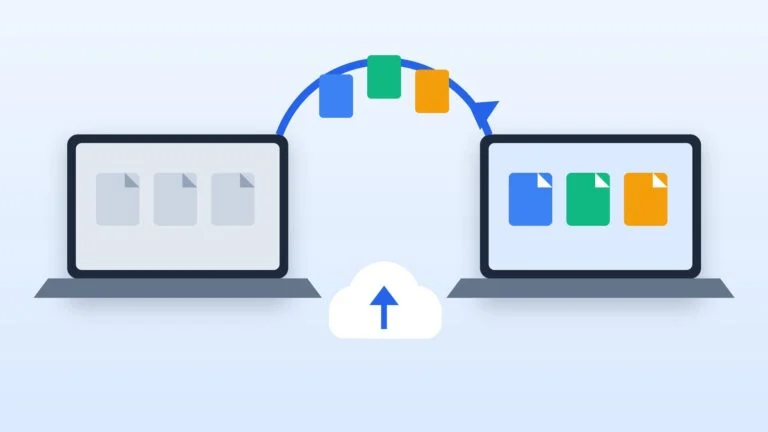
You don’t need to transfer Telegram: sign in to the same account on your new phone, and your chats will load from the cloud. WhatsApp can be moved directly with a QR code or through a backup, and there are separate methods between Android and iPhone. The transfer requires your old phone number; if your number is changing, see the section below.
The instructions were compiled from the WhatsApp and Telegram help pages as of October 14, 2026. WhatsApp button names are given for the Russian interface. Transferring WhatsApp Business chats between Android and iPhone is not supported yet.
Prepare and make a backup
WhatsApp advises creating a backup before switching to a new device. On Android, open WhatsApp and tap Settings → Chats → Chat backup → Create backup. On iPhone, the path is the same, and the backup is saved to iCloud. Once it’s created, the time and size of the last backup are shown there.
- Only one backup is stored in your account: a new one replaces the old one, and messages sent after it was created are not restored.
- Videos are included in the backup only if the “Include videos” option is turned on.
- For an iCloud backup, you need at least 2.05 times the backup’s size in free space, both in iCloud and on the iPhone.
- A backup made on Android can’t be restored on iPhone, and vice versa.
Result: You have a recent WhatsApp backup.
Choose a way to transfer WhatsApp
The choice depends on the pair of phones and on whether you still have your old phone.
| From → to | Method | What to keep in mind |
|---|---|---|
| Android → Android | Transfer by QR code, or a Google backup | QR code: when both phones are at hand |
| iPhone → iPhone | Transfer by QR code, or an iCloud backup | Same |
| Android → iPhone | The “Move to iOS” app | The iPhone must be new or reset to factory settings |
| iPhone → Android | Transfer within WhatsApp by QR code | Requires Android 6 or later |
| No old phone | Backup from the cloud | Same operating system, same number and account |
Result: You know which method to use to transfer WhatsApp.
Transfer WhatsApp chats
Android → Android: transfer by QR code
- On the new phone, install WhatsApp, tap “Agree and continue”, enter your number, then tap “Next” and “Yes”.
- If the app asks, connect to Wi-Fi.
- Use the old phone’s camera to scan the QR code on the new phone’s screen. Don’t close the app until the transfer is complete.
- Tap “Start transfer”, follow the prompts, then tap “Done” → “OK”.
- Tap “Accept”, complete two-step verification if it’s turned on, and confirm your profile. On the “Transfer complete” screen, tap “Next”.
Once you sign in on the new phone, the session on the old one ends automatically.
iPhone → iPhone
The order is the same. After entering your number, tap “Next” → “Continue”; there is no “Accept” step.
Android → iPhone: “Move to iOS”
You need Android 5 or later, iOS 15.5 or later, and the “Move to iOS” app on Android. The iPhone must be new or reset: if you’ve already set it up, transferring history isn’t available. Connect both phones to power and to the same Wi-Fi network (the Android phone can be connected to the iPhone’s hotspot).
- Open “Move to iOS” on Android and follow the prompts. Enter the code shown on the iPhone’s screen on the Android phone.
- On the “Transfer Data” screen, select WhatsApp and tap “Start”. WhatsApp will prepare the data and sign out of the account on Android.
- Tap “Next” to return to “Move to iOS”, then tap “Continue” and wait for confirmation.
- Install WhatsApp from the App Store on the iPhone, sign in with your old number, tap “Start” and complete activation.
Call history, your display name and media from channels cannot be transferred. The data doesn’t go to the cloud: it will appear in iCloud only after you make a backup.
iPhone → Android: transfer within WhatsApp
You need Android 6 or later, your old number, the latest versions of WhatsApp on both phones, and a stable Wi-Fi connection.
- On the iPhone, open WhatsApp and tap Chats → Transfer chat history → Move to Android.
- When the chats are ready, tap “Continue” and allow camera access when asked. The iPhone must stay unlocked while the transfer is in progress.
- On Android, open WhatsApp and verify the account with the same number. Allow device linking: a QR code will appear.
- Scan the QR code with the iPhone’s camera, tap “Join” and wait for the transfer to finish. On Android, tap “Next”.
Statuses and your display name are not transferred, but call history can be.
If you don’t have the old phone: backup
Reinstall WhatsApp, confirm the same number and the same Google or Apple account. On Android, tap “Restore” when the app offers it; on iPhone, tap “Restore from backup”. WhatsApp may ask you to confirm your identity with a code sent by SMS or a call. A backup older than 120 days may not restore.
Result: WhatsApp chats have appeared on the new phone.
Sign in to Telegram on the new phone
Telegram chats are stored in the cloud, not on the phone: according to Telegram’s help, you just sign in with your main number on each device, and your cloud chats sync right away. There is nothing to transfer or copy.
- Install Telegram on the new phone and enter the same number.
- The code will arrive by SMS or, if Telegram decides to send it to the app, in the Telegram service chat on the old phone.
- If two-step verification is turned on, also enter your cloud password: without it, sign-in won’t finish.
Secret chats won’t move: they’re tied to the device they were created on and will remain only on the old phone. You can sign in to Telegram on several devices at once.
Result: Telegram chats have loaded on the new phone.
Check the chats and close access on the old phone
On the new phone, open the important chats, groups and media in WhatsApp and Telegram. If something is missing, don’t reset the old phone or delete WhatsApp: WhatsApp can’t restore chats for you.
In WhatsApp, the session on the old phone closes automatically after you sign in on the new one. In Telegram, open Settings → Devices on the new phone and terminate the session on the old one: Telegram’s help describes this path. Only after that should you wipe or sell the old phone.
Result: All chats are on the new phone, and access on the old one is closed.
If your number is changing
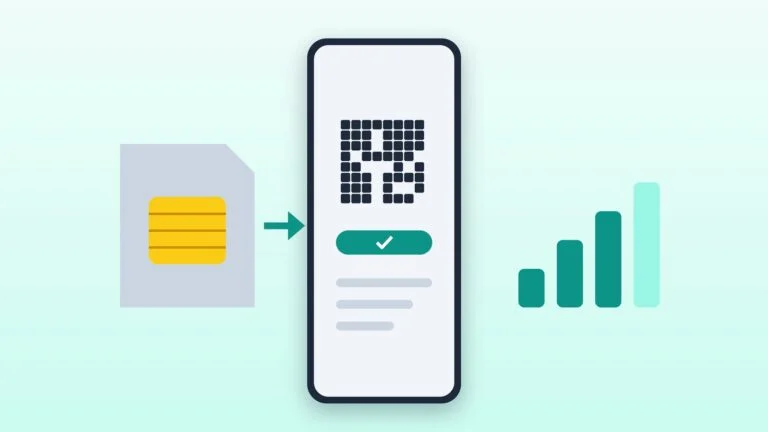
You can’t transfer WhatsApp chats directly to a different number: first change the number on the old phone. Put a SIM card with the new number into it, then tap Settings → Account → Change number and enter both numbers in international format. Then transfer the account by QR code, or create a backup and restore it on the new phone. If you register the new number on the new phone without changing it on the old one first, your chat history will be lost. Backups are tied to the number they were made with, so backups made with the old number will become unavailable for restoring after the change. In Telegram, according to its help, the number is changed while keeping contacts, messages and media.
If it didn’t work
- WhatsApp is already activated on the new phone — chats can only be transferred before activation. To get the old history back, you’ll have to start over: on iPhone, reset it to its initial setup (all data will be erased); on Android, uninstall WhatsApp and install it again. Old and new chats can’t be merged.
- The QR code won’t scan or shows “Invalid QR code” when transferring to iPhone — raise the screen brightness, wipe the lens, make sure you’re scanning the right code, and remove the screen protector.
- “An unknown error occurred” when transferring to iPhone — according to WhatsApp’s help, restart both phones and repeat the transfer.
- The backup won’t restore — check the number and the Google or Apple account, the free space on the phone, and the age of the backup: if it’s older than 120 days, it may not restore.
- Telegram doesn’t accept the code — the code arrives in the “Telegram” chat on the old device or by SMS. If you don’t have the old phone, you need a SIM card with this number in the new one.
- The old phone is lost or stolen — first protect your accounts following the plan for Android and iPhone, then restore your chats on the new phone from a backup.
Sources and methodology
Analysis of public sourcesChecked 14 October 2026
- WhatsApp — How to transfer your WhatsApp account to a new phone faq.whatsapp.com
- WhatsApp — How to transfer chats from Android to iPhone faq.whatsapp.com
- WhatsApp — How to transfer chats from iPhone to Android faq.whatsapp.com
- WhatsApp — How to restore chat history faq.whatsapp.com
- Telegram — FAQ telegram.org
Frequently asked questions
Can you transfer WhatsApp from Android to iPhone?
Yes, using the “Move to iOS” app. The iPhone must be new or reset, and the number must be the same one. Call history, your display name and media from channels are not transferred.
Can you transfer WhatsApp from iPhone to Android?
Yes. On the iPhone, open Chats → Transfer chat history → Move to Android, then sign in on Android with the same number and scan the QR code. Android 6 or later is required.
What happens to Telegram when you change phones?
Nothing needs to be transferred: sign in with the same number, and your cloud chats will load. Secret chats stay on the device where they were created.
Can you restore a WhatsApp backup from Android on an iPhone?
No. According to WhatsApp’s help, a backup made on Android can’t be restored on iPhone, and an iPhone backup can’t be restored on Android. There are separate ways to transfer between them.
What should you do if your number has changed and you need your chats?
First, change the number in WhatsApp on the old phone: Settings → Account → Change number. Then transfer the account or restore a backup on the new phone.


Leave a Reply