
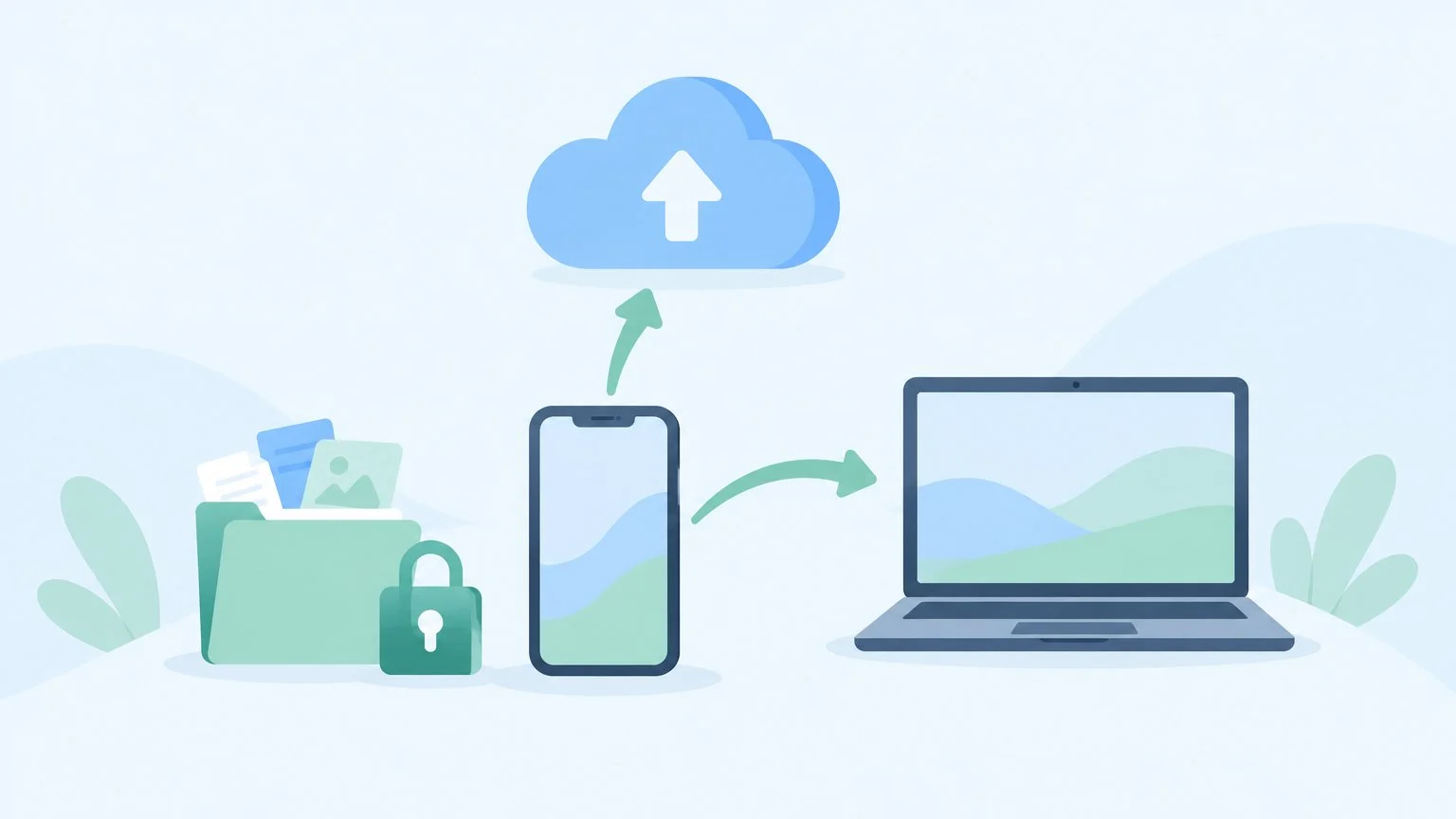
To back up an iPhone, open Settings → your name → iCloud → iCloud Backup and tap Back Up Now — the phone must be connected to Wi-Fi. On Android, open Settings → Google → All services → Backup and tap Back up now: the backup goes to your Google Account. Samsung Galaxy phones also have Samsung Cloud and the Smart Switch app for backing up to a computer.
Below: cloud and computer backups for iPhone, Google backup on Android, Samsung Cloud and Smart Switch, what a backup doesn’t include and how not to lose your photos. The steps are based on Apple, Google and Samsung support pages as of November 18, 2026.
Which method to choose
| Method | Pros | Cons |
|---|---|---|
| iCloud (iPhone) | Automatic, encryption is mandatory | Only 5 GB free |
| Computer (iPhone) | Almost all data, capacity limited by the PC’s drive | Needs a cable, encryption must be turned on manually |
| Google Account (Android) | Automatic, 15 GB free | Not all apps are backed up |
| Samsung Cloud | Settings and data from Samsung apps | Files over 1 GB aren’t saved |
| Smart Switch on PC (Samsung) | Local backup without the cloud | Needs a computer |
Apple’s advice is explicit: you can back up both to iCloud and to a computer, and if one method isn’t available, use the other. To be safe, keep two backups — one in the cloud and one on a computer.
1. iPhone: back up to iCloud
- Connect the iPhone to Wi-Fi.
- Open Settings, tap your name and choose iCloud.
- Choose iCloud Backup and tap Back Up Now. Stay connected to Wi-Fi until it finishes.
The date and time of the last backup appear under the button. To have backups made automatically, turn on Back Up This iPhone in the same section: Apple creates a backup when the phone is charging, connected to Wi-Fi and locked. If there isn’t enough space, the iPhone will show a warning and offer to buy more iCloud storage.
An iCloud backup doesn’t include what’s already synced with iCloud: notes, photos when iCloud Photos is on, and messages when Messages sync is on. It also doesn’t save Face ID and Touch ID settings, Apple Pay data, Apple Mail data or offline maps.
2. iPhone: back up to a Windows PC or Mac
- On a Mac, open Finder; on a Windows PC, open the Apple Devices app. If the PC doesn’t have it or your Mac runs macOS Mojave or earlier, use iTunes.
- Connect the iPhone with a cable, tap Trust when prompted and enter the phone’s passcode.
- Select the iPhone: in Finder, in the sidebar; in Apple Devices, the General section.
- To save Health and Activity data, check Encrypt local backup and set a password.
- Click Back Up Now.
Write down the encryption password and keep it separately: Apple warns that you can’t restore an encrypted backup without it. A computer backup includes almost all data and settings, but not App Store and Apple Books purchases, media synced from the PC, or anything already stored in iCloud. It’s best to save photos separately — here’s how to transfer photos from an iPhone to a computer.
3. Android: back up to your Google Account
These steps come from Google’s help; some of them are available only on Android 9 and later, and menu names may differ between manufacturers.
- Open Settings → Google → All services.
- Under Backup and restore, tap Backup. If you’re not signed in to an account, the phone will ask you to sign in.
- Choose what to back up: photos and videos, device data or everything, and turn on backup.
- To back up right now, tap Back up now.
Google saves apps and their data, call history, contacts, device settings, SMS and MMS, and with Google apps also RCS chats from Google Messages and photos from Google Photos. The first backup through Google One can take up to 24 hours. Keep in mind one Google limitation: a backup from a newer Android version can’t be restored on a phone running an older one.
4. Samsung Galaxy: Samsung Cloud and Smart Switch
Galaxy phones support both Google backup and Samsung’s own tools. Samsung Cloud saves things Google doesn’t always pick up: Samsung Keyboard settings, alarms, the home screen layout and Voice Recorder files.
- Open the Samsung Cloud app (sign in to your Samsung account through Settings → Accounts and backup → Manage accounts if you haven’t already).
- Select Back up data.
- Check the items you want, tap Back up now, then Done.
Samsung’s limits: files larger than 1 GB aren’t backed up to Samsung Cloud, messages over 20 MB aren’t saved, and if you don’t use Samsung Cloud for more than 10 months, you’ll get an email about your data being deleted. For a full backup to a computer, Samsung offers the Smart Switch app for Windows and Mac: the phone connects with a USB cable.
How to restore data from a backup
- iPhone from iCloud — when setting up a new or reset phone, sign in with the same Apple Account and choose the backup.
- iPhone from a computer — on the Apps & Data screen, choose Restore from Mac or PC, then open Finder, iTunes or Apple Devices and select the phone. You’ll need the password for an encrypted backup.
- Android — sign in to the same Google Account during initial setup, and the phone will offer to restore your data.
- Samsung Cloud — in the app, select Restore data, then the backup and the data, and tap Restore and Done.
If something goes wrong
- “Not enough iCloud storage.” Follow the on-screen prompts to buy more iCloud+ storage, or back up to a computer — there, the only limit is the free space on the drive.
- The iPhone doesn’t back up automatically. Check Apple’s three conditions: the phone is charging, connected to Wi-Fi and locked.
- The computer doesn’t see the iPhone. Use the cable that came with the phone, tap Trust on the phone and update Apple Devices or iTunes.
- The Google backup is “stuck.” Wait: the first upload through Google One can take up to a day. Check that your Google Account still has free space.
Accessing iCloud photos and files from a computer is covered in our article on how to access iCloud on a computer.
Sources and methodology
Analysis of public sourcesChecked 18 November 2026
- Apple — How to back up your iPhone or iPad with iCloud support.apple.com
- Apple — Back up your iPhone on a Windows computer support.apple.com
- Apple — Backup methods for iPhone and iPad support.apple.com
- Google — Back up or restore data on your Android device support.google.com
- Samsung — Back up and restore data with Samsung Cloud samsung.com
Frequently asked questions
Are photos included in an iPhone backup?
If iCloud Photos is off, yes: they’re part of the iCloud backup. If it’s on, photos are stored separately in your iCloud library and aren’t included in the backup.
How much space does an iCloud backup need?
It depends on the data on your phone. Apple gives you 5 GB free; if that’s not enough, the iPhone will offer to buy more space with iCloud+.
How do I back up an Android phone to a computer?
You can copy photos and files over a USB cable, as you would from a flash drive. For Samsung, there’s the Smart Switch app for Windows and Mac, which makes a full backup of the phone.
Can I restore an iPad backup to an iPhone?
Yes, Apple allows it. But some things won’t transfer: photos (unless iCloud Photos is on), messages not synced with iCloud, Voice Memos recordings and incompatible apps.
How often should I back up?
It’s best to turn on automatic backups: an iPhone makes them on its own while charging on Wi-Fi, and Android backs up to your Google Account on a schedule. Always back up manually before a system update, a reset or a repair.

Leave a Reply