
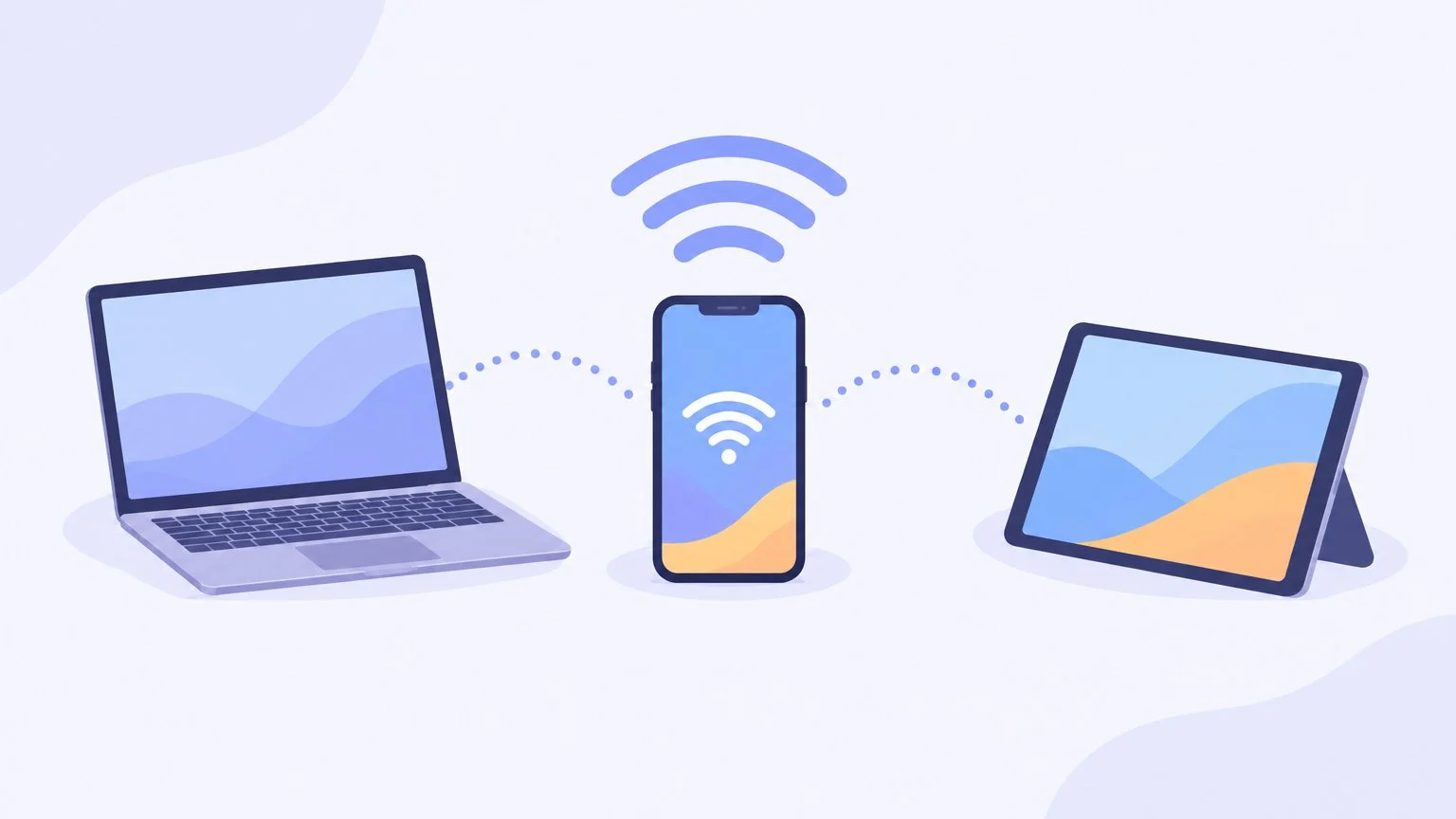
To share the internet from an iPhone, open Settings → Personal Hotspot and turn on Allow Others to Join: the phone becomes a Wi-Fi hotspot, and its password is shown on the same screen. On Android, swipe down from the top of the screen and tap the Hotspot tile; on a Samsung Galaxy, the same settings are under Settings → Connections → Mobile Hotspot and Tethering. Then select the phone’s network in the Wi-Fi list on your laptop and enter the password.
Below: step-by-step instructions for iPhone, Android and Samsung, three ways to connect (Wi-Fi, USB and Bluetooth), what to check in your plan and what to do if the laptop doesn’t get internet access. Menu names follow Apple, Google and Samsung support pages as of November 18, 2026.
Which sharing method to choose
| Method | Best for | Limitations |
|---|---|---|
| Wi-Fi | A laptop, tablet, TV, several devices | The phone drains fast |
| USB cable | One computer, when you need stability | Android over USB doesn’t work with a Mac |
| Bluetooth | No cable, one device | The devices must be paired |
Samsung compares the two main methods separately: over Wi-Fi, you can share the internet with several devices at once and without a cable, while over USB the connection is faster and the phone charges from the computer at the same time, but you can connect only one computer this way.
1. Personal Hotspot on iPhone
- Open Settings and select Personal Hotspot. If you don’t see it, tap Cellular → Personal Hotspot.
- Turn on Allow Others to Join.
- To change the password, tap Wi-Fi Password. It must be at least eight characters long and use only Latin letters, numbers and some punctuation marks.
- Stay on this screen until your laptop or other device connects.
Over USB. Turn on Allow Others to Join, connect the iPhone to the computer with a cable and tap Allow, and when asked “Trust This Computer?”, tap Trust. On a Windows computer, Apple requires the latest version of the Apple Devices app or iTunes. Personal Hotspot over USB works as long as the cable is connected.
Over Bluetooth. Turn on Allow Others to Join, go back to the main Settings screen and open Bluetooth. On the computer, select the iPhone in the list of Bluetooth devices, check that the code matches on both screens and tap Pair on the iPhone.
The hotspot name is the iPhone’s name: you can change it in Settings → General → About → Name. Devices signed in to the same Apple Account or in the same Family Sharing group connect faster via Instant Hotspot. Keep in mind that iCloud Backup and photo uploads to iCloud Photos may not work while you’re using Personal Hotspot.
2. Hotspot on Android
These steps are from Google’s help for Android 14 and later; names may differ slightly on phones from different brands.
- Swipe down from the top of the screen and tap the Hotspot tile. If it isn’t there, tap the pencil in the bottom-left corner and drag the tile to the Quick Settings panel.
- To see or change the network name and password, touch and hold the Hotspot tile, then tap Wi-Fi hotspot.
- On your laptop, select the hotspot name in the list of Wi-Fi networks, enter the password and connect.
Up to 10 devices can connect to a Wi-Fi hotspot on Android. The same menu (long-press the tile) has Bluetooth tethering and USB tethering: for USB, first connect the phone to the computer with a cable. Google warns that Mac computers don’t support tethering to Android over USB — use Wi-Fi for a Mac.
3. Mobile Hotspot on Samsung Galaxy
- Swipe down from the top of the screen with two fingers to open the Quick Settings panel.
- Tap the Hotspot icon to simply turn it on, or touch and hold it to see the name and password.
- Another way: Settings → Connections → Mobile Hotspot and Tethering → Mobile Hotspot. USB tethering is turned on here too.
According to Samsung, a Galaxy can share its internet connection with ten devices at once over Wi-Fi. In the hotspot settings, you can change the name and password, limit connections and turn on auto shutoff so the hotspot doesn’t run for nothing.
4. Connect your laptop to the hotspot
- Windows 11 and 10. Select the Network, Sound or Battery icons on the taskbar, select Manage Wi-Fi connections in the Wi-Fi quick setting, then choose the phone’s network, select Connect, enter the password and select Next.
- Mac. Click Wi-Fi in the menu bar or in Control Center and choose the phone’s name from the list.
To keep Windows from using up your whole data allowance on updates, set the phone’s network as metered: Settings → Network & internet → Wi-Fi → your network → turn on Metered connection. Microsoft says that some updates then won’t install automatically, and background app syncing will be limited.
Plan and data: what to check
A laptop uses data much faster than a phone: updates, cloud syncing, high-quality video. Before sharing, check in the Kyivstar, Vodafone Ukraine or lifecell app or online account how many gigabytes you have left and whether your plan has special terms for tethering. Apple adds that the number of devices that can connect to an iPhone at the same time depends on the carrier and the phone model.
If you need to share the internet during power outages, keep a power bank that works with your phone close at hand. We’ve collected other ways to stay connected without electricity in our guide to internet during power outages.
If it didn’t work
- Personal Hotspot on iPhone is grayed out or missing. Open Settings → Cellular and make sure the phone is connected to the cellular network. If everything is on, your plan may not support Personal Hotspot — check with your carrier.
- The laptop doesn’t see the iPhone’s network. Update the software on both devices, restart them and try turning on Maximize Compatibility in the Personal Hotspot settings.
- Connected, but no internet. Check whether the internet works on the phone itself, and restart both the phone and the computer — that’s Samsung’s advice.
- Android won’t connect to a Mac over USB. This is a limitation: use Wi-Fi or Bluetooth.
- You don’t know your SIM card’s number to top up or check your data. Here’s how to find your Kyivstar, Vodafone or lifecell number.
Sources and methodology
Analysis of public sourcesChecked 18 November 2026
- Apple — Connect to Personal Hotspot on iPhone or iPad support.apple.com
- Google — Use your Android device as a modem or hotspot support.google.com
- Samsung — How to use a Samsung Galaxy as a modem or Wi-Fi hotspot samsung.com
- Microsoft — Metered connections in Windows support.microsoft.com
Frequently asked questions
How many devices can connect to a hotspot?
On Android, up to 10 devices according to Google’s help, and ten on a Samsung Galaxy as well. On iPhone, the number depends on the carrier and the phone model.
How do I find the hotspot password?
On iPhone, it’s shown in Settings → Personal Hotspot → Wi-Fi Password. On Android, touch and hold the Hotspot tile in Quick Settings and open Wi-Fi hotspot.
Why do I have to pay for tethering?
It’s a term of your plan: Google and Apple warn that some carriers limit tethering or charge extra for it. Check your plan’s description with your carrier.
Can I share the internet from my phone to a TV?
Yes, over Wi-Fi: turn on the hotspot and select the phone’s network in the TV’s Wi-Fi settings. Cable and Bluetooth connections are mostly used for computers.
How can I save data when sharing with a laptop?
Set the phone’s network as metered in Windows: Settings → Network & internet → Wi-Fi → your network → Metered connection. Then some updates and background syncing won’t use your data.

Leave a Reply