
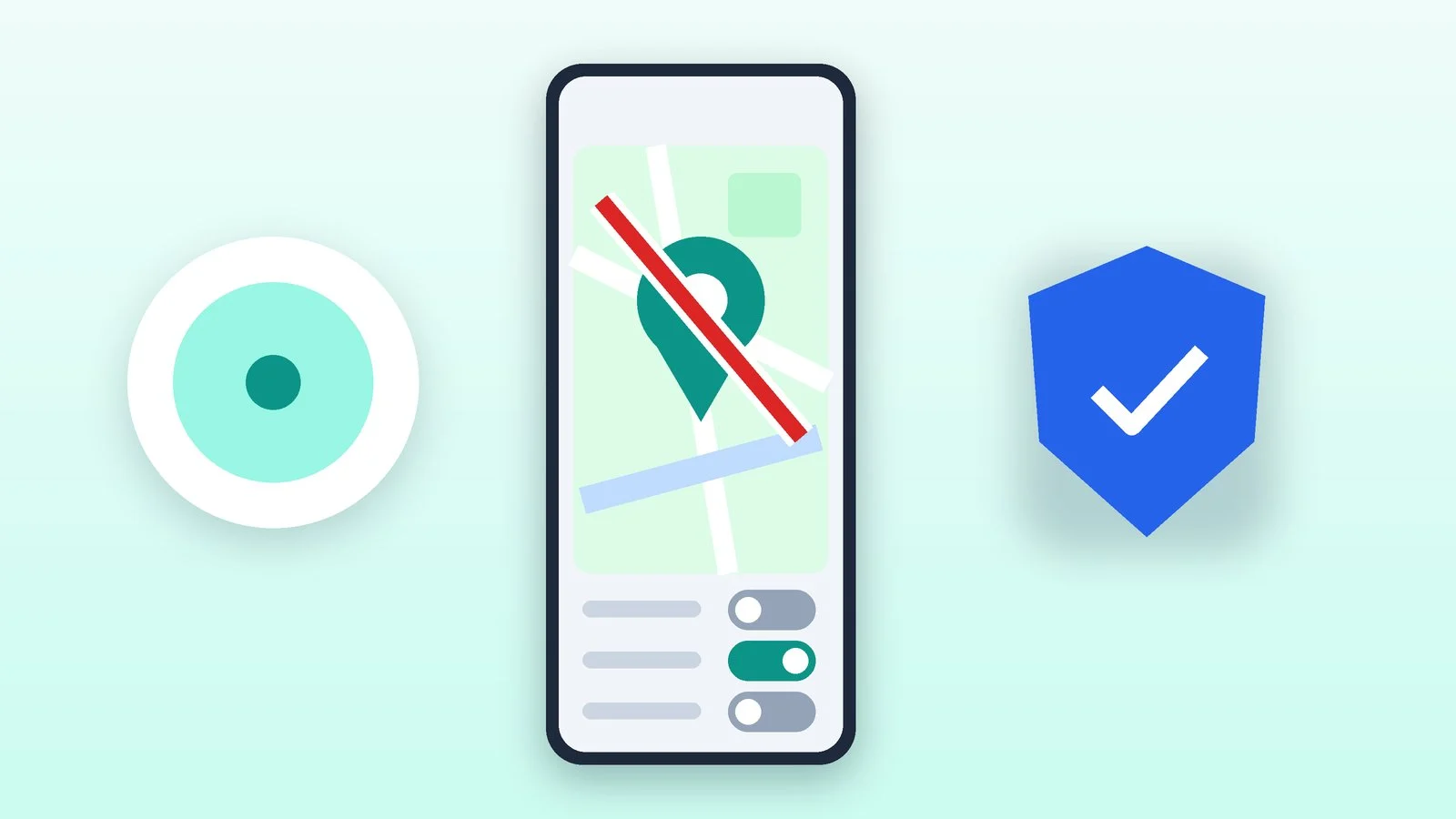
To turn off location on an iPhone, open Settings → Privacy & Security → Location Services and switch off the Location Services toggle. On Android, open Settings → Location and turn off Use location; on a Samsung Galaxy, this section is also called Location, and the fastest way is to tap the Location icon in the notification shade.
Turning location off completely breaks maps, ride-hailing, weather and finding a lost phone, so it’s often more convenient to block location for individual apps and leave only approximate location on. Below are both options, plus what people often forget: system services, sharing your location with family and friends, and Google Timeline. Menu names come from Apple, Google and Samsung help pages as of October 21, 2026; other Android skins may use different names.
How to turn off location on iPhone
All the settings are in one section. The steps below follow the iPhone User Guide for iOS 27 and Apple Support articles.
Open Location Services
Go to Settings → Privacy & Security → Location Services. The main toggle is at the top; below it are the apps that have asked for access to your location.
Result: The list of apps that have asked for your location is open.
Turn off location for all apps or for specific ones
- For all apps at once: switch off the Location Services toggle. According to Apple’s help, apps then can’t use your location data in the foreground or the background.
- For one app: tap it in the list and choose Never. The other options are Ask Next Time Or When I Share, While Using the App and Always; the last one also allows access in the background.
Result: No app gets your location, or only the ones you allowed.
Turn off Precise Location
If an app needs your location but not down to the meter (weather, news, shopping), tap it in the list and turn off Precise Location. Apple notes that an approximate location may be enough for apps that don’t need exact data.
Result: The app gets only your approximate location.
Check System Services
Go to Settings → Privacy & Security → Location Services → System Services. According to Apple’s help, system features use location too, including location-based suggestions and ads. Here you can turn them off one by one and turn on a status bar icon that appears when system services access your location.
Result: iOS system features don’t use your location unless they need to.
Stop sharing your location in Find My
- Hide it from everyone: in the Find My app, tap Me and turn off Share My Location.
- Hide it from one person: tap People, choose the name, tap Stop Sharing My Location and confirm.
Result: Family and friends can no longer see where you are.
How to turn off location on Android
The names below come from Google’s help (for Android 12 and later) and Samsung’s help (for Android 10–16 on Galaxy phones). On Xiaomi, OPPO and other phones, the path may differ: if an item is missing, search for “location” in Settings.
Turn off location in the notification shade
Swipe down from the top of the screen twice to fully open Quick Settings, then tap the Location tile (Samsung and Google’s help both call it that). Tap it again to turn the feature back on.
If the tile isn’t there, you can add it: according to Google’s help, swipe down twice, tap Edit and drag the Location tile into Quick Settings.
Result: The location icon in the shade has gone gray.
Turn off location in Settings
- Per Google’s help (Pixel and other phones): Settings → Location → turn off Use location.
- Samsung Galaxy (Android 10–16): Settings → Location → slide the switch to the left.
Result: Apps no longer get the device’s location.
Block access for specific apps
To see the list of apps with location access, go to Settings → Location → App location permissions. To change access for one app, touch and hold its icon, then select App info → Permissions → Location. On Samsung: Settings → Apps → the app → Permissions → Location.
- Allow all the time: the app always has access;
- Allow only while using the app: only while you’re using it;
- Ask every time: the app asks each time you open it;
- Don’t allow: no access.
If access is allowed, turn off Use precise location: then, according to Google’s help, the app will locate the device only to within about three square kilometers.
Result: Only the apps that really need location data get it.
Turn off location sharing and check Timeline
- Google Location Sharing: Settings → Location → Location services → Google Location Sharing. To cut off one person, tap Stop next to their name; to pause sharing with everyone, turn off Use location sharing.
- Timeline: if it’s on, the device regularly saves precise location data, even when you aren’t using Google apps. Timeline is off by default; you manage it on the Activity controls page of your Google Account.
- Location accuracy: Settings → Location → Location services → Google Location Accuracy → Improve Location Accuracy. If you turn it off, Google doesn’t collect data about wireless signals, and your location is determined only by GPS and sensors.
Result: No one gets new data about where you are.
How to turn off location: summary
| What you need | iPhone | Android |
|---|---|---|
| Turn off for everything | Location Services → off | Location → off |
| Quickly | Through Settings | Tile in the shade |
| Block an app | The app → Never | Permissions → Don’t allow |
| Approximate only | Precise Location → off | Use precise location → off |
| Stop sharing with people | Find My → Me | Google Location Sharing |
If it didn’t work
- The arrow still appears in the iPhone status bar. According to Apple’s help, the icon shows up when an app uses Location Services. Open the list of apps and System Services and check which ones still have Always access.
- An app doesn’t work without location. Don’t turn it on for everything: allow access for this app only and only While Using the App (iPhone) or Allow only while using the app (Android), and turn off precise location.
- An app asks you to turn on precise location. Google explains that apps may ask for additional settings even if they already have location access. If you’re fine without precise data, just decline.
- You feel like you’re being tracked. Check who you share your location with in Find My and in Google, whether there’s someone else’s account or parental controls on the phone, and ask your carrier which services are linked to your number. More on this: how to tell if your phone is being tapped and how parental controls work on a phone.
- You want a clean slate on iPhone. Settings → General → Transfer or Reset [Device] → Reset → Reset Location & Privacy. According to Apple’s help, apps then stop using your location until you grant permission again.
Sources and methodology
Analysis of public sourcesChecked 21 October 2026
- Apple — Turn Location Services and GPS on or off on your iPhone support.apple.com
- Apple — Control the location information you share on iPhone support.apple.com
- Google — Manage your Android device’s location settings support.google.com
- Google — Manage app location permissions support.google.com
- Samsung — How to enable GPS location detection on Samsung Galaxy samsung.com
Frequently asked questions
Can anyone find out where my phone is if location is turned off?
According to Google’s help, apps on the phone itself don’t get access to its location in that case, and you won’t be able to find a lost device. Still, your location may be sent when you call emergency services, ads may take your IP address into account, and your carrier may have its own SIM-based location services.
What does the arrow in the iPhone status bar mean?
It’s the Location Services icon: according to Apple’s help, it appears in the status bar or in Control Center when an app is using your location data. If an app is set to While Using the App, the status bar may turn blue while the app is getting your location.
How do I stop the camera from saving where photos were taken?
Block the camera app’s access to your location: on iPhone, Location Services → Camera → Never; on Android, App info → Permissions → Location → Don’t allow for your camera app.
Do I need to turn off location to keep Google from storing my location history?
No, checking Timeline is enough. According to Google’s help, it’s off by default, and you turn it on or off on the Activity controls page of your Google Account.


Leave a Reply