
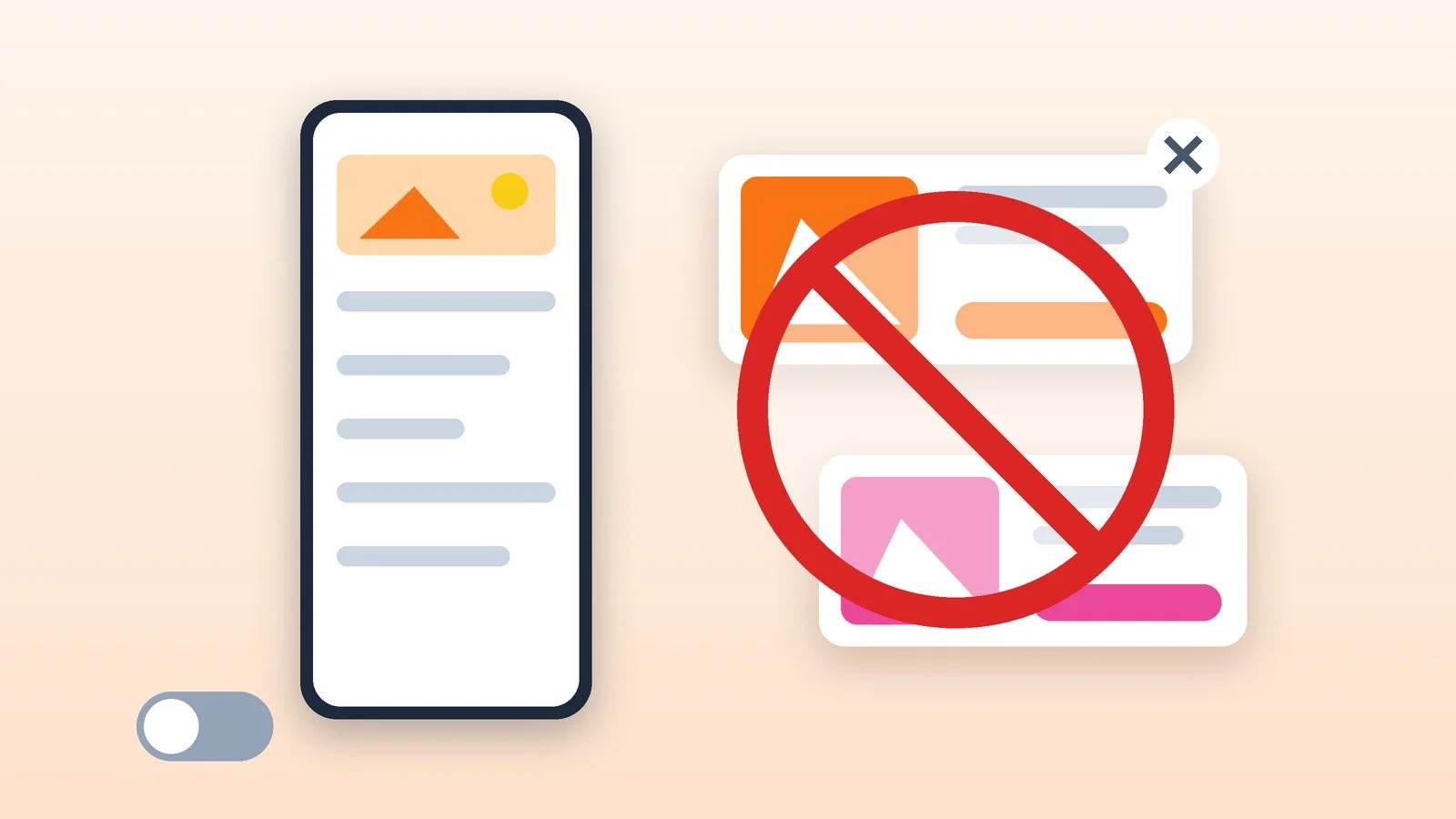
You cannot turn off all ads on Android with a single switch, but you can remove most of them: turn off notifications from the app that sends the ads, block pop-ups and site notifications in Chrome, uninstall the app that shows banners over the screen, and turn off ad personalization in Google settings. On Xiaomi with HyperOS and MIUI, the official switch is a single one, “Ad services,” and it does not reduce the number of ads.
Below are the steps based on help pages from Google, Samsung and Xiaomi as of October 18, 2026. The menu names are given for the English-language interface; on your skin they may differ, and searching the settings will help you find the right section. Ad blockers and third-party apps are not covered here: only the phone’s and browser’s built-in tools. Chrome extensions are covered separately: how to block ads in Google Chrome on PC and phone.
Find out where you see the ads
Ads reach a phone in different ways, and each has its own way of being turned off. Check the table and go to the step you need.
| Where you see the ad | What to do | Step |
|---|---|---|
| In the notification shade | Turn off the app’s notifications | 2 |
| In browser pop-ups, site notifications | Configure Chrome | 3 |
| On the lock screen, home screen, over other windows | Find and uninstall the app | 4 |
| “Personalized” ads in apps and Google | Turn off personalization | 5 |
| In Xiaomi system apps | Ad services and their limits | 6 |
Result: It is clear which method you need.
Turn off ad notifications
- Any Android (per Google’s help page): tap and hold the notification, then tap the “Settings” icon. To stop notifications from appearing at all, turn off “All notifications.”
- Through settings: “Settings” → “Notifications” → “App notifications,” choose “All apps” in the drop-down menu, find the one you need and turn off its notifications. You can turn off either all notifications or individual types of them. Google notes that the steps may differ on different phones.
- Samsung Galaxy: open the notification shade, tap and hold the ad. Details about the app that sends it will appear on screen: from there you can turn off that app’s notifications or uninstall it.
Result: The app no longer sends ads to the notification shade.
Block pop-up ads and site notifications in Chrome
According to Google’s help page, Chrome blocks pop-ups by default. If they still appear, the cause may be allowed notifications from a site or a malicious app on the phone.
- Open Chrome on your Android device, tap the three-dot icon and select “Settings.”
- Open “Site settings” → “Pop-ups and redirects” and make sure the option is turned off: in that case, pop-ups are blocked.
- To remove notifications from all sites, open “Site settings” → “Notifications” and set the switch at the top to the required position.
- To remove notifications from a single site, open it, tap the “Site information” icon to the left of the address bar → “Permissions” → “Notifications,” and turn off “Allow notifications.”
- If the ad came as a Chrome notification, tap “Unsubscribe” in it.
In other browsers, including Samsung Internet, the items are named differently: look for “Pop-ups” and “Notifications” in the site settings. Clearing cookies and cache does not turn off ads, but it resets some of the data sites use to select ads: how to clear cookies and cache in a browser.
Result: Chrome blocks pop-ups and unwanted site notifications.
Find and uninstall the app that shows ads
If ads appear on the home screen, on the lock screen or over other windows, the source is almost certainly among recently installed apps. Samsung suggests this order:
- Open “Settings” → “Apps.”
- Tap the filter icon, check “Recently used” and tap “OK.”
- Uninstall downloaded apps one at a time, starting with the most recently used, until the ad banner disappears.
If a banner covers the screen and you cannot get into settings, Samsung advises starting the phone in Safe mode: downloaded apps do not run there, the ad does not get in the way, and they can be uninstalled. Google describes the same method in the Chrome help: in Safe mode, uninstall recently downloaded apps one at a time and restart the phone after each one. For more about the mode itself, see Google’s help page for Pixel and Samsung’s help page.
- Turn on Play Protect. Open Google Play, tap the profile icon → “Play Protect” → “Settings” and turn on “Scan apps with Play Protect.”
- Report the app. Google Play policy prohibits apps with intrusive ads and ads outside the app itself. In Google Play, open the app’s page, tap ⋮ in the upper right corner, select the reason for the violation and tap “Submit.”
- Do not install apps from unknown sources. In its section on unwanted ads, Samsung warns that it is easy to run into Android viruses when installing apps from unknown sources. Check the permissions an app requests and do not give it administrator rights. Signs of suspicious programs are covered in how to tell if your phone is being tapped.
Result: The source app has been found and uninstalled, and the banners are gone.
Turn off ad personalization
These settings will not remove the ads, but they will stop relying on your data. Google, Xiaomi and Samsung confirm this in their help pages.
- Google ads on the phone: “Settings” → “Google” → “Ads” → “Turn off ads personalization.” Samsung and Xiaomi name the same path in their documents. Personalization for a Google account is turned off through the “Ads Settings” center: for the “Ad personalization” option, select “Off.”
- Advertising ID: “Settings” → “Privacy” → “Ads” → “Delete advertising ID” (on some phones, via “Settings” → “Google” → “All services” → “Ads”). “Reset” replaces the ID with a new one, while “Delete” does not create a new one. Google warns that ads in apps will remain, but will be less relevant, and the apps themselves may have their own settings.
- Privacy in ads (Android): “Settings” → “Google” → “All services” → “Privacy and security” → “Ads” → “Privacy in ads.” Here you turn off “Ad topics,” “Ads suggested by apps” and “Ad effectiveness measurement.”
- Samsung: “Settings” → “Accounts and backup” → “Accounts” → “Samsung account” → “Privacy” → “Personalization service” → “Personalized ads and offers.”
- Xiaomi: “Settings” → “Passwords & security” → “Privacy” → “Ad services”; Xiaomi’s privacy policy also lists a second path: “Passwords & security” → “System security” → “Ad services.” Here you turn off the switch for personalized ad recommendations (in the English interface, “Personalized ad recommendations”).
Result: Ads stop being selected based on your interests.
Keep in mind the limits of settings on Xiaomi (HyperOS and MIUI)
Xiaomi’s official help page describes one switch for ads in system apps — “Ad services” from step 5. The company itself clarifies: with personalized recommendations turned off, you will see the same number of ads in MIUI system apps, but ads from Xiaomi and third-party platforms will stop relying on your preferences.
Xiaomi’s help pages do not describe a single switch for all system ads. So on Xiaomi, Redmi and POCO, combine what is confirmed by the documents: “Ad services,” notifications (step 2), Chrome settings (step 3) and removing third-party apps that show ads (step 4). Switches inside individual system apps and opting out of the MSA service are described only by third-party sites and forums. They are not in the manufacturer’s help, and the names of the items change from version to version, so we do not list them.
Result: It is clear what can actually be done about system ads on Xiaomi.
If it didn’t work
- The ad came back after uninstalling an app. There may be several sources: keep uninstalling recently installed apps one at a time, as Samsung advises, and check the screen after each one.
- The banner gets in the way of opening settings. Start the phone in Safe mode and uninstall apps from there (step 4).
- Ad pop-ups open in Chrome even though blocking is on. Google names two causes: allowed site notifications and malicious software on the device. Turn off the site’s notifications (step 3) and check your apps.
- Nothing helped. In that case, Samsung allows a factory reset, but warns that it deletes all data and asks you to back up first. It is better to contact a service center or the manufacturer’s support first.
Sources and methodology
Analysis of public sourcesChecked 18 October 2026
- Google — How to turn notifications and pop-ups on or off in Chrome (Android) support.google.com
- Google — How to manage ad privacy settings on Android devices support.google.com
- Samsung — How to remove ads from the Samsung Galaxy screen samsung.com
- Samsung — Samsung Mobile Ads privacy notice samsung.com
- Xiaomi — How to close Ad services? (Xiaomi help) mi.com
Frequently asked questions
Can I turn off ads on my phone completely?
No, there is no single switch. Google, Samsung and Xiaomi offer only separate tools: turning off app notifications, blocking pop-ups in Chrome, uninstalling the source app and turning off personalization. Ads inside the apps themselves and in system services may remain.
What does “Turn off ads personalization” do?
Ads stop being selected based on your data and interests. It does not change the number of ads: Xiaomi states directly that in MIUI system apps you will see the same number of ads, but less relevant ones.
How do I turn off ads on Xiaomi and Redmi?
Turn off “Ad services” in “Settings” → “Passwords & security” → “Privacy,” turn off app notifications, configure Chrome and uninstall the apps that show ads. Xiaomi’s help does not include a general switch for system ads.
Why do ads appear on the lock screen or over other windows?
According to Samsung’s help page, downloaded apps are responsible, not the system. Check recently installed apps, uninstall suspicious ones and turn on Play Protect.
Do I need an ad blocker?
For ads in the browser, it helps, but it is a third-party tool, and this article covers only the built-in settings of the phone and Chrome. More on this in the article about blocking ads in Chrome.


Leave a Reply