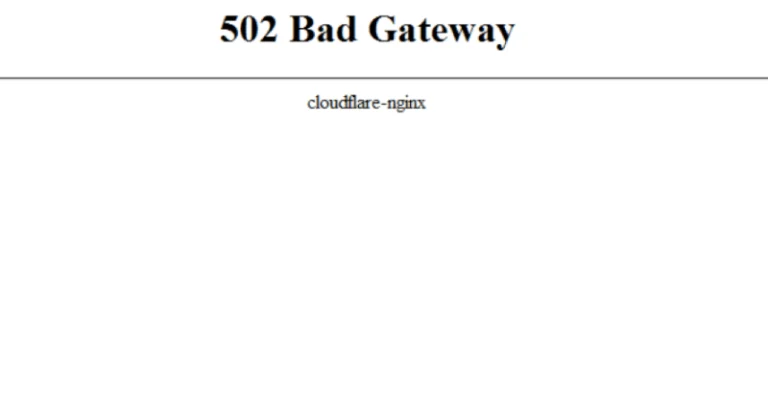
When a site loads an old version, won’t accept your password or shows a broken layout, you don’t have to wipe your entire browser history right away. Clearing the data of that one site, or the cache for a short time range, usually does the trick. Below is a safe sequence of steps for Chrome, Edge, Firefox and Safari.
Cookies, cache and history: what’s the difference
| Data | What it stores | What changes after deleting it |
|---|---|---|
| Cookies | Sign-ins, language, shopping cart and other site settings | The site may ask you to sign in again |
| Cache | Copies of images, scripts and parts of pages | The site may load a little slower the first time |
| History | The list of pages you visited and searches in the browser | Entries disappear from your browsing history |
| Saved passwords | Usernames and passwords, if the browser saved them | Don’t delete them without backup access to your accounts |
Clearing cookies doesn’t delete files on your computer or cancel subscriptions. But it can end your sessions in online banking, email, social networks and work services. Make sure you can access your email or authenticator app before you choose to delete everything.
When clearing really helps
- a site shows old prices, images or design after an update;
- a page keeps loading forever or shows a sign-in error;
- an online store’s cart doesn’t work;
- you changed your password, but the browser keeps reusing the old session;
- you need to free up a little space on the device.
If the site is down for everyone, or the error persists in another browser and on mobile data, the cause is probably not your cache. There’s no point in clearing it again and again: that won’t speed up a fix on the server side.
Google Chrome: how to delete cookies and cache
- Click the three dots in the top-right corner.
- Choose Delete browsing data. On Windows or Linux you can open this window faster with Ctrl + Shift + Delete.
- Pick a time range. For a single problem, start with Last hour or Last 24 hours.
- Check Cookies and other site data and Cached images and files.
- Don’t check passwords and autofill data unless you really want to delete them.
- Click Delete data, then reload the problem tab.
For a single site, open Chrome Settings → Privacy and security → Third-party cookies → See all site data and permissions. Search for the domain and delete only its data.
Microsoft Edge: same idea, different menu
- Open the three-dot menu → Settings.
- Go to Privacy, search, and services.
- Under Clear browsing data, select Choose what to clear.
- Set the time range and select cookies and cached images and files.
- Confirm.
Ctrl + Shift + Delete works in Edge too. If you use Microsoft sync, check carefully which data is cleared only on this device and which is synced to your other devices.
Mozilla Firefox: clear everything or one site’s data
For a quick cleanup, press Ctrl + Shift + Delete, choose the time range and select cookies and temporary cached files. To avoid signing out of every account, open the Firefox menu → Settings → Privacy & Security → Cookies and Site Data → Manage Data. There you can find a specific site and delete only its entries.
Safari on Mac and iPhone
On a Mac, open Safari → Settings → Privacy → Manage Website Data. Select one domain or click Remove All. To clear your Safari history, use History → Clear History and choose the time range.
On iPhone and iPad, the path depends on the iOS version, but it starts in the device’s Settings: Apps → Safari. There you can clear history and website data, or delete website data separately under Advanced. AutoFill isn’t necessarily removed, but open sessions on websites may end.
If the site still doesn’t work after clearing
- Open the site in a private window. If it works there, check your extensions and ad blockers.
- Update the browser to the latest version.
- Turn off your VPN or proxy while testing, if you use one.
- Try another network: Wi‑Fi and mobile data.
- Check the date and time on your device — wrong settings can break secure connections.
Chrome and Safari on your phone: what you can clear
On Android, open Chrome’s three-dot menu → Delete browsing data. Start with a short time range and select cookies and cached images and files. Chrome on Android also lets you delete one site’s data from its site settings if the problem doesn’t affect other pages.
On iPhone and iPad, Safari is managed from the system Settings. Clearing history and website data will end some sessions, while deleting one site’s data leaves the others untouched. If the clear button is grayed out, check your Screen Time restrictions: they can block deleting history.
Don’t install “cleaners” to fix one error
Third-party apps often promise to clean your browser in one click, but they usually don’t know which data you need. The built-in tools in Chrome, Edge, Firefox and Safari let you choose the time range and the type of data, so they are safer for an ordinary problem with a site. Be especially careful with programs that also offer “speed-ups”, driver removal and registry cleaning.
If your browser keeps filling up with cache, look at your extensions, open tabs and downloads. Clearing deals with the symptoms but doesn’t always remove the cause — for example, a heavy extension or low free space on the drive.
FAQ
Will clearing cookies delete my passwords?
Usually not, unless you separately select saved passwords in the clearing window. But the site may ask you to sign in again because the active session cookie is gone.
Do I need to delete my entire browsing history?
No. For an error on one site, it’s better to delete only that domain’s data or choose a short time range. A full cleanup is a last resort.
Why is a site slower after clearing the cache?
The browser has to download images, styles and other page elements again. After the first visit the cache fills up again, and the speed usually returns to normal.