
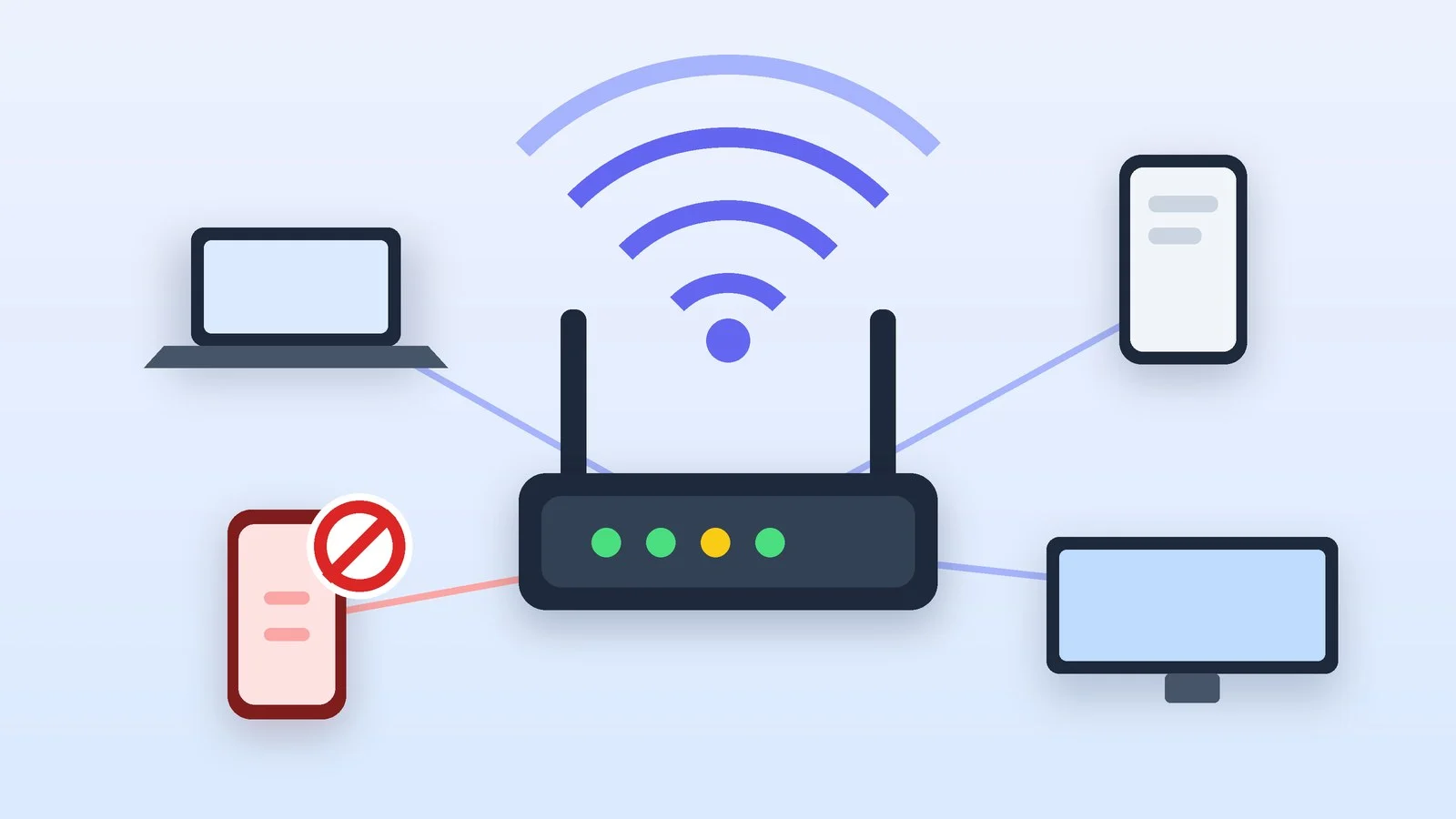
To find out who is connected to your Wi-Fi, log in to the router’s settings and open the list of connected devices: each one shows a name, an IP address and a MAC address. You can block an unknown device, but only changing the Wi-Fi password reliably kicks out strangers.
Below is a step-by-step guide with examples for TP-Link and ASUS, plus the general order for any router. The details were checked against the help pages of TP-Link, ASUS, Apple and the US Federal Trade Commission as of October 14, 2026. Menu names are given as they appear in the English interfaces in those help pages: in Russian or Ukrainian firmware they are translated, and on routers supplied by an internet provider they may differ.
Open the router’s control panel
Connect to your Wi-Fi or by cable, open a browser and enter the router’s address. For TP-Link it is tplinkwifi.net, 192.168.0.1 or 192.168.1.1; other manufacturers list the address on the sticker and in the manual. If there is no address, open the Command Prompt on a Windows computer and enter the command: the router’s address will be on the “Default Gateway” line.
ipconfigThen log in with the administrator login and password. If the default login doesn’t work, check the sticker on the router. If your internet provider supplied the router, its interface may be simplified: ask the provider’s support where to find the client list.
Result: The router’s control page is open.
Find the list of connected devices
The list goes by different names: “Clients”, “Connected devices”, “DHCP clients”. Here is where to find it on two popular brands:
| Router | Where to look for the list |
|---|---|
| TP-Link, browser | “Basic” → “Network Map” or “Advanced” → “Network” → “DHCP Client List” (full list, with MAC addresses) |
| TP-Link, Tether app | “Local Device” → “Clients”: name, band, speed, IP and MAC of each client |
| ASUS, browser | “Network Map” → the “Clients” icon; filters “Online”, “Wired”, “Wireless” |
| ASUS, ASUS Router app | “Devices”: online and offline devices |
If you have an access point or a mesh system behind another router, check the client list on the main router: it is the one that assigns addresses to devices. Google Wifi and Nest Wifi routers can send a notification about a new device; you turn this on in the Google Home app.
Result: You see a list of devices with names, IP and MAC addresses.
Identify your own devices
Compare the list with your own gadgets. Many “strangers” turn out to be a smart TV, a speaker, a printer, a camera or a robot vacuum: such devices often have names made up of the manufacturer’s name and a string of characters. If the name isn’t enough, look at the IP address and identify the manufacturer from the MAC address.
There’s a catch: iPhones and Android phones hide the real MAC address. By default, Apple uses its own “Private Wi-Fi Address” for each network, and since Android 10, it uses a random MAC address by default. So the address in the router may not match the one the phone shows in its settings. The simplest way is to turn off Wi-Fi on each of your devices in turn and see which entry disappears from the list.
If you need to match the address, turn off the private address for your home network. On iPhone: Settings → Wi-Fi → the ⓘ icon next to the network → Private Wi-Fi Address → Off. On Android, the network details include a random MAC address setting; its name depends on the phone’s interface skin. Turn this off only for the time of the check, then switch the previous setting back.
Result: All devices on the list are identified, and the unidentified ones are noted down.
Block the unknown device
Blocking disconnects a device quickly, but not always reliably. Ways to do it:
- TP-Link, browser: “Advanced” → “Security” → “Access Control” → turn the function on → “Change Mode” → “Deny List”, then “Add” and choose the device from the list or add it manually by its MAC address → “OK”. In older firmware, the modes are called “Blacklist” and “Whitelist”.
- TP-Link, Tether (Wi-Fi 6, 6E, 7): “Local Device” → “More” → “Block List” → “+” → “Select Clients”. On older models: “Clients”, then swipe the device left, and it moves to “Blocked Clients”.
- ASUS, browser: click the device icon, turn on “Block Internet Access” and click “Apply”. In the ASUS Router app: “Devices” → the device name → “Block”.
- Routers from other manufacturers: look for “Access Control”, “MAC filter”, “Parental control” or a block button in the client list.
Result: The unknown device is blocked or has no internet access.
Change the Wi-Fi password and protect the network
This is the most reliable method. According to TP-Link, after you change the password, all current devices disconnect at once and need the new one. Here’s how:
- In the wireless network settings (Wi-Fi), set a new long password that no one else has. It’s easier to create and store such passwords in a password manager: here is our review of password managers.
- Choose WPA3 Personal or WPA2 Personal protection. The FTC advises: if the router only supports WPA or WEP, update its firmware first, and if no newer modes are available, consider replacing the router. Our selection of Wi-Fi routers for home can help you pick a model.
- Change the router’s administrator password to a separate one: it must not match the Wi-Fi password. Also change the network name to one that doesn’t include your name, address or the router’s brand.
- Turn off WPS, remote management and UPnP if you don’t need them: the FTC calls them features that weaken security. Update the firmware from the manufacturer’s website.
- For guests, create a guest network with its own password, so that only you know the main password.
- Connect your devices with the new password and log out of the router panel.
Result: Wi-Fi is locked with a new password; strangers’ devices have lost access.
Check the network again and turn on notifications
A few minutes later, open the client list again: only your own devices should remain. If an unidentified device shows up again, check whether it is yours under a new MAC address, and make sure the administrator password and WPS are set up as described above.
You can check the network from a phone or computer with the Fing app. Fing Mobile for iOS and Android shows a list of devices with brand, model, IP and MAC; it is a snapshot as of the time of the check. Device blocking (in Fing Desktop), automatic blocking and constant monitoring with alerts about new devices are available on Fing’s paid plans.
If someone has used your network, change the passwords for your important accounts and turn on two-factor authentication.
Result: The client list is clean, and you get notifications about new devices.
If it didn’t work
- The router page doesn’t open — you have to be connected to the router itself (by Wi-Fi or cable). Check the address on the sticker and in the
ipconfigcommand, and try another browser. - The administrator password doesn’t work — on newer TP-Link models, you set the password during setup; on older ones, it is admin. Resetting the router with the Reset button restores the factory settings, but it also erases the provider connection settings, so find those out from your provider first.
- The client list is empty — you may be looking at an access point rather than the main router; open the main one.
- A device came back after being blocked — it may have changed its MAC address. Turn on the whitelist or change the Wi-Fi password.
- The internet is slow, but there are no strangers — a slow network alone doesn’t prove that anyone has connected to it. Check the speed over a cable and your provider’s service.
Sources and methodology
Analysis of public sourcesChecked 14 October 2026
- TP-Link — How to check who is connected to your Wi-Fi router omadanetworks.com
- ASUS — How to manage and block devices on the router asus.com
- FTC — How to secure your home Wi-Fi network consumer.ftc.gov
- Apple — Private Wi-Fi Address support.apple.com
- Fing — How to see who is using your Wi-Fi fing.com
Frequently asked questions
Can you find out who is connected to your Wi-Fi without logging in to the router?
Yes, with an app such as Fing: it scans the network and shows devices with their IP address, MAC address and manufacturer. It’s a snapshot as of the time of the check; the client list in the router is more reliable.
What does an unknown device in the router’s list mean?
Most often, it’s your own equipment under an unfamiliar name: a TV, a speaker, a camera or a phone with a private MAC address. Turn off your devices one at a time and see which entry disappears.
Why should you turn off WPS?
The FTC lists WPS, remote management and UPnP among features that add convenience but can weaken network security. If you don’t use them, turn them off in the router settings.
How can you tell that someone else is using your Wi-Fi?
Only from the client list in the router: an unfamiliar name and a MAC address that doesn’t match any of your devices. A slow internet connection alone proves nothing.
What should you do if your provider gave you the router?
Ask your provider’s support where to find the client list and how to change the Wi-Fi password. The administrator login and password are sometimes printed on the router’s sticker.







Leave a Reply