
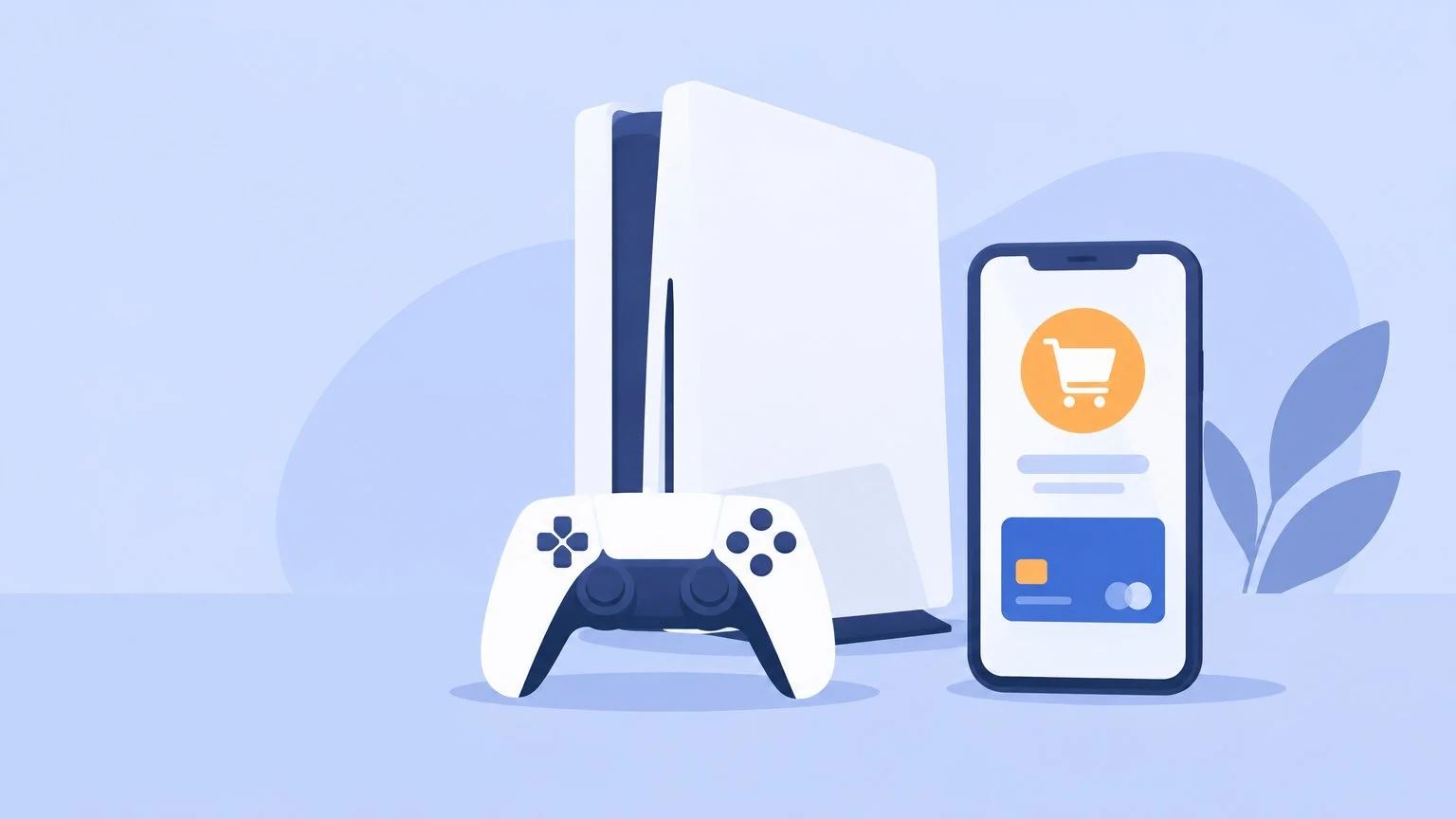
To buy a game on PlayStation Store in Ukraine, sign in to a PlayStation account with the region set to Ukraine, find the game in the store on PS5, PS4, in the PlayStation App or in a browser, choose the edition and price, add it to your cart and pay with a Visa or Mastercard card, with Apple Pay or with funds from your wallet. You can top up the wallet with the same card or with a PlayStation Store gift card that has a 12-digit code. Prices in the Ukrainian store are listed in hryvnias (UAH).
Below: the payment methods PlayStation accepts in Ukraine, step-by-step purchases on a console and in a browser, topping up your wallet and redeeming codes, refund rules and fixes for common card problems. Everything is based on PlayStation’s official pages for Ukraine as of November 18, 2026.
Payment methods on PlayStation Store in Ukraine
| Method | What to know |
|---|---|
| Visa and Mastercard cards | You can save up to 3 cards, including Maestro |
| Apple Pay | Ukraine is on the list of countries; you choose it at checkout |
| PlayStation wallet | Topped up with a card or a gift card |
| Gift card (voucher) | 12 digits, only for your account’s region |
PayPal isn’t on the list of payment methods for Ukraine. If your card won’t go through, you can buy a PlayStation Store gift card for the Ukrainian region for the time being and top up your wallet with the code.
1. Buy a game on PS5
- Open PlayStation Store from the home screen.
- Find the game through search or the store pages and open its page. Add-ons and season passes are further down, in the add-ons section.
- Read the description carefully: check that it’s the right edition, whether the game is for PS5 or only for PS4, and what its age rating is.
- Select the price, choose the edition you want and follow the on-screen instructions to pay.
- Download the game: select it in your game library or in PlayStation Store and press Download.
On PS4 the steps are the same, except that after selecting the game you press Add to Cart (or Pre-Order) → Proceed to Checkout. Labels depend on the console language: in the Ukrainian interface, Add to Cart and Download appear in Ukrainian.
2. Buy a game in a browser or the PlayStation App
Buying from a phone or computer is handy when your console isn’t nearby: the game shows up in your account’s library right away.
- Open PlayStation Store in a browser or tap the PlayStation Store icon in the PlayStation App and sign in to your account.
- Find the game through search and check the edition, compatibility and age rating.
- Select Add to Cart and complete the payment by following the prompts. For Apple Pay, choose it as the payment method at checkout and select Confirm Purchase.
To make sure no one else buys games with your card on a shared console, turn on the password prompt at checkout in your account settings — PlayStation specifically recommends this feature to protect your account.
3. Top up your PSN wallet
Wallet funds are handy if your card doesn’t go through on the console or you want to limit spending. Keep in mind that a wallet top-up can’t be canceled: PlayStation doesn’t refund added funds.
- In a browser: sign in to PlayStation Store, select your profile icon → Payment Management → Add Funds, then choose a payment method and the amount.
- On PS5: Settings → Users and Accounts → Account → Payment and Subscriptions → Add Funds.
- On PS4: Settings → Account Management → Account Information → Wallet → Add Funds.
In a browser, your wallet balance appears at the top of the Payment Management page; on PS5, it’s in the PlayStation Store menu (triangle button → … (More)) to the right of the profile icon.
4. Redeem a gift card code
- In a browser: sign in to PlayStation Store, select your profile at the top → Redeem Codes → enter the 12-digit code → Continue.
- On PS5: in PlayStation Store, press triangle → … (More) → Redeem Codes, enter the code and select Redeem. You can also enter the code right at checkout.
- On PS4: scroll to the very bottom of the PlayStation Store sidebar → Redeem Codes.
- In the PlayStation App: PS Store icon → menu icon on the right → Redeem Code.
A code can be used only once, and funds and content can’t be moved to another account, so check which account you’re signed in to. Physical cards show the flag of the country or region they were issued for. Gift cards bought from other retailers rather than from PlayStation Store can’t be refunded under the PlayStation Store cancellation policy.
Can you get a refund for a game
- Games and add-ons — within 14 days of purchase, if you haven’t started downloading or streaming them. Once a download has started, only if the content turns out to be faulty.
- A pre-order paid more than 14 days before release can be canceled at any time before launch; one paid later can be canceled within 14 days of the charge, as long as the download hasn’t started.
- Subscriptions such as PlayStation Plus — within 14 days of the first payment, even if you’ve already used the subscription; the amount may be reduced proportionally.
- Wallet top-ups aren’t refundable.
The download starts on its own if automatic downloads are turned on: if you’re not sure about a purchase, turn them off in the system settings. It pays to wait for sales — see when Black Friday 2026 takes place and how to check a discount.
If something goes wrong
- The card won’t link. Check that the card type is supported, that the details match your bank documents, and that your name and address contain no asterisks, hyphens or apostrophes — PlayStation recommends replacing them with Latin letters. A card registered in another region may not link.
- “Your details have been updated too many times.” The account is temporarily locked for security: wait 24 hours and don’t try earlier — each attempt restarts the countdown.
- Your bank asks for a confirmation code, but the payment is declined on the console. This is a 3DS check. PlayStation suggests paying in a browser on a computer or phone and then downloading the game to the console; if that doesn’t help, contact your bank.
- Payment details aren’t saved. Check the PlayStation service status page and try again when all services are marked green.
- The code won’t redeem. Check that it has 12 digits (a 10-digit code is a discount code) and that it was issued for your region.
If you also play on PC, Steam has its own payment and refund rules — we covered how to buy a game on Steam. And for your console, see our picks of gaming monitors for PC and consoles.
Sources and methodology
Analysis of public sourcesChecked 18 November 2026
- PlayStation — Payment methods accepted on PlayStation Store playstation.com
- PlayStation — How to buy on PlayStation Store playstation.com
- PlayStation — How to add funds to your wallet playstation.com
- PlayStation — How to redeem a voucher code playstation.com
- PlayStation — PlayStation Store cancellation policy (Ukraine) playstation.com
Frequently asked questions
Which cards can you use on PS Store in Ukraine?
Visa and Mastercard; you can save up to three cards in your account, including Maestro. Apple Pay is also supported. PayPal isn’t on the list for Ukraine.
How do you top up a PSN wallet in Ukraine?
With a linked card (Payment Management → Add Funds) or with a PlayStation Store gift card for the Ukrainian region — you enter its 12-digit code under Redeem Codes.
What currency are prices in on the Ukrainian PS Store?
Hryvnias: the store for the Ukraine region shows prices in UAH.
Will a gift card from another country work?
No: under PlayStation’s rules, a voucher code must be issued for the region where the account is registered. The card’s region is marked by a flag on it.
Can you return a game on PS Store?
Yes, within 14 days of purchase, if you haven’t started downloading or streaming it. Once the download has started, only if the game turns out to be faulty.








Leave a Reply