
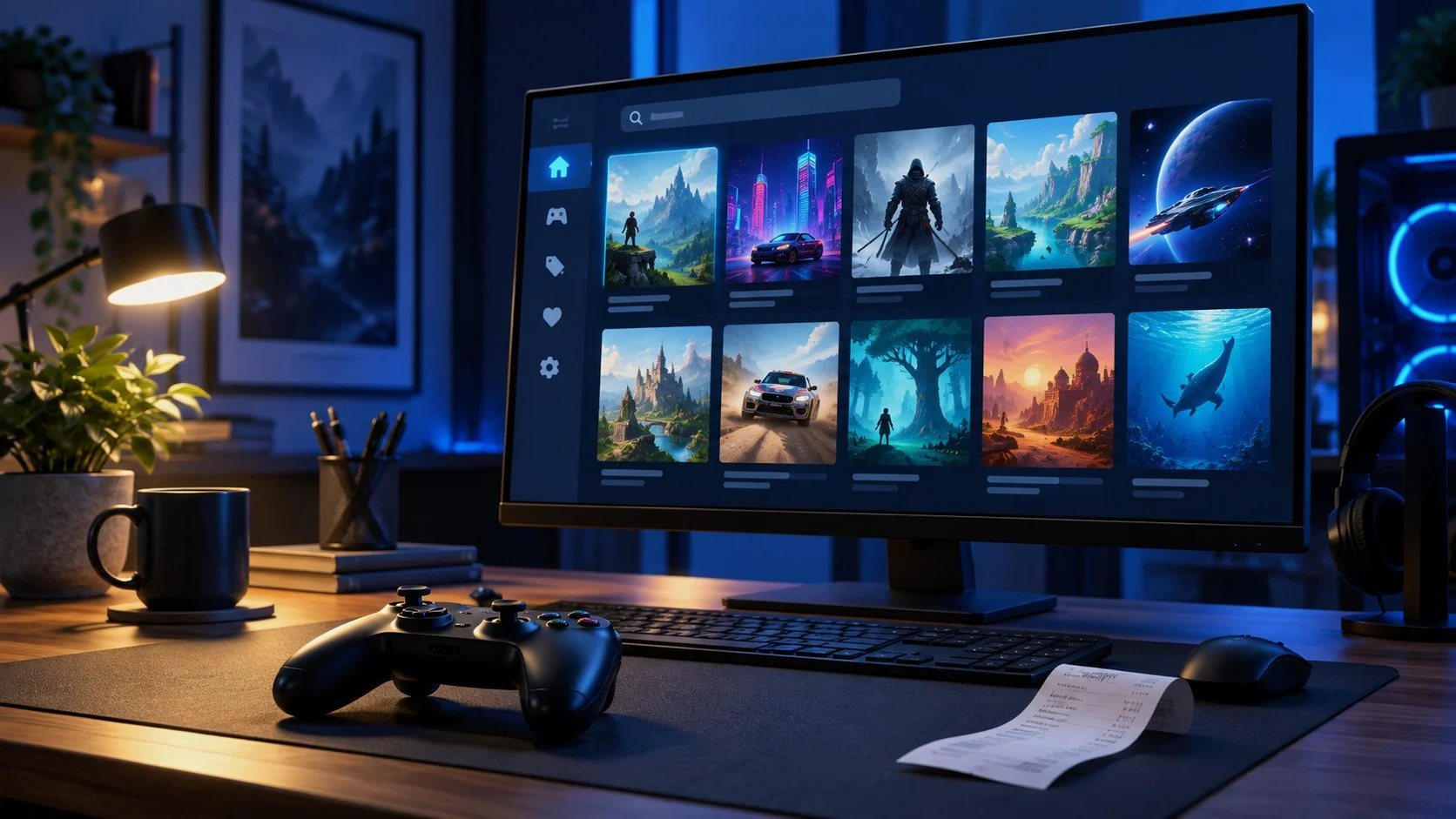
Buying a game on Steam takes only a few minutes, but the price is not the only thing worth checking before you pay. A single title can come in several editions, add-ons may require the base game, and the availability of gifts and payment methods depends on your country and the publisher’s terms. This guide helps you complete the purchase without overspending and explains what to do if a payment does not go through.
What to check before you buy
A good discount does not always make a good purchase. That is especially true of long-running series with dozens of DLC, of online games that sell battle passes separately, and of titles that need a powerful PC or a lot of free space. Spend a minute on the game’s store page — it is easier than requesting a refund later.
| What to check | Why it matters |
|---|---|
| Edition | Standard, Deluxe and Complete may differ only in cosmetics, or they may include major add-ons or a season pass. |
| Languages | Games list interface, audio and subtitles separately. Check which languages the specific edition supports on its store page. |
| System requirements | Look beyond the processor and the graphics card: check SSD capacity, RAM and room for future updates. |
| DLC and the base game | An add-on will not run on its own. If your Cart holds only DLC, make sure the base game is already in your Library. |
| Region notices | Some games, gifts and keys are restricted by country. Those restrictions matter more than an attractive price. |
How to buy a game on Steam, step by step
1. Sign in to your account
You can buy through the Steam desktop app, the mobile app or the website. If you do not have an account yet, register one with your real details and turn on Steam Guard right away. Do not buy ready-made accounts: along with the game you take on the risk of losing your library, your email access and your money.
2. Find the game and read its page
Use Steam search or open the page from the Store. The price and the edition bundles are usually at the top; below them come the description, the reviews, the supported languages, the requirements and the details about online play. For a new purchase, recent reviews are more useful: they are quicker to show the state of the servers, the optimization and any technical problems that followed an update.
3. Pick the right edition
The base version is the right call if you first want to find out whether you like the game at all. An expanded edition makes sense when it really does include a story expansion or content you will actually use. Soundtracks, art books and cosmetic items are often nice to own, but they do not automatically make the playthrough more interesting.
4. Add the game to your Cart for yourself or as a gift
For your own library, choose the option to buy for yourself. If the game is meant for someone else, use the gift option and make sure the recipient does not already own it. A gift can be unavailable because of regional restrictions or a price difference between countries — Steam shows this before you complete the order.
5. Check the total and the payment method
On the payment page, Steam lists the methods available to your particular account and country. Pick one, check the billing details and the order total, then confirm the transaction with your bank or payment service. Never hand your password, a Steam Guard code, a sign-in QR code or your card details to middlemen in private messages.
Do not change your store country through a VPN, a proxy or someone else’s payment details just to get a different price. That can lead to a declined transaction and to restrictions on your account. If the payment method you want is not shown, it is safer to use the options Steam itself offers for your country, or to contact the service’s support and your bank.
6. Make sure the game has appeared in your Library
After paying, open the Library section and find the game by name. From there you can start the installation, choose a drive and check the free space. If your SSD is nearly full, free up some space first or move an already installed game to another drive — we have a separate guide to moving Steam games.
How to move a Steam game to another drive without reinstalling
How to pay and how to buy
| Option | When it fits | What to watch for |
|---|---|---|
| Buying directly on Steam | A payment method is available on the checkout page | The most straightforward route: the game goes into your Library at once, and the order history is kept in your account. |
| Steam Wallet funds | You already have a balance, or an official gift card is available | Before you top up, check the wallet currency and the rules of the specific payment method. |
| A gift from someone close to you | The game can be gifted in both countries | The recipient must not already own the game; regional restrictions are visible before payment. |
| A legitimate key from an authorized seller | The seller states plainly that the platform is Steam and which countries the key activates in | Before you buy, check the region, what the edition includes and the refund terms. Steam will not replace a key that has already been activated or that does not fit. |
How to activate a Steam key
A key is not a link and not your account password. After buying from a trusted store, open Steam, click Add a Game at the bottom of the window and choose Activate a Product on Steam. Enter the code, wait for the confirmation and check your Library. Do not enter a key on sites that ask you to sign in through a suspicious Steam form or to install a browser extension.
What to do if Steam will not let you finish the purchase
Do not resubmit the order many times in a row: the bank may temporarily hold the amount from a failed attempt even though Steam never charges it. First open your purchase history and make sure the order really did not go through. Then check the address, the card details, your limits on online payments and the transaction confirmation in your banking app.
- If the card is declined, check the expiry date, the CVV and the limit on online purchases.
- If there is a pending transaction, wait for the bank’s decision instead of creating several identical orders.
- If another official payment method is available, use it only after you have checked your purchase history.
- If the problem keeps repeating, contact Steam Support through the purchases section and your bank — with the amount, the time and the error message.
When you can refund a game
For most games, Steam considers a refund if the request is sent within 14 days of the purchase and playtime has not gone over two hours. Even if one of those criteria is not met, you can still file a request: each case is decided individually. With some payment methods the refund arrives in your Steam Wallet rather than on your card — that depends on the method and the country.
To request a refund, open Steam Support, go to your purchases, select the game and give a reason. Do not confuse a game refund with a key refund from a third-party seller: an activated key and a purchase made in the Steam Store are different situations with different rules.
Checklist before you click Buy
- I am buying the game on my own account, protected by Steam Guard.
- I have checked the edition, the languages, the requirements and the free space on my drive.
- There is no stray DLC or duplicate in the Cart.
- The payment method is shown in Steam itself, and the price and the currency are clear before I confirm.
- For a gift or a key, I have checked the country restrictions and the seller’s terms.
- I am not using a VPN to get around regional rules, and I do not pass sign-in codes to other people.
FAQ
Can I buy a game on Steam without a bank card?
It depends on the country and on the methods Steam shows on the payment page. You can use the available options directly, or Steam Wallet funds if they are legitimately available to your account. Do not use services that ask for your password, a Steam Guard code or a change of region.
Why can’t I gift a game to a friend?
Your friend may already own the game, and the item itself may carry regional restrictions. Steam shows such restrictions before payment. In that case do not try to get around them with a VPN; you can consider an official digital gift card, if one is available.
Which is better: buying the game directly or buying a key?
Buying directly on Steam is simpler: the game goes into your Library at once, and a refund is handled through Steam Support. A key makes sense only from an authorized seller who states plainly the platform, the edition, the activation countries and the refund terms.
Can I refund a game I did not enjoy?
For most games, Steam considers a refund within 14 days of the purchase if playtime is under two hours. You can file a request outside those conditions too, but the outcome is not guaranteed.
Where do I find the game I bought?
After a successful payment, open the Library section in Steam and find the game by name. If it is not there, first check your purchase history and the order status, then contact Steam Support.


Leave a Reply