
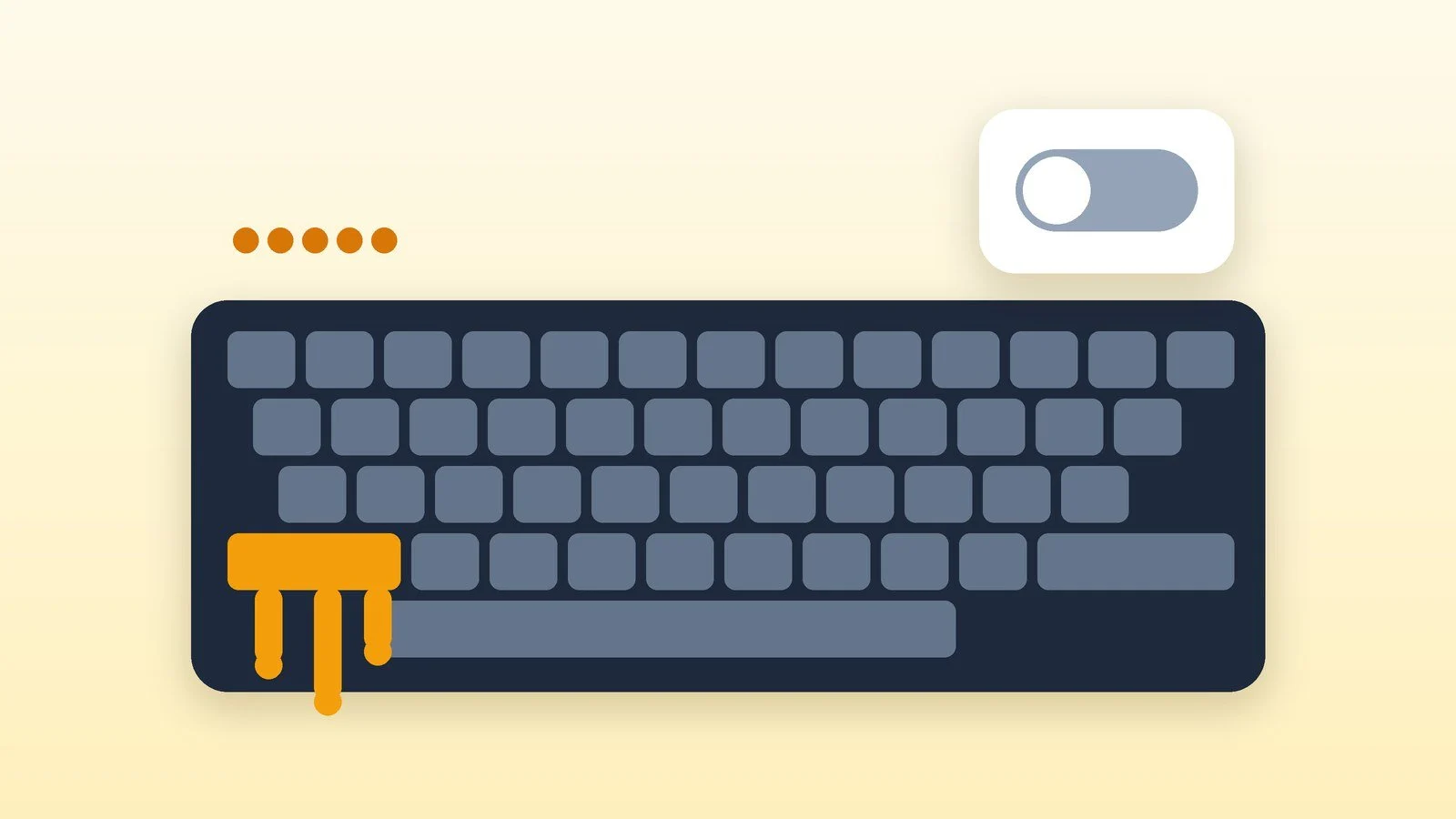
To turn off Sticky Keys in Windows, press Win + U (or open Start → Settings → Accessibility), select Keyboard, and switch off the Sticky Keys toggle. If the prompt to turn the feature on keeps appearing after you press Shift five times in a row, also turn off the shortcut that starts it (step 3). The same steps work for Windows 11 and Windows 10.
Below is a step-by-step guide based on Microsoft’s help as of October 18, 2026: how to tell Sticky Keys apart from Filter Keys and Toggle Keys, and what to do if your keyboard behaves strangely. Support for Windows 10 ended on October 14, 2025, but Microsoft’s help on accessibility settings covers both systems.
What Sticky Keys is and why it turns on
According to Microsoft, Sticky Keys helps people who find it hard to press two keys at the same time: shortcuts such as Ctrl + S can be typed one key at a time. The feature turns on when you press Shift five times, so the pop-up can appear by accident, for example in a game where that key is pressed often. Two other modes are turned on by similar shortcuts, so they are easy to mistake for Sticky Keys.
| Feature | What it does | How the shortcut turns it on |
|---|---|---|
| Sticky Keys | Lets you press shortcut keys one after another | Shift five times |
| Filter Keys | Ignores brief and repeated key presses | Hold right Shift for eight seconds |
| Toggle Keys | Plays a sound when Caps Lock, Num Lock or Scroll Lock is pressed | Hold Num Lock for five seconds |
Open the keyboard settings
Press Win + U, or choose Start → Settings → Accessibility, then open Keyboard. This is how Microsoft describes it for Windows 11. On Windows 10 the path is the same: Settings → Accessibility → Keyboard.
Quick way: press Win + A to open Quick Settings, then click the Accessibility button. Microsoft lists Sticky Keys among the features you can turn on from this menu without opening Settings. The menu does not show every feature at once: you can customize it with the button for additional accessibility settings.
Result: The Keyboard section under Accessibility is open.
Turn off the Sticky Keys toggle
In the Keyboard section, find the Sticky Keys block and switch it to Off.
Result: Sticky Keys is off and no longer triggers on the keyboard.
Turn off starting Sticky Keys with a keyboard shortcut
As long as Windows allows the feature to start with a shortcut, pressing Shift five times brings up the prompt to turn on Sticky Keys. To stop this, expand the Sticky Keys block in the same section (click its name) and turn off the option that lets the feature start with a keyboard shortcut (in the English interface it is called “Keyboard shortcut for Sticky keys”). Microsoft’s help does not have this sub-option: it only describes the shortcut itself (Shift five times turns Sticky Keys on and off). If the name in your version of Windows is different, look for the option about starting Sticky Keys with a shortcut.
Result: Five Shift presses no longer bring up the prompt to turn on Sticky Keys.
Check Filter Keys
If you press keys quickly and some presses don’t register, switch off the Filter Keys toggle in the Keyboard section. Microsoft describes it as a keyboard sensitivity setting: Windows ignores brief or repeated key presses. This feature is turned on with the shortcut “hold right Shift for eight seconds.”
Result: Keys respond to every press without delay.
Turn off Toggle Keys if the sounds get in the way
The sound when you press Caps Lock, Num Lock or Scroll Lock comes from the “Toggle keys” setting. It is turned on with the shortcut “hold Num Lock for five seconds.” To turn it off, find the setting in Settings → Accessibility → Keyboard and switch it off.
Result: Windows does not play a sound when Caps Lock, Num Lock or Scroll Lock is pressed.
Check the result
- Open any text document and press Shift five times in a row: the prompt to turn on Sticky Keys should not appear.
- Try a normal shortcut, such as Ctrl + S: you need to hold both keys at the same time, as before.
- If the prompt still appears, go back to Settings → Accessibility → Keyboard and check steps 2 and 3 again.
Result: We made sure the keyboard works as usual.
How to turn on Sticky Keys if you need it
The feature is meant for people who find it hard to press several keys at once. If you need it, switch on the Sticky Keys toggle in the Keyboard section or press Shift five times. Then shortcuts such as Ctrl + S can be typed one after another: first Ctrl, then S. You can also turn it on from Quick Settings (Win + A → Accessibility). People who need the feature should not turn it off: to keep the prompt from appearing by accident, turn off only the shortcut start (step 3).
If it didn’t work
- The prompt comes back after a restart or update. Check that the permission to start Sticky Keys with a keyboard shortcut is turned off in the Keyboard section, not just the toggle itself. If Windows has updated, check the settings again.
- The keyboard lags or doesn’t register fast key presses. Filter Keys (hold right Shift for eight seconds) is probably on: turn it off in the same section.
- Sounds when you press Caps Lock and Num Lock. This is Toggle Keys: switch off the toggle in the Keyboard section.
- A key is physically sticking. If one key triggers on its own or doesn’t release, the problem is the keyboard, not the Windows Sticky Keys feature. Test it on another computer.
- Settings are unavailable. If this is a work computer, your organization may restrict accessibility settings: contact your IT administrator.
In the same Keyboard section, Microsoft also describes the Print Screen toggle: it assigns the PRT SCR key to start screen snipping. For other ways to take a screenshot, see how to take a screenshot on a laptop and PC.
Sources and methodology
Analysis of public sourcesChecked 18 October 2026
- Microsoft — Make your mouse, keyboard and other input devices easier to use support.microsoft.com
- Microsoft — Windows keyboard shortcuts for accessibility support.microsoft.com
- Microsoft — Use a screen reader and keyboard to navigate the Windows accessibility flyout support.microsoft.com
Frequently asked questions
How do I turn off Sticky Keys quickly?
Press Shift five times: according to Microsoft’s table, this shortcut turns Sticky Keys on and off. It is more reliable to switch off the toggle in Settings → Accessibility → Keyboard.
Why does Sticky Keys turn on by itself?
It starts when you press Shift five times in a row. This can happen in games or during fast typing, when Shift is pressed several times in a row. If you turn off the permission to start the feature with a shortcut, the prompt will not appear again.
How is Sticky Keys different from Filter Keys?
Sticky Keys lets you press shortcut keys one after another (Ctrl, then S). Filter Keys ignores brief or repeated key presses. They are turned on by different shortcuts: Shift five times, and right Shift held for eight seconds.
What if Sticky Keys is needed by someone else, not by me?
Microsoft describes the feature as help for people who find it hard to press two keys at once. If someone needs it, don’t turn it off: leave the toggle on and, if necessary, turn off only the shortcut start.
How do I turn on Sticky Keys?
Press Shift five times, or switch on the Sticky Keys toggle in Settings → Accessibility → Keyboard. Microsoft offers it to people who find it hard to press two keys at once. Shortcuts are then typed one key at a time.
Is it the same for Windows 11 and Windows 10?
Yes, the path in Microsoft’s help is the same: Settings → Accessibility → Keyboard.



Leave a Reply