

To take a screenshot on a Windows 11 laptop or PC, press Win + Shift + S and select the part of the screen you need: the image goes to the clipboard and is saved to the Screenshots folder. Win + PrtScn saves the whole screen straight to a file. On a Mac, press Shift + Command + 3; on a Chromebook, Ctrl + the Show windows key.
Below you’ll find a table of every shortcut, step-by-step instructions for Snipping Tool, Xbox Game Bar, macOS, and ChromeOS, full-page screenshots in Edge and Chrome, and fixes for when the PrtScn key on a laptop doesn’t work. Shortcuts and menu names were checked against Microsoft, Apple, and Google support pages and the Windows 11 interface as of October 10, 2026.
How to take a screenshot on a PC: every shortcut
If you just want to paste the screenshot into a chat or an email, the clipboard is enough: after taking it, press Ctrl + V (Command + V on a Mac). If you need a file, use a shortcut that saves the image to a folder.
| System | Shortcut | What it captures | Where it goes |
|---|---|---|---|
| Windows 11 | Win + Shift + S or PrtScn | Area, window, or full screen | Clipboard and Screenshots |
| Windows 10 | PrtScn | Full screen | Clipboard only |
| Windows 10 and 11 | Win + PrtScn | Full screen | Pictures → Screenshots |
| Windows 11 | Alt + PrtScn | Active window | Clipboard only |
| Windows 10 and 11 | Win + Alt + PrtScn | Game or app | Videos → Captures, PNG |
| macOS | Shift + Command + 3 | Full screen | Desktop |
| macOS | Shift + Command + 4 | Area; add Space for a window | Desktop |
| macOS | Shift + Command + 5 | Toolbar with timer and save location | Folder set in Options |
| macOS | Control + any of these | Same as without Control | Clipboard only |
| ChromeOS | Ctrl + Show windows | Full screen | Downloads and clipboard |
| ChromeOS | Shift + Ctrl + Show windows | Area or window | Downloads and clipboard |
| Edge on Windows | Ctrl + Shift + S | Area or entire page | Copy or file |
1. The PrtScn key in Windows: full screen and window
The key may be labeled PrtScn, PrtSc, or Print Screen. In Windows 11 it opens the Snipping Tool overlay by default so you can select an area — the same as Win + Shift + S (see method 2). In Windows 10 it copies the whole screen to the clipboard without creating a file.
- Full screen straight to a file — Win + PrtScn. The image is saved to the Screenshots subfolder of Pictures: open File Explorer and select Pictures → Screenshots on the left.
- Active window only — Alt + PrtScn. A copy of the window goes to the clipboard; no file is created.
- From the clipboard to a file — open Paint, Word, or a chat window, press Ctrl + V, and then save.
To make PrtScn in Windows 11 simply copy the whole screen again, press Win + I, open Accessibility → Keyboard, and turn off “Use the Print screen key to open Snipping Tool.” Windows warns that, depending on other app settings, you might need to restart your PC for the change to take effect.
OneDrive no longer has a separate setting for saving screenshots automatically. Instead, Microsoft recommends backing up your Pictures folder to OneDrive, which also covers the Screenshots subfolder inside it. Those screenshots will then be available on a new computer signed in to the same account — see our guide on how to transfer data from an old laptop to a new one.
2. How to screenshot on Windows 11 with Snipping Tool
Snipping Tool is built into Windows 11 and 10. Win + Shift + S opens a capture overlay on top of all windows: the screen turns slightly gray, and the capture modes appear at the top.
- Press Win + Shift + S (in Windows 11, PrtScn works too).
- Choose a mode in the toolbar: Rectangle, Window, Full screen, or Freeform for an irregular shape.
- Drag over the area with your mouse or touchpad, or click the window you want. The screenshot is copied to the clipboard right away.
- To mark it up, click the notification in the corner of the screen — the screenshot opens in Snipping Tool, with a pen, highlighter, shapes, eraser, and crop tool.
- Copy the result (Ctrl + C) or save a copy to any folder (Ctrl + S).
In Windows 11, Snipping Tool saves every screenshot to the Screenshots folder by default. To turn this off or pick another folder, open the three-dot menu in the top-right corner of the app → Settings and find “Automatically save original screenshots.”
Delay, text from screenshots, and other features
- Delayed screenshot — useful when you need time to open a drop-down menu. Launch Snipping Tool from Start, pick 3, 5, or 10 seconds in the delay menu, and select New. During the countdown, open the menu; when the screen turns gray, select the area.
- Text from a screenshot — open the screenshot in Snipping Tool and select Scan text (Microsoft’s help page still calls the button Text actions). You can select and copy part of the text or choose Copy all text. Recognition runs on the PC itself, and you can quickly hide email addresses and phone numbers in the image.
- Copilot+ PC features — Perfect screenshot adjusts the frame to fit the content, and Color picker copies an exact color from anywhere on the screen.
- Video instead of an image — Win + Shift + R records the selected part of the screen. For audio and other apps, see our guide on how to record your computer screen.
3. Xbox Game Bar: screenshot a game or app
For games, Xbox Game Bar is more convenient — it’s built into Windows 10 and 11. Press Win + Alt + PrtScn: Game Bar captures the game or app window and saves it as a PNG to Videos → Captures, the same folder it uses for clips.
If the shortcut doesn’t work, make sure Game Bar is enabled: press Win + I, type xbox in the Settings search, and turn on Xbox Game Bar. Its overlay opens with Win + G.
4. How to take a screenshot on a laptop with the Fn key
On many laptops, PrtScn isn’t a separate key but a secondary function of a top-row key: its label sits next to the main one, often in a different color. In that case, add Fn: Fn + PrtScn instead of PrtScn, and Win + Fn + PrtScn instead of Win + PrtScn.
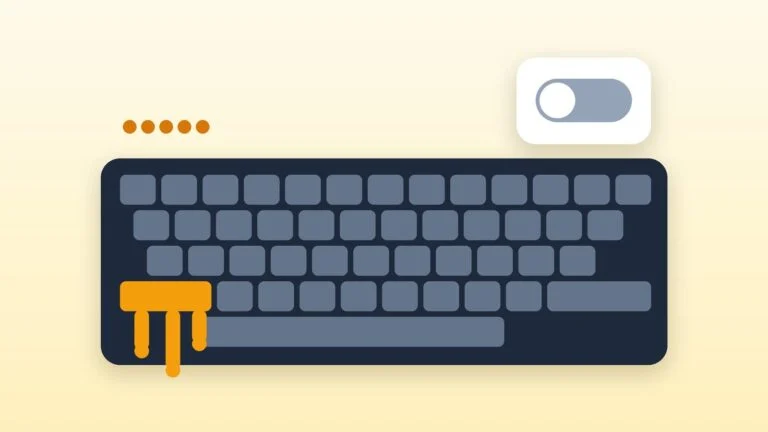
- The top row doesn’t behave as expected — many laptops have an Fn Lock mode that swaps the primary and secondary functions of these keys. How you toggle it depends on the model: check the manual on the manufacturer’s website after you find your exact laptop model.
- No PrtScn key at all — for such devices, Microsoft suggests Fn + Win + Space. On Surface keyboards, Fn + Space opens screen snipping, and Fn + Alt + Space copies the active window to the clipboard. Some Surface keyboards have a dedicated Snipping key.
- Windows tablet without a keyboard — on Surface Pro and Surface Go, press and hold the power button, then press the volume-up button. This shortcut doesn’t work on Surface Laptop.
- Works everywhere — Win + Shift + S doesn’t need a PrtScn key.
5. How to take a screenshot on a MacBook or iMac
On a MacBook or any other Mac, screenshots use shortcuts with Shift and Command: press the keys together, then release them.
- Entire screen — Shift + Command + 3.
- Part of the screen — Shift + Command + 4, then drag the crosshair over the area and release the mouse or trackpad button. To move the selection without resizing it, hold the Space bar while dragging. Press Esc to cancel.
- Window or menu — Shift + Command + 4, then the Space bar: the pointer turns into a camera; click the window. To leave out the window’s shadow, hold Option while you click.
- Screenshot app toolbar — Shift + Command + 5. It has tools for capturing the entire screen, a window, or a portion of the screen, plus an Options menu and a Capture button.
After you take a screenshot, a thumbnail appears in the corner of the screen for a few seconds: click it to crop or mark up the image, or drag it into an email, a document, or a folder. Otherwise the file saves on its own — to the desktop by default, as a PNG, with the date and time in its name.
On supported Mac models with macOS Tahoe 26 or later, you can choose HDR in Options — the screenshot is then saved as HEIF.
Copy to the clipboard and change the save folder on a Mac
- Straight to the clipboard — add Control to any shortcut: for example, Control + Shift + Command + 3 copies the entire screen. Paste it with Command + V. You can also Control-click the thumbnail and choose Save to Clipboard.
- Another folder — press Shift + Command + 5, open Options, and under Save to choose a preset location or Other Location. Timer and the corner thumbnail are set there too.
- Custom shortcuts — Apple menu → System Settings → Keyboard → Keyboard Shortcuts → Screenshots.
6. Screenshot on a Chromebook
If your Chromebook keyboard has a Screenshot key, just press it. Other ways:
- Entire screen — Ctrl + Show windows.
- Part of the screen or a window — Shift + Ctrl + Show windows. A toolbar opens at the bottom: select Screenshot, then full screen, partial, or window. On an external keyboard without a Show windows key, press Ctrl + Shift + F5.
- From the menu — select the time at the bottom right and choose Screen capture.
- ChromeOS tablet — press the power button and the volume-down button at the same time.
Chromebook screenshots are copied to the clipboard automatically and saved to the Downloads folder. To pick another folder, press Shift + Ctrl + Show windows, open Settings at the bottom, and choose Select folder.
7. Full-page screenshots in Edge and Chrome
The help pages for Snipping Tool and the Mac Screenshot app don’t list a scrolling mode, so a long web page is easier to capture in the browser.
Microsoft Edge
- Open the page and press Ctrl + Shift + S. You can also right-click the page or open the Settings and more (…) menu and choose Screenshot.
- Choose to capture the full page — Edge includes the parts you’d have to scroll to see. For a fragment, choose the area option and select it.
- Add pen markup if you like, then copy the screenshot or save it to a file.
The feature works in Edge on Windows and macOS; it used to be called Web capture. On a work browser, an administrator can turn it off.
Google Chrome
In Chrome, the built-in developer tools (DevTools) can capture a whole page — no extension needed.
- Open the page and press F12 or Ctrl + Shift + I (Command + Option + I on a Mac).
- Open the Command Menu: Ctrl + Shift + P (Command + Shift + P on a Mac).
- Type screenshot and select Capture full size screenshot to capture the entire page, including the part that’s off-screen. For a fragment, there’s Capture area screenshot.
- Chrome downloads the screenshot as a file, like any other download.
Troubleshooting
- PrtScn does nothing on a laptop — press it together with Fn or toggle Fn Lock (method 4). If that doesn’t help, use Win + Shift + S.
- PrtScn opens Snipping Tool, but you want the full screen on the clipboard — turn off “Use the Print screen key to open Snipping Tool” (method 1) or press Win + PrtScn.
- Another app grabs the key — Microsoft notes that some apps can change how keyboard shortcuts behave. Check the settings of third-party screenshot and cloud storage apps, or close them temporarily.
- The screenshot is gone from the clipboard — the clipboard holds only the last copied item. Turn on history: Win + V → Turn on, or System → Clipboard → Clipboard history. Then Win + V shows several recent screenshots and text snippets.
- No file in Screenshots — PrtScn in Windows 10 and Alt + PrtScn don’t create files. Snipping Tool saves screenshots automatically only if auto-save is on in its Settings. Look for Game Bar screenshots in Videos → Captures.
- A black rectangle instead of a movie — some apps don’t let you capture their windows. Apple, for example, warns about this for the Apple TV app.
- Mac shortcuts don’t work — make sure they’re turned on: System Settings → Keyboard → Keyboard Shortcuts → Screenshots. If files don’t appear on the desktop, check Save to in the Options of the Shift + Command + 5 toolbar.
- A third-party app on a Mac can’t capture the screen — give it access: System Settings → Privacy & Security → Screen & System Audio Recording.
Sources and methodology
Analysis of public sourcesChecked 10 October 2026
- Microsoft — Use Snipping Tool to capture screenshots support.microsoft.com
- Microsoft — Keyboard shortcuts in Windows support.microsoft.com
- Apple — Take a screenshot on Mac support.apple.com
- Google — Take a screenshot or record your screen (Chromebook Help) support.google.com
- Microsoft Edge — Screenshot explore.microsoft.com
FAQ
Where do screenshots go on a Windows laptop?
Win + PrtScn screenshots and Windows 11 Snipping Tool screenshots go to Pictures → Screenshots; Xbox Game Bar screenshots go to Videos → Captures. PrtScn in Windows 10 and Alt + PrtScn only copy the image to the clipboard: paste it with Ctrl + V.
Why doesn’t Print Screen work on my laptop?
Most often, PrtScn on a laptop is a secondary function of a top-row key, so you have to press it with Fn. Another app may also be intercepting the key. Win + Shift + S works without PrtScn.
How do I screenshot part of the screen?
On Windows, press Win + Shift + S and select an area; on a Mac, press Shift + Command + 4; on a Chromebook, press Shift + Ctrl + Show windows and choose a partial screenshot.
How do I take a scrolling screenshot of a web page?
The easiest way is Microsoft Edge: press Ctrl + Shift + S and choose to capture the full page. In Chrome, open DevTools (F12), press Ctrl + Shift + P, type screenshot, and select Capture full size screenshot.
How do I copy text from a screenshot?
On Windows 11, open the screenshot in Snipping Tool and select Scan text: you can copy a selected part or all of the text. Recognition happens on the PC itself, without sending the image online.



Leave a Reply