
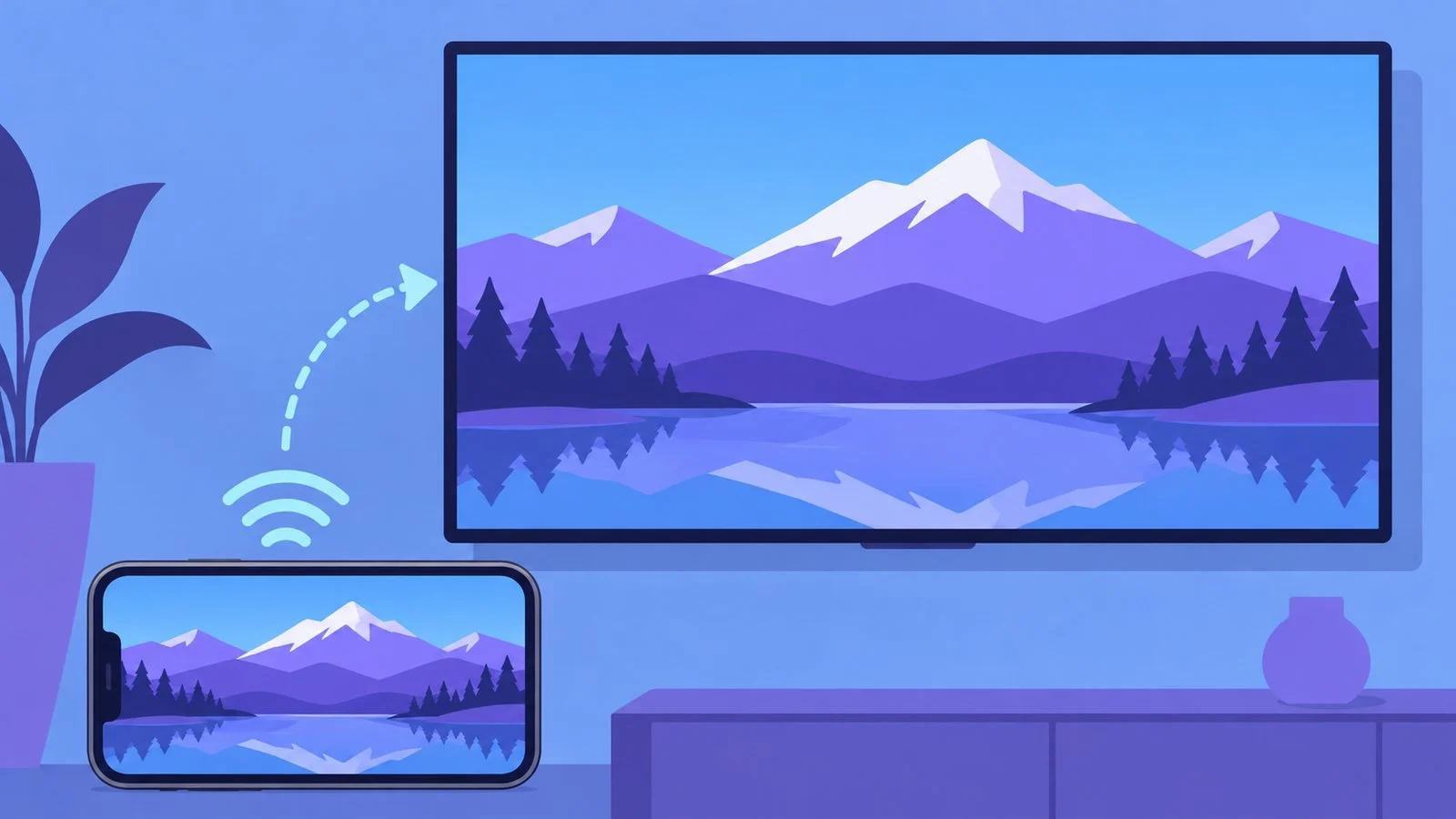
The easiest way to connect a phone to a TV is wirelessly: the phone and the TV need to be on the same Wi-Fi network. On iPhone, open Control Center, tap Screen Mirroring and choose a TV that supports AirPlay. On a Samsung Galaxy, tap Smart View in the quick settings panel; on other Android phones, use screen mirroring (LG calls it Screen Share) or cast through Google Home to a TV with Chromecast or Google TV. For a wired connection, iPhone 15 and later and Android phones with video output over USB-C work with a USB-C to HDMI cable or adapter.
Below: which method suits your phone + TV combination, step-by-step instructions for each and what to do if the TV can’t be found. Based on Apple, Google, Samsung and LG help pages as of November 18, 2026.
Which method to choose
| Phone and TV | Method |
|---|---|
| iPhone + TV with AirPlay (Samsung, LG and others) | Screen Mirroring or the AirPlay button |
| Samsung Galaxy + Samsung TV | Smart View |
| Android + LG TV | Screen mirroring (Screen Share) |
| Android + Chromecast or Google TV | Google Home or the Cast button in an app |
| Any phone with video over USB-C | USB-C to HDMI cable or adapter |
Casting and mirroring are not the same. When you cast, the TV plays the video from the app by itself and the phone acts as a remote. When you mirror, the TV repeats everything on the phone’s screen — handy for photos, presentations and games.
1. iPhone: AirPlay to a TV
Mirroring the whole screen.
- Connect your iPhone to the same Wi-Fi network as the Apple TV or the AirPlay-compatible TV.
- Open Control Center: on iPhone X and later, swipe down from the top-right corner of the screen.
- Tap Screen Mirroring and choose the TV. If an AirPlay code appears on the TV, enter it on your iPhone.
Video only. In the app, tap the AirPlay button (in Photos, tap Share first) and choose the TV. To stop, tap the same button and choose your iPhone. To stop screen mirroring, open Control Center → Screen Mirroring → Stop Mirroring.
If your iPhone can’t see an LG TV, LG recommends opening Home Dashboard on the TV and turning on AirPlay in the AirPlay and HomeKit settings. In Settings → General → AirPlay & Continuity → Automatically AirPlay, you can choose how your iPhone connects to a familiar TV: automatically, after asking, or never.
2. Samsung Galaxy: Smart View
- Swipe down from the top of the screen to open the quick settings panel.
- Tap the Smart View icon.
- Choose your TV from the list; you may need to enter a PIN.
- Tap Start now in the pop-up message.
Smart View is built into Galaxy phones, so you don’t need a separate app — Samsung stopped supporting it back on October 5, 2020. If the picture on the TV has black bars, press and hold the Smart View icon, tap the three dots → Settings → Phone screen aspect ratio → Full screen on connected device. Samsung TVs from 2016 and later accept the request on their own; on 2015 and older models, turn the feature on with the SOURCE button → Screen Mirroring.
3. Other Android phones: screen mirroring and Google Cast
- LG TV. On your phone, open the notification panel and tap the screen mirroring icon — LG says it may be called Screen Share, Smart View or something similar, depending on the phone. Choose your LG TV from the list.
- Samsung TV with another brand of phone. Samsung recommends making sure the phone supports Miracast mirroring and checking its manual for how to start it.
- Chromecast or a TV with Google TV. Connect your phone to the same Wi-Fi network, open the Google Home app, touch and hold the TV’s tile and select Cast → Cast screen. This works on Android 8.0 and later. For video, the Cast button in YouTube and other Chromecast-enabled apps is enough.
4. Wired: USB-C and HDMI
You need a cable when Wi-Fi is unstable or the TV isn’t a smart TV. What matters is that the phone’s port can output video.
- iPhone 15 and later. According to Apple, iPhone outputs video over USB-C using the DisplayPort protocol. Connect it to a TV with HDMI using a USB-C to HDMI adapter or cable: with HDMI 2.0 support, you get up to 4K at 60 Hz, and on an HDR TV, HDR10 or Dolby Vision. Apple’s USB-C Digital AV Multiport Adapter works too.
- Android. Video over USB-C uses the DisplayPort Alt Mode standard, and not all phones support it. Check the model’s specifications for USB-C video output before you buy an adapter: according to VESA, DisplayPort over USB-C adapters support HDMI 2.0a and 4K.
If it didn’t work
- The TV isn’t in the list. Check that both devices are on the same Wi-Fi network and that AirPlay or screen mirroring is turned on on the TV.
- A Samsung Galaxy won’t connect to a Samsung TV. Check on the TV whether access is blocked: Settings → General → External Device Manager → Device Connection Manager → Access Notification.
- The video stutters. LG recommends removing obstacles between the phone, the TV and the router and staying closer to the router. A wired connection gives a more stable picture.
- The app won’t cast video. Not all video apps support AirPlay or Chromecast; Apple suggests checking whether the same app is available on the TV itself.
- No picture through the adapter. Most likely, the phone doesn’t output video over USB-C or the cable doesn’t support video.
If your TV is new and not set up yet, start with our guide on how to set up a smart TV when you first turn it on. And if you’re still choosing a model, check AirPlay and Chromecast support with our guide how to choose a TV.
Sources and methodology
Analysis of public sourcesChecked 18 November 2026
- Apple — Use AirPlay to stream video or mirror the screen of your iPhone support.apple.com
- Apple — Charge and connect with the USB-C connector on your iPhone support.apple.com
- Google — Cast your Android screen from the Google Home app support.google.com
- Samsung — What to do if your Galaxy won’t connect to a TV via Smart View samsung.com
- LG — Mirror your smartphone to your LG TV wirelessly lg.com
Frequently asked questions
How do I connect my phone to a TV without Wi-Fi?
With a USB-C to HDMI cable or adapter, if the phone outputs video over USB-C — that’s iPhone 15 and later and some Android phones. According to Samsung, Smart View can also connect devices directly over Wi-Fi without a router.
How do I mirror my iPhone to a Samsung or LG TV?
Via AirPlay: connect the iPhone and the TV to the same Wi-Fi network, open Control Center, tap Screen Mirroring and choose the TV. If a code appears, enter it on your iPhone.
Do I need the Smart View app?
No. Smart View is built into Galaxy phones, and Samsung stopped supporting the separate app in October 2020.
Will any USB-C to HDMI adapter work?
Only if the phone outputs video over USB-C. For 4K at 60 Hz from an iPhone, Apple recommends adapters and cables that support HDMI 2.0.
Why doesn’t my TV appear in the device list?
Most often, the phone and the TV are on different Wi-Fi networks, the phone has a VPN turned on, or AirPlay or screen mirroring is turned off on the TV.

Leave a Reply