You need your laptop model for more than buying a case or a charger. It helps you find the right driver, check whether memory and an SSD are compatible, get the manufacturer’s manuals and describe exactly what you are selling. The processor name or the device name in Windows is not the model: the same laptop can come in different configurations.
What counts as the laptop model
The manufacturer’s label usually includes the brand, the series and an exact index, for example “Lenovo IdeaPad Slim 5 14ABR8” or “ASUS TUF Gaming F15 FX507”. That index is what you need to find drivers and documentation. “DESKTOP-8H…” is the name Windows gave the device, and “Intel Core i5” is just the processor.
| What you see | What it means | Good for finding drivers |
|---|---|---|
| ASUS VivoBook X1504VA | The full model | Yes |
| DESKTOP-AB12CD3 | The computer name in Windows | No |
| Intel Core i5-1335U | The processor | Only for CPU details |
| SN: … | The serial number of your particular unit | Yes, but don’t post it publicly |
Method 1. Windows Settings
This is the easiest option if the laptop turns on and Windows works normally.
- Right-click the Start button.
- Choose Settings → System → About.
- Look at the top of the page: the device name and the model are shown there.
- Below, check the processor, installed RAM, system type and Windows version — support will ask for these details.
On some older models Windows shows only the manufacturer. In that case, move on to the next method: it more often shows the full index.
Method 2. System Information
The msinfo32 utility is built into Windows 10 and Windows 11. It helps when Settings shows only the brand or a general series.
- Press Win + R.
- Type
msinfo32and press Enter. - In the System Information window, find the System Manufacturer and System Model rows.
- If you need to send the details to a repair shop, use File → Export and save the report. It’s better to remove the serial number before sending it to someone you don’t know.
Method 3. A PowerShell command
This is handy if you want to copy the name quickly instead of retyping it. Open Terminal or PowerShell from the Start menu search and paste this command:
Get-CimInstance Win32_ComputerSystem | Select-Object Manufacturer, ModelIt returns the manufacturer and the model. The command changes nothing in the system: it only reads system information. If the model looks like a set of generic words, check the label on the bottom cover or the BIOS.
Method 4. The label, the box and the paperwork
The bottom cover usually has a factory label marked Model, Product Name, MTM or P/N. On 2-in-1s and thin laptops it can be hidden under the kickstand. The box and the receipt often show the index too, but don’t rely only on the product name in the shop: it may be shortened.
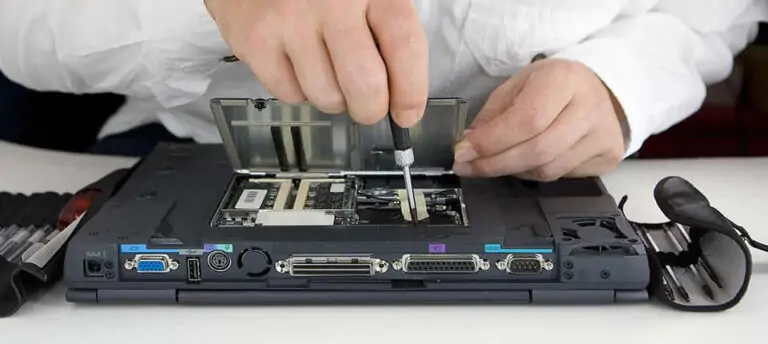
If the label has worn off, don’t open the case to look for it. Use Windows, the BIOS or the manufacturer’s official utility instead. Taking the laptop apart isn’t necessary and can damage the clips.
Method 5. BIOS or UEFI if Windows won’t start
Restart the laptop and, as it powers on, press the key shown on the startup screen: most often F2, Del, Esc, F10 or F12. The Information, Main or System Information section usually shows the model and the serial number. Don’t change any BIOS settings if all you want is to look up these details.
What to do if it only says “To be filled by O.E.M.”
This text means the manufacturer or the system builder left the model field in the firmware empty. You’ll see it on custom-built PCs, some refurbished devices and old laptops. In that case, put several clues together: the brand on the case, the serial number, the motherboard model from msinfo32 and the marking on the label. For drivers, first look for the support page by serial number, not for a random archive on a third-party site.
Before installing a driver: a quick checklist
- Match the full model index, not just the series name.
- Check your Windows version: 10 or 11, 64-bit.
- Download drivers from the laptop manufacturer’s site, not from random driver packs.
- Create a restore point if you are updating the BIOS, the chipset or the storage driver.
- Don’t enter your serial number on suspicious websites.
How to find the exact configuration, not just the series
“IdeaPad 5”, “Pavilion 15” or “MacBook Air” isn’t always enough. Within one series, the manufacturer releases versions with different screens, processors, memory and storage. To replace a charger, a battery or a display, you need the long index after the series name — it’s often a mix of letters and digits.
Compare the information in Windows with the marking on the case. If they differ, go by the label, the BIOS and the manufacturer’s official serial-number lookup. A shop may use a simplified name, and a previous owner may have swapped the drive or the RAM, so a listing doesn’t always reflect the original configuration.
Why keep a note of the model after you buy it
- To pick a compatible power adapter: not only the connector matters, but also the voltage, the wattage and USB‑C Power Delivery support.
- To check whether there is a free memory slot or a second SSD slot.
- To find the right guide for taking it apart and cleaning the cooling system.
- To download exactly the Wi‑Fi, audio or touchpad driver that fits your configuration.
- To write an accurate listing when you sell it and not mislead the buyer.
FAQ
Where can I see my laptop model in Windows 11?
Open Settings → System → About. If the model isn’t shown in full, press Win + R, type msinfo32 and find the System Model row.
Can I find my laptop model by its serial number?
Yes. Manufacturers’ official sites can often identify the model from the serial number. Enter it only on the brand’s official site or give it to an authorized service center.
Why isn’t the processor name the same as the laptop model?
The same processor goes into dozens of different devices. They differ in screen, memory, ports, battery and drivers, so you need the laptop’s own index for exact compatibility.