
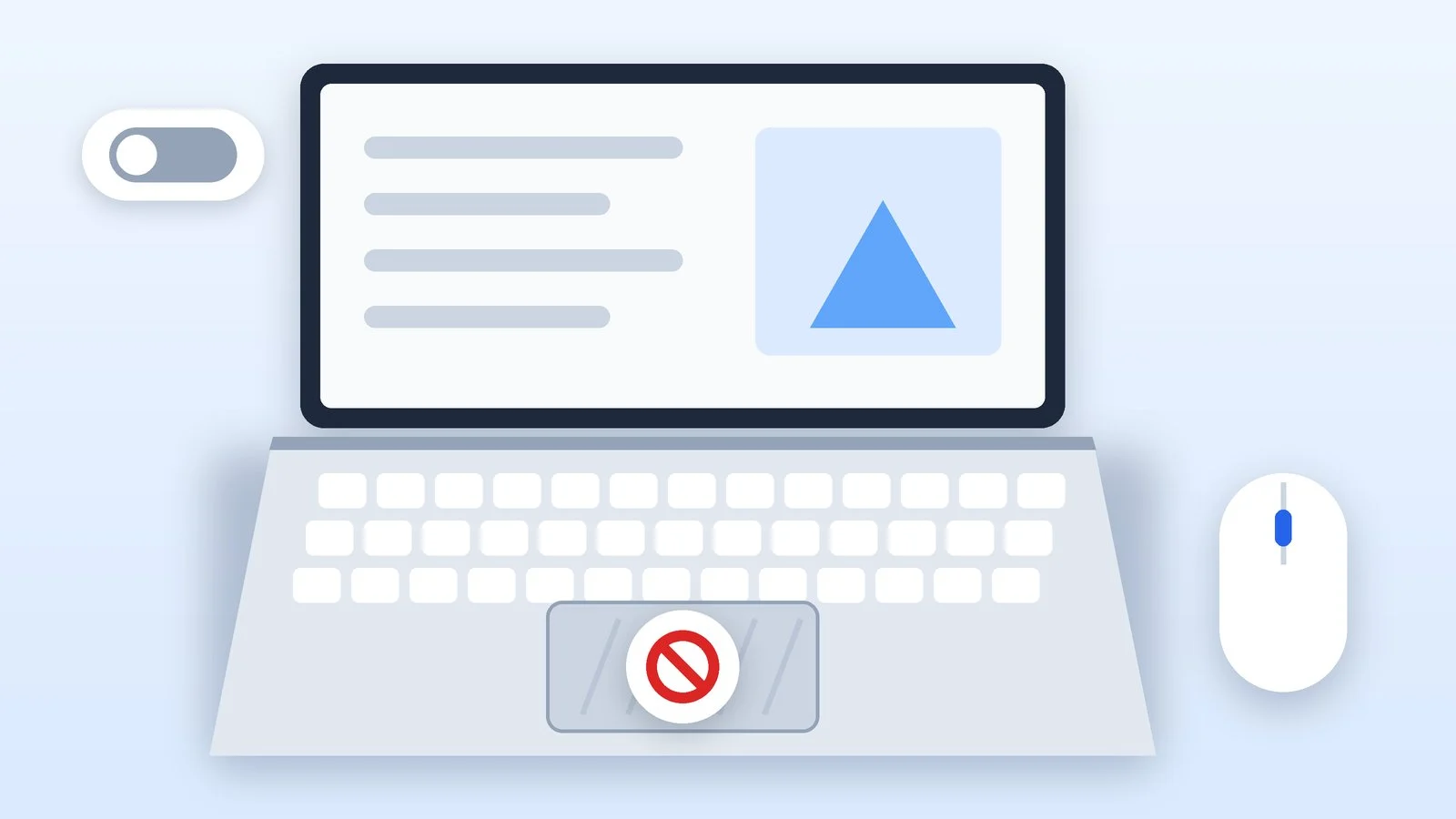
To turn off the touchpad on a Windows 11 laptop, open Settings → Bluetooth & devices → Touchpad and switch off the Touchpad toggle. In Windows 10, the same toggle is under Settings → Devices → Touchpad. You turn the touchpad back on in the same place. Many laptops also have a key with a touchpad icon: on ASUS it’s usually F6 or F9, sometimes together with Fn.
Turning off the touchpad is handy if you work with a mouse and the cursor jumps from stray palm touches. Below are the Windows methods, manufacturer keys, a no-mouse option and the MacBook setting. Menu names come from Microsoft, Dell, ASUS, Lenovo and Apple help pages as of October 21, 2026; in Windows Settings, the touchpad appears simply as Touchpad.
How to turn off the touchpad in Windows 11 and Windows 10
This is the main method: it doesn’t depend on the laptop maker and is described in Microsoft’s help for both versions of the system. Windows 10 support ended on October 14, 2025, but its touchpad section stayed the same; if you plan to switch, here’s how to upgrade Windows 10 to Windows 11.
Open the touchpad settings
- Windows 11: press Win + I and select Bluetooth & devices → Touchpad.
- Windows 10: Start → Settings → Devices → Touchpad.
- Via search: start typing “touchpad settings” in the taskbar search box and open the result.
- With a command: press Win + R and enter the page address that Microsoft’s own help uses.
ms-settings:devices-touchpadResult: The Touchpad page is open, with the toggle at the top.
Switch off the Touchpad toggle
The toggle is the first item on the page. Switch it off and the touchpad stops responding right away. Dell recommends restarting the laptop after changing these settings.
To turn the touchpad back on, set the toggle back to On, with a mouse or the keyboard, as described in the next section.
Result: The touchpad no longer moves the cursor.
Set the touchpad to turn off when a mouse is connected
If the touchpad only gets in the way when you use a mouse, you don’t need to turn it off completely. In Windows 11, click the arrow next to the Touchpad toggle and clear the Leave touchpad on when a mouse is connected checkbox. In Windows 10, this checkbox is right on the Touchpad page.
Keep Dell’s caveat in mind: with the checkbox cleared, the touchpad turns off as soon as a wireless mouse receiver is plugged in, even when the mouse itself is off.
Result: The touchpad turns off by itself when a mouse is connected and back on without one.
How to turn off the touchpad without a mouse, using only the keyboard
This method from Dell’s help works on any Windows laptop: you need it when the touchpad has already stopped working and there’s no mouse at hand, or when you want to turn the touchpad back on.
- Press Win + Q to open search.
- Type “touchpad settings.”
- Use the arrow keys to select the matching system settings result and press Enter.
- Make sure the Touchpad toggle is highlighted with a frame. If there’s no frame, press Tab until it appears.
- Press Space: the touchpad turns off or on.
The Fn key and manufacturer apps
Many laptops can turn off the touchpad with a single key in the F1–F12 row, the one with a touchpad icon on it. Which key it is and whether you need to press it with Fn depends on the model, so check your user guide. To find the guide, you’ll need the exact laptop name: here’s how to find your laptop model.
- ASUS. The touchpad key is usually F6 or F9. Press it on its own or together with Fn, depending on the selected hotkey mode. An on-screen notification shows whether the touchpad is on or off. If the key doesn’t work, ASUS recommends reinstalling the ASUS System Control Interface driver.
- ASUS, MyASUS app. The Customization section has a touchpad lock setting: while the touchpad is locked, it doesn’t work. If the touchpad “disappeared” on its own, check this setting and select Unlock.
- Lenovo ThinkPad. The ThinkPad Z13 and Z16 user guide turns off the touchpad in Settings → Devices → Touchpad. For the F1–F12 keys, the FnLock indicator matters: when it’s lit, the keys work as standard F1–F12 keys; when it’s off, they perform the functions shown on their icons. If a key with an icon doesn’t respond, press it together with Fn.
- Dell. Dell’s help describes only the Settings method and the keyboard option; it doesn’t name a single key for all Dell models.
- HP, Acer, MSI and others. The key also depends on the model. Look for the touchpad icon on the function keys and check the hotkey description in your laptop’s user guide.
If there’s no toggle: Device Manager
If Settings has no Touchpad page or the toggle doesn’t work, the driver may be the cause: for touchpad problems, Microsoft recommends updating the driver through Windows Update first. If that doesn’t help either, you can disable the touchpad as a device:
- Right-click the Start button and select Device Manager.
- Expand Human Interface Devices or Mice and other pointing devices; Microsoft suggests looking for the touchpad in one of them.
- Right-click the touchpad and select Disable device. To bring it back, select Enable device.
The device name depends on the laptop: on ASUS, for example, it’s ASUS Precision Touchpad under Human Interface Devices. Don’t disable items you don’t recognize; one of them could be your mouse or keyboard.
How to turn off the trackpad on a MacBook
macOS has no separate trackpad switch, but Apple lets you ignore the built-in trackpad when a mouse or wireless trackpad is connected:
- Choose Apple menu → System Settings.
- In the sidebar, click Accessibility, then Pointer Control.
- Turn on Ignore built-in trackpad when mouse or wireless trackpad is present.
Apple warns that if a third-party mouse works with its own driver, the driver may interfere with this setting. The same page has a second option, Ignore built-in trackpad when Mouse Keys is on, for people who move the pointer with the keyboard.
How to turn off the touchpad: summary
| Where | Method | How to turn it back on |
|---|---|---|
| Windows 11 | Bluetooth & devices → Touchpad | Same toggle |
| Windows 10 | Devices → Touchpad | Same toggle |
| No mouse | Win + Q, search, Tab and Space | Same keys |
| ASUS | F6 or F9 (with or without Fn) | Same key, MyASUS |
| Lenovo ThinkPad | Settings → Touchpad | Same toggle |
| MacBook | Pointer Control | Turn the option off |
If it didn’t work
- The key with the touchpad icon does nothing. Press it together with Fn or toggle FnLock (on Lenovo, the indicator shows its state). On ASUS laptops, reinstall the ASUS System Control Interface driver.
- Settings has no Touchpad page. Update the touchpad driver through Windows Update or Device Manager, as Microsoft recommends. If that doesn’t help, contact the laptop maker’s support.
- The touchpad turns off by itself after you connect a mouse. Check the auto-off checkbox on the Touchpad page. With a wireless mouse, a plugged-in receiver is enough, even if the mouse is off.
- The touchpad won’t turn back on. Check every place where it can be turned off: the toggle in Settings, the Fn key, the lock in MyASUS (on ASUS) and Enable device in Device Manager.
- The cursor jumps while you type. You don’t have to turn off the touchpad: in its Surface help, Microsoft notes that the touchpad settings let you set it up so it doesn’t react to accidental touches. If the laptop also runs out of battery quickly, see the guide on how to turn off power saving mode.
Sources and methodology
Analysis of public sourcesChecked 21 October 2026
- Microsoft — Surface touchpad use and settings (path for Windows 11 and 10) support.microsoft.com
- Dell — Disabling or Enabling the Touchpad on a Dell Laptop dell.com
- ASUS — How to fix touchpad problems asus.com
- Apple — Change Pointer Control settings for accessibility on Mac support.apple.com
- Lenovo — ThinkPad Z13 and Z16 User Guide: touchpad and keys download.lenovo.com
Frequently asked questions
How do I turn the touchpad back on?
The same way you turned it off: the Touchpad toggle in Settings, the key with the touchpad icon or Enable device in Device Manager. If you have no mouse, open the page with Win + Q, search for “touchpad settings” and press Space on the toggle.
Which key turns off the touchpad on a laptop?
There’s no single key. On ASUS it’s usually F6 or F9 (alone or with Fn); on other brands, it’s the key with the touchpad icon in the F1–F12 row. Check your model’s user guide for the exact key.
Why does the touchpad turn off by itself when I connect a mouse?
The Windows checkbox that leaves the touchpad on when a mouse is connected has been cleared. Select it again on the Touchpad page. According to Dell, with a wireless mouse a plugged-in receiver is enough to turn the touchpad off.
How do I turn off the touchscreen instead of the touchpad?
Per Microsoft’s help: right-click Start, open Device Manager, expand Human Interface Devices, right-click HID-compliant touch screen and select Disable device. If there are several such devices, repeat for each one.





Leave a Reply