
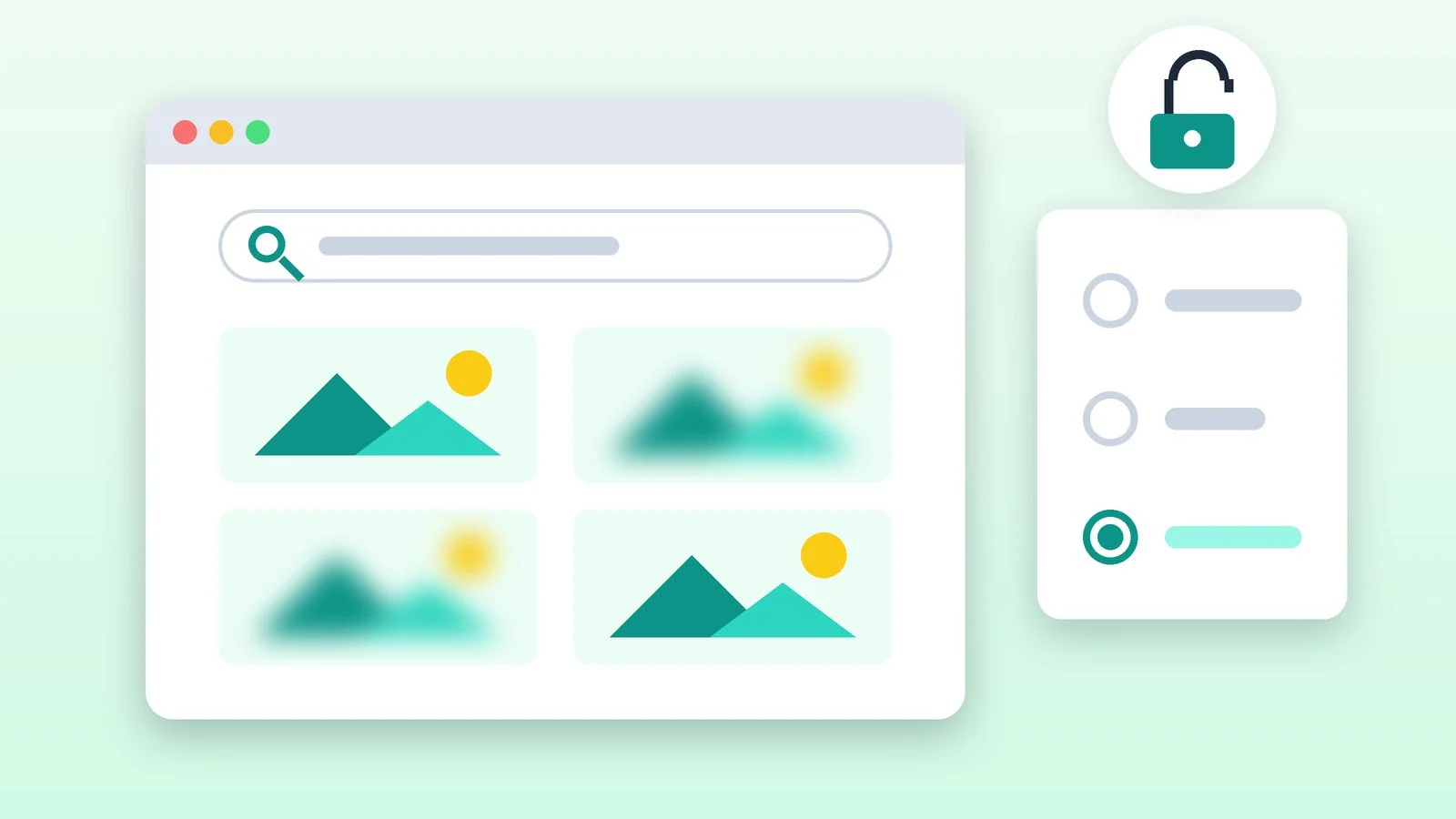
To turn off Google SafeSearch, open the settings page google.com/safesearch and select Off. In the Google app on Android and iPhone, tap your profile icon → Settings → SafeSearch → Off. If you see a lock icon next to the setting, only whoever manages it can change it: a parent in Family Link, or the administrator of a school, organization or network.
SafeSearch hides nudity and adult content, as well as violence and gore, from Google results. It has three settings: Filter, Blur and Off. Menu names are taken from Google’s help as of October 25, 2026. Google warns that the available settings may vary depending on your country and local laws.
How to turn off Google SafeSearch on a computer
The method is the same for Chrome, Edge, Firefox, Safari and other browsers: the setting lives on Google’s website, not in the browser itself.
Open SafeSearch settings
Go to the address below. Another way is to click the profile icon in the top-right corner of the Google search results page: you can get to the SafeSearch settings from there too.
https://www.google.com/safesearchResult: A page with three options is open: Filter, Blur and Off.
Select Off
Select the Off option. If you want to see all results but without explicit images, choose Blur: such images will be blurred.
Result: Google shows all search results, including adult content.
Check for a lock icon
If there’s a lock icon in the top-right corner of the page, your SafeSearch settings are locked and can’t be changed. Google shows who manages them on the same page. What to do in that case is explained below.
Result: You can see whether the setting was saved or someone else manages it.
How to turn off SafeSearch on your phone
The steps are almost the same on Android and iPhone. Choose the method that matches how you search Google.
In the Google app (Android, iPhone, iPad)
- Open the Google app.
- In the top-right corner, tap your profile icon and select Settings → SafeSearch.
- Select Off. If there’s a lock icon in the top right, the setting can’t be changed.
In a mobile browser
- Open google.com/safesearch in your phone’s browser — Chrome, Safari or another.
- Select Off.
- Tap Back in the top-right corner to return to search.
On Android TV
On the home screen, select Settings, then Search → SafeSearch, and change the setting.
Filter, Blur and Off: what’s the difference
| Setting | What it does | When it’s on by default |
|---|---|---|
| Filter | Blocks all adult results | If Google thinks you’re under 18 |
| Blur | Blurs only explicit images | By default, when Filter isn’t on |
| Off | Shows all results | Only if you select it manually |
Note the difference between Blur and Off: with Blur, adult text and links that match your search can still appear in the results — only images are blurred.
Why you can’t turn off SafeSearch
A lock icon means someone else has locked the setting. Google lists these reasons:
- A child’s account in Family Link. For children, Filter is on and locked by default, and only parents can change it. The child needs to ask a parent or guardian.
- A school account. In Google Workspace for Education, SafeSearch is set by the school’s administrator. If you’re a student under 18 or affiliated with a school, contact the administrator.
- A public Wi-Fi network. Some of these networks force SafeSearch on, and you can’t change it while you’re connected.
- A managed device or network. An administrator can route Google requests to forcesafesearch.google.com — then SafeSearch works in all browsers, and it can’t be undone in the browser. This happens in offices, schools and home networks with parental controls.
- Antivirus or parental control software. According to Google’s help, these can also change SafeSearch settings. Check their settings or ask your internet provider and network administrator.
- Browser settings. SafeSearch can be set by a parameter in the address, such as
safe=active, or by an extension. Check the address bar, your browser settings and installed extensions.
How to change SafeSearch on a child’s account
This section is for parents. When you set up parental controls for a child’s account, the SafeSearch filter turns on automatically and is locked so the child can’t change it. Only you can change the setting:
- Open the Family Link app and select your child’s profile.
- Tap Settings → Google Search.
- Under SafeSearch, keep Filter or select Blur or Off.
Google points out that Family Link settings don’t apply if the child isn’t signed in to their Google Account or uses other apps to search, such as Google Go. Access to adult websites in the browser is set separately, in Chrome’s filters. For other restrictions, see our article on how to set up parental controls on a phone and PC.
For Google Workspace for Education school accounts, the administrator turns the filter on and off in the Admin console. If enforced SafeSearch is turned off at the school, students can change the setting themselves.
How to turn off SafeSearch: quick summary
| Where | Path | Who can change it |
|---|---|---|
| Computer | google.com/safesearch → Off | Account owner |
| Google app | Profile → Settings → SafeSearch | Account owner |
| Mobile browser | google.com/safesearch → Off | Account owner |
| Child’s account | Family Link → Settings → Google Search | Parent only |
| School account | Admin console | School administrator |
| Network or device | Network or device settings | Administrator |
If it didn’t work
- SafeSearch keeps turning back on. Most likely you aren’t signed in, and cookies are being deleted — manually or by the browser itself when it closes. Sign in to your Google Account and repeat the steps. If you clean your browser regularly, here’s how to clear cookies without deleting everything.
- It’s off on your computer but not on your phone. Check that the same Google Account is signed in on your phone. Without signing in, each browser has its own setting.
- You see a lock icon. A parent, school, organization or network manages the setting — see the reasons above. You can’t get around the lock in the browser; the decision belongs to whoever set it.
- The result you need still doesn’t show up. SafeSearch may have nothing to do with it. Try phrasing your query more precisely — Google search operators will help.
Sources and methodology
Analysis of public sourcesChecked 25 October 2026
- Google — How to use SafeSearch on Google support.google.com
- Google — How to fix problems with SafeSearch support.google.com
- Google — How to lock SafeSearch settings for managed accounts, devices and networks support.google.com
- Google Family Link — How to manage Search on your child’s Google Account support.google.com
Frequently asked questions
How do I turn SafeSearch back on?
Open google.com/safesearch, or in the Google app go to profile → Settings → SafeSearch, and select Filter or Blur. Filter hides all adult results; Blur blurs explicit images.
Why is SafeSearch on even though I didn’t turn it on?
Blur is the default if Filter isn’t on, and Filter turns on by itself when Google’s systems determine that a user is under 18. SafeSearch can also be turned on by a Wi-Fi network, antivirus, parental controls, a school or an organization.
Can SafeSearch be turned off in Family Link?
Yes, but only by a parent: in Family Link, select the child’s profile → Settings → Google Search and change the setting under SafeSearch. The child can’t change this setting.
Does Google SafeSearch affect other websites?
No. According to Google’s help, SafeSearch works only in Google Search and doesn’t affect content on other websites or search engines. They have their own settings.




Leave a Reply