
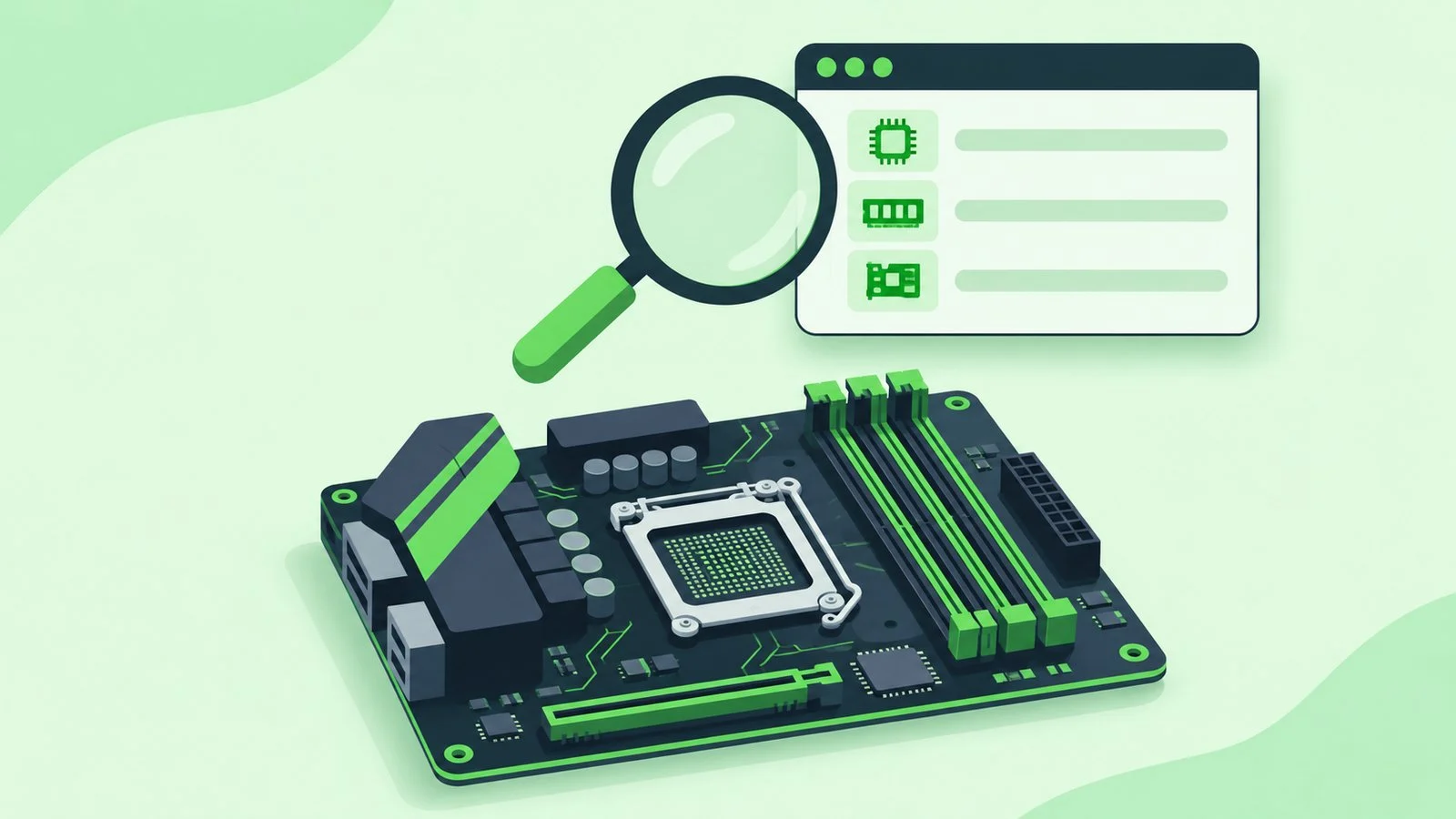
To find your motherboard model in Windows 11 or Windows 10, press Win + R, type msinfo32 and press Enter: in the System Information window, under System Summary, find the BaseBoard Manufacturer and BaseBoard Product lines (the motherboard maker and model). The second method is the PowerShell command Get-CimInstance -ClassName Win32_BaseBoard. The old wmic baseboard command doesn’t work in Windows 11 version 24H2 and later: Microsoft removed WMIC from the system.
Below are four ways to find the model without taking the PC apart or installing third-party software, how to identify the board if Windows won’t boot, and what to do if the model field shows something cryptic. Based on Microsoft, ASUS and MSI support pages as of November 18, 2026.
Which method to choose
| Situation | Where to look |
|---|---|
| You need it fast and Windows works | msinfo32 (System Information) |
| You need the board model and revision in one line | PowerShell, Win32_BaseBoard |
| Windows won’t boot | BIOS/UEFI at startup |
| You have the manufacturer’s utility | MSI Center, MyASUS and similar |
| The computer is disassembled or won’t turn on | Label on the board or the box |
| Laptop or prebuilt PC | The device model, not the board |
1. System Information (msinfo32)
MSI calls this the fastest method. It works in Windows 11 and Windows 10 and shows the BIOS version too.
- Press Win + R, type the command below and press Enter. You can also just type System Information in Windows search.
- Make sure System Summary is selected on the left.
- On the right, find the BaseBoard Manufacturer and BaseBoard Product lines. Together they give you the maker and model name, for example ASUS and ROG STRIX Z590-A GAMING WIFI (an example from ASUS support).
- The BIOS version is in the same table, in the BIOS Version/Date line.
msinfo32The System Model line is the model of the whole computer. On a laptop or prebuilt PC, that’s the one you need to find drivers, while on a custom-built PC it may show a placeholder instead of a name.
2. PowerShell instead of WMIC
The wmic baseboard get product,manufacturer command still appears in many guides, but Microsoft removed the WMIC utility from Windows 11 version 24H2 and later — you can’t even add it back as an optional feature anymore. The WMI framework itself remains, and PowerShell returns the same data. MSI recommends this method too.
- Right-click the Start button and open Terminal, or find PowerShell in search.
- Paste the first command and press Enter: you’ll see the board’s manufacturer (Manufacturer), model (Product) and revision (Version).
- For the BIOS version, run the second command.
Get-CimInstance -ClassName Win32_BaseBoard | Select-Object Manufacturer, Product, VersionGet-CimInstance -ClassName Win32_BIOS | Select-Object SMBIOSBIOSVersionIf you’re still on Windows 10 or an early build of Windows 11, WMIC may work, but it’s better to get used to PowerShell now: Microsoft declared the utility deprecated back in 2016.
3. BIOS/UEFI: if Windows won’t boot
- Turn on the computer and immediately press Del or F2 several times — most boards enter the BIOS with one of these keys.
- The model name and BIOS version are usually shown on the first screen. On ASUS boards it’s EZ Mode in the UEFI BIOS; on MSI boards, the Click BIOS start page.
Don’t change any settings if you’re not sure: to check the model, just exit the BIOS without saving.
4. Manufacturer utility, label on the board or the box
- Manufacturer software. If the board maker’s software is installed, it shows the model and BIOS version. MSI gives MSI Center as an example: the board name and BIOS version are shown on the Support tab.
- Label on the board. ASUS says the model name is printed on the motherboard itself, and there’s a sticker with the serial number on the back. Check it with the computer turned off and unplugged.
- Box and documents. The model is listed on the sticker on the box and in the manual.
If you have a laptop
A laptop’s motherboard is made for a specific model and isn’t bought or upgraded separately. For drivers, BIOS and spare parts you need the model of the laptop itself: ASUS, for example, recommends checking the System Model field in dxdiag or System Information. All the methods are collected in our article on how to find your laptop model in Windows 11, the BIOS and on the case.
What to do with the board model
- Check CPU compatibility. The model’s page on the manufacturer’s site lists supported processors and the BIOS version they require — MSI recommends updating the BIOS first and only then swapping the processor.
- Choose memory. The same page lists the RAM type and maximum capacity.
- Check the graphics card and slots. You can identify the graphics card model without extra software too — see how to check what graphics card your computer has.
If something goes wrong
- wmic says it “is not recognized as an internal or external command.” WMIC has been removed in Windows 11 24H2 and later. Use the PowerShell command from method 2.
- A placeholder or an empty line instead of the model. The manufacturer didn’t write the name into the firmware. Check the model in the BIOS, on the board itself or on the box.
- A cryptic code instead of a name. This happens on laptops and prebuilt PCs: look for drivers by the device model in the System Model line.
- You can’t get into the BIOS. Press the key right after turning the computer on, and press it repeatedly; on ASUS laptops, hold F2 and then press the power button.
Sources and methodology
Analysis of public sourcesChecked 18 November 2026
Frequently asked questions
How do I check my motherboard from the command line?
In Windows 11 24H2 and later, the wmic command has been removed, so use PowerShell: Get-CimInstance -ClassName Win32_BaseBoard | Select-Object Manufacturer, Product, Version.
How do I find my motherboard model without software?
Open msinfo32 and find the BaseBoard Manufacturer and BaseBoard Product lines. Other options are the first BIOS screen, the label on the board and the box.
Where is the model written on the motherboard itself?
ASUS says the model name is printed on the front of the board, and there’s a sticker with the serial number on the back. Turn off the computer and unplug it before you look.
How do I check the BIOS version?
In msinfo32, it’s the BIOS Version/Date line; in PowerShell, run Get-CimInstance -ClassName Win32_BIOS | Select-Object SMBIOSBIOSVersion. The version is also shown on the first BIOS screen.
Why doesn’t msinfo32 show the motherboard model on a laptop?
Laptop makers often write an internal code instead of a name. For drivers and BIOS, you need the laptop model from the System Model line.









Leave a Reply