
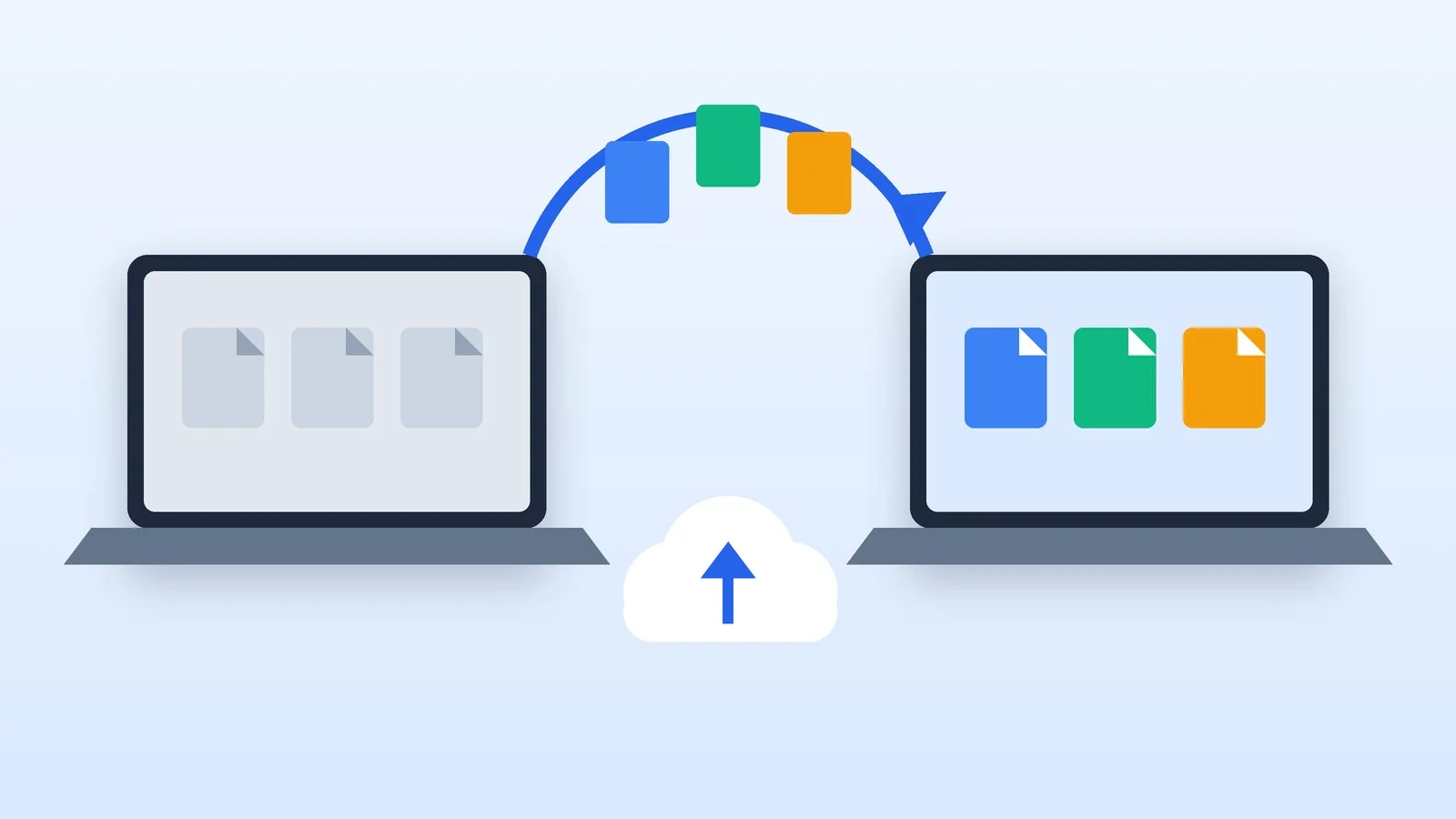
The easiest way to transfer data from one laptop to another is with the tools built into the operating system: between Windows laptops, use Windows Backup and OneDrive or an external drive; between Macs and from Windows to Mac, use Apple’s Migration Assistant. From Mac to Windows, you copy files with a drive or the cloud, and signing in to your browser brings back passwords and bookmarks.
This guide is based on Microsoft, Apple and Google support pages as of October 7, 2026, and covers Windows 10 and 11 and current versions of macOS. The direct PC-to-PC transfer in Windows Backup that made headlines in 2025 no longer works: Microsoft’s support page says the feature is no longer available and points you to Windows Backup and Restore instead.
How long the move takes depends on how much data you have: Apple warns that a large transfer with Migration Assistant can take hours.
Before you start
- Copy your important files to an external drive, even if you plan to move them through the cloud. Don’t reset the old laptop until you’ve checked everything on the new one.
- Write down the apps you use and where their keys and subscriptions live: Microsoft 365, Adobe, your antivirus, gaming services.
- Check your two-factor authentication: keep the phone with your authenticator app at hand, and make sure your backup codes aren’t stored only on the old laptop.
- Device-bound passkeys, as Microsoft describes them, are stored only on the device where they were created and don’t sync. Create passkeys on the new laptop as well.
- If the old laptop’s drive is encrypted with BitLocker, find your recovery key: you may need it to reset the PC.
How to transfer data from one laptop to another: cheat sheet
What you usually need to move, how to move it and how to check that everything made it:
| What to move | How | How to check |
|---|---|---|
| Documents, photos, videos | OneDrive or an external drive | Folder sizes before and after |
| Everything, Mac to Mac | Migration Assistant | Sign in to the migrated account |
| Windows settings and Wi-Fi | Windows Backup | Connect to your home network |
| Apps | Reinstall; Store apps from their pins | Open every app you need |
| Bookmarks and passwords | Sign in to Chrome or Edge | The browser’s password manager |
| Sign in; local mail via a .pst file | Old messages in your folders | |
| Microsoft 365, Adobe | Sign in; sign out on the old laptop | Can you edit files |
| Messaging apps | Telegram: sign in; WhatsApp: QR code | Chat history |
| Windows activation | The new laptop’s own license | Settings → System → Activation |
Pick a method based on the two systems: Windows to Windows — method 1 or 2, Mac to Mac — method 3, Windows to Mac — method 4, Mac to Windows — method 5.
1. Windows to Windows: Windows Backup
Windows Backup is available in Windows 10 and 11. It syncs your user folders to OneDrive and saves your app list and settings to your Microsoft account. It only works with a personal Microsoft account such as @outlook.com; work and school accounts aren’t supported.
- On the old laptop, sign in to Windows with a Microsoft account if you haven’t already: Settings → Accounts.
- Select Start, type backup and open Windows Backup.
- Expand Folders and turn on Desktop, Documents, Pictures, Videos and Music.
- Turn on the settings you want: Installed apps; Accessibility; Accounts, Wi-Fi network and passwords; Personalization; Language preferences and dictionary; Other Windows settings.
- Select Back up and wait until the app shows that your backup is complete.
- On the new laptop, sign in with the same Microsoft account during setup. Windows will find the backup and offer to restore it; if you have more than one, select More options and pick the right one.
After the restore, your app pins are back where you left them. Microsoft Store apps install when you select their pins; for other apps, Windows sends you to a website to download the installer. Your files appear once you sign in to OneDrive, and Wi-Fi networks (WPA profiles) and settings come back with the backup.
Windows Backup doesn’t move the apps themselves, your Downloads folder or files on other drives — copy those manually, as in method 2. The free 5 GB of OneDrive storage may not be enough, and without free space even your personalization settings won’t be backed up. In that case, get more storage (Microsoft 365 comes with 1 TB) or move large folders with a drive.
2. Windows to Windows without the cloud: an external drive
A USB flash drive, SD card or external hard drive with enough space for your files will do. This is the simplest option for large photo and video libraries and for folders outside your user profile.
- Connect the drive to the old laptop and open File Explorer.
- Copy your Documents, Desktop, Downloads, Pictures, Videos and Music folders to the drive, plus any files you need from other drives, such as D:.
- Open the drive and check that everything was copied, then select Eject before you unplug it.
- Connect the drive to the new laptop, find it under This PC and copy the folders to the same places in your profile.
You can send a few files without a drive, too. Nearby sharing (Settings → System) sends documents and photos to a nearby Windows PC over Bluetooth or Wi-Fi; it has to be turned on on both laptops.
3. Mac to Mac: Migration Assistant
Migration Assistant transfers documents, apps, user accounts and settings. It doesn’t delete anything from the old Mac or replace macOS on the new one, and the two Macs don’t need to run the same version of macOS.
- Update macOS on both Macs, turn on Wi-Fi and place them near each other. Temporarily turn off any antivirus, firewall or VPN software.
- On the new Mac, choose to transfer your data in the setup assistant when you first turn it on, or open System Settings → General → Transfer or Reset → Open Migration Assistant. Select “From a Mac, Time Machine, or startup disk.”
- On the old Mac, open Migration Assistant and select “To another Mac.”
- On the new Mac, select the old Mac in the Transfer Your Data to This Mac window and make sure the security code matches on both screens.
- Choose what to transfer: applications, user accounts, other files and folders, and system and network settings. For an administrator account, set a password and remember it — you’ll use it to log in on the new Mac.
If the old Mac isn’t available, the same assistant restores your data from a Time Machine backup on a connected drive. After the transfer, you might need to set up your email account again in your email app.
You can also keep files in the cloud: Desktop & Documents Folders stores them in iCloud Drive, and they show up on the new Mac once you sign in to the same Apple Account.
4. Windows to Mac: Windows Migration Assistant
Apple moves data from a PC with the same assistant, but you need to install the free Windows Migration Assistant on the PC. For macOS Sonoma 14.4 and later, up to macOS 27, you need version 3.2.0.0, which works with Windows 10 and later. For macOS Ventura 13 and Monterey 12, Apple offers version 2.4.5.0.
- Update Windows and macOS, quit all apps on the PC, and turn off any antivirus, firewall or VPN software. Turn on Wi-Fi and Bluetooth on both computers and place them near each other. If your Mac runs macOS 13 or earlier, connect both computers to the same network or connect them directly with an Ethernet cable.
- Download the right version of the tool on the PC from Apple’s page on transferring from PC to Mac.
- On the Mac, in the setup assistant or in Migration Assistant, select “From a Windows PC” and click Continue.
- Open the tool on the PC and enter the code shown on the Mac.
- On the Mac, choose what to transfer, set a password for the new user account and wait for the transfer to finish.
Your Mac gets your email and email settings from Outlook and Windows Mail, contacts, calendar, your homepage and bookmarks from Chrome, Edge and Firefox (in Safari), and documents and photos (in your home folder). Your desktop picture, language and location settings come along too, and on macOS 13 or later, so do known Wi-Fi networks. Apps aren’t on Apple’s list: install their Mac versions.
If several people use the PC, repeat the transfer from each user account. If the transfer fails, Apple suggests checking the PC’s drive with chkdsk and, if that doesn’t help, copying your files with an external drive.
5. Mac to Windows: an exFAT drive and the cloud
Migration Assistant only moves data to a Mac, so for a Windows laptop you copy files manually and bring back everything else by signing in to your accounts.
- External drive. To make it readable on both Mac and Windows, format it in Disk Utility: ExFAT for drives larger than 32 GB, MS-DOS (FAT) for 32 GB or smaller. Formatting erases everything on the drive.
- iCloud for Windows. The Microsoft Store app shows your iCloud Drive files in File Explorer and gives you access to your photos, while iCloud Passwords fills in passwords in Chrome, Edge and Firefox. The latest version requires Windows 11. For details, see our guide on how to access iCloud on a computer.
- OneDrive or Google Drive. Both have apps for Mac and Windows: turn on folder sync on the Mac and sign in to the same account on the new laptop.
Browser, passwords and email
In Chrome on the new laptop, select your profile icon → Sign in to Chrome and sign in with the same Google Account. Your bookmarks, reading list, passwords, payment info, extensions and settings come back, and you can turn on history and tabs separately.
Keep in mind that anything Chrome saved while you weren’t signed in is stored only on that device. Before you switch, select your profile icon on the old laptop → Save x items in Account.
In Microsoft Edge, select your profile icon and Sign in to sync data: Edge syncs your favorites, passwords, history, extensions, settings, open tabs and autofill entries.
If you’re switching browsers, export your passwords to a CSV file: in Chrome, go to Passwords and autofill → Google Password Manager → Settings → Export passwords; in Edge, press Alt+F → Passwords → Export passwords. The file isn’t protected, so delete it permanently (Shift+Delete) right after the import. It’s easier to keep passwords in a dedicated password manager, which moves with your account.
Gmail, Outlook.com and mailboxes connected over IMAP or Exchange keep your mail on the server, so on the new laptop you just sign in. If classic Outlook stores your mail only on the computer, export it to an Outlook Data File (.pst) from the File menu and import it on the new laptop. Don’t save that file to OneDrive: Microsoft says OneDrive blocks syncing of .pst files.
Apps, licenses and messaging apps
You don’t need to move your Windows license: on a laptop that came with Windows, the product key is preinstalled or included on the packaging or a label. Check the status in Settings → System → Activation. Microsoft recommends linking the license to your Microsoft account so you can reactivate Windows after a hardware change. To find out your license type, see our guide to checking a Windows key.
Microsoft 365 for home can be installed on all your devices and signed in on five at the same time; if you go over, Microsoft signs you out of devices automatically. You can also sign out of the old laptop yourself: on the installs page of your Microsoft account, select Sign out of Office next to it. Office may take up to 72 hours to detect a remote sign-out.
A one-time purchase of Office 2024 or Office 2021 works on one computer. You can transfer it to another computer you own no more than once every 90 days (sooner after a hardware failure), removing it from the old one.
Adobe apps can be activated on two devices at a time. Uninstalling the apps or formatting the drive doesn’t deactivate them: sign out in the app itself (Help → Sign Out) or deactivate the old computer on the Activated devices page of your Adobe account. For other paid software, check the developer’s account page for how to free up an activation.
Telegram keeps your regular chats in the cloud, so you just sign in on the new laptop; secret chats aren’t part of the cloud and stay on the device where they were created. WhatsApp on a computer works as a linked device: install WhatsApp for Windows or Mac and scan the QR code with your phone. Unlink the old laptop on your phone: Linked devices → the device → Log out.
Troubleshooting
- Windows didn’t offer to restore. During setup, sign in with the same personal Microsoft account you used for the backup. If the laptop is already set up, your files will arrive through OneDrive, and Windows will offer to restore the backup the next time you set it up, for example after a reset.
- OneDrive says you’re out of space. Free up space, add storage or move large folders with an external drive.
- Your apps are missing. That’s expected on Windows: only the pins come back. Store apps install when you select them; download the rest from the developers’ websites.
- Migration Assistant can’t find the other computer. Place them near each other, turn on Wi-Fi (and Bluetooth for a PC), turn off antivirus, firewall and VPN software, and update the system. For a PC, check that the tool’s version matches your macOS.
- Word and Excel only open files. Sign in to Office with the account that has the subscription: without it, you can only view and print.
- Your passwords are missing in the browser. Make sure you signed in with the same account and password sync is on. Move passwords saved while signed out to your account on the old laptop, or transfer them with a CSV file.
What to do with the old laptop
In Windows 11, open Settings → System → Recovery → Reset PC and choose Remove everything. In Windows 10, Recovery is under Settings → Update & Security. If you’re selling or giving the laptop away, Microsoft recommends turning on Clean data: the reset takes longer, but it makes deleted files harder to recover. This is a consumer feature and doesn’t meet government and industry data erasure standards.
During the reset, the screen may stay black for more than 15 minutes — don’t restart the laptop yourself, or the reset may fail. After the reset, remove the laptop from your device list at account.microsoft.com/devices.
On a Mac, choose System Settings → General → Transfer or Reset → Erase All Content and Settings. This signs you out of iCloud, turns off Find My and Activation Lock, and erases all volumes and accounts. It needs macOS Monterey 12 or later and Apple silicon or a T2 chip; on other Macs, sign out of iCloud and iMessage, erase the drive in Disk Utility from macOS Recovery and reinstall macOS.
If the old Windows 10 laptop stays in the family, keep in mind that support for Windows 10 ended on October 14, 2025. Check whether you can upgrade it to Windows 11.
Sources and methodology
Analysis of public sourcesChecked 7 October 2026
- Microsoft — Back up and restore with Windows Backup support.microsoft.com
- Microsoft — Transfer your files and settings to a new Windows PC support.microsoft.com
- Apple — Transfer to a new Mac with Migration Assistant support.apple.com
- Apple — Transfer from PC to Mac with Migration Assistant support.apple.com
- Microsoft — Reset your PC support.microsoft.com
FAQ
Can I transfer apps from my old laptop to a new one?
Not between Windows laptops with the built-in tools: Windows Backup remembers your app list and restores the pins, Microsoft Store apps install when you select them, and you need to download the rest again. Between Macs, Migration Assistant transfers apps too, but incompatible ones may not transfer or may not work.
Does Windows 11 have a direct PC-to-PC transfer?
Not anymore. Windows Easy Transfer isn’t available in Windows 10 or later, and Microsoft has retired the direct transfer feature in Windows Backup: its support page recommends Windows Backup and Restore through your Microsoft account instead.
Do I need to buy Windows and Office again?
Not Windows: a laptop that comes with Windows activates with its own license. A Microsoft 365 subscription moves with your account when you sign in, and a one-time purchase of Office 2024 or 2021 can be transferred to another computer you own no more than once every 90 days.
Will my Wi-Fi passwords transfer?
Yes, if “Accounts, Wi-Fi network and passwords” is turned on in Windows Backup: it saves WPA network profiles. From Windows to Mac, known Wi-Fi networks transfer if the Mac runs macOS 13 or later.
Are files deleted from the old laptop during the transfer?
No. According to Apple, Migration Assistant doesn’t delete information from the old computer, and copying to an external drive doesn’t erase anything either. Your data is gone only when you reset the laptop yourself.





Leave a Reply