
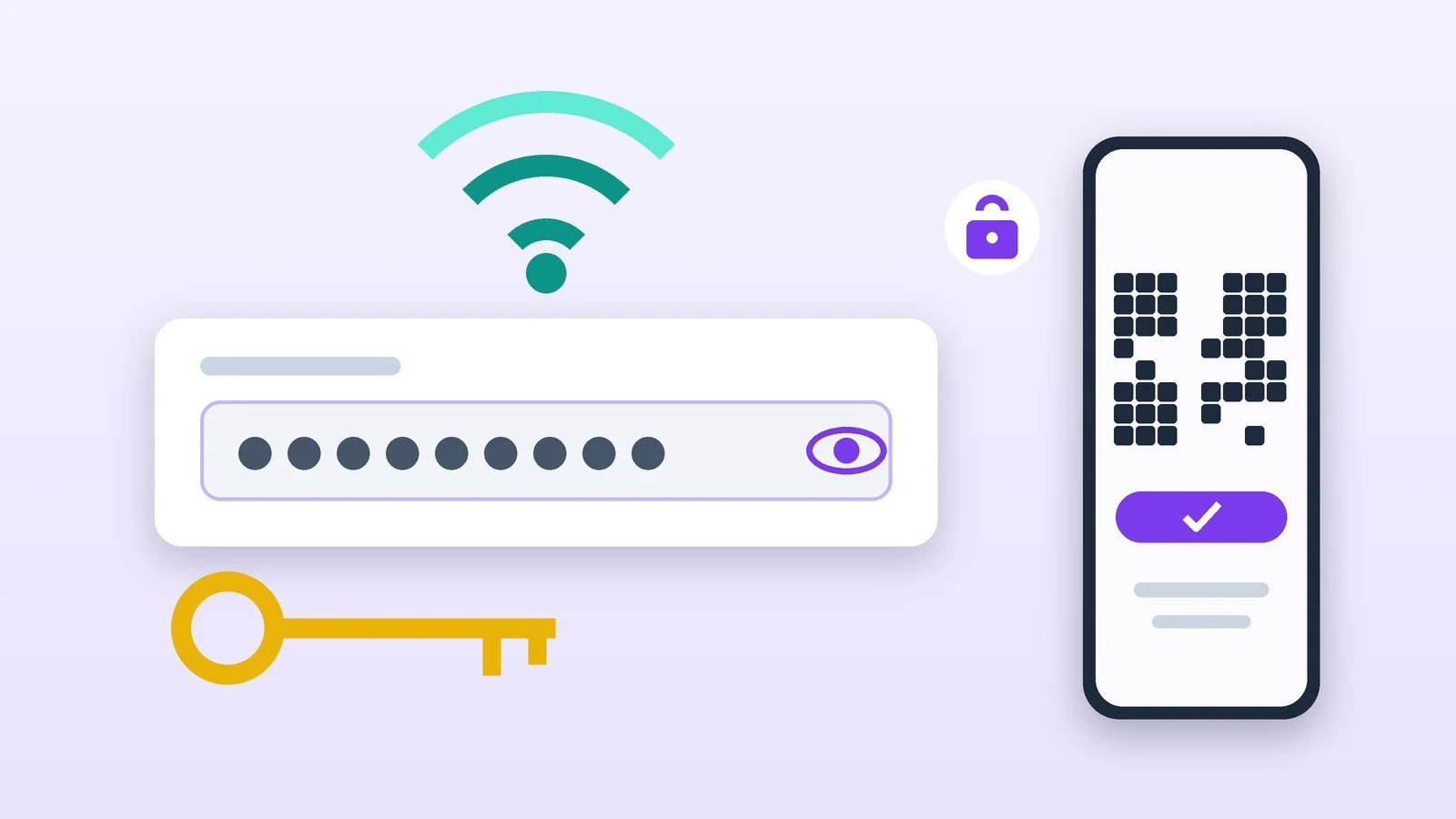
You can see the password for your Wi-Fi network on any device that has already connected to it: in Windows 11, go to Settings → Network & internet → Properties → Show; on a Mac, System Settings → Network → Wi-Fi → Advanced → Copy Password; on iPhone, Settings → Wi-Fi → the ⓘ button → Password. If there is no such device, look for the password on the router’s sticker or in its settings.
These instructions are for your own network only: passwords for other people’s networks are not covered here. The steps were checked against help pages from Microsoft, Apple, Google, Samsung, TP-Link, ASUS and Keenetic as of October 15, 2026. Router menu names are taken from the manufacturers’ English help pages: a localized firmware may show them differently.
Where to start
| What you have | Where to look for the password |
|---|---|
| A Windows 11 computer on this network | Settings → Network & internet; the backup option is the netsh command |
| Mac (macOS Ventura or later) | System Settings → Network → Wi-Fi → Advanced |
| iPhone or iPad (iOS 16 or later) | Settings → Wi-Fi → the ⓘ button; in iOS 18, also the Passwords app |
| An Android phone | A QR code in the network settings: another device connects with it |
| None of the above | The sticker on the router or its admin panel |
1. Windows 11
This method works for the network the computer is connected to now, and for saved networks.
- Press Win + I, open Settings and go to Network & internet.
- If the computer is connected to your network, click Properties at the top of the page, and next to Wi-Fi network password, select Show.
- To see the password of a saved network, open Wi-Fi → Manage known networks, select the network you need and click Show next to the Wi-Fi network password.
If there is no Show button, use the command prompt. Run it as administrator, list the saved networks, and then get the password of the one you need:
netsh wlan show profiles
netsh wlan show profile name="NETWORK_NAME" key=clear
The password will appear in the “Key Content” line under “Security settings.” According to Microsoft’s documentation, key=clear shows the key in plain text if it is stored in the profile and you have administrator rights on that computer. In Windows 10, and in the older Network and Sharing Center window, the password is also shown on the Security tab of the wireless network properties: tick “Display characters.”
2. Mac
You need macOS Ventura or later, as Apple’s help page says.
- Open the Apple menu and choose System Settings.
- Click Network in the sidebar, then Wi-Fi on the right.
- Scroll down and click Advanced: a list of known networks opens.
- Click the More button (…) next to the network name and choose Copy Password.
- Paste the password into any app, such as Notes, to read it. If both devices are yours, Apple offers Universal Clipboard: you can paste the password right away on another Apple device.
3. iPhone and iPad
In iOS 16, iPadOS 16.1 and later, the password is shown after verification with your passcode, Face ID or Touch ID.
- The network you are connected to: Settings → Wi-Fi, find your network, tap the Info button (ⓘ), then the Password field, and unlock it.
- A network you connected to before: Settings → Wi-Fi → Edit in the upper-right corner, unlock the list, tap ⓘ next to the network with the lock icon, and then the Password field.
- In iOS 18 and later: open the Passwords app, tap Wi-Fi, select the network and tap the Password field. You can also copy the password from there.
4. Android: a QR code instead of a password
For Android, Google’s and Samsung’s help pages describe not a way to view the password but a QR code: another device scans it and connects to the network without the password being entered.
- Google Pixel and other Android phones: Settings → Network & internet → Internet → the network name → Share. A QR code appears on the screen, which you scan on the other device.
- Samsung Galaxy: Settings → Connections → Wi-Fi → the settings icon next to the connected network → QR code. The phone must be connected to this network.
A QR code is good for connecting a guest or a second phone. If you need the password as text, look it up on a computer (methods 1 and 2), on an iPhone (method 3), or in the router (method 5).
5. Router: sticker and admin panel
If none of your devices remembers the password, it is stored in the router itself. Start with the sticker, and if the password has been changed, open the admin panel.
Sticker. The factory Wi-Fi password is printed on a sticker on the bottom or back, next to the network name. On TP-Link it is listed under a heading such as “Default Access,” “Default Settings” or “Default Wireless Access”; on Keenetic, it is on the bottom panel of the case. Apple also advises checking the router’s documentation and the note from the technician who set it up. If the password has been changed, the sticker will not help.
Admin panel. Connect to the router over Wi-Fi or with a cable, open the address from the sticker in a browser (on TP-Link it is tplinkwifi.net or 192.168.0.1), and sign in with the administrator login and password. Then find the wireless network settings:
| Router | Where the Wi-Fi password is |
|---|---|
| TP-Link | Wireless → Wireless Settings, or Basic → Wireless: the path depends on the model and firmware |
| ASUS | Network → Main network profile, the Wireless Security field (firmware 3.0.0.6.102_35404 and later); on older firmware, Wireless → General, the WPA-PSK Key field |
| Keenetic, app | Router → My networks → Home segment → the Wi-Fi network → Password field; the icon on the right shows it |
If your provider supplied the router and you can’t get into its settings, Apple advises contacting the provider or the technician who set it up: they may be able to help recover or reset the password.
What to do once you’ve found the password
- Save it in a password manager so you don’t have to look it up again: our overview of password managers.
- Don’t read the password out to guests; show them the QR code from the Android network settings. Many routers also support a guest network: then only you know the main password.
- If many people know your main password, change it in the router’s admin panel. After that, all devices will have to be reconnected. If the router is very old, our roundup of Wi-Fi routers for home will help you pick a new one: best budget Wi-Fi routers for home.
If it didn’t work
- The network you need isn’t in the list. Windows, Mac and iPhone only show saved networks. If the device has never connected to this network, you’ll have to look for the password in the router.
- Windows has no Show button. Open Manage known networks or run the netsh command as administrator.
- The router page won’t open. You must be connected to the router itself. Check the address on the sticker: on TP-Link it is tplinkwifi.net or 192.168.0.1.
- The password on the sticker doesn’t work. It was most likely changed. Check the password on a device that is connected now, or in the router’s admin panel.
- You don’t know the administrator password either. What’s left is resetting the router (see the warning above) or asking your provider for help.
Sources and methodology
Analysis of public sourcesChecked 15 October 2026
- Microsoft — Connect to a Wi-Fi network in Windows (finding the password) support.microsoft.com
- Apple — Need help with your Wi-Fi password (Mac, router sticker) support.apple.com
- Apple — Find saved Wi-Fi passwords on iPhone or iPad support.apple.com
- Google — Connect an Android device to Wi-Fi networks support.google.com
- TP-Link — Find Your TP-Link Router Wi-Fi Password tp-link.com
Frequently asked questions
Can I find a Wi-Fi password if the device isn’t connected?
Only if the network is saved on that device: Windows, Mac and iPhone show passwords for saved networks. If the network isn’t in the list, look for the password on the router’s sticker or in its admin panel.
Why does Android show a QR code instead of the password?
Google’s and Samsung’s help pages describe a QR code: another device scans it and connects without the password being entered. If you need the password as text, look it up on a computer, an iPhone or in the router.
How do I view a Wi-Fi password in Windows through the command prompt?
Open the command prompt as administrator and run netsh wlan show profile name="NETWORK_NAME" key=clear. The password will be in the “Key Content” line. The command only works for networks saved on this computer.
How can I share a password without saying it?
On Android, show the QR code from the network settings. Apple devices can share passwords with each other: Apple describes this in its help article “Share a password with your iPhone or iPad.”
What if my provider supplied the router?
Check the sticker on the router and the documentation. If the password has been changed or you can’t get into the settings, contact your provider or the technician who set up the router: that is Apple’s advice.







Leave a Reply