

The easiest way to move photos from an iPhone to a computer is to connect the phone with a USB cable. On Windows, the Photos app pulls the pictures in (through its Import button); on a Mac, the Photos app does the job. Without a cable, you can download photos from iCloud.com/photos, and on a Mac you can also send them via AirDrop.
Below you’ll find step-by-step instructions for Windows and Mac, a setting that decides whether HEIC files turn into JPEGs, and what to do if the computer doesn’t see your iPhone. Menu names follow Apple’s Russian-language help for iOS 27 and Microsoft’s help for Windows 10 and 11; the details were checked on October 15, 2026.
Which method to choose
| Method | Best for | What you need |
|---|---|---|
| Cable and Photos | Windows | Cable, Apple Devices |
| Cable and Photos | Mac | USB cable |
| Image Capture | Mac, your own folder | USB cable |
| AirDrop | Mac, several photos | Wi‑Fi and Bluetooth, up to 10 m |
| iCloud.com/photos website | Any computer | Apple Account, iCloud Photos |
| iCloud for Windows | Windows 11 | Apple Account, iCloud Photos |
1. Windows: USB cable and the Photos app
This method works on Windows 10 and 11: you can select photos and videos and save them to any folder.
Install Apple Devices
Open the Microsoft Store and install the Apple Devices app; Apple’s instructions for Windows start with it.
Result: The app is installed.
Connect and unlock the iPhone
Connect the iPhone to the computer with a USB cable and unlock it with your passcode. If a “Trust This Computer?” prompt appears on the iPhone screen, tap “Trust” or “Allow.”
Result: The iPhone shows up as a connected device.
Open Photos and click Import
Click Start and select Photos. Then click Import, choose the connected device, and follow the prompts.
Result: A list of photos and videos from the iPhone opens.
Select photos and a folder
Check the photos and videos you need and choose the folder where they should be saved. Wait until discovery and transfer finish; with a large library, this takes a while.
Result: The files are in the chosen folder.
2. Mac: USB cable and the Photos app
If iCloud Photos is turned on, photos sync to the Mac automatically and there’s nothing to import. You’ll need the cable when iCloud Photos is off or your iCloud storage is full.
Connect the iPhone to the Mac
Connect the iPhone to the Mac with a USB cable. If the Mac asks about connecting an accessory, click “Allow.”
Result: The Mac sees the iPhone.
Open Photos
Launch the Photos app. If the Import screen doesn’t appear on its own, click the iPhone’s name in the sidebar. If needed, unlock the iPhone with your passcode, and when asked “Trust This Computer?”, click “Trust.”
Result: The Import screen appears with all photos and videos from the iPhone.
Choose an album and photos
Next to “Album,” choose an existing album or create a new one. Then select the photos you need and click “Import Selected” or “Import All New Items.”
Result: The selected photos are ready to import.
Wait for the import to finish and disconnect the iPhone
When the import finishes, disconnect the iPhone from the Mac.
Result: The photos appear in the Photos library on the Mac.
3. Mac: Image Capture and AirDrop
Image Capture: save to your own folder
The Image Capture app saves photos to any folder on the Mac, bypassing the Photos library.
- Open Image Capture and connect the iPhone with a cable. If needed, allow the computer to be trusted and unlock the iPhone.
- In the sidebar, under “Devices” or “Shared,” select the iPhone.
- To import only some items, select the photos you need.
- At the bottom of the window, open the “Import To” pop-up menu and choose a folder; for another location, use “Other.”
- Click “Download” (if individual photos are selected) or “Download All.”
A Live Photo downloads as two files: a still image and a video. By default, downloaded items stay on the iPhone.
AirDrop: several photos without a cable
Apple calls AirDrop the best option for a small number of files; for the entire library, use a cable or iCloud.
- Turn on Wi‑Fi and Bluetooth on the iPhone and the Mac, and keep the devices no more than 10 m apart.
- On the Mac, click the Control Center icon in the menu bar, then AirDrop (when the icon is blue, the feature is on), and choose who can send you files: “Contacts Only” or “Everyone.”
- On the iPhone, open a photo in Photos, tap Share, then AirDrop, and select your Mac.
- If both devices are signed in to the same Apple Account, the photos are accepted automatically; otherwise, click “Accept” on the Mac.
A photo sent from the Photos app is saved to Photos on the Mac. Some files go to the Downloads folder.
4. iCloud: the website and iCloud for Windows
This method doesn’t require a cable and pulls photos straight from iCloud, even if the originals aren’t on the iPhone. iCloud Photos must be turned on: Settings → your name → iCloud → Photos → “Sync this iPhone.” Photos take up space in your iCloud storage, so check ahead of time whether there’s enough room for the whole collection.
Through the iCloud.com/photos website
This works on any computer with a browser; for sign-in details, see the separate article on iCloud on a computer.
- Open iCloud.com/photos and sign in with your Apple Account.
- Select photos and videos. To select several, hold Ctrl on Windows or command on a Mac. You can select no more than 1,000 items at a time.
- Click the download button in the upper-right corner. To choose a format, click “More” → “Additional Download Options” instead.
- Choose a format: “Unmodified Original” (as shot), “Highest Resolution” (usually HEIC or H.265), or “Most Compatible” (JPEG or MP4/H.264), then click “Download.”
Through iCloud for Windows
Install iCloud for Windows from the Microsoft Store (Apple says the latest version requires Windows 11 or later) and sign in with your Apple Account. After turning on Photos in the app, open File Explorer and click iCloud Photos. Double-clicking a photo or video downloads and opens it; to select several files, use Ctrl.
HEIC or JPEG: what happens to the format
The iPhone shoots photos in HEIF format (HEIC files) and video in HEVC (H.265). They compress better than JPEG and H.264 and take up less space at the same quality. iPhone 7 and newer models support shooting in these formats.
Keep the originals or get JPEGs when transferring
When you import HEIF and HEVC over USB into Photos, Image Capture, or a Windows computer, the files may be converted to JPEG or H.264. To keep the format unchanged, open Settings → Apps → Photos on the iPhone, scroll down, and tap “Transfer Originals” (that’s how the item is named in Apple’s Russian-language help). If you want JPEGs rather than HEIC, don’t turn this option on: the iPhone may then convert the files itself. If your iPhone labels the option slightly differently, look for the switch with “originals” at the very bottom of the Photos screen.
Shoot straight to JPEG
Open Settings → Camera → Formats and select “Most Compatible”: new photos and videos will be saved as JPEG and H.264. To return to the compact formats, select “High Efficiency.” Photos you’ve already taken aren’t affected.
Open HEIC on Windows
If Photos shows “You’ll need an extension to use this file,” Microsoft recommends installing the “HEIF Image Extensions” (free) and “HEVC Video Extensions” (paid, according to Microsoft’s help) from the Microsoft Store. You need both, even if you only work with photos; after installing them, restart Photos.
Convert existing HEICs to JPEG
- On a Mac: open the photo in Photos or Preview, click File → Export, and choose JPEG or PNG. HEVC video in QuickTime Player is saved via File → Export As, with the “Higher Compatibility (H.264)” option.
- Through iCloud.com/photos: download the photos with the “Most Compatible” option; you’ll get JPEG or MP4/H.264.
- On Windows: Microsoft says many devices automatically convert HEIC and HEVC to a more common format when files are transferred or sent by email: connect the phone and move the files, or email them to yourself. This may require changing the camera and photo settings on the phone.
If the computer doesn’t see the iPhone
- Nothing happens after connecting. Unlock the iPhone and confirm the trust. On Windows, open Apple Devices: the iPhone should appear in the sidebar.
- No “Trust This Computer?” prompt. On the iPhone, open Settings → General → Transfer or Reset iPhone → Reset → Reset Location & Privacy, then reconnect the cable. After that, the iPhone will ask again whether to trust the computer; apps may also ask again for access to location.
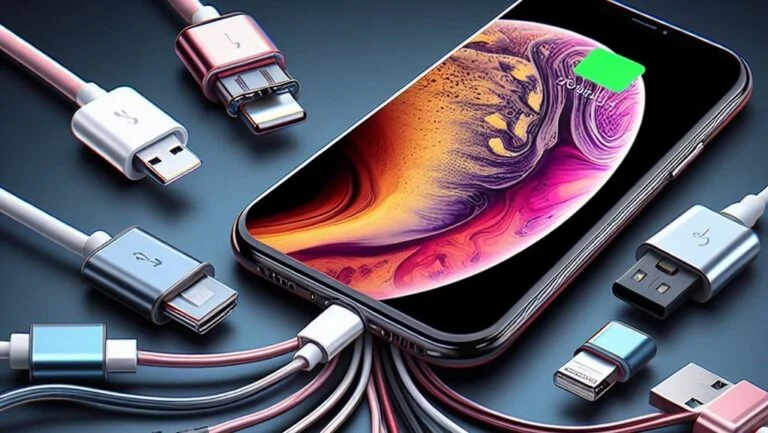
- Wrong cable or port. Try a different cable that carries data and charges, another USB port, or another computer. If the iPhone doesn’t play a sound or vibrate when connected, check the connector for debris.
- Software glitch. Disconnect and reconnect the iPhone, restart the computer and the iPhone, and update Windows or macOS, iOS, and Apple Devices.
- Some photos are missing. Check that the originals are downloaded to the iPhone (with iCloud Photos turned on) and that the Hidden album isn’t protected with a password.
Sources and methodology
Analysis of public sourcesChecked 15 October 2026
- Apple — Transfer photos from iPhone or iPad support.apple.com
- Apple — Work with HEIF and HEVC media files on Apple devices support.apple.com
- Apple — Download photos and videos from iCloud support.apple.com
- Apple — If your computer doesn't recognize your iPhone or iPad support.apple.com
- Microsoft — Import photos and videos from your phone to a PC support.microsoft.com
Frequently asked questions
How do I transfer photos from an iPhone to a laptop without a cable?
Go to iCloud.com/photos and download the photos through your browser, or install iCloud for Windows and open iCloud Photos in File Explorer. On a Mac, you also have AirDrop. Both iCloud options require iCloud Photos to be turned on; AirDrop works without it.
Why won’t iPhone photos open on Windows?
Most likely, they’re in HEIC format. Install the HEIF Image Extensions and HEVC Video Extensions from the Microsoft Store, or switch the camera to “Most Compatible” so new photos are saved as JPEG.
How do I keep iPhone photos in their original format?
On the iPhone, open Settings → Apps → Photos, scroll down, and tap “Transfer Originals.” Then the format won’t change to JPEG or H.264 when you import over USB.
Do I need iTunes to transfer photos from an iPhone to a computer?
In Apple’s current instructions for Windows, the Apple Devices app is named instead of iTunes, and the photos are imported into Microsoft Photos. On a Mac, the Photos app is enough.
Can I transfer photos from the Hidden album?
Yes, if the album isn’t protected. A protected Hidden album doesn’t transfer: first turn off the protection in Settings → Apps → Photos (Face ID, Touch ID, or passcode).









Leave a Reply